
You open Chrome to check one thing. Ten minutes later, you’ve got 20 tabs staring back at you.
One has your email. Another has a document. A few are research pages. The rest are tabs you meant to “come back to later.”
That’s where Chrome tab groups help.
They let you place related tabs under one name and color. You can collapse a group when you need more space, move it around, close it without losing the saved collection, or open it on another device.
The feature now works across desktop Chrome, Android, iPhone, and iPad. The layout changes from one device to another, but the basic idea stays the same: keep related tabs together so you can find them faster.
This guide shows you how to create tab groups, save them, sync them, and avoid deleting something you meant to keep.
What Are Chrome Tab Groups?
Chrome tab groups are labeled collections of open browser tabs.
Each group can have a name and a preset color. That makes it easier to separate one task from another.
You might create:
- A travel group for flights, hotels, maps, and visa details
- A work group for email, documents, dashboards, and project boards
- A study group for articles, videos, notes, and course pages
- A shopping group for products, reviews, and price comparisons
On desktop, you can collapse a group by clicking its name or colored label. The tabs disappear from view, but they stay open.
|
Feature |
What it does |
|
Group name |
Tells you what the tabs are for |
|
Group color |
Helps you spot groups quickly |
|
Collapse and expand |
Hides or shows the tabs |
|
Close group |
Closes the tabs but keeps the saved group |
|
Delete group |
Removes the group from synced devices |
|
Sync |
Makes the group available on other devices |
Tab groups and bookmarks aren’t the same thing.
Bookmarks are better for pages you want to keep for months or years. Tab groups work best for active tasks, current research, or projects you’ll return to soon.
How to Create Chrome Tab Groups on a Computer
The desktop version is simple. You’ll manage everything from the tab bar at the top of Chrome.
|
Step |
What to do |
|
1 |
Open the tabs you want to organize |
|
2 |
Right-click one tab |
|
3 |
Select Add tab to group |
|
4 |
Choose New group |
|
5 |
Add a name and color |
|
6 |
Drag other tabs into the group |
Create Your First Group
Open Chrome and right-click the tab you want to organize.
Choose:
Add tab to group > New group
Chrome places the tab inside a colored outline. Add a short name and pick a color.
You can leave the group unnamed, but that gets confusing once you create more than one.
Clear names work best:
- Annual Budget
- Client Review
- Japan Trip
- Laptop Research
- Monday Tasks
Avoid names like “Stuff,” “Useful,” or “Later.” They won’t mean much when you come back a few days later.
Read Also: How to Sync Bookmarks Across Devices in Chrome
Add More Tabs to the Group
The fastest way is to drag another tab into the colored group.
You can also:
- Right-click the tab.
- Select Add tab to group.
- Choose the group you want.
That works well when you already have several groups open.
Add Several Tabs at Once
You don’t need to move tabs one by one.
On Windows, Linux, and ChromeOS:
- Hold Ctrl and click the tabs you want.
- Hold Shift to select a row of tabs.
On a Mac, use Command instead of Ctrl.
Once the tabs are selected, right-click one of them and choose Add tabs to group.
This is especially handy after a long research session.
Collapse or Expand a Group
Click the group’s name or colored circle.
The tabs fold into the label. Click again to bring them back.
This clears space on the tab bar, but it doesn’t close anything. The pages are still open in the background.
How to Save, Close, and Reopen Tab Groups
Chrome can save and sync tab groups when you’re signed in to your Google Account and tab syncing is turned on.
That means you can close a group today and reopen it later on the same computer or another signed-in device.
|
Command |
What happens |
|
Collapse |
Hides the tabs but keeps them open |
|
Close group |
Closes the tabs but saves the group |
|
Open group |
Brings the group and its pages back |
|
Ungroup |
Keeps the tabs open but removes the group |
|
Delete group |
Removes the group from synced devices |
Check Your Sync Settings
On desktop:
- Open Chrome.
- Click your profile picture.
- Open Settings.
- Go to You and Google.
- Open your sync settings.
- Make sure History and tabs is turned on.
If you use a work or school account, an administrator may control this setting.
Also check that both devices use the same Google Account. A group saved under one account won’t automatically appear under another.
Close a Group Without Losing It
Right-click the group’s name or colored circle.
Choose Close group.
Chrome closes all the tabs inside it, but the saved group stays available.
You can reopen it from the saved tab-groups area in Chrome. Depending on your version, you may find it on the bookmarks bar or inside Chrome’s main menu.
Don’t Mix Up “Close” and “Delete”
This is the most important part of tab-group management.
Close group keeps the group for later.
Delete group removes it.
When sync is active, deleting a group can remove it from your other signed-in devices too.
Use Close group when you plan to return to the work.
Use Delete group only when you’re completely finished.
How to Manage Chrome Tab Groups on Desktop
Once you create a group, you can rename it, recolor it, move it, remove tabs, or break it apart.
|
Task |
What to do |
|
Rename a group |
Right-click the group label |
|
Change the color |
Open the group menu |
|
Add a tab |
Drag it into the group |
|
Remove one tab |
Choose Remove from group |
|
Move the whole group |
Drag the group label |
|
Keep tabs but remove the group |
Choose Ungroup |
|
Close it for later |
Choose Close group |
|
Remove it completely |
Choose Delete group |
Rename or Recolor a Group
Right-click the group label.
You can change the name or choose another color.
A simple color system can save time:
- Red for urgent work
- Blue for active projects
- Green for money or purchases
- Yellow for research
- Purple for personal tasks
Chrome doesn’t assign meanings to the colors. Pick a system that makes sense to you and stick with it.
Remove One Tab From a Group
Right-click the tab and choose Remove from group.
The page stays open. It just moves outside the group.
You can also drag the tab out of the colored section.
Move a Full Group
Click and drag the group label along the tab bar.
I like keeping active work on the left and lower-priority groups farther to the right. It’s a small change, but it makes a crowded browser easier to scan.
Ungroup Tabs Without Closing Them
Open the group menu and choose Ungroup.
The label disappears, but the tabs stay open.
This works well when the project is done, but you still need to look through the pages.
How to Set Up Chrome Tab Groups on Android
On Android, you’ll manage groups through the tab switcher.
The exact layout may vary by phone, tablet, and Chrome version, but the core controls are similar.
|
Android action |
How it works |
|
Create a group |
Drag one tab onto another |
|
Name the group |
Add a title after grouping |
|
Add a tab |
Drag it into the group |
|
Open a link in the group |
Long-press the link |
|
Share grouped tabs |
Select tabs and tap Share tabs |
|
Manage inactive groups |
Open Tabs and tab groups settings |
Create a Group by Dragging Tabs
- Open Chrome.
- Tap the Switch tabs button.
- Touch and hold a tab.
- Drag it over another tab or group.
- Add a name.
- Choose a color, if Chrome offers the option.
- Confirm the group.
Some versions also show a New tab group option in the tab-switcher menu.
Add More Tabs
Open the tab switcher and drag another tab into the group.
On some devices, you can select several tabs and move them into a group from the menu.
Open a Link Inside the Current Group
Touch and hold a link.
When the option appears, choose Open in new tab in group.
This keeps related pages together while you browse.
If you don’t see the option, open the link normally and move the new tab into the group afterward.
Chrome on Android lets you share several tabs at once.
Open the group, select the tabs, and choose Share tabs.
The other person receives the links. They don’t get a live copy of your named group.
Understand Inactive Tabs and Groups
Chrome may move older tabs and groups into an Inactive tabs section.
You can usually manage this under:
Settings > Tabs and tab groups > Move to inactive section
The timing can vary by version and device.
Chrome may later close inactive items, but synced groups are usually closed rather than deleted. That means you may still be able to reopen them.
How to Use Chrome Tab Groups on iPhone and iPad
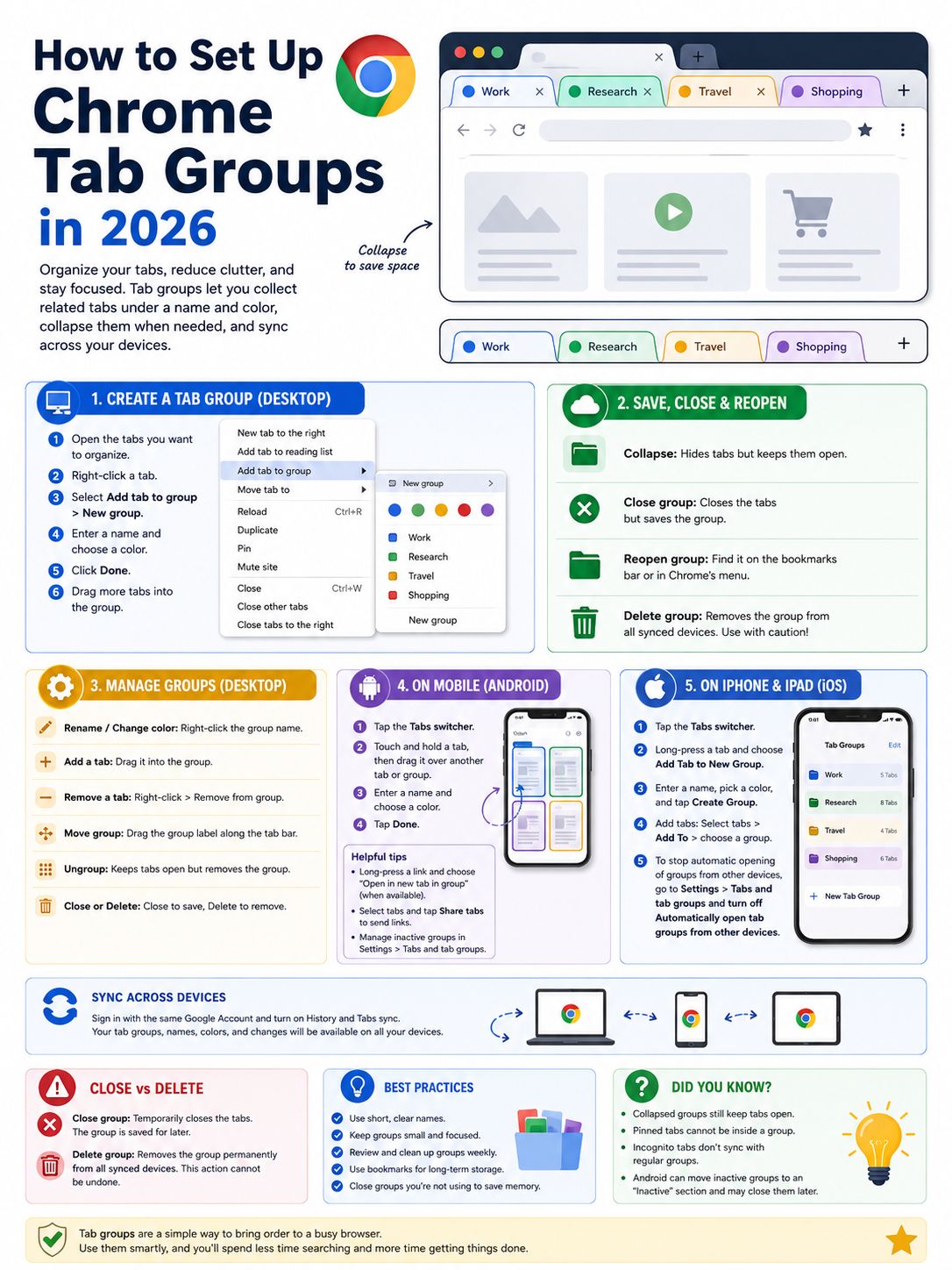
Chrome supports named and color-coded groups on iPhone and iPad.
You’ll usually create and manage them from the tab switcher.
|
iPhone or iPad action |
What to do |
|
Create a group |
Long-press a tab |
|
Add one tab |
Choose Add Tab to Group |
|
Add several tabs |
Select tabs and tap Add To |
|
Move a tab |
Choose Move to Tab Group |
|
Merge tabs |
Drag one tab onto another |
|
Stop automatic opening |
Change tab-group settings |
Create a New Group
- Open Chrome.
- Tap Switch tabs.
- Touch and hold a tab.
- Select Add Tab to New Group.
- Enter a name.
- Choose a color.
- Tap Create Group.
You may also find a New Tab Group option in the tab-grid menu.
Add One or Several Tabs
To add one tab:
- Touch and hold it.
- Tap Add Tab to Group.
- Choose the group.
To add several tabs:
- Open the tab switcher.
- Tap More.
- Select the tabs.
- Tap Add To.
- Choose a new or existing group.
- Tap Done.
Move or Merge Tabs
You can drag an ungrouped tab onto another tab to create a group.
You can also drag a tab into an existing group.
When moving a tab between groups, make sure the destination group is open and available.
Manage Groups on iPad
On iPad, you can touch and hold a tab or group directly from the tab strip.
You can also drag an individual URL into another app while using split-screen mode.
That moves or shares the link. It doesn’t export the whole group.
Stop Groups From Opening Automatically
On iPhone or iPad:
- Open Chrome.
- Go to Settings.
- Tap Tabs and tab groups.
- Turn off Automatically open tab groups from other devices.
Your synced groups can still stay attached to your account without opening every time.
How Chrome Tab-Group Sync Works
Sync is useful, but it also means one action can affect several devices.
|
Action |
What may happen |
|
Rename a group |
The new name appears elsewhere |
|
Change its color |
The color updates on other devices |
|
Add a tab |
The saved group changes |
|
Close the group |
It stays available for reopening |
|
Delete the group |
It may disappear from synced devices |
|
Sign in with another account |
The group won’t show there |
What You Need for Sync
Check these basics:
- Use the same Google Account on every device.
- Keep Chrome updated.
- Turn on history and tab syncing.
- Check whether your work or school account blocks sync.
- Don’t expect Incognito tabs to sync with normal Chrome.
Sync may take a moment.
Before recreating a “missing” group, give Chrome time to update. Repeatedly deleting and rebuilding it can make things more confusing.
Practical Ways to Organize Chrome Tab Groups
The feature works best when each group has a clear purpose.
|
Method |
Example |
|
By project |
Website Redesign |
|
By deadline |
Due Friday |
|
By client |
|
|
By stage |
Research, Draft, Review |
|
By priority |
Urgent, Active, Later |
|
By activity |
Shopping, Travel, Study |
Keep Names Short
One to three words is usually enough.
Good examples:
- Tax Documents
- Client Feedback
- Weekend Trip
- Product Research
- Course Notes
A name should tell you exactly what the group contains.
Don’t Use Groups as Permanent Storage
A group with 50 pages from last year isn’t helping much.
Once a project ends:
- Bookmark the pages worth keeping.
- Close or delete duplicates.
- Remove the group.
- Store permanent references somewhere more reliable.
Keep Groups Manageable
Chrome doesn’t set a practical limit for group size, but huge groups are harder to use.
They also bring back many pages at once when reopened.
Break large projects into smaller parts:
- Research
- Sources
- Writing
- Review
That keeps each group focused.
Review Your Groups Once a Week
A quick cleanup makes a big difference.
- Delete finished groups.
- Close inactive work.
- Rename unclear groups.
- Move long-term pages into bookmarks.
- Back up important links elsewhere.
Tab groups work best when they stay lean.
Common Chrome Tab-Group Problems
Most problems come from sync settings, different accounts, inactive-tab cleanup, or choosing delete instead of close.
|
Problem |
Likely cause |
What to check |
|
Group missing on another device |
Wrong account or sync off |
Account and sync settings |
|
Tabs disappeared from the tab bar |
Group was closed |
Saved groups area |
|
Group vanished everywhere |
It was deleted while synced |
History and recently closed |
|
Android group moved to Inactive |
Inactivity setting |
Tabs and tab groups settings |
|
Mobile menus look different |
Different layout or rollout |
Tab switcher and long-press menus |
|
Too many pages reopen |
The group is too large |
Split the group |
A Group Doesn’t Appear on Another Device
First, check the account.
Both devices need to use the same Google Account.
Then check whether History and tabs syncing is turned on.
Also make sure one device isn’t using a managed work profile while the other uses a personal account.
A Group Was Deleted by Mistake
Open Chrome’s menu and check:
- History
- Recently closed
- Tabs from other devices
You may be able to restore the individual pages.
Chrome may not bring back the original group name, color, order, or layout.
That’s why important research should also live in bookmarks, notes, or a project document.
Collapsed Groups Still Use Resources
Collapsing a group only hides it.
The tabs are still open.
Use Close group when you want to remove the live pages but keep the collection for later.
Mobile Controls Don’t Match Exactly
Chrome changes its interface over time.
Phone size, tablet mode, account type, operating system, and staged updates can all affect what you see.
Start by updating Chrome.
Then check:
- The tab-switcher menu
- The menu that appears when you touch and hold a tab
- The menu that appears when you touch and hold a group
Final Thoughts
Chrome tab groups are most useful when you treat them as short-term workspaces.
Create one group for each task. Give it a clear name. Keep it small. Close it when you’re done for the day.
Most importantly, remember the difference between Close group and Delete group.
Closing keeps the group.
Deleting may remove it from every synced device.
Used well, Chrome tab groups can turn a crowded browser into a clean, workable space. Just don’t treat them as permanent storage. Save important pages in bookmarks or another reliable system.
FAQs About Chrome Tab Groups
|
Question |
Answer |
|
Can a group contain another group? |
No |
|
Can groups sync across devices? |
Yes, with the same account and sync settings |
|
Does collapsing save memory? |
Not on its own |
|
Can groups be exported as files? |
Not through Chrome’s standard controls |
|
Can groups be shared? |
You can share selected tab links |
|
Are groups permanent backups? |
No |
Can Chrome Tab Groups Have Subgroups?
No.
Chrome doesn’t support groups inside other groups.
For a large project, create separate related groups:
- Site Redesign – Research
- Site Redesign – Assets
- Site Redesign – Review
You can share several tabs from a group on Android.
The recipient gets the links, not a synced copy of the group with its name and color.
Do Collapsed Groups Reduce Memory Use?
Not by themselves.
Collapsing changes the layout. It doesn’t automatically close or suspend the tabs.
Use Close group when you want to free the tab bar and stop keeping all those pages open.
Can I Export a Tab Group?
Chrome doesn’t provide a standard tab-group export file.
For a portable backup, save the pages into a bookmark folder. Chrome lets you export bookmarks later.
Why Did a Group Disappear From My Other Devices?
You probably chose Delete group.
When sync is active, deleting a group can remove it from every device using the same Google Account.
Use Close group when you only want it out of the current window.