
Google Assistant is handy when you need a quick timer, directions, or a hands-free call. But it gets frustrating fast when it opens by accident, reacts to background audio, or takes over your power button.
If that sounds familiar, you can turn off Google Assistant without removing your Google account or losing apps like Gmail, Maps, Chrome, and YouTube.
The only tricky part is that Google has changed how its assistant works on Android. Many phones now use Gemini instead of the older Google Assistant. Some settings still call the service “Google,” even when Gemini is the assistant that actually opens.
That’s why older guides can feel confusing. The menu paths don’t always match what you see on your phone.
This guide covers the current options. You’ll learn how to disable the assistant completely, stop “Hey Google,” remove button and gesture shortcuts, block microphone access, and delete saved activity.
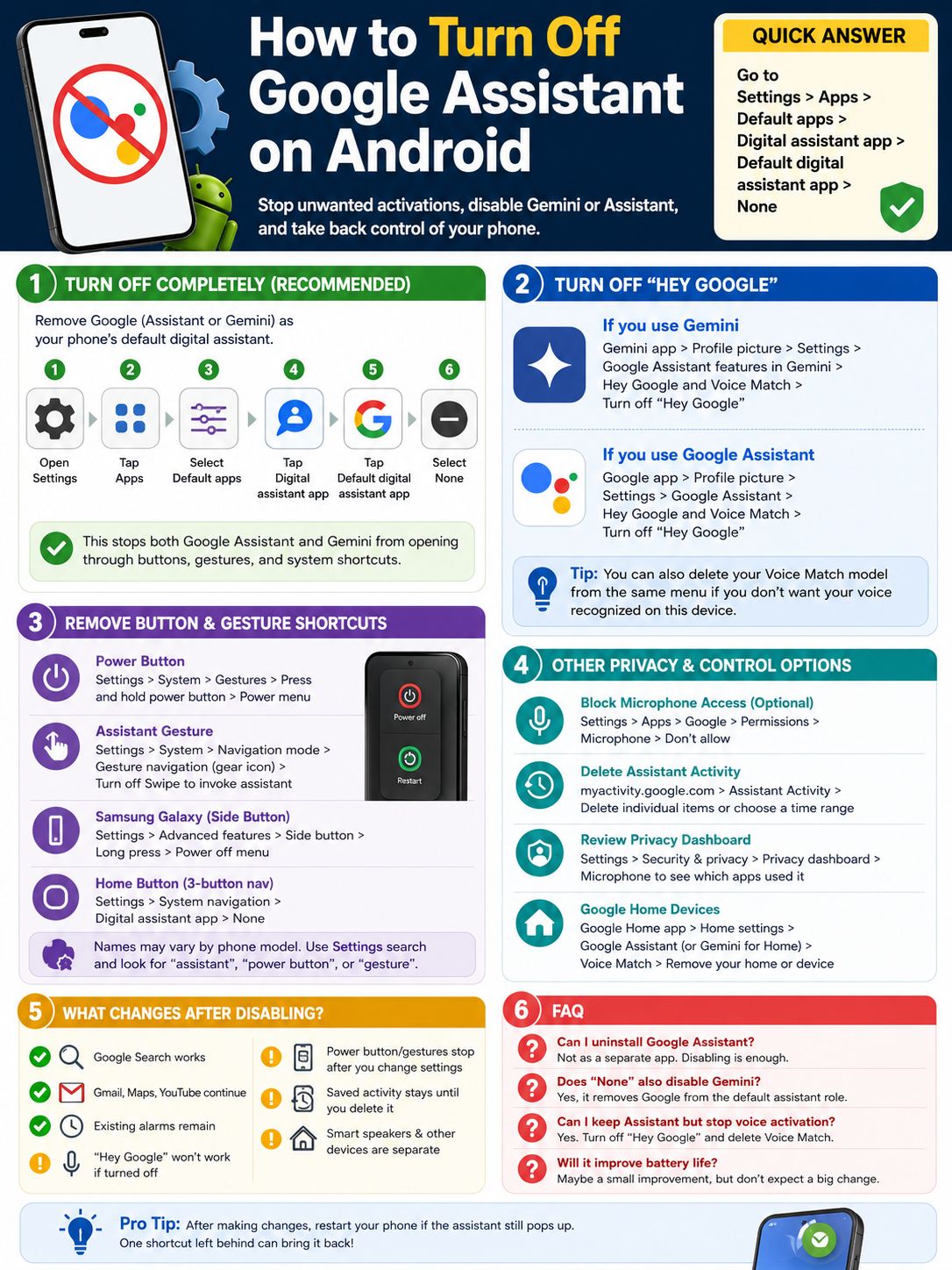
The Fastest Way to Turn Off Google Assistant
The most reliable fix is to remove Google as your phone’s default digital assistant.
Use this path:
- Open Settings.
- Tap Apps.
- Select Default apps or Choose default apps.
- Tap Digital assistant app.
- Tap Default digital assistant app.
- Select None.
That’s the main switch.
It works whether your phone uses Gemini or the older Google Assistant. Android may list the current assistant simply as Google, so don’t worry if you don’t see “Gemini” or “Google Assistant” by name.
|
Setting |
What it changes |
|
Default assistant set to None |
Stops Google from acting as the system assistant |
|
“Hey Google” turned off |
Stops voice wake-up |
|
Power button set to Power menu |
Stops assistant activation from a long press |
|
Assistant gesture turned off |
Stops corner-swipe activation |
|
Microphone permission blocked |
Stops Google from recording voice input |
|
Assistant activity deleted |
Removes stored interactions |
Setting the assistant to None won’t delete the Google app. Search, Gmail, Maps, YouTube, and other Google services will keep working.
Check Whether Your Phone Uses Gemini or Google Assistant
Google has been moving Android users from Google Assistant to Gemini. Depending on your phone and account, you may still see either one.
Open the assistant once and look at the screen.
Gemini usually shows a chat-style layout, a sparkle icon, or the Gemini name. The older Assistant uses Google Assistant branding and a simpler voice interface.
|
What opens |
What your phone probably uses |
|
Gemini chat screen |
Gemini |
|
Older Assistant panel |
Google Assistant |
|
“Google” shown in Default Apps |
Either Gemini or Google Assistant |
|
Assistant opens only by voice |
“Hey Google” is still enabled |
|
Assistant opens only from a button |
A hardware shortcut is active |
You don’t need to identify the exact version before disabling it. Selecting None in the default assistant menu removes both Gemini and Google Assistant from the system-assistant role.
Why the Setting May Say “Google”
The Google app supplies the assistant service on many Android phones. That service may launch Gemini on one device and classic Google Assistant on another.
So Android often labels the provider as Google instead of showing the assistant’s product name.
It looks vague, but it’s normal.
How to Turn Off Google Assistant Completely
There are two main ways to disable it. The first works on most current Android phones. The second applies mainly to devices that still use the older Assistant interface.
Method 1: Set the Default Assistant to None
Go to:
Settings > Apps > Default apps > Digital assistant app > None
Some phones use slightly different labels, such as:
- Assist app
- Device assistance app
- Assistant and voice input
- Choose default apps
- Default assistant app
Can’t find it? Use the search bar inside Settings. Search for:
- Digital assistant
- Default assistant
- Assist app
- Device assistance
|
Step |
What to tap |
|
1 |
Settings |
|
2 |
Apps |
|
3 |
Default apps |
|
4 |
Digital assistant app |
|
5 |
Default digital assistant app |
|
6 |
None |
Android phone makers arrange their menus differently. Samsung, Google Pixel, Motorola, OnePlus, Xiaomi, and other brands may place the same option in different sections.
The setting’s purpose matters more than its exact name. You’re looking for the menu that decides which app opens as your phone’s assistant.
Read Also: How to Use Google Assistant Like a Pro in 2026
Test the Change
Once you select None, test the shortcuts that used to open the assistant:
- Hold the power button.
- Hold the Home button if your phone uses three-button navigation.
- Swipe inward from a lower corner.
- Say “Hey Google.”
If the assistant still appears, another shortcut is probably active. You’ll need to disable that trigger separately.
Method 2: Use the Older Google Assistant Switch
Some phones still show a direct Google Assistant on-off switch.
Try this route:
- Open the Google app.
- Tap your profile picture.
- Tap Settings.
- Select Google Assistant.
- Open General.
- Turn off Google Assistant.
You may need to tap View all settings or See all Assistant settings before the General option appears.
Don’t see it? That usually means your phone has moved to Gemini or a newer settings layout. Use the Default Apps method instead.
Turn Off “Hey Google” Without Disabling Everything
You may still want the assistant available when you tap it. You just don’t want your phone listening for the wake phrase.
In that case, turn off “Hey Google” rather than disabling the assistant completely.
|
What you want |
Setting to change |
|
Stop voice activation |
Turn off “Hey Google” |
|
Keep manual assistant access |
Leave the default assistant enabled |
|
Remove voice recognition |
Delete the Voice Match model |
|
Block all voice input in Google |
Deny microphone permission |
Turn Off “Hey Google” in Gemini
On phones using Gemini:
- Open the Gemini app.
- Tap your profile picture or initial.
- Open Settings.
- Tap Google Assistant features in Gemini.
- Select Hey Google and Voice Match.
- Turn off Hey Google.
Some versions may call the option Talk to Gemini hands-free.
Google still uses parts of Assistant technology to detect the wake phrase and route requests to Gemini. That’s why you may see Assistant wording inside Gemini settings.
Turn Off “Hey Google” in Classic Assistant
On phones using the older Assistant:
- Open the Google app.
- Tap your profile picture.
- Open Settings.
- Tap Google Assistant.
- Select Hey Google and Voice Match.
- Turn off Hey Google.
This stops the phone from waking when it hears the phrase.
You can still open the assistant manually unless you also remove the default assistant or disable its shortcuts.
Delete Your Voice Match Model
Turning off “Hey Google” and deleting Voice Match aren’t always the same thing.
The wake-phrase switch stops voice activation. Deleting the Voice Match model removes the voice profile used to recognize you.
Look for options such as:
- Delete Voice Match model
- Retrain voice model
- Remove Voice Match
- Delete voice model from this device
If you delete it, you’ll need to train your voice again if you turn the feature back on later.
Stop the Power Button and Gestures From Opening the Assistant
A common complaint is that the assistant opens when someone holds the power button. That can happen even after the default assistant has been changed.
The shortcut itself has its own setting.
|
Accidental trigger |
Setting to change |
|
Holding the power button |
Press and hold power button |
|
Holding Samsung’s Side button |
Side button settings |
|
Swiping from a lower corner |
Swipe to invoke assistant |
|
Holding the Home button |
Navigation or assistant settings |
|
Pressing an earbud button |
Connected device settings |
Google Pixel Phones
On a Pixel, open:
Settings > System > Gestures > Press and hold power button
Choose Power menu instead of Digital assistant.
Now a long press should show power-off and restart options rather than Gemini or Google Assistant.
To stop the lower-corner gesture:
- Open Settings.
- Tap System.
- Select Navigation mode.
- Tap the gear icon beside Gesture navigation.
- Turn off Swipe to invoke assistant.
Menu names can change after Android updates, so Settings search may be faster.
Samsung Galaxy Phones
Samsung calls the power button the Side button.
Use this route:
- Open Settings.
- Tap Advanced features.
- Select Side button.
- Open Long press.
- Choose Power off menu.
On newer Galaxy phones, a long press may open Gemini by default. Older models may open Bixby.
Samsung also has a separate default assistant menu:
Settings > Apps > Choose default apps > Digital assistant app
Check both menus. Changing only one may leave the other shortcut active.
Motorola, OnePlus, Xiaomi, Oppo, and Other Brands
Look under sections such as:
- System navigation
- Gestures and motions
- Buttons and gestures
- Additional settings
- Convenience tools
- Home screen and Lock screen
- Default apps
Search Settings for assistant, power button, or gesture if you can’t find the option manually.
Should You Disable the Google App?
Usually, no.
The Google app does much more than run the assistant. It also supports:
- Google Search
- The home-screen search bar
- Discover
- Voice Search
- Song identification
- Some Gemini features
Disabling the whole app may break features you still use.
|
Action |
Result |
Best choice? |
|
Set assistant to None |
Stops system assistant access |
Yes |
|
Turn off “Hey Google” |
Stops wake-phrase activation |
Yes |
|
Remove microphone permission |
Stops voice input in the Google app |
Only when needed |
|
Disable the Google app |
May affect Search and Discover |
Usually no |
|
Turn off the phone’s microphone globally |
Blocks every app |
Not for daily use |
The cleaner fix is to remove Google as the default assistant and leave the Google app installed.
Block Microphone Access for Stricter Privacy
If you don’t want the Google app using your microphone at all, you can remove its permission.
- Open Settings.
- Tap Apps.
- Select Google.
- Tap Permissions.
- Choose Microphone.
- Tap Don’t allow.
This is a stronger step than turning off “Hey Google.”
It may also disable:
- Voice Search
- Spoken Gemini prompts
- Song recognition
- Voice commands in Google services
- Other microphone-based Google features
Android also has a system-wide microphone switch in Quick Settings or the Privacy menu. That option blocks microphone access for every app, including calls, cameras, recorders, and messaging apps.
It’s useful as a temporary privacy switch, but it’s too broad for disabling Google Assistant alone.
What Happens After You Disable Google Assistant?
Turning off the assistant doesn’t shut down your Google account.
|
Feature |
What happens |
|
Google Search |
Keeps working |
|
Gmail, Maps, Chrome, and YouTube |
Keep working |
|
“Hey Google” |
Stops if you disable it separately |
|
Power-button shortcut |
Stops after you change the button setting |
|
Existing alarms |
Usually stay in the Clock app |
|
Saved Assistant activity |
Remains until you delete it |
|
Gemini app |
May still open when tapped |
|
Google Home devices |
Keep working unless changed separately |
Google Maps navigation should still work normally. You may lose some hands-free commands if you disable voice access or microphone permission.
The Gemini app may also remain installed. Setting the default assistant to None stops it from opening through system shortcuts, but you can still launch the app from your app drawer.
Delete Saved Assistant and Voice Activity
Disabling Google Assistant doesn’t erase past conversations or commands.
If you want to clean up stored activity, review your Google Account history separately.
|
Privacy action |
Where to manage it |
|
Delete one Assistant interaction |
Google Assistant activity |
|
Delete activity from a date range |
Google My Activity |
|
Delete Gemini chats |
Gemini Apps activity |
|
Remove Voice Match |
Voice Match settings |
|
Review microphone use |
Android Privacy dashboard |
Delete Assistant Activity
Open your Google Account activity controls and find the Assistant section.
From there, you can:
- Delete one interaction
- Delete activity from today
- Delete a custom date range
- Delete all Assistant activity
- Set up automatic deletion
Gemini activity and Assistant activity may appear under different controls. Check both areas if you’ve used both services.
Review the Privacy Dashboard
Android’s Privacy dashboard shows which apps recently used sensitive permissions.
Use this path:
- Open Settings.
- Tap Security and privacy or Privacy.
- Select Privacy dashboard.
- Tap Microphone.
- Review the listed apps.
This is a quick way to see whether Google, Gemini, or another app accessed the microphone.
Google Home, Earbuds, Watches, and Cars Need Separate Settings
Disabling the assistant on your phone won’t automatically disable it on your other devices.
|
Device |
Where to change it |
|
Google Nest speaker |
Google Home app |
|
Smart display |
Google Home app |
|
Bluetooth earbuds |
Connected devices settings |
|
Wear OS watch |
Watch assistant settings |
|
Android Auto |
Android Auto settings |
|
Another Android phone |
That phone’s settings |
Google Home and Nest Speakers
To change Voice Match on a home device:
- Open the Google Home app.
- Tap your profile picture.
- Open Home settings.
- Select Google Assistant or the available voice-assistant setting.
- Tap Voice Match.
- Remove the selected home or device.
Removing Voice Match stops the speaker from recognizing your voice for personal results. It doesn’t always stop the device from answering general questions.
Headphones and Earbuds
Some earbuds have their own assistant shortcut.
Open:
Settings > Connected devices > Your headphones or earbuds
Look for:
- Digital assistant
- Touch controls
- Press and hold
- Voice assistant
- Button shortcuts
Turn off the assistant action or assign a different function.
Why Google Assistant or Gemini Keeps Coming Back
If it still opens, you probably disabled one trigger but left another one active.
|
Problem |
Likely reason |
Fix |
|
Opens when holding Power |
Power-button shortcut is active |
Choose Power menu |
|
Opens from a corner swipe |
Assistant gesture is active |
Turn off the gesture |
|
Responds to speech |
“Hey Google” is on |
Turn it off |
|
Gemini opens instead |
Google is still the default assistant |
Select None |
|
Bixby opens on Samsung |
Side button is assigned to Bixby |
Change Side button action |
|
Earbuds launch it |
Earbud shortcut is active |
Change touch controls |
|
A smart speaker responds |
Separate home setting |
Update Google Home settings |
Check the Default Assistant Again
Go back to:
Settings > Apps > Default apps > Digital assistant app
Make sure None is selected.
On some Samsung phones, you may need to tap Digital assistant app twice before you reach the list of available providers.
Restart the Phone
A restart usually isn’t required, but it can clear an assistant screen or shortcut that remains active after you change the setting.
Check Work or School Profiles
Managed work profiles, school accounts, and supervised devices may limit what you can change.
Your employer, school, or family administrator may control certain assistant and microphone settings.
Final Thoughts
The easiest way to turn off Google Assistant on a current Android phone is to set the default digital assistant to None.
That one change removes Google Assistant or Gemini from the phone’s main assistant role. For a complete shutdown, turn off “Hey Google,” change the power or Side button, disable assistant gestures, and check your earbuds or headphones.
You don’t need to disable the Google app or remove your Google account. Search, Gmail, Maps, YouTube, and other services will keep working.
Once every shortcut is switched off, Google Assistant should stop appearing when you don’t need it.
Frequently Asked Questions
Can I Uninstall Google Assistant?
Usually not as a separate app.
On many Android phones, Google Assistant is built into the Google app or the operating system. Disabling the default assistant gives you almost the same result without removing other Google features.
Does Selecting None Disable Gemini Too?
It removes Google from the default digital-assistant role, whether the Google app is using Gemini or classic Google Assistant.
You may still be able to open the Gemini app manually.
Why Can’t I Find the Google Assistant General Switch?
Your phone may use Gemini, or Google may have changed the settings for your account.
Use:
Settings > Apps > Default apps > Digital assistant app > None
That’s the more dependable route on current Android phones.
Can I Keep the Assistant but Stop Accidental Activations?
Yes.
Leave the assistant enabled, then turn off the trigger that causes the problem. You can disable “Hey Google,” change the power-button action, or remove the corner-swipe gesture.
Does Turning Off “Hey Google” Delete My Voice Model?
Not always.
Turning off the wake phrase stops voice activation. Deleting the Voice Match model is usually a separate option.