
Switching your phone feels a lot like moving into a new house. You are excited about the fresh start, but the thought of packing up years of digital memories is exhausting. If you are planning an android to iphone transfer in 2026, you have picked a great year to do it. The tech wall between Google and Apple is thinner than ever. With standard USB-C ports on every new iPhone and vastly improved wireless tools, the “great migration” no longer requires a degree in computer science.
In this guide, I will walk you through every step to ensure your photos, contacts, and even those buried WhatsApp chats make it to their new home safely. We will skip the jargon and get straight to what works today.
The 2026 Landscape: Why Switching is Easier Now
The mobile world has changed. In 2026, we are seeing a level of cooperation between tech giants that we did not have five years ago. Because Apple adopted USB-C and finally embraced RCS (Rich Communication Services), the friction of moving your life from one operating system to another has mostly vanished.
You no longer need to worry if your videos will look like blurry pixels when you text your Android friends from your new iPhone. Everything from high-res media sharing to massive cloud backups has become standard. The tools are smarter, the cables are universal, and the software handles the heavy lifting while you grab a coffee.
Key Changes in 2026
|
Feature |
2026 Status |
Impact on Transfer |
|
Physical Ports |
Universal USB-C |
Allows direct wired transfers without adapters. |
|
Messaging |
RCS 2.0 Standard |
Keeps group chats intact after the move. |
|
SIM Cards |
100% eSIM |
No more tiny plastic cards or paperclips. |
|
AI Migration |
Predictive Sorting |
Automatically organizes your photos during the move. |
Pre-Transfer Checklist: Setting Up for Success
You would not pack trash into a box when moving to a new home. The same logic applies to your phone. Before you even touch the “Transfer” button, you need to prep your devices. This saves you hours of waiting for junk files to move over and prevents the dreaded “Transfer Failed” message halfway through the night.
Clean Up Your Digital Clutter
Start by deleting apps you have not opened in six months. Go to your Android storage settings and clear out the “Downloads” folder. It is likely full of old PDF menus and work documents you no longer need. This reduces the total data size, making the android to iphone transfer much faster.
Power Up and Connect to Wi-Fi
Moving 100GB of data over Wi-Fi eats battery life like crazy. Plug both phones into a wall outlet. Ensure you are on a private, stable home Wi-Fi network. Public Wi-Fi at a cafe is often too unstable and lacks the security needed for a massive data dump.
Back Up Your Android Device
Never start a migration without a safety net. Run a manual backup to Google Drive. This ensures that if the power cuts out or your Wi-Fi drops, your contacts and calendar events are still safe in the cloud. It takes five minutes and saves you a massive headache if something goes wrong.
Essential Pre-Transfer Steps
|
Task |
Why it Matters |
Estimated Time |
|
App Audit |
Saves storage on your new iPhone. |
10 Minutes |
|
Battery Check |
Prevents mid-transfer shutdowns. |
1 Minute |
|
OS Update |
Ensures compatibility between tools. |
5 Minutes |
|
Google Backup |
Provides a “Plan B” for your data. |
5-15 Minutes |
Method 1: Using the Move to iOS App (The Official Way)
Apple’s Move to iOS app is still the gold standard for an android to iphone transfer. In 2026, the app is faster and more reliable than its earlier versions. It creates a private Wi-Fi network between the two devices to beam your data across securely.
What You Need Before Starting
Your iPhone must be in its “Hello” factory state. If you have already set it up to look at the new screen, you will need to reset it. Go to Settings > General > Transfer or Reset iPhone > Erase All Content and Settings. It feels scary, but it is necessary for the app to work.
Read Also: How to Transfer Photos from iPhone to Mac Without Cable
Step-by-Step Instructions for Move to iOS
Open the Move to iOS app on your Android and follow the prompts. On your iPhone, look for the “Transfer from Android” option during the setup screens. A code will appear on the iPhone; type this into your Android. You can then select exactly what to move: contacts, messages, photos, and even your display settings.
What Moves Over and What Stays Behind
Most things move perfectly, but paid apps do not. Since the Google Play Store and Apple App Store are separate businesses, your paid purchases won’t follow you. However, the app will try to find the free versions of your Android apps and automatically download them on your iPhone.
Move to iOS Breakdown
|
Data Type |
Success Rate |
Notes |
|
Contacts/Mail |
100% |
Moves via account sync. |
|
Photos/Videos |
100% |
High-res files remain intact. |
|
Paid Apps |
0% |
Must be re-purchased on App Store. |
|
Custom Ringtones |
20% |
Most need manual re-adding. |
How to Transfer WhatsApp from Android to iPhone
WhatsApp used to be the biggest hurdle for anyone switching phones. In 2026, the process is built right into the migration tool, but you have to be careful. You get one shot at this during the initial setup.
Crucial Requirements for WhatsApp Migration
You must use the same phone number on both devices. If you are changing your number and your phone at the same time, change your number on the Android WhatsApp settings first. Make sure your iPhone has enough space to hold your entire chat history, including those massive video clips in your family group chat.
The WhatsApp Transfer Process
When the Move to iOS app asks what data you want to transfer, check the “WhatsApp” box. This will open WhatsApp on your Android and prepare your data for “packaging.” Once it finishes, the data moves over with the rest of your files. When you finally open WhatsApp on your iPhone, log in with your number, and your chats will magically reappear.
WhatsApp Migration Summary
|
Action |
Requirement |
Tip |
|
Number Sync |
Must be identical. |
Verify on Android first. |
|
Media Move |
Includes photos/videos. |
Delete “junk” media to speed up. |
|
Encryption |
Stays end-to-end. |
Have your backup password ready. |
|
Timing |
Initial setup only. |
Don’t skip this screen! |
Method 2: Transferring Data Through Cloud Services
Not everyone wants to use a dedicated app. If you prefer the “cloud” approach, you can move your data by simply logging into your accounts. This is the best method if you have already set up your iPhone and don’t want to reset it.
Syncing Contacts, Calendars, and Mail via Google
On your iPhone, go to Settings > Mail > Accounts > Add Account. Log in with your Gmail. Toggle on the switches for Contacts, Calendars, and Notes. Within seconds, your entire schedule and address book will sync over. It is seamless and happens in the background.
Moving Photos with Google Photos
If you have 200GB of photos, don’t try to move them to the iPhone’s local storage. Download the Google Photos app on your iPhone. Once you log in, your entire Android library is right there. You can view them without taking up a single megabyte of space on your new device.
Cloud Sync Comparison
|
Service |
Data Handled |
Best For |
|
Google Account |
Contacts, Mail, Calendar |
Essential daily info. |
|
Google Photos |
All images and videos |
Massive libraries. |
|
OneDrive/Dropbox |
Documents and PDFs |
Work files and receipts. |
|
iCloud for Windows |
Manual uploads |
Moving files from a PC. |
Method 3: The Manual Wired Approach (USB-C to USB-C)
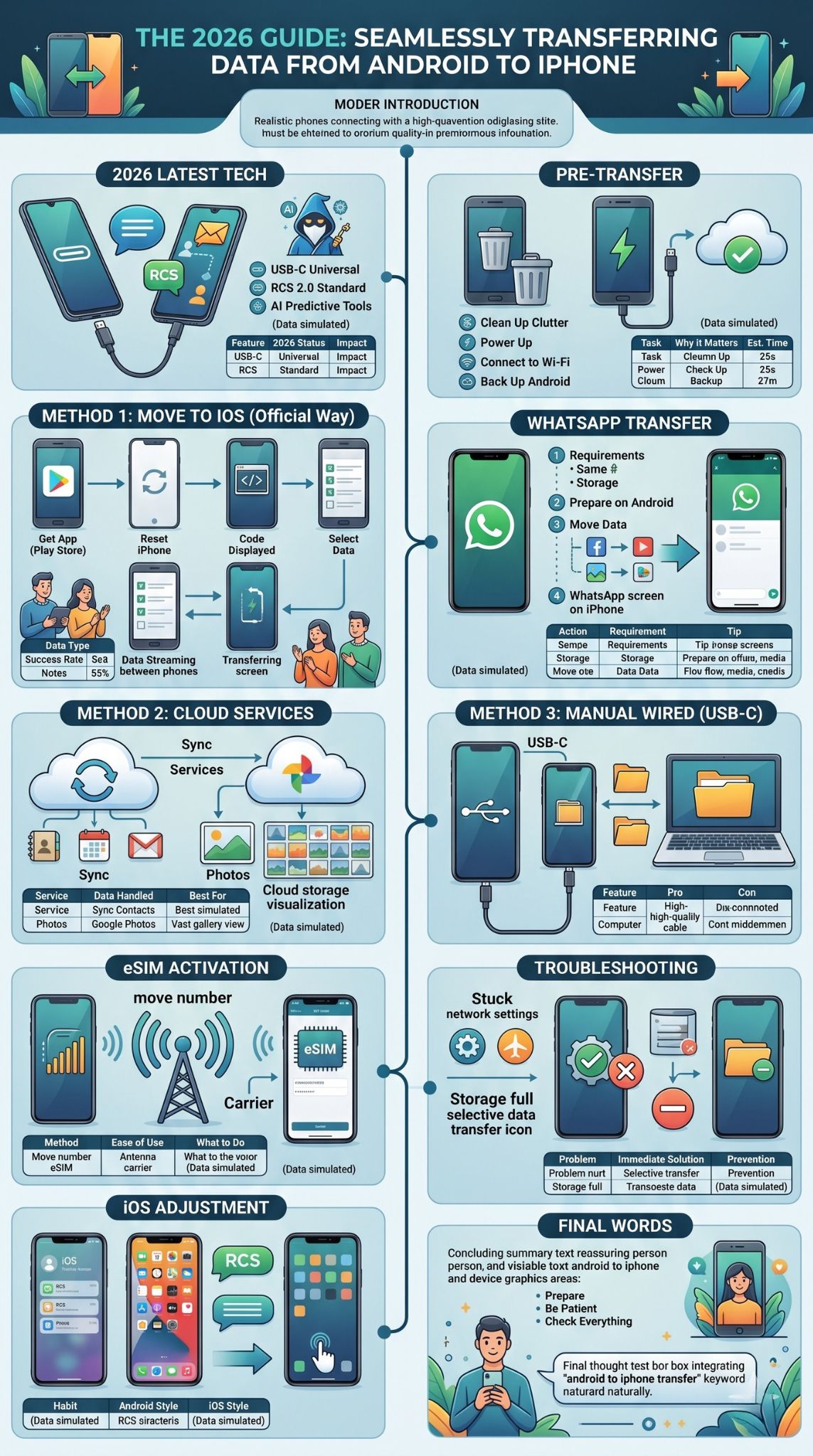
In 2026, we finally have the “one cable to rule them all.” Since all modern iPhones use USB-C, you can physically connect your Android phone to your iPhone for a wired android to iphone transfer.
Direct Cable Transfers
Plug a high-quality USB-C cable into both phones. Your iPhone will treat the Android phone like an external hard drive. Open the “Files” app on the iPhone, and you will see your Android phone listed as a drive. You can then copy and paste folders directly from one to the other.
Using a Computer as a Middleman
If you have a massive amount of music or custom documents, a computer is often faster. Connect your Android to your laptop, drag your files to a folder on your desktop, then plug in your iPhone and drag them back in. This is especially helpful for people with thousands of MP3s or specialized work files.
Wired Transfer Pros & Cons
|
Feature |
Pro |
Con |
|
Speed |
Extremely fast (Gigabit speeds). |
Requires a high-quality cable. |
|
Reliability |
No Wi-Fi drops. |
Can be finicky with permissions. |
|
Simplicity |
Plug and play. |
Manual folder navigation needed. |
|
Files |
Best for large 4K videos. |
Does not move “app data” easily. |
Handling Your Phone Number: The eSIM Transition
The physical SIM card is a relic of the past. By 2026, almost all new iPhones are eSIM-only. This can be the most confusing part of the move, but carriers have made it much more automated recently.
When you turn on your iPhone, it will ask if you want to transfer your number. If your carrier supports it, a notification will pop up on your Android phone asking for permission. You tap “Allow,” and your number moves through the air to your iPhone. If that doesn’t work, you will likely need to scan a QR code provided by your carrier’s website.
eSIM Transition Guide
|
Method |
Ease of Use |
What to Do |
|
Carrier App |
High |
Download carrier app on iPhone. |
|
QR Code |
Medium |
Scan code from carrier email. |
|
Manual Input |
Low |
Enter SM-DP+ address manually. |
|
In-Store |
Very High |
Visit a store for a “push” activation. |
Life After Android: Adjusting to iOS 26
The transfer is done. Your photos are there, and your contacts are synced. Now what? Living in iOS 26 is a different experience than Android. Apple’s latest software is highly customizable, but it has a different “flow.”
Replacing Your Favorite Android Apps
While most apps exist on both platforms, some Android-only utilities won’t be there. You will need to find iOS alternatives. For example, if you loved a specific Android file explorer, you will now use the “Files” app. If you used a custom launcher, you will now use iOS “Focus Modes” and Lock Screen widgets to customize your look.
Embracing RCS Messaging on iPhone
One of the best parts of switching in 2026 is that you don’t lose the “modern” texting features. With RCS 2.0, your texts to Android friends will still have read receipts, typing indicators, and high-quality images. You get the benefits of iMessage for your Apple friends and the power of RCS for everyone else.
iOS vs. Android Usage
|
Habit |
Android Style |
iOS 26 Style |
|
Navigation |
Back button/Gesture |
Swipe from left edge to go back. |
|
App Library |
App Drawer |
App Library (far right screen). |
|
Customization |
Launchers/Icon Packs |
Lock Screen widgets & Shortcuts. |
|
Voice Assistant |
Google Assistant |
Siri (now powered by Apple AI). |
Troubleshooting Common Transfer Problems
Even with the best plans, technology can be stubborn. If your android to iphone transfer gets stuck, don’t panic. Usually, the fix is something small that you can handle in a few seconds.
The Transfer Gets Stuck or Drops
If the loading bar hasn’t moved in twenty minutes, check your Android’s Wi-Fi settings. Android phones often try to “help” you by switching back to cellular data because the iPhone’s transfer network doesn’t have internet. Turn off “Smart Network Switch” or put the Android in Airplane Mode (then turn only Wi-Fi back on) to keep the connection solid.
Not Enough Storage Space on the iPhone
This is the most common error. If you are moving 200GB of data to a 128GB iPhone, it will fail every time. You need to be selective. Uncheck “Videos” during the transfer and move them later via a computer or cloud service. Focus on the essentials like contacts and messages first.
Common Fixes
|
Problem |
Immediate Solution |
Prevention |
|
Stuck at 99% |
Wait 10 more minutes; it’s indexing. |
Don’t touch either phone. |
|
Wrong Code |
Restart both devices and try again. |
Ensure Wi-Fi is on. |
|
Missing Texts |
Check if RCS was active on Android. |
Turn off RCS on Android before move. |
|
Slow Speed |
Move phones closer to the router. |
Use the 5GHz Wi-Fi band. |
Final Thoughts
The process of an android to iphone transfer has come a long way. In 2026, the combination of USB-C, RCS messaging, and smarter AI tools makes the transition almost painless. The key is to be patient and follow the steps in order. Don’t rush the cleanup phase, and always make sure you have a backup before you start.
Once you are settled in, you will find that while the buttons are in different places, the apps you love work just as well—if not better. Enjoy your new iPhone; it’s a powerful tool, and now all your memories are right there with you.
Frequently Asked Questions (FAQs)
Can I move my game progress from Android to iPhone?
It depends on the game. If the game uses a cloud login (like Facebook, Google, or its own account), your progress will sync as soon as you log in on the iPhone. If the game saves data locally on the phone, you might have to start over.
Will my alarms and settings move over?
No. System-level settings like alarms, wallpaper, and display brightness do not transfer. You will need to set your morning alarm again once your iPhone is ready.
What happens to my music library?
If you use Spotify or Apple Music, everything syncs automatically. If you have MP3 files stored on your Android, you will need to move them manually using a computer and the Apple Devices app.
Is it safe to delete everything on my Android after the move?
Wait at least 48 hours. Check your photos, your WhatsApp chats, and your contacts on the new iPhone. Once you are 100% sure nothing is missing, you can factory reset your Android.
Does the transfer work if I have a “Custom ROM” on my Android?
The Move to iOS app can be finicky with custom software. If it fails, your best bet is the manual cloud sync method for contacts and a wired transfer for your files.