
We have all been there. You are right in the middle of a movie, a game, or an important work email, and suddenly the internet just stops. You look up at the top of your screen, and that familiar fan icon is gone. Dealing with an iphone wifi not connecting is one of the most frustrating things because it cuts you off from everything. It is not just about entertainment either. Without a solid connection, your phone works harder to find a signal, which kills your battery and eats up your expensive cellular data.
While iPhones are usually reliable, they are not perfect. Sometimes the software gets a bit confused, or your router just needs a break. The good news is that you rarely need to buy a new phone or call a technician. Most of the time, the fix is sitting right in your settings menu. In this guide, we are going to look at why this happens and give you eight easy ways to get your internet back up and running.
Why Is My iPhone Not Connecting to WiFi?
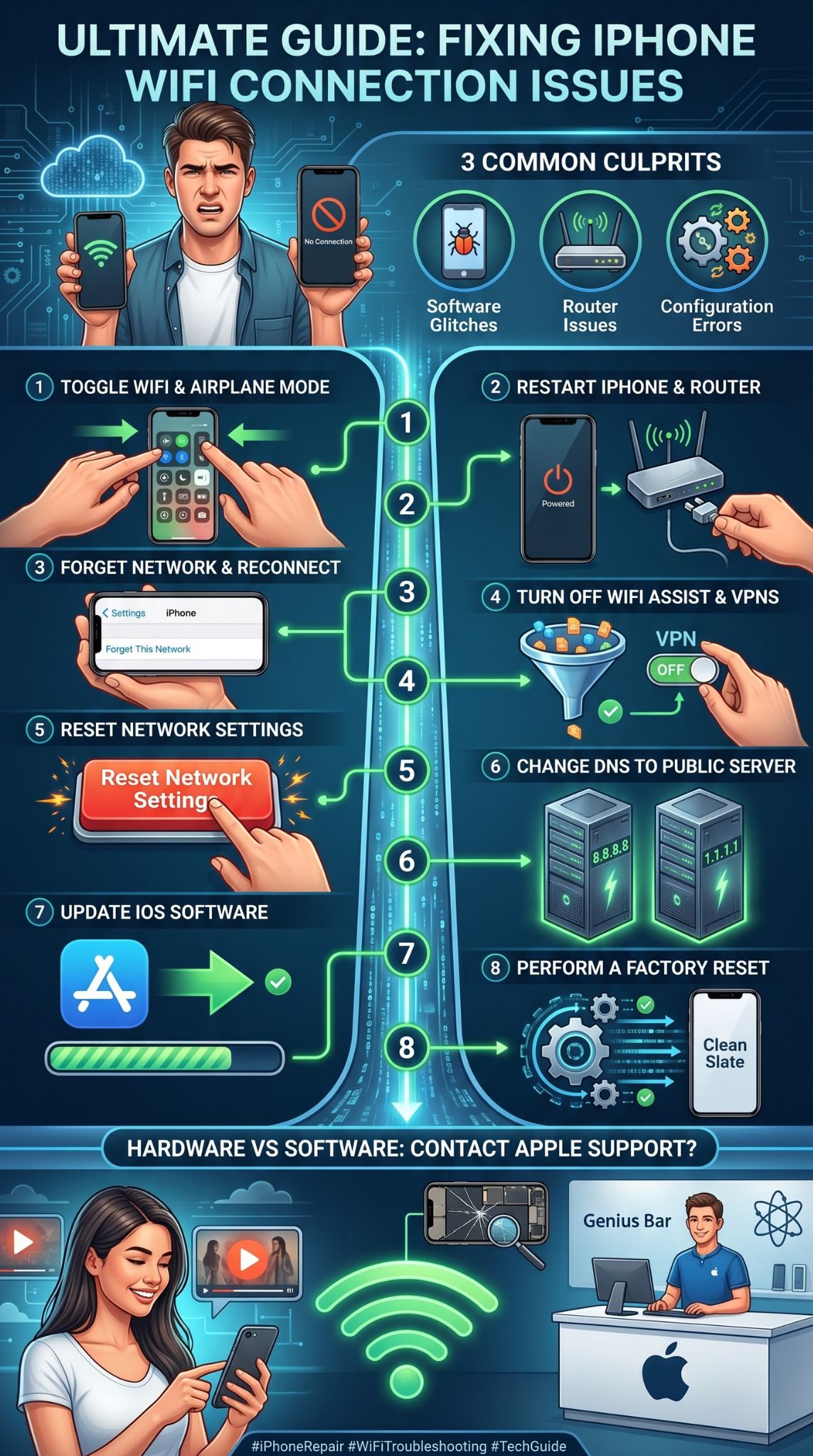
Before we start clicking buttons, let us talk about why your phone is acting up. It helps to know the cause so you can prevent it from happening again next week. Usually, the blame falls on a few specific areas like a messy software update or a router that has been running for too long without a restart.
Software Glitches and iOS Updates
Your iPhone is basically a tiny computer, and computers get bugs. Sometimes a small piece of code in the background crashes and stops the wireless antenna from doing its job. This is especially common right after a big iOS update. Apple changes how the phone talks to routers to make things more secure, but sometimes your old settings do not play nice with the new rules.
Router and Modem Issues
Sometimes your phone is perfectly fine, but the router is the one struggling. Routers manage dozens of devices at once, from your laptop to your smart fridge. They can get overwhelmed or overheat. If the router stops sending out a clear signal, your iPhone will see the network but will not be able to actually join it. Physical distance also matters. If you are behind three walls and a bookshelf, the signal might just be too weak to hold.
Network Configuration Errors
Every time you connect to a network, your phone and the router exchange a digital handshake. They share IP addresses and security keys. If these settings get scrambled or if your phone tries to use an old address that the router has already given to someone else, the connection fails. This is often why you see that annoying spinning wheel that never seems to stop.
Summary of Connection Barriers
|
Common Cause |
What It Looks Like |
Quick Thought |
|
Software Bug |
WiFi icon is grayed out or won’t turn on. |
Usually fixed by a restart. |
|
Interference |
Signal bars go up and down constantly. |
Move closer to the router. |
|
Authentication |
“Incorrect Password” error despite being right. |
Network needs a fresh start. |
|
IP Conflict |
Connected but no internet access. |
Router needs a reboot. |
8 Proven Fixes for an iPhone That Won’t Connect to WiFi
If you are stuck on cellular data, it is time to take action. We have listed these fixes starting with the easiest ones. Try them one by one, and there is a very high chance your internet will be back before you even reach the middle of the list.
Fix 1: Toggle Wi-Fi and Airplane Mode
The first thing you should always try is the classic off and on trick. Toggling your settings forces the iPhone to stop whatever it is doing and scan for signals again. It is like giving your phone a tiny wake up call.
Open your Control Center by swiping down from the top right. Tap the Wi-Fi icon to turn it off, wait five seconds, and tap it back on. If that does not work, try the Airplane Mode trick. Turn Airplane Mode on for about fifteen seconds. This shuts down all the radios in your phone, including cellular and Bluetooth. When you turn it off, the phone has to rebuild all its connections from scratch, which often clears out minor glitches.
Fix 2: Restart Your iPhone and Router
If the toggle did not work, it is time for a full restart. Think of this as clearing the brain of your devices. A restart dumps all the temporary files and background processes that might be causing a hang.
For your iPhone, hold the side button and a volume button until you see the slider. Slide it off, wait a minute, and turn it back on. While the phone is booting up, go to your router. Do not just press the power button. Unplug the power cord from the wall. Wait a full minute so the electricity completely drains. Plug it back in and wait for all the green lights to stop blinking. This often fixes the iphone wifi not connecting issue by refreshing the entire local network.
Fix 3: Forget the Network and Reconnect
Sometimes the saved data for your home network gets corrupted. Your phone thinks it knows the password and settings, but the router is asking for something else. By forgetting the network, you delete the old profile and start over.
Go to Settings, then Wi-Fi. Tap the little i icon next to your network name. Tap Forget This Network. Now, your phone will act like it has never seen this router before. Find the network in the list again, type in your password carefully, and try to join. This is a very common fix for the “Incorrect Password” bug that happens even when you know you are right.
Read Also: How to Transfer Photos from iPhone to Mac Without Cable
Fix 4: Turn Off Wi-Fi Assist and VPNs
Apple has a feature called Wi-Fi Assist. It is meant to help you by switching to cellular data if your Wi-Fi is slow. However, if your Wi-Fi is just a little bit weak, this feature might be too aggressive and keep you from connecting at all.
Go to Settings, then Cellular, and scroll all the way to the bottom to find Wi-Fi Assist and turn it off. Also, check if you have a VPN running. VPNs are great for privacy, but they add an extra layer of complexity to your connection. If the VPN server is down or having trouble, it will block your phone from getting online. Turn off any VPN apps and see if that fixes the problem.
Fix 5: Reset Network Settings
This is a bigger step, but it is incredibly effective. Resetting your network settings wipes out all the saved data related to connections. This includes your Wi-Fi passwords, Bluetooth pairings, and even your cellular preferences.
Go to Settings > General > Transfer or Reset iPhone > Reset > Reset Network Settings. Your phone will restart. You will have to enter your Wi-Fi passwords again, but this often clears deep software errors that simpler fixes cannot reach. It is the best way to deal with a stubborn iphone wifi not connecting error that has lasted for days.
Fix 6: Change Your DNS Settings to a Public Server
DNS is like a phonebook for the internet. It turns website names into numbers. Sometimes your internet provider has a slow or broken DNS server. You can bypass this by using Google or Cloudflare.
Go to your Wi-Fi settings, tap the i next to your network, and scroll down to Configure DNS. Switch it to Manual. Delete the existing numbers and add 8.8.8.8 and 8.8.4.4 for Google. This often speeds up your connection and fixes issues where you are connected to Wi-Fi but websites just will not load.
Fix 7: Update iOS to the Latest Version
If you are running an old version of iOS, you might be dealing with a bug that Apple has already fixed. Updates are not just about new emojis; they contain vital patches for the hardware that runs your wireless antenna.
Connect your phone to a computer if you have no internet at all, or use your cellular data if you have a big plan. Go to Settings > General > Software Update. If there is an update waiting, install it. This ensures your phone has the latest drivers and security protocols to talk to modern routers.
Fix 8: Perform a Factory Reset
This is the last resort. If nothing else has worked, there might be a deep corruption in your system files. A factory reset wipes everything and installs a fresh copy of the operating system.
Before you do this, make sure you back up your photos and messages to a computer or iCloud. Go to Settings > General > Transfer or Reset iPhone > Erase All Content and Settings. This will return your phone to the state it was in when you first took it out of the box. If it still won’t connect after this, the problem is almost certainly a hardware issue.
Troubleshooting Action Steps
|
Fix Level |
Method |
What it Resets |
|
Basic |
Toggle Airplane Mode |
Radio signals. |
|
Moderate |
Restart Router/Phone |
Temporary memory and IP addresses. |
|
Advanced |
Reset Network Settings |
All saved passwords and Bluetooth. |
|
Final |
Factory Reset |
Entire phone software. |
Hardware vs. Software: When to Contact Apple Support
If you have tried every single one of the eight steps above and your iphone wifi not connecting remains an issue, it is time to look at the hardware. Sometimes, the actual Wi-Fi chip inside the phone fails. This can happen if you dropped your phone recently or if it got wet.
One big sign of a hardware problem is if the Wi-Fi button in your settings is grayed out. If you cannot even slide the switch to turn it on, that means the software cannot find the hardware. Another sign is if your phone cannot see any networks at all, even when your friends’ phones are seeing dozens of them. In these cases, you should book an appointment at the Genius Bar. They have tools that can test the antenna specifically to see if it is physically broken.
Signs of Hardware Failure
|
Symptom |
Meaning |
|
Grayed out Wi-Fi switch |
The chip is likely disconnected or dead. |
|
No networks found anywhere |
Broken internal antenna. |
|
Frequent disconnects near router |
Failing wireless module. |
Final Thoughts
Having an iphone wifi not connecting is a major headache, but as we have seen, it is usually a software glitch that you can fix in a few minutes. Most people find that a simple restart of the phone and the router does the trick. If that fails, resetting your network settings is the next best bet. Always remember to back up your data before trying anything major like a factory reset.
Stay patient and work through the steps. Usually, it is just a small setting that needs to be flipped or a router that needs a sixty second break. Once you are back online, make sure to keep your iOS updated to avoid these issues in the future.
Frequently Asked Questions (FAQs)
What does “Privacy Warning” mean under my Wi-Fi name?
This is a common message in newer versions of iOS. It usually means your phone is not using a private MAC address for that specific network. It does not mean someone is hacking you. You can usually fix this by tapping the i next to the network and toggling on Private Wi-Fi Address.
Why is my Wi-Fi speed so slow on my iPhone but fast on my PC?
This often happens due to frequency interference. Many routers have two bands: 2.4GHz and 5GHz. The 2.4GHz band is slower but reaches further, while 5GHz is fast but has a short range. If your iPhone is sticking to the 2.4GHz band, try moving closer to the router or checking your router settings to ensure the 5GHz band is active.
Can a thick phone case cause my iPhone to not connect to Wi-Fi?
Yes, it actually can. Some heavy duty metal or magnetic cases can interfere with the radio waves trying to reach the internal antenna. If you are having trouble connecting, try taking the case off and see if the signal strength improves.
Does “Low Data Mode” affect my Wi-Fi connection?
Low Data Mode tells your iPhone to stop doing background tasks like photo syncing and automatic updates. It will not stop you from connecting to Wi-Fi, but it might make the internet feel “broken” because apps will not refresh automatically. You can find this toggle in your Wi-Fi network settings.