
Instagram Stories are great for quick updates. You post a photo, short video, announcement, or behind-the-scenes moment, and it usually disappears after 24 hours.
Sometimes, though, a Story deserves more time.
Maybe it’s a strong photo, a useful tip, a customer review, or an event update you want people to find later. In that case, moving it to your feed makes sense.
Instagram may let you repost story to Instagram feed from an active Story or your private Story Archive. If the option doesn’t appear, you can still upload the original photo or video as a regular post.
Things get a little more complicated when the Story belongs to someone else. Instagram’s sharing tools don’t automatically give you the right to republish another person’s work. You still need to think about permission, privacy, and copyright.
This guide walks you through the safe, practical way to do it.
Can You Turn an Instagram Story Into a Feed Post?
Yes, you can turn your own Instagram Story into a feed post when the feature is available on your account.
Instagram’s official Help Center includes instructions for sharing a photo or video from your Story to Feed. The option may appear as Share as post, Share to Feed, or something similar.
The wording can change depending on your app version, device, or account. Instagram often tests features with small groups before rolling them out more widely.
|
Situation |
Can It Go to Your Feed? |
Best Method |
|
Your active photo Story |
Usually |
Use Share as post |
|
Your active video Story |
Often |
Use Share as post or upload the original |
|
Your archived Story |
Usually |
Open Archive and choose Share as post |
|
Your Story with stickers |
Yes, but stickers may become static |
Add key details to the caption |
|
Someone else’s Story |
Not through a direct Feed tool |
Get permission and upload the source file |
|
A public post or Reel |
Yes |
Use Instagram’s Repost feature |
|
A private account’s Story |
Restricted |
Don’t reuse it without clear permission |
The main point is simple: Instagram’s Story-to-Feed option works with your own Story content.
It isn’t a one-tap tool for copying somebody else’s Story onto your grid.
How to Repost Story to Instagram Feed
The quickest method starts while your Story is still live.
Instagram Stories usually remain visible for 24 hours. After that, they disappear from public view unless you save them to Highlights or keep them in your archive.
|
Step |
What to Do |
What to Check |
|
1 |
Open Instagram |
Use the latest mobile app |
|
2 |
Open your Story |
Tap your profile picture |
|
3 |
Find the right slide |
Pause on the photo or video |
|
4 |
Open the menu |
Tap More or the three-dot icon |
|
5 |
Select Share as post |
The wording may vary |
|
6 |
Review the crop |
Check text, faces, and logos |
|
7 |
Add post details |
Caption, tags, location, and alt text |
|
8 |
Publish |
Tap Share |
Open the Story You Want to Keep
Launch Instagram and tap your profile picture.
Move through your Story until you reach the exact photo or video you want to publish. Pause it if needed so you don’t accidentally skip to the next slide.
Open the Story Options
Tap More, Options, or the three-dot icon near the bottom of the screen.
Look for:
- Share as post
- Share to Feed
- Create post
- Post
Don’t confuse this with a regular Share to button. That option may only send the Story through a direct message or another app.
Edit the Feed Version
Once you choose Share as post, Instagram should open the normal post editor.
You may be able to:
- Adjust the crop
- Apply a filter
- Change brightness or contrast
- Write a caption
- Tag people
- Add a location
- Add alt text
- Control comments
- Add music, where available
Take a close look at the preview.
Story content often places text, stickers, or logos near the top and bottom of the screen. Those details can get cut off when Instagram changes the shape for the feed.
Publish the New Post
Tap Share when everything looks right.
Instagram treats the feed version as a new post. It gets a new publication date, caption, comment section, and engagement count.
Your old Story views, replies, poll answers, and sticker taps won’t carry over.
How to Repost an Archived Story to Your Instagram Feed
You don’t have to act before the 24-hour limit ends.
Instagram can automatically save expired Stories in a private archive. Only you can see them unless you choose to share them again.
|
Step |
Where to Go |
What It Does |
|
1 |
Profile |
Opens your account page |
|
2 |
Three-line menu |
Opens your account tools |
|
3 |
Archive |
Shows saved content |
|
4 |
Stories Archive |
Displays expired Stories |
|
5 |
Select a Story |
Opens the item you want |
|
6 |
More or three dots |
Shows reuse options |
|
7 |
Share as post |
Starts a new feed post |
|
8 |
Edit and publish |
Completes the process |
Find Your Story Archive
Follow these steps:
- Open your Instagram profile.
- Tap the three-line menu in the upper-right corner.
- Select Archive.
- Choose Stories Archive if another archive appears.
- Open the Story you want.
- Tap the three-dot menu.
- Select Share as post if the option appears.
- Edit the post and publish it.
Instagram may show separate archives for Stories, posts, and live videos. Make sure you’re in Stories Archive.
Turn On Automatic Story Archiving
To save future Stories automatically:
- Go to your profile.
- Open the three-line menu.
- Find Archiving and downloading.
- Turn on Save story to archive.
This keeps your expired Stories private and gives you the option to reuse them later.
Check the Archived File First
Older archived Stories may not look exactly as they did when you first posted them.
Instagram says archived content can change over time. Music may become muted. GIFs can freeze. Some video elements may stop moving.
When that happens, use the original photo or video from your phone if you still have it. You’ll usually get better quality and more editing control.
A missing Share as post button doesn’t always mean something is wrong.
Instagram changes its menus often. Features may also appear on one account before another.
|
Possible Reason |
What May Be Happening |
What to Try |
|
Old app version |
Your app may not have the latest controls |
Update Instagram |
|
Limited rollout |
Your account may have a different menu |
Upload the file manually |
|
Unsupported Story feature |
Music or stickers may block conversion |
Use the original media |
|
Temporary app glitch |
Menus may fail to load |
Restart the app and phone |
|
Archive turned off |
The expired Story wasn’t saved |
Check your phone gallery |
|
Story deleted early |
It may be in Recently Deleted |
Restore it quickly |
|
Archive media changed |
Music or motion may be missing |
Use the source file |
|
Account restriction |
Posting features may be limited |
Check Account Status |
Update the App
Start with the basic fixes:
- Open the App Store or Google Play.
- Update Instagram.
- Close the app completely.
- Restart your phone.
- Open the Story again.
You can also sign out and sign back in.
Be careful before reinstalling Instagram. Draft posts and Reels may be stored on your device and can disappear when you remove the app.
Upload the Original File Manually
This is the easiest workaround when the native option is missing.
- Open Instagram.
- Tap the plus or Create button.
- Choose Post.
- Select the original photo or video.
- Adjust the crop.
- Add your caption, tags, and location.
- Tap Share.
In many cases, this method gives you a cleaner result than converting the Story itself.
Save the Story to Your Phone
You may also be able to save your own Story from Instagram.
Open the Story, tap the options menu, and choose Save Photo or Save Video.
You can then upload the saved media as a regular feed post.
Keep in mind that the saved version may already include Story text, stickers, or graphics.
Check Recently Deleted
Deleted content often stays in Instagram’s Recently Deleted folder for a limited time.
Most deleted posts remain there for up to 30 days. A Story that wasn’t saved in your archive may remain there for only up to 24 hours.
To check:
- Open your profile menu.
- Tap Your activity.
- Select Recently deleted.
- Open the Story.
- Restore it if the option is still available.
Read Also: How to Archive and Unarchive Instagram Posts
Report the Problem
If the feature worked before and suddenly disappeared, report it to Instagram.
- Open your profile menu.
- Tap Help.
- Choose Report a problem.
- Explain what’s missing.
- Add a screenshot.
You may not get an immediate reply, but the report gives Instagram useful account and device details.
How to Post Someone Else’s Story on Your Feed
Instagram doesn’t offer a direct Story-to-Feed button for content posted by another account.
That’s true even when the person mentions you in the Story. A mention may let you reshare it to your own Story, but it doesn’t automatically let you turn it into a permanent feed post.
|
Content Type |
Native Feed Option |
Safer Approach |
|
Another user’s public post |
Yes |
Use the Repost button |
|
Another user’s public Reel |
Yes |
Use the Repost button |
|
A Story that mentions you |
No direct Feed option |
Ask for permission and the original |
|
An untagged public Story |
No direct Feed option |
Get consent before using it |
|
A private Story |
No |
Don’t share it without clear approval |
|
Customer-created Story |
No direct conversion |
Get written permission |
|
Licensed creator content |
Depends on the agreement |
Follow the agreed terms |
Get Permission First
Send the creator a clear message.
Tell them:
- Which Story you want to use
- That you plan to post it on your feed
- Whether the use is personal, editorial, or commercial
- Whether you’ll crop or edit it
- How you’ll credit them
A written reply gives you a clear record of consent.
Giving credit is helpful, but it doesn’t replace permission. Meta’s copyright guidance makes this clear. Publicly visible content can still be protected by copyright.
Ask for the Original File
A screenshot or screen recording often looks messy.
It may include:
- Story progress bars
- Reply boxes
- Notification icons
- Cropped usernames
- Low-quality text
- Interface buttons
- Poor audio
Ask the creator to send the original photo or video instead.
You’ll get better quality, and the final post will look more professional.
Credit the Creator Clearly
When you have permission, credit the creator in more than one place.
You can:
- Tag them in the image or video
- Mention them in the caption
- State that the content was shared with permission
- Keep any visible watermark intact
A simple line works well:
“Shared with permission from @username.”
Think About Privacy
Stories often feel more casual than feed posts. People may share details they don’t expect to remain public for months.
Before reposting, check for:
- Children
- Home addresses
- Workplaces
- Private conversations
- Phone numbers
- Travel locations
- Personal usernames
- Sensitive background details
Being able to see a Story doesn’t automatically make it fair to publish permanently.
Format Story Content for the Instagram Feed
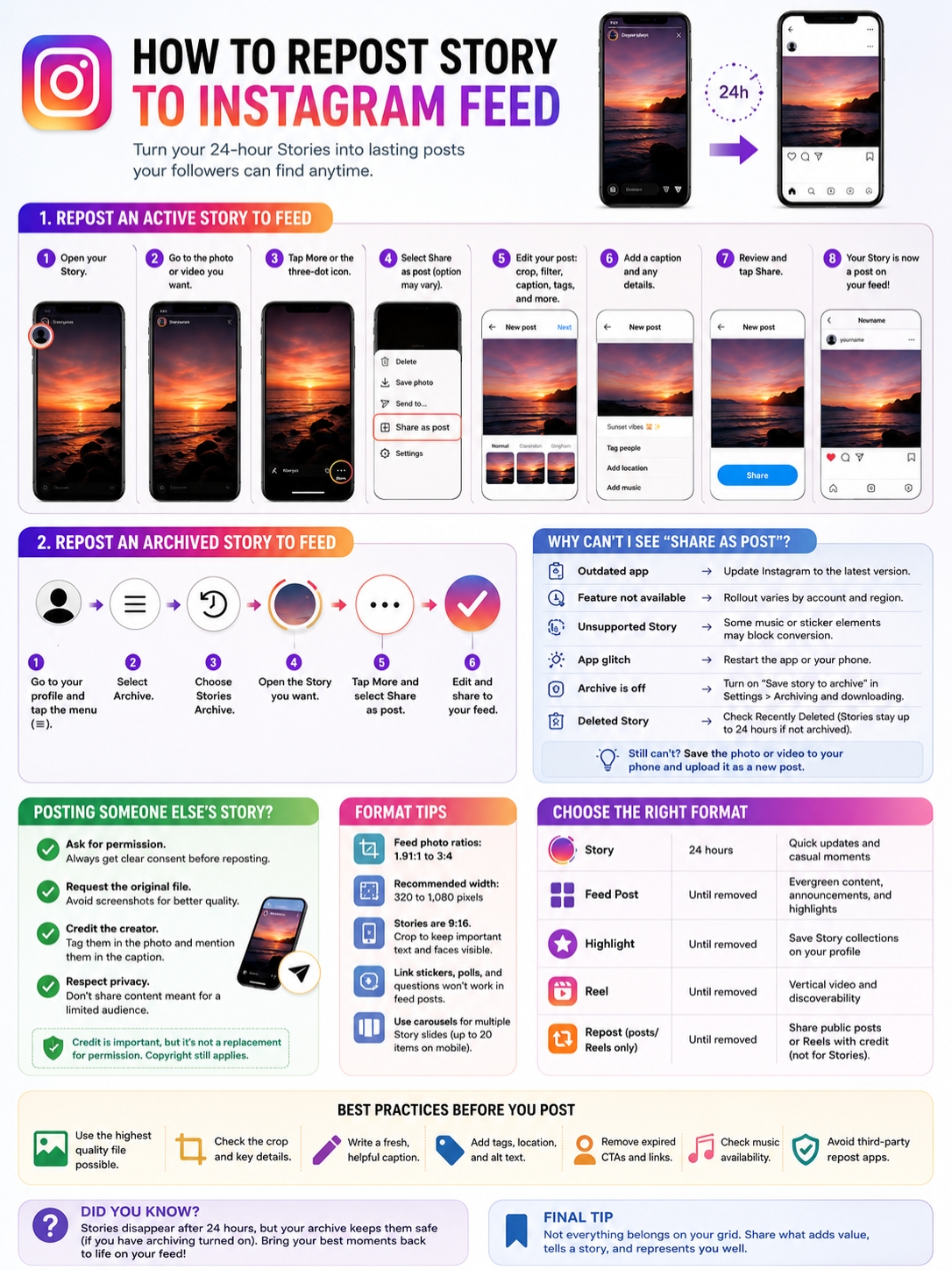
Most Stories use a tall 9:16 layout. Feed posts support a different range of shapes, so cropping is common.
Instagram currently keeps feed photos at their original resolution when they are between 320 and 1,080 pixels wide and use an aspect ratio between 1.91:1 and 3:4.
Wider images may be resized. Taller images may be cropped.
|
Format |
Typical Shape |
Best Use |
|
Instagram Story |
9:16 |
Full-screen temporary posts |
|
Portrait feed photo |
Up to 3:4 |
Tall photos and graphics |
|
Square feed photo |
1:1 |
Clean profile-grid posts |
|
Landscape feed photo |
Down to 1.91:1 |
Wide images and scenes |
|
Reel |
1.91:1 to 9:16 |
Vertical video |
|
Carousel |
Shared orientation |
Multiple photos or Story slides |
Keep Important Details Away From the Edges
Check the top and bottom of the Story before posting.
Look for:
- Headlines
- Subtitles
- Faces
- Products
- Logos
- Prices
- Calls to action
- Creator credits
If any of these sit too close to the edge, resize or redesign the media first.
Replace Story-Only Features
Story tools don’t stay interactive when you turn the content into a feed post.
For example:
- Link stickers won’t remain clickable
- Polls won’t accept votes
- Question boxes won’t collect replies
- Countdown stickers will become static
- Music may disappear
- Mention stickers may not work as Feed tags
Move important details into the caption.
If the Story had a link, tell readers where to find it, such as your profile bio or website.
Use a Carousel for Several Story Slides
You can turn a group of Stories into one carousel post.
Instagram’s mobile app supports up to 20 photos and videos in one carousel.
To create one:
- Save each Story slide.
- Tap the Create button.
- Choose Post.
- Tap Select multiple.
- Pick the files in order.
- Review the crop.
- Add a caption and publish.
Instagram applies one orientation across the carousel, so check every slide before posting.
Story, Feed Post, Highlight, or Repost: Which One Should You Use?
Each Instagram format serves a different purpose.
|
Format |
Where It Appears |
How Long It Lasts |
Best For |
|
Story |
Story tray and profile picture |
Usually 24 hours |
Quick updates |
|
Feed post |
Home Feed and profile grid |
Until removed |
Evergreen content |
|
Highlight |
Profile below the bio |
Until removed |
Saved Story collections |
|
Native Repost |
Followers’ feeds and Reposts tab |
Until removed |
Sharing public posts and Reels |
|
Reel |
Reels Feed and profile |
Until removed |
Vertical video and discovery |
|
Direct message |
Private inbox |
While available |
Private sharing |
Use a Feed Post for Long-Term Content
A feed post makes sense for:
- Product launches
- Portfolio work
- Event photos
- Customer reviews
- Educational tips
- Major announcements
- Campaign content
- Personal milestones
Use a Highlight for Story Collections
Highlights are better when several Stories belong together.
They work well for:
- Frequently asked questions
- Travel diaries
- Menus
- Product tutorials
- Reviews
- Event coverage
- Business details
- Behind-the-scenes posts
Highlights keep the original Story flow without filling your grid with separate posts.
Use Native Repost for Public Posts and Reels
Instagram’s Repost feature is designed for public feed posts and Reels, not Stories.
A native repost:
- Credits the original account
- May appear in your followers’ feeds
- Appears in a separate Reposts tab
- Can include a short note
Use this option when the original content already exists as a public post or Reel. It’s cleaner and safer than downloading and uploading it again.
Best Practices Before You Publish
A Story may look great for a few seconds but still need work before it becomes a permanent post.
|
Best Practice |
Why It Matters |
|
Use the original file |
Keeps the quality higher |
|
Check the crop |
Prevents lost text or faces |
|
Rewrite the caption |
Adds useful context |
|
Remove expired wording |
Avoids phrases like “today only” |
|
Replace Story links |
Gives readers a clear next step |
|
Get permission |
Protects the creator’s rights |
|
Credit the source |
Makes ownership clear |
|
Review private details |
Prevents accidental exposure |
|
Check the grid preview |
Keeps your profile consistent |
|
Avoid risky repost apps |
Protects your login and data |
Don’t copy the Story text into the caption and stop there.
A strong caption should explain what the post is about, why it matters, who created it, and what readers should do next.
Final Thoughts
The easiest way to repost story to Instagram feed is to open your own active or archived Story, tap the options menu, and choose Share as post.
When that option doesn’t appear, use the original photo or video and upload it as a regular post.
|
Final Check |
Best Move |
|
Is it your Story? |
Use Share as post or the original file |
|
Has it expired? |
Check Stories Archive |
|
Does the archive look damaged? |
Use the source file |
|
Is it too tall? |
Reframe it for the feed |
|
Does it contain stickers? |
Add key details to the caption |
|
Does it belong to someone else? |
Get permission |
|
Is it already a post or Reel? |
Use Instagram’s Repost button |
|
Does it contain private details? |
Edit or skip it |
Use the cleanest file you have. Check the crop. Remove expired wording. Make sure the post still makes sense outside its original 24-hour window.
Frequently Asked Questions
|
Question |
Quick Answer |
|
Does the post keep the Story date? |
No |
|
Do Story views carry over? |
No |
|
Do stickers stay interactive? |
No |
|
Can several Stories become one post? |
Yes, as a carousel |
|
Can a Close Friends Story become public? |
Your own media can, but check privacy first |
|
Can deleted Stories be restored? |
Sometimes |
|
Does Story music always transfer? |
No |
|
Can the Repost button copy a Story? |
No |
Will the Feed Post Keep the Original Story Date?
No.
Instagram gives the feed post a new publication date. The original Story date may still appear in your private archive.
Can I Turn Several Stories Into One Carousel?
Yes.
Save each Story slide, create a new post, and choose Select multiple. Instagram’s mobile app supports up to 20 photos and videos in one carousel.
Can I Make a Close Friends Story Public?
You can repost your own media publicly, but think before you do it.
A Close Friends Story may include people or information shared with a limited audience. Ask anyone featured in it before putting it on your public feed.
Why Is the Music Missing From My Archived Story?
Instagram may mute music or freeze some video and GIF elements in older archived Stories.
The best fix is to use the original media and add currently available music through the post or Reel editor.
Will a Story Link Stay Clickable?
No.
A link sticker won’t stay active when it becomes part of a feed image.
Move the link to your bio, website, or another place followers can access.
Can I Recover a Story Deleted Before It Was Archived?
Possibly.
Check Recently Deleted as soon as possible. A Story that wasn’t archived may remain there for only up to 24 hours.
Is a Reel Better Than a Feed Post for Story Video?
Often, yes.
A Reel usually works better for full-screen vertical video. It also has stronger discovery options.
A standard feed post may make more sense when the video belongs in a carousel or supports a photo-led update.
Does Being Tagged Give Me Permission to Use the Story?
Not automatically.
A mention may let you share the Story to your own Story, but it doesn’t always give you permission to publish it permanently.