
Live Photos are great when something interesting is happening. A child laughs. A pet jumps. Someone in a group photo blinks at the wrong moment. That short burst of movement can help you find a better frame.
But Live Photos don’t make sense for every picture.
You probably don’t need motion and sound when photographing a receipt, document, product, menu, or parking spot. A regular still image is often quicker to share, easier to manage, and better suited to the job.
The annoying part is that switching Live Photos off once may not keep them off. You can tap the icon, close Camera, and later find the feature enabled again.
That’s why people searching turn off live photos iphone often get frustrated. The button inside Camera only controls the current setting. You also need to tell the iPhone to remember that setting.
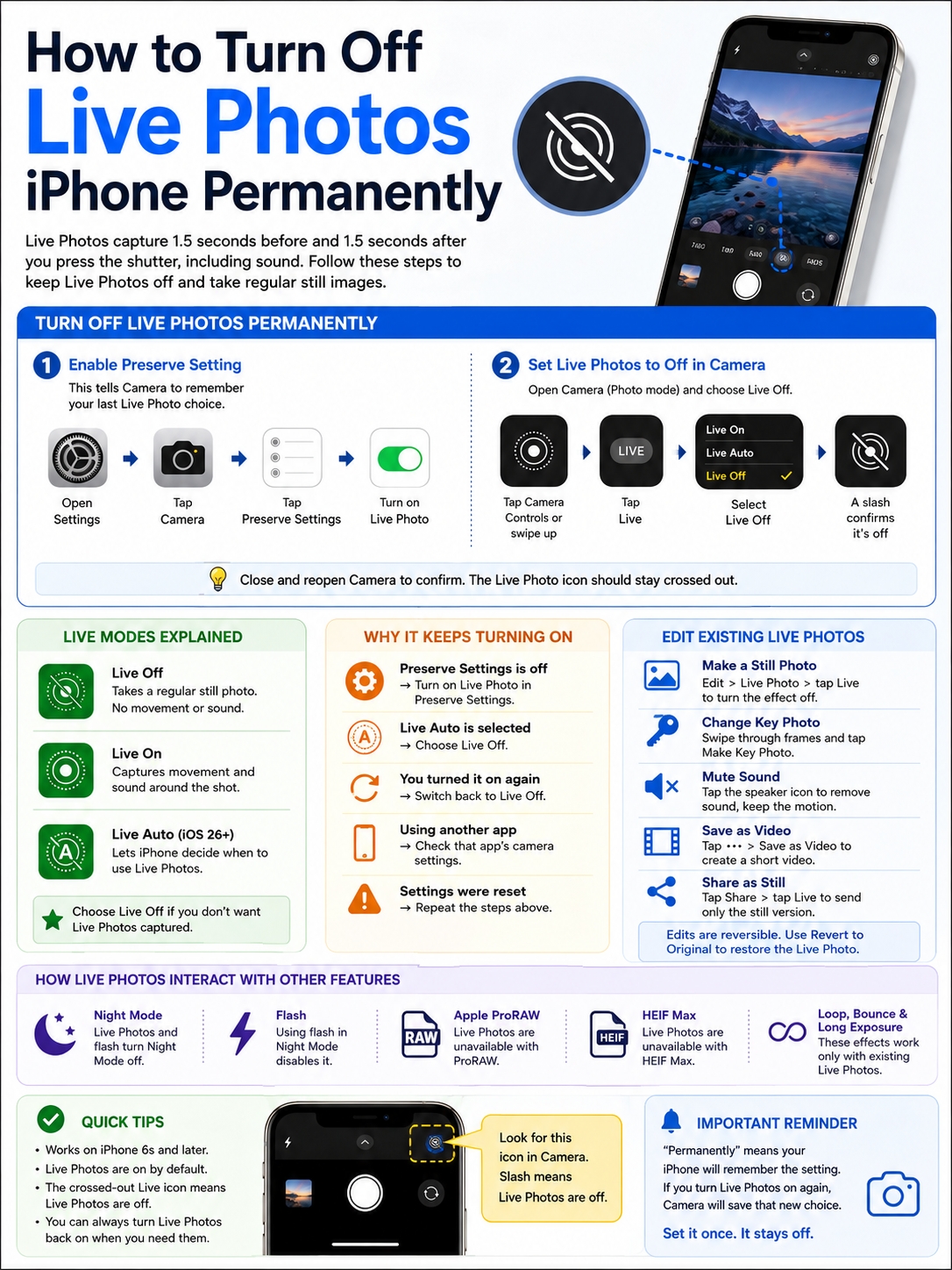
Apple says a Live Photo captures 1.5 seconds before and 1.5 seconds after you press the shutter. That gives you roughly three seconds of motion and sound around the main image.
Here’s how to stop that from happening every time you take a photo.
The Fastest Way to Keep Live Photos Off
The fix has two parts.
First, open:
Settings > Camera > Preserve Settings > Live Photo
Turn that switch on.
Then open Camera, stay in Photo mode, and choose Live Off.
|
Setting |
What It Does |
|
Preserve Settings: Live Photo on |
Remembers the last Live Photo setting you used |
|
Camera: Live Off |
Takes a regular still photo |
|
Camera: Live On |
Captures motion and sound |
|
Camera: Live Auto |
Lets Camera decide when to use Live Photos |
|
Crossed-out Live icon |
Confirms Live Photos are off |
The wording causes most of the confusion.
Turning on Live Photo under Preserve Settings does not turn on Live Photo capture. It simply tells Camera to remember whether you last left the feature on or off.
There’s one more thing worth knowing. “Permanently” doesn’t mean the setting is locked forever. If you turn Live Photos on again later, Camera may remember that new choice.
How to Turn Off Live Photos iPhone Permanently
Follow these steps in order. Skipping the first part is usually why the setting keeps coming back.
|
Step |
What to Do |
Why It Matters |
|
1 |
Open Settings |
Access Camera preferences |
|
2 |
Tap Camera |
Open the Camera settings menu |
|
3 |
Tap Preserve Settings |
Choose what Camera remembers |
|
4 |
Turn on Live Photo |
Save the last on or off state |
|
5 |
Open Camera |
Change the actual capture setting |
|
6 |
Select Live Off |
Stop motion and sound capture |
|
7 |
Reopen Camera |
Confirm the setting stayed off |
Turn On the Preserve Setting
Open the Settings app, then go to:
Camera > Preserve Settings
Find Live Photo and make sure the switch is on.
On current iPhone software, Apple says this setting saves the last Live Photo state you used. It may already be enabled, but it’s still worth checking.
This switch only controls memory. It doesn’t decide whether your next photo will be Live or still.
For that, you need to open Camera.
Set Camera to Live Off
Open the Camera app and choose Photo mode.
On iOS 26:
- Tap the Camera Controls button, or swipe upward from the Photo mode controls.
- Tap Live.
- Keep tapping until you see Live Off.
- Tap outside the menu to close it.
A line through the Live Photo icon means the feature is disabled.
Do not choose Live Auto. Auto still allows the iPhone to take some pictures as Live Photos.
Check That It Worked
Close Camera and open it again.
The Live Photo icon should still show a slash. Take a test picture, open it in Photos, and check whether it plays movement when you press and hold it.
The complete path is:
Settings > Camera > Preserve Settings > Live Photo on, then Camera > Live Off
That’s the most dependable way to turn off live photos iphone and keep the Camera app from switching them back on during normal use.
Where the Live Photo Button Appears
Apple changed the Camera layout in iOS 26, so the button may not be where older guides show it.
|
iOS Version |
Where to Find Live Photo Controls |
|
iOS 26 |
Open Camera Controls or swipe up in Photo mode |
|
iOS 18 |
Look near the top of the Camera screen |
|
Older supported versions |
Usually shown as a circular icon near the top |
|
All supported versions |
Preserve Settings stays inside Camera settings |
On iOS 26
Open Camera and select Photo mode.
Tap the Camera Controls button or swipe upward. Choose Live, then cycle through the options until you reach Live Off.
You can also keep the Live Photo indicator visible on the main Camera screen:
Settings > Camera > Indicators > Live Photo
That makes the control easier to reach when you switch between Live and still photos often.
On iOS 18
The Live Photo button normally appears near the top of the Camera screen.
Tap it until you see a line through the icon.
You still need to check the preserve setting if you want the off state to stick:
Settings > Camera > Preserve Settings > Live Photo
Without that setting, Camera may return to its default behavior later.
Why Live Photos Keep Turning Back On
If Live Photos still return, the cause is usually simple.
|
Problem |
What to Check |
What to Do |
|
Live Photos return after reopening Camera |
Preserve Settings |
Turn on the Live Photo preserve switch |
|
Camera shows Live Auto |
Live mode menu |
Choose Live Off |
|
You used Live Photos recently |
Current Camera state |
Switch them off again |
|
Another app captures motion |
Third-party app settings |
Check that app’s camera options |
|
Camera settings were reset |
Other preferences changed too |
Repeat the setup |
|
The icon is missing |
Camera Indicators |
Enable the Live Photo indicator |
Preserve Settings Is Off
This is the most common problem.
When the preserve switch is disabled, Camera may not remember that you turned Live Photos off.
Go back to Settings, enable the switch, then return to Camera and select Live Off again.
Live Auto Is Selected
Live Auto is not the same as Live Off.
When Auto is active, the iPhone decides whether a scene should be captured as a Live Photo. That means some pictures may still include movement and audio.
Open the Live menu and make sure it says Live Off.
You Turned the Feature On Again
Preserve Settings remembers your latest choice.
Suppose you enable Live Photos for a birthday, pet photo, or sporting event. Camera may save that setting and keep using it the next time you open the app.
Once you’re done, switch back to Live Off.
Read Also: How to Back Up iPhone Without iCloud
You’re Using Another Camera App
Apple’s setting applies to the built-in Camera app.
Instagram, Snapchat, messaging apps, and third-party camera apps may use their own controls. If motion appears only in one app, check that app’s settings rather than the main Camera preferences.
What Changes When You Turn Live Photos Off?
The change only affects new pictures. It won’t alter Live Photos already saved in your library.
|
Area |
What Happens |
|
New photos |
Saved as standard still images |
|
Existing Live Photos |
Stay unchanged |
|
Audio |
No Live Photo sound is recorded with new stills |
|
Old Live Photo effects |
Still work on existing images |
|
Key photo selection |
Still available on old Live Photos |
|
Sharing |
New images behave like regular photos |
|
Storage |
Less new motion data is captured |
A Live Photo contains more than one still frame. It also includes a short motion clip and audio from around the moment you pressed the shutter.
Because of that, a Live Photo normally contains more data than a comparable still image. There is no fixed size difference, though. File size changes depending on the scene, phone model, image format, detail, editing, and compression.
Switching Live Photos off may slow the growth of your photo library, especially if you take a lot of pictures. It won’t free space from Live Photos you already have.
How to Change Existing Live Photos Into Still Images
The turn off live photos iphone setting only affects future pictures.
Photos you already took remain Live Photos until you edit them.
|
What You Want to Do |
Method |
Can You Undo It? |
|
Stop movement playback |
Turn the Live effect off |
Yes |
|
Pick a better frame |
Choose Make Key Photo |
Yes |
|
Remove the sound |
Use Mute |
Yes |
|
Shorten the clip |
Trim the frame range |
Yes |
|
Make a video copy |
Choose Save as Video |
Original stays intact |
|
Restore everything |
Revert to Original |
Yes |
Turn a Live Photo Into a Still Photo
- Open Photos.
- Select the Live Photo.
- Tap Edit.
- Tap the Live Photo button.
- Tap Live at the top to turn the effect off.
- Tap Done.
The picture will now behave like a still image using its selected key frame.
This edit is reversible. You can restore the original Live Photo later with Revert to Original.
That also means turning off the effect does not necessarily erase the original motion data from the file.
Choose a Better Key Photo
Live Photos capture several frames around the moment you press the shutter. That gives you a second chance when someone blinks, turns away, or moves.
To change the key frame:
- Open the Live Photo.
- Tap Edit.
- Tap the Live Photo controls.
- Move through the frames.
- Select the one you want.
- Tap Make Key Photo.
- Tap Done.
Apple notes that changing the key photo on certain Live Photos taken with an iPhone 15 model or later can remove the portrait effect.
Remove Sound but Keep Movement
Sometimes the movement looks good, but the background audio doesn’t.
Open the Live Photo, tap Edit, open the Live Photo controls, and tap the speaker icon.
The motion stays. The sound stops playing.
You can return to the same menu later and restore the audio.
Save a Live Photo as a Video
A short video is often easier to send to someone using Android, Windows, or a service that doesn’t fully support Live Photos.
Open the Live Photo, tap the More button, and choose Save as Video.
Photos creates a separate video copy. The original Live Photo remains in your library.
You don’t always need to edit the original image.
Open the Live Photo, tap Share, then tap Live near the top before choosing where to send it.
That shares a still version while leaving the original Live Photo untouched.
Apple also says Live Photos sent through Mail are delivered as still images.
How Live Photos Work With Other Camera Features
Live Photos can affect a few other camera tools.
|
Camera Feature |
What Happens |
|
Night mode |
Turning on Live Photos disables Night mode |
|
Flash |
Turning on flash during Night mode disables Night mode |
|
Apple ProRAW |
Live Photos are unavailable |
|
HEIF Max |
Live Photos are unavailable |
|
Loop |
Works only with an existing Live Photo |
|
Bounce |
Works only with an existing Live Photo |
|
Long Exposure |
Uses data from an existing Live Photo |
Night Mode
Live Photos and Night mode do not run at the same time.
When Night mode is active, Live Photos and flash are normally disabled. If you manually turn either one on, Night mode switches off.
That matters when you’re taking pictures in dim rooms or outdoors at night. Keeping Live Photos off makes it easier to leave Night mode active when the iPhone decides it’s needed.
Night mode is available on iPhone 11 and later, though specific features vary by model.
ProRAW and HEIF Max
Live Photos are also unavailable while Apple ProRAW or HEIF Max is enabled.
If the Live Photo control is missing or greyed out, check whether one of those formats is active.
When Live Photos Are Actually Worth Using
Live Photos aren’t a bad feature. They’re simply unnecessary for many everyday shots.
|
Situation |
Why Live Photos Help |
|
Children and pets |
Captures movement around the shutter press |
|
Group photos |
Gives you more frames to choose from |
|
Celebrations |
Keeps a short moment of sound and motion |
|
Sports or action |
Shows what happened just before and after |
|
Creative photography |
Supports Loop, Bounce, and Long Exposure |
|
Cross-platform sharing |
Can be saved as a short video |
They’re especially useful when timing is hard to predict.
A child may smile a split second after you tap the shutter. A dog may turn its head. Someone may blink. With a Live Photo, you can move through the frames and choose a better one.
A sensible setup is to keep Live Photos off for routine images and turn them on when movement matters.
Just remember to switch them off again afterward if Camera is saving your last setting.
Final Thoughts
The setting sounds more confusing than it really is.
Go to Settings > Camera > Preserve Settings and turn on the Live Photo switch. Then open Camera and select Live Off.
The first step tells Camera to remember. The second step tells it what to remember.
That’s the proper way to turn off live photos iphone and stop the feature from returning every time you open Camera.
Your old Live Photos will stay untouched. You can still turn the feature back on when you’re photographing pets, children, celebrations, or anything else where movement matters.
Frequently Asked Questions
|
Question |
Quick Answer |
|
Should the Preserve Settings switch be on? |
Yes |
|
Does permanently mean locked forever? |
No |
|
Are old Live Photos deleted? |
No |
|
Can you mute sound but keep motion? |
Yes |
|
Does Live Off erase motion data? |
Not always |
|
Can Live Photos work with ProRAW? |
No |
Why Do I Turn On a Live Photo Setting to Switch Live Photos Off?
Because the switch under Preserve Settings controls memory, not capture.
Turning it on tells Camera to remember whether you last used Live Off, Live On, or Live Auto.
You still need to open Camera and choose Live Off.
Does Turning Off Live Photos Delete Old Live Photos?
No.
It only affects new photos. Existing Live Photos stay in your library with their motion, sound, effects, and key frames.
You must edit those photos separately if you want them to behave like still images.
Why Can’t I Find the Live Photo Button?
First, make sure Camera is in Photo mode.
On iOS 26, open Camera Controls or swipe up. On iOS 18, check near the top of the Camera screen.
The option may also disappear when ProRAW or HEIF Max is active.
Is Live Auto the Same as Live Off?
No.
Live Auto lets Camera decide when to capture movement and sound. Live Off prevents Live Photo capture until you change the setting again.
Can I Remove the Audio Without Losing the Motion?
Yes.
Open the Live Photo, tap Edit, open the Live controls, and tap the speaker icon.
The image will still move, but the sound won’t play.
Can I Disable Live Photos for Just One Picture?
Yes.
Open Camera and choose Live Off before taking the photo. If Preserve Settings is not saving that state, Live Photos may return later.
This works well when you normally keep the feature on but need one standard still image.
Can I Restore a Live Photo After Turning the Effect Off?
Yes.
Open the edited image, tap the More button, and choose Revert to Original.
That restores the original Live Photo, including its motion and sound.