
You get in the car, plug in your phone, and expect Google Maps to pop up on the screen. But nothing happens.
Maybe your phone only charges. Maybe the dashboard screen stays black. Maybe wireless Android Auto connects for a second, then drops. Or maybe Maps works fine, but calls and voice commands refuse to play along.
If android auto not working is the issue, don’t start with a factory reset. That’s usually overkill. Most Android Auto problems come from simple things: a weak cable, the wrong USB port, old app versions, blocked permissions, Bluetooth pairing trouble, or a car system that needs an update.
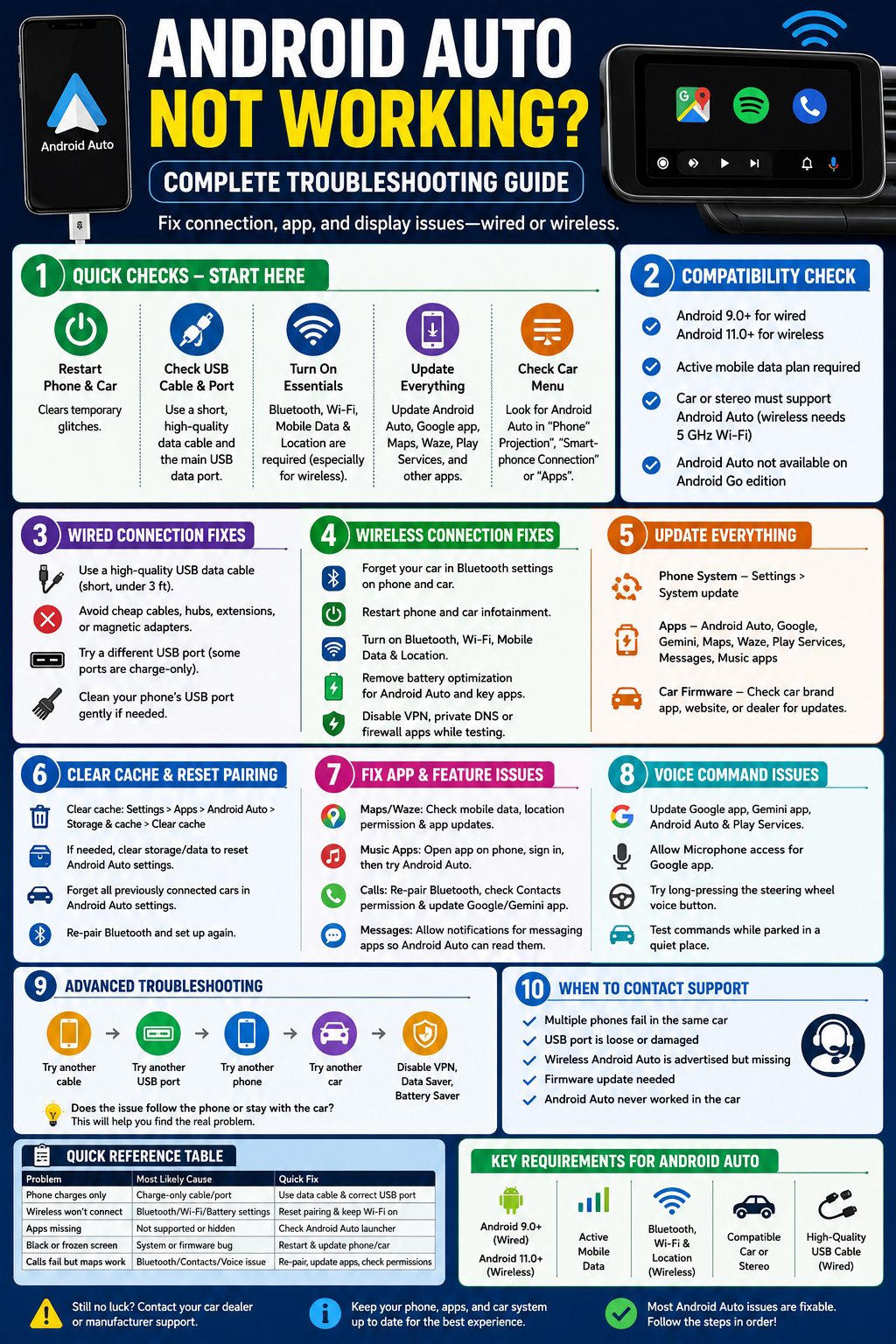
This guide walks you through the fixes in the right order. Start with the quick checks. Then move deeper only if the problem sticks around.
Android Auto Not Working: Start With the Quick Fixes
|
What to Check |
What to Do |
Why It Helps |
|
Phone restart |
Restart your Android phone |
Clears small app and connection bugs |
|
Car screen restart |
Turn the car off, wait, then start again |
Resets the infotainment system |
|
USB cable |
Try a short, high-quality cable |
Bad cables often break wired Android Auto |
|
Wireless settings |
Turn on Bluetooth, Wi-Fi, mobile data, and Location |
Wireless Android Auto needs these to connect |
|
App updates |
Update Android Auto, Google app, Maps, Waze, and Play Services |
Old apps can cause connection errors |
Start with the basics. They sound boring, but they fix many Android Auto issues.
Do this first:
- Restart your phone.
- Turn off the car.
- Open and close the driver door if the car screen stays awake.
- Wait at least 30 seconds.
- Start the car again.
- Unlock your phone.
- Try Android Auto again.
For wired Android Auto, plug your phone into the main USB data port. Some cars have USB ports that only charge. If your phone charges but Android Auto never opens, you may be using the wrong port.
For wireless Android Auto, keep Bluetooth, Wi-Fi, mobile data, and Location turned on. Bluetooth usually starts the pairing. Wi-Fi handles much of the wireless connection after that.
Also check the car screen. Some systems hide Android Auto inside a menu called “Phone Projection,” “Smartphone Connection,” or “Apps.”
Check Android Auto Phone and Car Compatibility
|
Requirement |
Wired Android Auto |
Wireless Android Auto |
|
Phone version |
Android 9.0 or higher |
Android 11.0 or higher for most phones |
|
Mobile data |
Required |
Required |
|
Car or stereo |
Must support Android Auto |
Must support wireless Android Auto |
|
Wi-Fi support |
Not needed for wired use |
5 GHz Wi-Fi support needed |
|
Cable |
High-quality USB cable required |
Sometimes needed for first setup |
Before you spend an hour changing settings, make sure your phone and car can actually run Android Auto.
Android Auto does not work with every Android phone, every country, every car, or every USB port. A car can have a big screen and still not support Android Auto. A car can also have five USB ports, while only one works for phone projection.
Check these points:
- Your phone runs Android 9.0 or higher.
- Your phone has an active mobile data plan.
- Your car or stereo supports Android Auto.
- Your car supports wireless Android Auto if you want cable-free use.
- Android Auto is allowed in your car’s infotainment settings.
On newer Android phones, Android Auto is usually built into the system. You may not see a normal app icon on the home screen.
To find it, open:
Settings > Connected devices > Connection preferences > Android Auto
If your phone uses different menu names, open Settings and search for “Android Auto.”
One more thing: Android Auto does not work on Android Go edition devices. If you use a low-cost Android phone, check the software edition before going deeper.
Fix USB Cable and Port Problems
|
Problem |
What You May See |
Best Fix |
|
Charge-only cable |
Phone charges, but Android Auto does not open |
Use a USB data cable |
|
Long cable |
Random disconnects |
Use a short cable, under 3 feet if possible |
|
Damaged cable |
Android Auto starts, then drops |
Replace the cable |
|
USB hub or extension |
No connection or unstable connection |
Plug directly into the car |
|
Wrong USB port |
Phone charges only |
Try another USB port in the car |
A bad USB cable is one of the most common reasons for android auto not working in wired mode.
The annoying part? A bad cable may still charge your phone. Charging does not mean the cable can move data properly. Android Auto needs a stable data connection.
Use these cable rules:
- Use the cable that came with your phone if you still have it.
- Keep the cable short.
- Avoid loose or worn cables.
- Skip cheap no-name cables.
- Don’t use USB hubs.
- Don’t use cable extensions.
- Avoid magnetic USB adapters.
- Plug the phone directly into the car.
If Android Auto worked yesterday and failed today, test another cable before touching advanced settings. It’s one of the fastest checks you can make.
Also look at your phone’s USB-C port. Dust, lint, or a loose fit can cause repeated disconnects.
Turn off your phone before cleaning the port. Use a soft, dry brush or gentle air cleaning. Don’t push metal objects into the port.
If Android Auto only works when you hold the cable at a certain angle, the cable or port is probably damaged.
Fix Wireless Android Auto Connection Problems
|
Wireless Issue |
Common Cause |
Fix |
|
Car sees phone but won’t connect |
Bluetooth pairing conflict |
Forget the car and pair again |
|
Android Auto starts then drops |
Wi-Fi or battery setting issue |
Keep Wi-Fi on and remove battery limits |
|
Setup will not start |
Car is not parked |
Park the car and restart setup |
|
Old phone connects first |
Saved device conflict |
Remove unused phones from car settings |
|
VPN blocks connection |
Network filtering issue |
Turn off VPN during testing |
Wireless Android Auto is great when it works. But it has more moving parts than the wired version.
It depends on your phone, your car, Bluetooth, Wi-Fi, mobile data, Location, and car software. If one piece gets stuck, the whole thing can fail.
Try a clean wireless reset:
- Open Bluetooth settings on your phone.
- Forget your car.
- On the car screen, delete your phone from paired devices.
- Restart your phone.
- Restart the car infotainment system.
- Turn on Bluetooth, Wi-Fi, mobile data, and Location.
- Pair the phone again while parked.
Read Also: How to Move Apps to SD Card on Android
Don’t do the first setup while driving. Many cars block setup unless the vehicle is parked.
If your car supports wireless Android Auto, it should usually start within a few seconds after pairing. If not, check the car screen for an Android Auto icon or setup prompt.
Also turn off VPN apps, private DNS, firewall tools, or ad blockers while testing. These tools can sometimes interfere with wireless Android Auto.
Battery settings can also cause random drops. Some phones put apps to sleep too aggressively.
Check battery settings for:
- Android Auto
- Google app
- Google Play Services
- Google Maps
- Waze
- Your music app
Set them to unrestricted if your phone gives that option.
Update Android Auto, Google Apps, and Car Firmware
|
Update Area |
Why It Matters |
Where to Check |
|
Android system |
Fixes phone-level bugs |
Settings > System update |
|
Android Auto |
Fixes connection and display problems |
Google Play Store |
|
Google app |
Affects voice commands and Gemini |
Google Play Store |
|
Maps and Waze |
Affects navigation |
Google Play Store |
|
Car firmware |
Fixes infotainment bugs |
Car app, dealer, or manufacturer site |
Android Auto problems often show up after an update. That doesn’t always mean the update broke everything. Sometimes one part updated, while another part still needs a matching fix.
Start with your phone:
- Open Settings.
- Go to System.
- Tap Software update.
- Install any available update.
Then open the Google Play Store and update these apps:
- Android Auto
- Google app
- Gemini app, if installed
- Google Maps
- Waze
- Google Play Services
- Messages
- Spotify, YouTube Music, or your media app
Don’t forget the car side.
If you use an aftermarket stereo from Pioneer, Kenwood, Sony, JVC, Alpine, or another brand, check the brand’s support page for firmware updates.
For factory car systems, check your car brand’s app, owner portal, or dealer service desk. Some updates arrive over the air. Others need a USB file or dealer visit.
If your phone works in another Android Auto car but not in yours, your car system may need attention.
Clear Cache, Forget Cars, and Reset Pairing
|
Reset Option |
What It Does |
When to Use |
|
Clear cache |
Removes temporary files |
App acts slow or unstable |
|
Clear storage/data |
Resets Android Auto settings |
Pairing is stuck or broken |
|
Forget all cars |
Removes old car profiles |
A car refuses to reconnect |
|
Reset Bluetooth pairing |
Clears phone-car conflicts |
Wireless Android Auto fails |
|
Reset network settings |
Clears Wi-Fi and Bluetooth settings |
Use only as a later step |
If Android Auto opens but acts strange, clear the cache first.
Go to:
Settings > Apps > Android Auto > Storage & cache > Clear cache
Restart your phone and reconnect.
If that doesn’t help, clear storage or app data:
Settings > Apps > Android Auto > Storage & cache > Clear storage
This resets Android Auto settings, so you may need to set up your car again.
You can also remove old cars from Android Auto. This helps if your phone keeps trying to connect to the wrong car or refuses to start fresh.
Try this:
- Open Android Auto settings on your phone.
- Tap Previously connected cars.
- Open the menu.
- Tap Forget all cars.
- Restart your phone.
- Connect again.
Use network reset only if Bluetooth and Wi-Fi are also acting badly outside Android Auto. It can remove saved Wi-Fi networks and Bluetooth devices, so don’t start there.
Fix Black Screen, Frozen Display, or Missing App Icons
|
Screen Issue |
Likely Cause |
Best Fix |
|
Black screen |
Car display failed to launch Android Auto |
Restart car screen and phone |
|
Frozen Android Auto |
App or firmware bug |
Update apps and car firmware |
|
Missing app icons |
App not supported or hidden |
Check Android Auto launcher settings |
|
Maps open slowly |
Weak data or app cache issue |
Check mobile data and clear cache |
|
Car says connected but shows nothing |
Infotainment system stuck |
Restart the car screen |
A black screen does not always mean your phone failed. Sometimes the car display gets stuck.
Try this order:
- Unplug the phone.
- Restart your phone.
- Turn the car off.
- Wait 30 seconds.
- Start the car.
- Unlock your phone.
- Reconnect.
If app icons are missing, open Android Auto settings on your phone and check launcher customization. Some apps may be hidden from the car display.
Also remember this: not every Android app works with Android Auto.
Apps need a car-friendly version to appear on the dashboard. That’s why normal video apps, browsers, and many phone apps won’t show up while driving.
Android Auto mainly supports navigation, media, messaging, calling, points of interest, weather, and other approved car-safe app types. Some parked-use apps may work in certain cars, but support depends on the app, car, and region.
Fix Google Maps, Waze, Music, Calls, and Messages
|
App Problem |
Likely Cause |
Fix |
|
Google Maps not loading |
Data or Location issue |
Turn on mobile data and Location |
|
Waze missing |
App hidden or outdated |
Update Waze and check launcher |
|
Spotify not playing |
Account or app issue |
Open Spotify on phone first |
|
Messages not read aloud |
Notification permission blocked |
Allow notifications |
|
Calls fail |
Bluetooth or assistant issue |
Re-pair Bluetooth and update Google app |
Sometimes Android Auto works, but one app fails. That’s a different problem.
For navigation issues, check:
- Mobile data
- Location
- Google Maps or Waze updates
- Location permission
- Battery restrictions
For Google Maps, open:
Settings > Apps > Google Maps > Permissions > Location
Allow Location while using the app. You can also allow all-the-time access if it fits your privacy preference and navigation needs.
For music apps, open the app on your phone first. Make sure you’re signed in. Play one song on the phone, then try Android Auto again.
For messages, notifications must be allowed. Android Auto needs notification access to read incoming messages and offer replies.
Check this path:
Settings > Notifications > App notifications
Allow notifications for Messages, WhatsApp, Telegram, Messenger, or the messaging app you use.
For calls, Bluetooth still matters. Many cars route call audio through Bluetooth even when Android Auto is running.
If calls fail but maps and music work, delete the Bluetooth pairing and reconnect the phone.
Fix Gemini and Google Assistant Voice Command Problems
|
Voice Issue |
What to Check |
Best Fix |
|
“Hey Google” does nothing |
Assistant or Gemini settings |
Update Google and Gemini apps |
|
Voice button fails |
Car button behavior |
Try long press and check the car manual |
|
Calls fail by voice |
Gemini or Google app bug |
Update apps and test manual calling |
|
Wrong contact opens |
Contact permission or duplicate names |
Check Contacts permission |
|
Poor voice pickup |
Car microphone issue |
Test while parked in a quiet place |
Voice control in Android Auto is changing. Gemini is becoming part of Android Auto and is replacing the classic Google Assistant experience for many users.
That means two drivers may not always see the same voice behavior at the same time. It can depend on your account, app version, phone model, region, and rollout status.
If voice commands fail, update:
- Google app
- Gemini app
- Android Auto
- Google Play Services
Then check microphone access:
Settings > Apps > Google > Permissions > Microphone
Allow microphone access.
Also test your steering wheel voice button. In some cars, a short press opens the car’s built-in voice assistant. A long press opens Android Auto’s assistant.
Try these voice commands while parked:
- “Navigate home.”
- “Call Dad.”
- “Send a message.”
- “Play music.”
- “Find a gas station nearby.”
If navigation works but calling fails, the problem may be tied to Contacts, Bluetooth, Google app, Gemini, or the car microphone.
Update everything, re-pair Bluetooth, and test manual calling from the car screen.
Advanced Troubleshooting When Android Auto Still Won’t Work
|
Advanced Test |
What It Tells You |
What to Do Next |
|
Try another cable |
Checks for cable failure |
Replace the cable |
|
Try another USB port |
Checks for port issues |
Use the correct data port |
|
Try another phone |
Shows if the car or phone is the problem |
Fix phone settings or car system |
|
Try another car |
Tests your phone outside your car |
Contact dealer if phone works elsewhere |
|
Disable VPN/private DNS |
Checks for network conflict |
Adjust network tools |
If nothing works, narrow down the real problem.
Ask one question: does the issue follow the phone, or does it stay with the car?
Test your phone in another Android Auto-compatible car. If it works there, your car or stereo is likely the problem.
Then test another Android phone in your car. If that phone works, your original phone needs more troubleshooting.
Also check these less obvious causes:
- Work profile restrictions
- Parental controls
- Data Saver mode
- Battery Saver mode
- VPN apps
- Private DNS
- Security or firewall apps
- Damaged phone USB port
- Damaged car USB port
- Outdated aftermarket stereo firmware
- Wireless Android Auto adapter issues
If you use a wireless Android Auto adapter, test without it. Connect the phone directly with a cable.
If wired Android Auto works but the adapter fails, the adapter is the problem.
When to Contact Your Car Dealer or Manufacturer
|
Situation |
Best Contact |
|
Android Auto never worked in the car |
Car dealer or manufacturer |
|
Several phones fail in the same car |
Car manufacturer or service center |
|
USB port is loose or damaged |
Dealer or repair shop |
|
Wireless Android Auto is advertised but missing |
Manufacturer support |
|
Firmware update is needed |
Dealer or head unit brand |
Contact the dealer or manufacturer when the same issue happens with multiple phones and multiple cables. At that point, the car system may be the problem.
Before you call, write down:
- Car brand, model, and year
- Infotainment system version
- Phone model
- Android version
- Android Auto version
- Wired or wireless connection
- Error message, if any
- When the problem started
- What you already tried
This saves time. It also helps support skip the basic questions.
Final Thoughts
When android auto not working gets in the way, don’t tear through every setting at once. Start small.
Restart the phone and car. Check the cable. Try the right USB port. Make sure your phone and car support Android Auto. For wireless use, keep Bluetooth, Wi-Fi, mobile data, and Location turned on.
Then move deeper. Update Android Auto, Google apps, Maps, Waze, Play Services, and your car firmware. Clear cache. Forget old cars. Pair again from scratch.
If the issue still won’t go away, test another cable, another phone, or another car. That will show you where the problem really lives.
Most Android Auto issues are fixable. The trick is to work through the checks in order instead of guessing.
FAQs About Android Auto Not Working
|
FAQ |
Quick Answer |
|
Why does my phone only charge? |
The cable or USB port may not support data |
|
Why does wireless Android Auto fail? |
Bluetooth, Wi-Fi, battery settings, or car firmware may be the cause |
|
Why are apps missing? |
Not all apps support Android Auto |
|
Why did it stop after an update? |
Phone, app, or car firmware may need a matching update |
|
Why do calls fail but maps work? |
Bluetooth, Contacts, or voice assistant settings may be the issue |
Why is Android Auto not working but my phone is charging?
Your cable or USB port may support charging only. Android Auto needs data transfer too. Try a high-quality USB data cable and use the car’s main USB port.
Why does Android Auto work with a cable but not wirelessly?
Your car may support wired Android Auto only. If it supports wireless Android Auto, reset Bluetooth pairing, turn on Wi-Fi and Location, and check if your phone supports wireless projection.
Why did Android Auto stop working after a phone update?
A phone update can change app permissions, USB behavior, Bluetooth pairing, or battery settings. Update Android Auto, Google app, Maps, Waze, and Play Services. Then clear Android Auto cache and reconnect.
Why is Google Maps not showing on Android Auto?
Google Maps may need an update, mobile data, or Location permission. Open Maps on your phone first. If it works there, reconnect Android Auto and check launcher settings.
Why is Spotify or YouTube Music missing?
The app may be outdated, hidden from the Android Auto launcher, or signed out. Update the app, open it on your phone, sign in, and check Android Auto launcher settings.
Why does Android Auto keep disconnecting when I move my phone?
That usually points to a loose cable, weak USB connector, dirty phone port, or damaged car USB port. Try a new short cable and clean the phone port carefully.
Why does Android Auto not read my messages?
Notifications may be blocked. Allow notifications for your messaging app and make sure Android Auto can access message notifications.
Why does the car screen stay black after Android Auto connects?
The infotainment system may be frozen. Restart the phone and car screen. If the black screen keeps coming back, check for a car firmware update.
Why does voice calling fail in Android Auto?
Voice calling can fail because of Bluetooth pairing, Contacts permission, Google app bugs, Gemini rollout issues, or car microphone problems. Update the Google and Gemini apps, re-pair Bluetooth, and test manual calling.