
Losing AirPods is irritating. Losing them without the case feels even worse.
You check your desk. You check your bed. You check your pockets twice. Then the panic starts. Are they dead? Can they still make a sound? Can you track them if the case isn’t with them?
Here’s the good news: you can still find lost airpods without the case in many situations.
Apple’s Find My app can show their current or last known location. It can also play a sound if the earbuds are nearby and have battery. On newer AirPods models, Find My can even guide you closer through nearby tracking features.
But there’s a catch. AirPods are not tiny GPS trackers. They rely on Bluetooth, your Apple devices, and Apple’s Find My network. So your chances depend on the model, battery level, and whether Find My was already enabled before they went missing.
Let’s walk through the smartest way to search.
|
Quick Question |
Straight Answer |
|
Can you find AirPods without the case? |
Yes, if Find My was already enabled. |
|
Can AirPods play a sound without the case? |
Yes, if they are out of the case, nearby, and powered on. |
|
Can you track dead AirPods live? |
No. You may only see the last known location. |
|
Can you find one missing AirPod? |
Yes, in many cases. |
|
Best tool to use |
Apple’s Find My app. |
How AirPods Tracking Works Without the Case
AirPods don’t track location on their own like an iPhone. They don’t have full GPS inside each earbud.
Instead, they use Bluetooth and Apple’s Find My system. When your AirPods connect to your iPhone, iPad, Mac, Apple Watch, or a nearby Apple device in the Find My network, Apple can help show where they are.
That’s why the case is not always required.
If your AirPods are outside the case and still have battery, Find My may detect them. If they are close, you may be able to play a sound. If they are far away, you may see their last known location.
The key point is simple: Find My must be turned on before you lose them. You can’t switch it on afterward and expect it to find earbuds that were never connected to your Apple Account.
|
What Affects Tracking |
Why It Matters |
|
Battery level |
Dead AirPods cannot update location or play sound. |
|
Find My setup |
It must be active before the AirPods go missing. |
|
Bluetooth range |
Nearby AirPods are easier to find. |
|
AirPods model |
Newer models have better Find My tools. |
|
Last connection |
Find My may show where they last connected. |
|
Country or region |
Some Find My features may not work everywhere. |
Not All AirPods Track the Same Way
This is where many guides get it wrong. Every AirPods model does not offer the same tracking features.
AirPods 1, AirPods 2, and standard AirPods 4 have basic Find My support. You can see a location and play a sound when possible.
AirPods 3, AirPods 4 with Active Noise Cancellation, AirPods Pro, and AirPods Max offer stronger Find My features. Depending on the model, you may get Find Nearby, separation alerts, Lost Mode, and better item tracking.
AirPods 4 with ANC, AirPods Pro 2, and AirPods Pro 3 are especially useful because the earbuds and case can appear separately in Find My.
|
AirPods Model |
Find My Support |
|
AirPods 1 |
Location and sound support |
|
AirPods 2 |
Location and sound support |
|
AirPods 4 standard |
Location and sound support |
|
AirPods 3 |
Find Nearby, sound, alerts, contact info |
|
AirPods 4 with ANC |
Better tracking, case sound, separate item view |
|
AirPods Pro |
Advanced Find My support, depending on generation |
|
AirPods Pro 2 and Pro 3 |
Strong case finding and separate tracking |
|
AirPods Max |
Location, sound, Find Nearby, lost-device features |
How to Find Lost AirPods Without the Case Using Find My
Start with Find My before you start tearing apart your room.
AirPods have small batteries. The longer you wait, the harder the search gets.
On your iPhone or iPad:
- Open the Find My app.
- Tap Devices.
- Select your AirPods.
- Check the map.
- Look for a current location or last known location.
- Tap Directions if they are away from you.
- Tap Play Sound if they are nearby.
- Use Find or Find Nearby if your model supports it.
If the earbuds are separated, Find My may show one AirPod at a time. Find the one shown first. Then refresh the app and search for the other one.
|
Find My Feature |
What It Does |
Best Time to Use It |
|
View Location |
Shows current or last known location |
Start here first |
|
Directions |
Opens a route to the location |
When AirPods are away from you |
|
Play Sound |
Makes the earbuds beep |
When they are nearby |
|
Find Nearby |
Guides you closer |
On supported AirPods models |
|
Lost Mode |
Marks them as lost |
When you can’t find them quickly |
|
Notify When Found |
Sends an alert if they reconnect |
When AirPods are offline |
Use Play Sound Carefully
Play Sound works best when the AirPods are near you and out of the case.
Before tapping it, make the room quiet. Turn off the TV. Stop music. Pause any loud fan. Ask people nearby to stay quiet for a minute.
Then tap Play Sound and listen.
The beep is not always loud. If an AirPod is under a blanket, inside a bag, or stuck between sofa cushions, the sound may feel faint. Walk slowly. Stop often. Listen from different angles.
If you can mute one earbud, use that option. For example, mute the right AirPod while you search for the left one.
Use iCloud.com if Your iPhone Isn’t With You
If your iPhone is missing or not nearby, use iCloud.com/find from a browser.
Sign in with your Apple Account. Choose your AirPods from the device list. You may be able to see a location or play a sound.
The web version does not always offer every Find My feature. For the best experience, use the Find My app on an iPhone, iPad, Mac, or Apple Watch.
Read Also: How to Reset AirPods Pro 2: Complete Guide
What to Do if Your AirPods Show Offline
Seeing “Offline” or “No Location Found” can be frustrating. But don’t assume the AirPods are gone forever.
Offline usually means one of four things:
- The AirPods are out of battery.
- They are out of Bluetooth range.
- They are inside something that blocks the signal.
- They have not connected to your devices or the Find My network recently.
If Find My shows a last known location, go there first. Treat it as a clue, not a live tracker.
|
Find My Message |
What It Means |
What to Do Next |
|
Offline |
AirPods can’t connect right now |
Check the last known location |
|
No Location Found |
Find My has no usable location |
Search recent places manually |
|
Last Seen |
Last place they connected |
Start your search there |
|
Sound Pending |
Sound may play when they reconnect |
Keep notifications on |
|
Notify When Found |
You may get an alert later |
Leave them linked to your account |
Don’t Keep Tapping Play Sound
If the AirPods are dead or offline, tapping Play Sound again and again won’t help. They can’t beep if they can’t connect.
Do this instead:
- Go to the last known location.
- Open Find My again.
- Walk around slowly.
- Try Play Sound only when you are close.
- Keep Notify When Found turned on.
- Don’t remove the AirPods from your Apple Account.
Offline does not always mean lost forever. It means Find My cannot reach them right now.
The Last Known Location Still Matters
A last known location can save you time.
Maybe your AirPods last connected at a cafe, gym, office, classroom, hotel, bus stop, or airport gate. Go there or contact the place as soon as possible.
Ask staff to check lost and found. Give clear details. Mention the area, seat, table, room, or time you last used them.
The faster you act, the better your chances.
How to Find One Missing AirPod
Losing one AirPod is more common than losing both.
One earbud slips out during a walk. One falls into a hoodie pocket. One lands in the bed while you fall asleep. One stays on the desk while the other goes back in the case.
Open Find My and select your AirPods. If the app lets you choose left or right, pick the missing side.
If Find My only shows one AirPod, find that one first. Then refresh the map to locate the other.
|
Situation |
Best Move |
|
Left AirPod missing |
Select Left in Find My if available |
|
Right AirPod missing |
Select Right in Find My if available |
|
Only one AirPod appears |
Find that one first, then refresh |
|
Wrong AirPod is beeping |
Mute that side and play sound on the missing one |
|
Missing AirPod is dead |
Use last known location and manual search |
Check the Places One AirPod Loves to Hide
A single AirPod can disappear in the most ridiculous places.
Check these spots:
- Sofa cracks
- Bed sheets
- Pillow covers
- Hoodie pockets
- Jacket pockets
- Laundry baskets
- Gym bags
- Car seat gaps
- Under floor mats
- Desk drawers
- Under rugs
- Around chargers
- Beside nightstands
- Bathroom counters
- Doorway corners
Use your phone flashlight. AirPods are white and glossy, so they can blend into floors, paper, bedding, and light furniture.
Shine the light low across the floor. The plastic may catch the light.
How to Search When Find My Gives a Weak Location
Sometimes Find My gives you a broad area instead of an exact spot. It may show your home, office, hotel, or gym, but not the exact room.
That still helps.
Start with the last moment you remember using them.
Ask yourself:
- When did the audio stop?
- Did I remove one AirPod to talk?
- Did I change clothes?
- Did I put one earbud in a pocket?
- Did I fall asleep with them in?
- Did I leave them on a table?
- Did I get out of a car or bus?
Most AirPods losses come from small habits, not big accidents.
|
Last Activity |
Check These Places First |
|
Watching videos in bed |
Sheets, pillowcase, blanket folds |
|
Working at a desk |
Keyboard area, drawers, chair, floor |
|
Riding in a car |
Seat rail, cup holder, floor mat, door pocket |
|
Working out |
Towel, locker, shoe bag, treadmill tray |
|
Walking outside |
Jacket pocket, shop counter, sidewalk stops |
|
Doing laundry |
Clothes pile, washer rim, pockets |
|
Traveling |
Security tray, hotel bed, backpack pocket |
Search One Room at a Time
Don’t turn the whole house upside down at once. That makes the search messier.
Use a simple pattern:
- Start where you last used the AirPods.
- Check tables, desks, and counters.
- Check pockets, bags, and drawers.
- Check the floor.
- Check soft places like bedding and cushions.
- Use Play Sound again.
- Move to the next room.
Slow beats frantic here.
Check the Car Properly
Cars are AirPods traps.
Move the seat forward and backward. Check both sides of the seat rail. Look under the seat from the front and back. Check the gap between the seat and center console.
Also check:
- Cup holders
- Door pockets
- Floor mats
- Seat pockets
- Jacket pockets
- Bags
- Charging cable areas
Use a flashlight. A missing AirPod can hide in a dark gap for days.
What Lost Mode and Show Contact Info Can Do
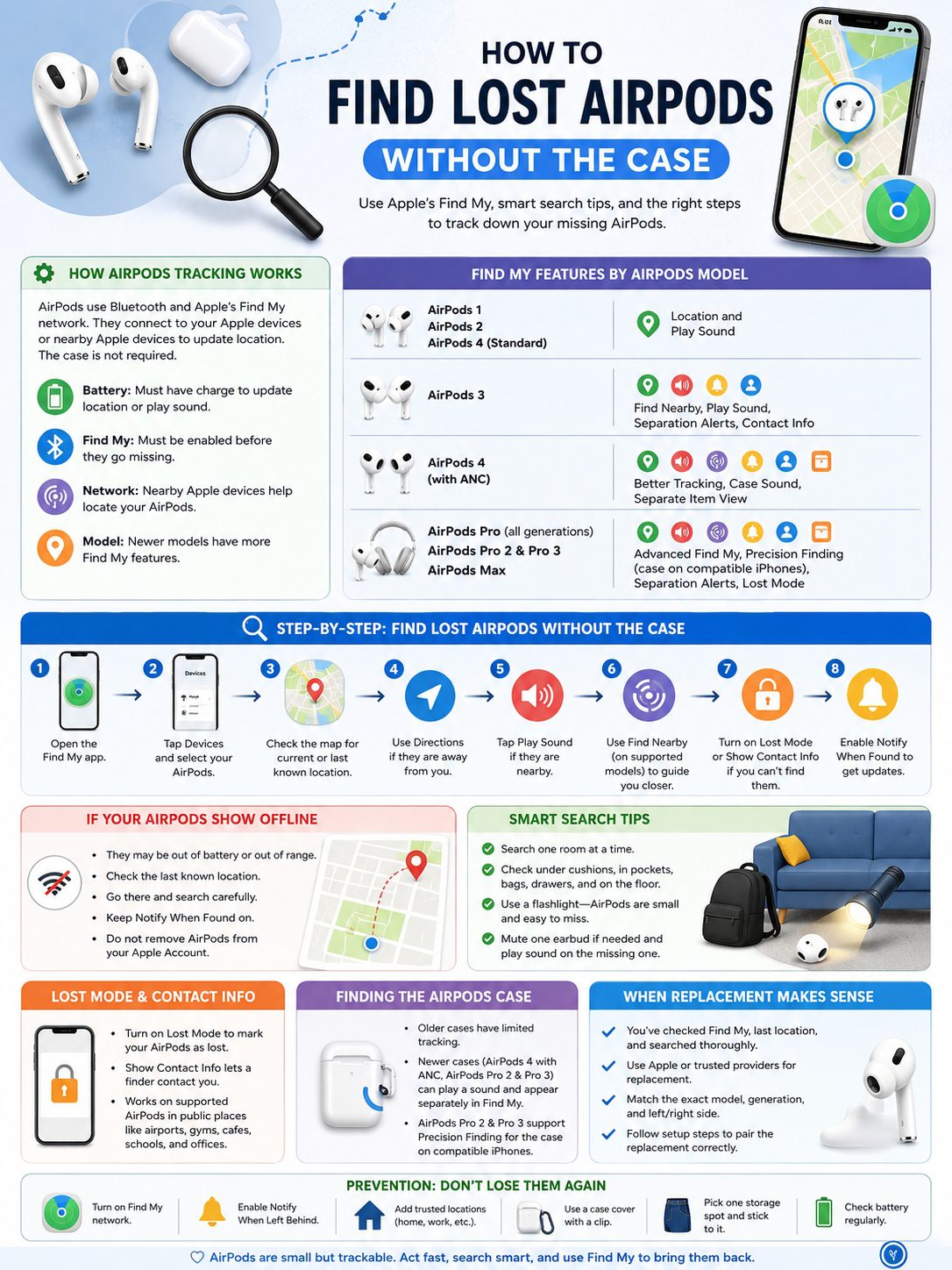
If your AirPods support Lost Mode or Show Contact Info, turn it on when you can’t find them quickly.
This feature can show your contact details if someone finds your AirPods and checks them through Apple’s system.
It’s useful if you lost them in a public place.
Think:
- Airport
- School
- Office
- Gym
- Cafe
- Hotel
- Bus
- Train
- Library
- Shared workspace
|
Feature |
Why It Helps |
|
Lost Mode |
Marks supported AirPods as lost |
|
Show Contact Info |
Lets a finder contact you |
|
Notify When Found |
Alerts you if location becomes available |
|
Find My Lock |
Helps keep supported AirPods tied to your Apple Account |
|
Separate item tracking |
Helps with newer earbuds and cases |
Don’t Remove AirPods From Find My Too Soon
Keep your AirPods linked to your Apple Account while you search.
If you remove them too early, you may lose access to tracking updates, Lost Mode, and contact info features.
Only remove them when you are sure they are gone, replaced, sold, or no longer yours.
Be Careful With Map Locations
Find My is helpful, but a map dot is not perfect proof.
If your AirPods appear near a stranger’s home, don’t confront anyone. The location may be approximate. It may point to a building, not a specific person.
If the location is inside a public place, contact staff or security. If the situation feels serious, contact local authorities and explain it calmly.
Can You Find the AirPods Case Without the Earbuds?
This depends on your AirPods model.
Older AirPods cases are harder to track. If the earbuds are inside an older closed case, sound and live location options may be limited.
Newer models do better.
AirPods 4 with Active Noise Cancellation, AirPods Pro 2, and AirPods Pro 3 have stronger case-finding features. Their cases can appear separately in Find My and can play a sound.
AirPods Pro 2 and AirPods Pro 3 also support Precision Finding for the charging case on compatible iPhones. AirPods Pro 3 improves the finding range compared with AirPods Pro 2.
|
Case Situation |
What You Can Try |
|
Earbuds missing without case |
Use Find My, Play Sound, and Find Nearby |
|
Case missing without earbuds |
Depends heavily on the model |
|
Older closed case |
Tracking may be limited |
|
AirPods 4 ANC case |
Supports better case tracking |
|
AirPods Pro 2 or Pro 3 case |
Supports Precision Finding on compatible iPhones |
Why the Case Matters Less When Earbuds Are Outside
If the earbuds are outside the case, they may stay active long enough for Find My to detect them.
That can make them easier to locate than earbuds locked inside an older case.
So yes, losing AirPods without the case feels bad. But in some cases, it gives Find My a better shot.
When Replacement Makes Sense
Sometimes the search doesn’t work.
You checked Find My. You searched the last known location. You played the sound. You turned on Lost Mode. You called lost and found. Still nothing.
At that point, replacement may be the practical move.
Apple offers replacement options for a lost AirPod or charging case. You can usually replace a single left or right AirPod, or the case, depending on your model and local service options.
Be careful with random online replacements. AirPods generations look similar, but they don’t always pair correctly.
|
Replacement Step |
Why It Matters |
|
Identify your exact model |
Prevents buying the wrong part |
|
Check left or right side |
Replacement earbuds are side-specific |
|
Confirm case type |
Charging cases vary by generation |
|
Use Apple or trusted providers |
Reduces pairing and authenticity problems |
|
Follow setup steps |
Replacement AirPods must be paired correctly |
Check These Details Before Buying
Before you replace anything, confirm:
- AirPods model
- Generation
- Left or right earbud
- Charging case type
- AppleCare or warranty status
- Local Apple service options
- Compatibility with your existing AirPod and case
A cheap replacement is not a good deal if it won’t pair.
How to Stop Losing AirPods Again
Once you get your AirPods back, fix the setup right away.
Turn on the Find My network if your model supports it. Then enable Notify When Left Behind. This can warn you when you leave supported AirPods behind in an unfamiliar place.
You can also add trusted locations, like home or work, so you don’t get alerts every time you walk around your own space.
|
Prevention Step |
Why It Helps |
|
Turn on Find My network |
Helps locate supported AirPods through nearby Apple devices |
|
Enable Notify When Left Behind |
Warns you before you get too far |
|
Add trusted locations |
Reduces unnecessary alerts |
|
Use a case cover with a clip |
Keeps the case attached to a bag |
|
Pick one storage spot |
Reduces random pocket losses |
|
Check battery often |
Low battery limits tracking |
Build One Simple Habit
Use this rule:
If an AirPod is not in your ear, it goes in the case. If the case is not in your hand, it goes in the same pocket or bag slot every time.
It sounds basic. It works.
Most AirPods are not stolen. They are dropped, pocketed, washed, buried in bedding, or left on counters.
A boring habit can save you a very annoying search later.
Find Lost AirPods: Mistakes to Avoid
When people try to find lost airpods, they often make the same mistakes.
They wait too long. They trust the map too much. They ignore the last place they actually used the earbuds. Or they give up as soon as Find My says Offline.
Don’t do that.
|
Common Mistake |
Better Move |
|
Waiting too long |
Search before the battery dies |
|
Thinking offline means gone |
Check the last known location |
|
Searching only visible surfaces |
Check fabric, gaps, bags, and floors |
|
Removing AirPods from Find My |
Keep them linked while searching |
|
Buying replacements too fast |
Try Lost Mode and local checks first |
|
Confronting someone over a map dot |
Contact staff, security, or authorities |
Don’t Rely Too Much on Bluetooth Scanner Apps
Some third-party Bluetooth finder apps claim they can locate AirPods. They may help if the earbuds are nearby and still sending a signal.
But they are not better than Find My.
They may also show other Bluetooth devices around you, which can make the search confusing.
Use Find My first. Treat third-party apps as a backup only.
Final Thoughts
You can find lost airpods without the case, but you need to move fast.
Open Find My first. Check the map. Use Play Sound if the earbuds are nearby. Try Find Nearby if your model supports it. If the app says Offline, don’t quit. Go to the last known location and search carefully.
If one AirPod is missing, search one side at a time. If you lost them in public, turn on Lost Mode or Show Contact Info. Call lost and found. Give clear details.
And once you get them back, set yourself up for next time.
Turn on the Find My network. Enable Notify When Left Behind. Pick one storage spot and stick to it.
That one small habit can save you from the next AirPods panic.
|
Final Checklist |
Done |
|
Open Find My and select AirPods |
☐ |
|
Check current or last known location |
☐ |
|
Use Play Sound if nearby |
☐ |
|
Use Find Nearby if available |
☐ |
|
Search left and right AirPods separately |
☐ |
|
Turn on Lost Mode or Show Contact Info |
☐ |
|
Contact lost and found if lost in public |
☐ |
|
Check replacement options if needed |
☐ |
|
Turn on Find My network after recovery |
☐ |
|
Enable Notify When Left Behind |
☐ |
FAQs About Finding Lost AirPods Without the Case
These questions come up a lot when AirPods disappear.
|
Question |
Short Answer |
|
Can dead AirPods be tracked? |
Not live. Use the last known location. |
|
Can Android find AirPods? |
Not with full Find My features. |
|
Can Apple track by serial number? |
No. Serial numbers are for service and identification. |
|
Can one AirPod be found? |
Yes, if it has battery or a recent location. |
|
Can the case beep? |
Only supported newer cases can play sound. |
Can I find AirPods without the case if they are dead?
No, not live.
If they are dead, Find My may only show the last known location. Go there and search manually.
Can I find AirPods if I use Android?
Not properly.
AirPods can connect to Android for audio, but Apple’s full Find My tracking works through Apple devices and iCloud.com.
Can Apple track AirPods by serial number?
No.
A serial number can help with service, repair, and identification. It cannot show location.
Why does Find My show only one AirPod?
If the earbuds are separated, Find My may show one at a time.
Find the one shown first. Then refresh Find My and search for the other.
Can I make AirPods beep inside the case?
It depends on the model.
AirPods can play a sound when they are out of the case. Some newer cases, such as AirPods 4 with ANC, AirPods Pro 2, and AirPods Pro 3 cases, can also play sound.
Older cases are more limited.
What does “No Location Found” mean?
It means Find My cannot show a usable location right now.
The AirPods may be dead, out of range, disconnected, or not reachable through the Find My network.
Should I remove lost AirPods from my Apple Account?
No, not while you are still searching.
Keep them linked so location updates, Lost Mode, and contact info can still help.
Can someone else pair my lost AirPods?
It depends on the model and situation.
Still, turn on Lost Mode or Show Contact Info if your AirPods support it. That gives you a better chance if someone finds them.
What should I do if I lost AirPods at an airport?
Check Find My first. Then contact the airport lost and found.
Give clear details, such as terminal, gate, seat area, shop, security checkpoint, and time. The more specific you are, the easier it is for staff to help.