
It sets timers while your hands are messy in the kitchen. It plays music when you’re too tired to tap through apps. It turns off the lights when you’re already in bed. That convenience is exactly why Echo speakers ended up in so many homes.
But then there’s the uncomfortable part.
Alexa sits there with microphones on, waiting for a wake word. And every now and then, it lights up when nobody clearly said “Alexa.” That small blue ring can make anyone wonder, “Was it just listening?”
That’s why many people want to know how to stop alexa listening.
Here’s the straight answer. Alexa needs to listen locally for its wake word if you want hands-free control. That doesn’t mean it’s supposed to record every conversation in your home. Amazon says Echo devices detect the wake word first, then send the request to the cloud for processing. Users can also review and delete Alexa voice recordings, transcripts, and typed requests in Alexa Privacy settings.
Still, you shouldn’t leave privacy to default settings.
False wake-ups can happen. Old recordings may sit in your account. Some third-party skills can ask for extra permissions. Drop In can feel too open if you don’t lock it down. And in 2023, the FTC and DOJ took action against Amazon over Alexa children’s voice recordings and geolocation data practices.
So, no panic. Just control.
This guide walks you through the practical settings that matter most.
Is Alexa Always Listening or Always Recording?
|
Key Point |
What It Means |
|
Alexa listens for a wake word |
Echo devices monitor locally for words like “Alexa,” “Echo,” “Amazon,” “Computer,” or “Ziggy.” |
|
Listening isn’t the same as recording |
Amazon says audio is sent for processing after the wake word or manual activation. |
|
False wake-ups can happen |
TV dialogue, podcasts, background talk, or similar sounds can trigger Alexa by mistake. |
|
Users can delete history |
Alexa Privacy settings let you review and delete recordings and transcripts. |
|
The mic button gives the strongest control |
It turns off the microphones on the Echo device. |
This is where most confusion starts.
Alexa-enabled Echo devices keep their microphones active so they can detect the wake word. That’s how hands-free voice control works. If the device didn’t listen for “Alexa,” it wouldn’t know when to respond.
But listening for a wake word is not the same as recording every word you say.
Amazon says Alexa sends audio to the cloud after the device detects the wake word or after you activate it manually, such as by pressing a button. That’s the official design.
The real issue is accidental activation.
Your TV might say something that sounds like “Alexa.” A child might say a similar word. A podcast might trigger the device. Researchers have also found that smart speakers can wake up by mistake during normal media playback.
So the better question isn’t, “Is Alexa evil?”
The better question is, “Have I set Alexa up in a way that protects my privacy?”
That’s what we’ll fix.
How to Stop Alexa Listening with the Mic-Off Button
|
Step |
What to Do |
|
1 |
Find the microphone-off button on your Echo device. |
|
2 |
Press it once. |
|
3 |
Look for a red ring, red bar, or red light. |
|
4 |
Keep it on during private moments. |
|
5 |
Press it again when you want Alexa voice control back. |
The fastest way to stop Alexa listening is also the simplest one.
Press the physical microphone-off button.
Most Echo speakers have a button with a crossed-out microphone icon. Press it once, and the device usually shows a red light. That means the microphones are off. Alexa won’t hear the wake word. It won’t respond to voice commands until you turn the mic back on.
This is stronger than changing a setting in the app because it works at the device level.
Use the mic-off button before:
- Private phone calls
- Work meetings
- Doctor or health-related calls
- Legal or financial talks
- Guest visits
- Bedtime
- Kids’ bedtime
- Podcast or video recording
- Any conversation you wouldn’t want stored or processed
One thing matters here: Do Not Disturb is not the same.
Do Not Disturb can silence alerts, calls, reminders, and notifications. It does not turn off the microphone. If you want Alexa to stop hearing the wake word, use the mic-off button or unplug the device.
That one habit makes a big difference.
Stop Alexa from Saving Voice Recordings
|
Setting |
Best Choice |
Why It Helps |
|
Voice recording retention |
Don’t save recordings |
Reduces stored audio history |
|
Old recordings |
Delete all |
Clears past saved clips |
|
Voice deletion |
Turn on if useful |
Lets you delete recordings by voice |
|
Transcript review |
Check often |
Helps you spot false wake-ups |
|
Voice ID |
Review before disabling |
Some personalization may stop working |
Turning off the microphone stops Alexa from hearing you. But you also need to manage what happens after Alexa does respond.
Open the Alexa app and go to:
More > Alexa Privacy > Manage Your Alexa Data > Choose how long to save recordings
Choose:
Don’t save recordings
This tells Amazon not to keep your voice recordings after Alexa processes your request. Amazon says previously saved recordings are deleted when this option is enabled. It also notes that transcripts may remain reviewable for a limited time before automatic deletion.
That’s still better than letting recordings pile up for months or years.
You should also delete old history manually.
Read Also: How to Set Up Smart Plugs with Alexa in 2026
Go to:
More > Alexa Privacy > Review Voice History
From there, you can filter by date or device. You can delete selected recordings or clear everything.
This is worth doing at least once a month. You might find commands you forgot about. You might also spot accidental recordings from a TV, a child, or a device placed too close to a speaker.
A quick review tells you which Echo device wakes too often.
One warning: if you choose not to save recordings, some personalization features may work less smoothly. Amazon says Voice ID can be affected because saved voice data helps Alexa recognize different users.
That’s the trade-off.
For many people, privacy matters more than perfect personalization.
Turn Off Follow-Up Mode
|
Feature |
What It Does |
Better Privacy Choice |
|
Follow-Up Mode |
Lets Alexa listen briefly after answering |
Turn it off |
|
Wake word requirement |
Alexa needs the wake word again when this is off |
Safer for privacy |
|
Best places to disable it |
Living rooms, offices, kitchens, kids’ rooms |
Reduces accidental pickup |
|
Main benefit |
Limits extra listening time |
Gives cleaner control |
Follow-Up Mode sounds convenient at first.
You can ask:
“Alexa, what’s the weather?”
Then follow with:
“What about tomorrow?”
No need to say “Alexa” again.
Nice, right? Maybe. But it also means Alexa keeps listening briefly after it answers. That creates a small extra window where it may hear something you didn’t mean to say to it.
To turn it off:
Alexa app > Devices > Select your Echo device > Device Settings > Follow-Up Mode > Off
This setting is especially useful in shared spaces. Turn it off in:
- Living rooms
- Kitchens
- Home offices
- Kids’ rooms
- Guest rooms
- Rooms with TVs or speakers nearby
This won’t fully stop Alexa from listening for the wake word. But it does make Alexa wait for a clear wake word before taking another request.
That’s a cleaner privacy boundary.
Change the Wake Word and Adjust Wake Sensitivity
|
Option |
Why It Helps |
|
Change wake word |
Reduces accidental triggers from names, shows, podcasts, or ads |
|
Adjust wake sensitivity |
Helps if Alexa responds too often or not enough |
|
Turn on wake sounds |
Lets you hear when Alexa starts and stops listening |
|
Move the device |
Keeps Alexa away from TVs, speakers, or busy areas |
If Alexa lights up too often, don’t ignore it.
Change the wake word.
Amazon lets users choose wake words such as Alexa, Echo, Amazon, Computer, and Ziggy. Pick the one your household says the least.
Go to:
Alexa app > Devices > Echo & Alexa > Select device > Settings > Wake Word
If someone in your home has a name that sounds like Alexa, change it right away. If your TV often triggers the device, change it. If YouTube videos or podcasts wake it up, change it.
You can also adjust Wake Sensitivity:
Alexa app > Devices > Select device > Device Settings > Wake Sensitivity
Lower sensitivity may help if Alexa responds too often. Higher sensitivity may help if Alexa misses your commands.
Also turn on wake sounds if available. A sound cue tells you when Alexa starts and stops listening. That’s helpful if the Echo device sits behind you, across the room, or on a shelf where you don’t always see the light.
And placement matters.
Don’t put an Echo speaker beside a TV, soundbar, laptop speaker, or radio. It increases the chance of false wake-ups.
Small changes can make Alexa feel less jumpy.
Lock Down Drop In, Calling, and Echo Show Cameras
|
Feature |
Privacy Risk |
Safer Setting |
|
Drop In |
Contacts can connect more directly than a normal call |
Off or household only |
|
Announcements |
Messages can broadcast across devices |
Avoid in private rooms |
|
Alexa Calling |
Contacts may reach devices unexpectedly |
Limit contacts |
|
Echo Show camera |
Adds video privacy concerns |
Use the camera shutter |
|
Guest rooms |
Visitors may feel watched |
Remove or mute the device |
Drop In is useful for some families. It can help you check on an elderly parent or speak quickly between rooms.
But it can also feel invasive.
Drop In allows approved contacts to connect to supported Echo devices more directly than a normal call. If you forget who has permission, that’s a privacy problem.
Check it here:
Alexa app > Devices > Echo & Alexa > Select device > Communications > Drop In
For better privacy, choose Off or limit it to trusted household members.
Turn Drop In off in:
- Bedrooms
- Bathrooms
- Guest rooms
- Home offices
- Kids’ rooms
- Any room used for private talks
If you use an Echo Show, pay attention to the camera too. Use the physical camera shutter if your model has one. Also mute the mic when the device sits in a private room.
This isn’t about being paranoid. It’s about not leaving open doors you don’t need.
Disable Voice Purchasing and Review Smart Home Controls
|
Setting |
Recommended Action |
|
Voice purchasing |
Turn it off if you don’t use it |
|
Voice code |
Add a 4-digit code if you keep purchases on |
|
Smart locks |
Avoid voice unlock unless truly needed |
|
Cameras |
Limit who can view them |
|
Old devices |
Remove unused smart products |
|
Routines |
Check for commands that reveal private habits |
Alexa can do much more than answer questions.
It can order products, unlock routines, control cameras, turn lights on and off, change thermostats, and run smart home scenes. That means privacy and security are connected.
Start with voice purchasing.
If you don’t buy things through Alexa, turn it off. If you keep it on, add a voice code. Amazon lets users set a 4-digit voice code to help prevent accidental or unauthorized purchases.
Then review your connected devices.
Go to:
Alexa app > Devices
Remove anything you no longer use, such as:
- Smart plugs
- Bulbs
- Locks
- Cameras
- TVs
- Thermostats
- Speakers
- Garage door devices
Pay extra attention to smart locks and cameras. A voice assistant should not make sensitive home controls too easy to trigger.
Also check routines. A routine can reveal habits, such as when lights turn on, when someone leaves home, or when a security device changes status.
Keep only what you use.
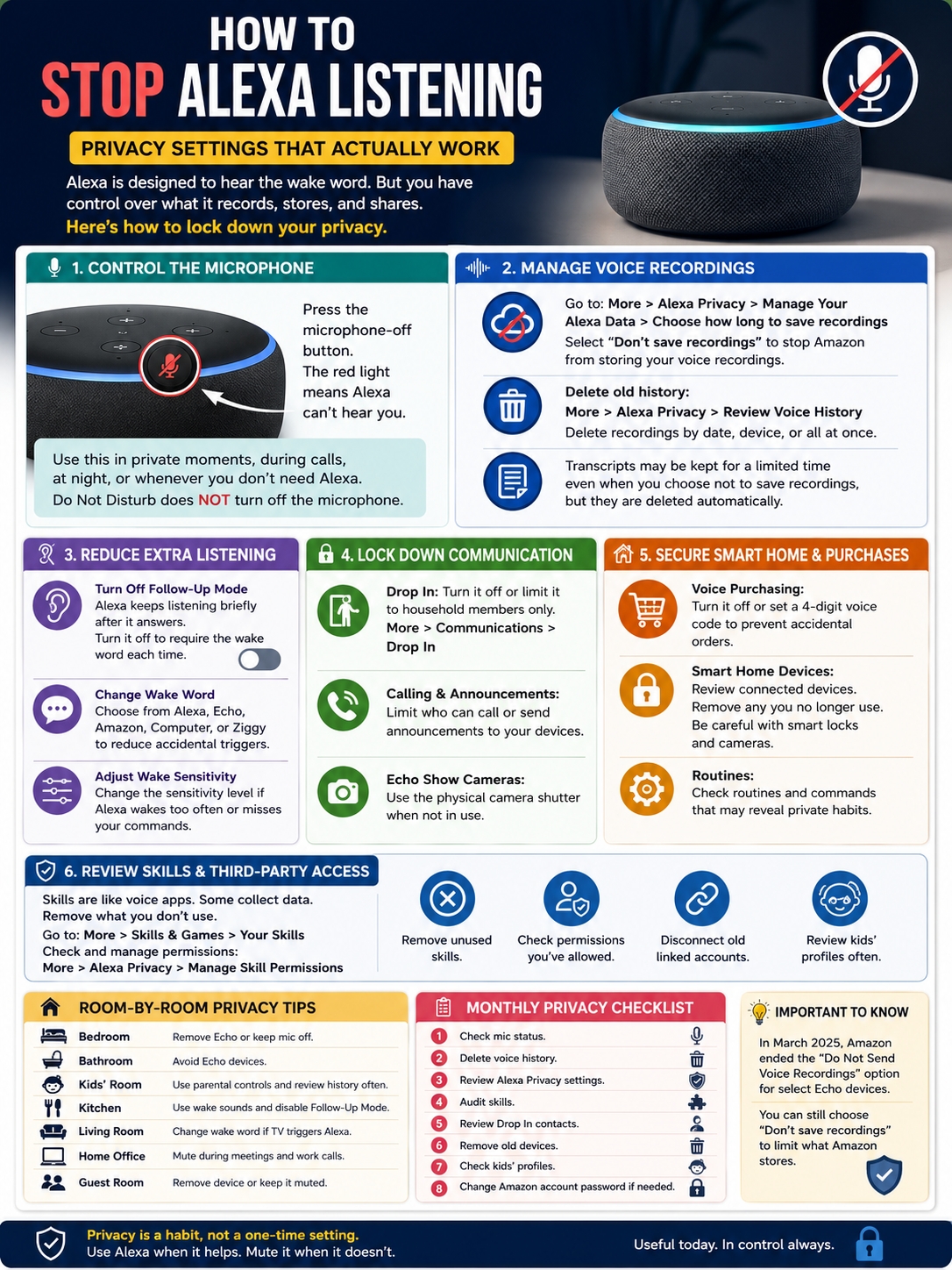
Review Alexa Skills and Third-Party Access
|
Area |
What to Check |
|
Enabled skills |
Remove skills you don’t use |
|
Skill permissions |
Check access to location, name, email, or other data |
|
Account linking |
Disconnect old accounts |
|
Kids’ skills |
Review more often |
|
Voice ID use |
Check personalization settings |
Alexa skills work like voice apps.
Some are made by Amazon. Many are made by third-party developers. That’s why you should review them often.
A weather skill may ask for location. A shopping skill may connect to an account. A game skill may collect interaction data. Some skills are harmless. Others may not be worth keeping.
Go to:
Alexa app > More > Skills & Games > Your Skills
Disable anything you don’t recognize or no longer use.
Then check:
More > Alexa Privacy > Manage Skill Permissions
Look for permissions tied to:
- Location
- Name
- Phone number
- Address
- Lists
- Payment-related features
If a skill doesn’t need that data, don’t allow it.
This is one of the most overlooked ways to stop alexa listening from becoming a broader privacy problem. It’s not only about the Echo microphone. It’s also about what services your Alexa account connects to.
What Changed with Alexa Cloud Processing in 2025?
|
Item |
Verified Detail |
|
Feature removed |
“Do Not Send Voice Recordings” |
|
Date |
March 28, 2025 |
|
Affected devices |
Limited to Echo Dot 4th Gen, Echo Show 10, and Echo Show 15 |
|
Availability |
U.S. customers with devices set to English |
|
Usage |
Amazon said fewer than 0.03% of customers used it |
|
Replacement |
Users could still choose “Don’t save recordings” |
Some older Alexa privacy guides are now outdated.
In March 2025, Amazon ended the “Do Not Send Voice Recordings” option. This feature had allowed some Echo requests to be processed locally instead of being sent to Amazon’s cloud.
The setting was limited. Reports said it applied only to select devices, including Echo Dot 4th Gen, Echo Show 10, and Echo Show 15. It was also available only for U.S. customers using English. Amazon said fewer than 0.03% of customers used it.
The change matters because some guides still tell users to turn on local voice processing. For many Echo users, that option is no longer available.
So what should you do now?
Use the controls that still work:
- Press the mic-off button.
- Choose Don’t save recordings.
- Delete old voice history.
- Turn off Follow-Up Mode.
- Limit Drop In.
- Remove unused skills.
- Keep Echo devices out of private rooms.
That’s the realistic way to reduce Alexa privacy risks today.
Best Room-by-Room Alexa Privacy Setup
|
Room |
Recommended Setup |
|
Bedroom |
Remove Echo or keep mic off by default |
|
Bathroom |
Avoid Echo devices |
|
Kids’ room |
Use parental controls and review history often |
|
Kitchen |
Use wake sounds and disable Follow-Up Mode |
|
Living room |
Change wake word if TV triggers Alexa |
|
Home office |
Mute during meetings and calls |
|
Guest room |
Remove device or keep it muted |
Not every room needs a smart speaker.
A kitchen Echo makes sense. You can use it for timers, recipes, music, weather, and shopping lists.
A bedroom Echo is more personal. A bathroom Echo is even harder to justify. A home office Echo can create awkward privacy risks during work calls or client meetings.
Use this simple rule:
If private conversations happen there, Alexa should be muted, unplugged, or removed.
For kids, be even more careful.
The FTC and DOJ case against Amazon focused on Alexa children’s voice recordings and geolocation data. Regulators said Amazon kept some children’s voice and location data for years and did not fully honor some deletion requests.
Parents should:
- Keep Echo devices out of children’s bedrooms.
- Disable voice purchasing.
- Review Amazon Kids settings.
- Delete child voice history often.
- Remove unknown skills.
- Explain that Alexa is not a private diary.
Kids see Alexa as a fun talking gadget. Adults should remember it’s an internet-connected microphone.
Alexa Privacy Checklist
|
Task |
How Often |
|
Check mic status |
Daily |
|
Delete voice history |
Monthly |
|
Review Alexa Privacy settings |
Monthly |
|
Audit skills |
Every 3 months |
|
Review Drop In contacts |
Every 3 months |
|
Remove old devices |
Every 3 months |
|
Check kids’ profiles |
Monthly |
|
Change Amazon password |
If suspicious activity appears |
Here’s the quick version.
- Press the mic-off button when Alexa is not needed.
- Set recordings to Don’t save recordings.
- Delete old voice history.
- Turn off Follow-Up Mode.
- Change the wake word if false wake-ups happen.
- Adjust Wake Sensitivity if needed.
- Turn off Drop In on private devices.
- Disable voice purchasing or add a voice code.
- Remove unused Alexa skills.
- Keep Echo devices away from bedrooms, bathrooms, and private workspaces.
You don’t need to check every setting every day. But a monthly privacy review is a smart habit.
It takes a few minutes. It can prevent years of old data from sitting in your account.
Common Mistakes People Make with Alexa Privacy
|
Mistake |
Why It’s a Problem |
|
Thinking Do Not Disturb turns off the mic |
It only silences alerts and calls |
|
Leaving Follow-Up Mode on |
Alexa listens briefly after answers |
|
Never checking voice history |
Accidental recordings may stay unnoticed |
|
Keeping Echo in bedrooms |
Private speech happens there |
|
Leaving Drop In open |
Contacts may connect too easily |
|
Using too many skills |
More third-party access |
|
Allowing voice purchases |
Kids or TV audio may trigger orders |
The biggest mistake is trusting the default setup forever.
Alexa settings change. New features arrive. Old devices stay linked. Skills pile up. A setting that felt fine two years ago may not fit your home now.
So don’t set Alexa once and forget it.
Check your privacy settings. Delete what you don’t need. Remove old skills. Turn off the microphone when the room needs privacy.
That’s how you keep the useful parts without giving up too much control.
Final Thoughts
You don’t need to throw away every Echo speaker. But you shouldn’t leave Alexa running on default settings either.
The best way to stop alexa listening is to use the physical mic-off button when privacy matters. That gives you the clearest control. Then tighten the settings inside the Alexa app.
Choose Don’t save recordings. Delete old voice history. Turn off Follow-Up Mode. Change the wake word if Alexa wakes by mistake. Review Drop In, voice purchasing, smart home devices, and third-party skills.
Most of all, think carefully about where you place Echo devices.
Alexa is convenient because it waits for your voice. That’s also why it deserves limits.
Use it when it helps. Mute it when it doesn’t. Keep it out of rooms where private conversations happen.
That’s the practical way to stay in control.
Uncommon FAQs About Alexa Listening
Can Alexa listen when the microphone is muted?
When the physical microphone-off button is on, Alexa should not respond to voice commands. Amazon says Echo devices cannot record and stream audio to the cloud when microphones are turned off, even if someone says the wake word.
Does unplugging Alexa stop it from listening?
Yes. If the device has no power, it can’t listen, record, respond, or connect to the cloud. This is the strongest option. The downside is that alarms, timers, routines, and voice control stop on that device.
Does Do Not Disturb stop Alexa listening?
No. Do Not Disturb mainly silences alerts, calls, and notifications. It does not disable the microphone. Use the mic-off button if you want Alexa to stop hearing the wake word.
Can TV or YouTube trigger Alexa?
Yes. It can happen. TV shows, podcasts, ads, and background speech can sound close enough to the wake word and trigger Alexa by mistake.
Can I stop Alexa from sending recordings to the cloud?
For many current Alexa requests, cloud processing is part of how Alexa works. A limited “Do Not Send Voice Recordings” option ended on March 28, 2025. Users can still choose not to save recordings after processing.
Should I delete Alexa voice history?
Yes, especially if privacy matters to you. You can review and delete Alexa voice recordings from Alexa Privacy settings. You can also choose not to save future recordings.
Is Alexa safe in a child’s room?
It’s better to avoid placing Echo devices in children’s bedrooms. Children may say sensitive things without understanding privacy. Parents should review child settings, disable purchases, remove unknown skills, and delete voice history often.
Can third-party Alexa skills collect data?
Some skills may request permissions or account linking. Review skill permissions and remove skills you don’t use. Don’t keep a skill installed just because you tried it once.