
Losing a Word document hurts. It always seems to happen at the worst time too. You’re finishing a report, editing a client draft, or working on an assignment, and then Word freezes. Your laptop restarts. Or you click Don’t Save before your brain catches up.
That sinking feeling is real.
The good news? You may still be able to recover unsaved word document files on Windows. Microsoft Word has built-in recovery tools. Windows has backup and restore options. OneDrive and SharePoint can also save you if the file was stored in the cloud.
But here’s the key: the best fix depends on what happened.
A file you never saved needs one kind of recovery. A deleted file needs another. An overwritten OneDrive document needs a different route again.
This guide keeps things simple. Start with the easiest recovery methods first. Then move to deeper options only if you need them.
Best Ways to Recover a Missing Word File
Don’t panic-click your way through Windows. Start with the most likely fix.
If Word crashed, reopen Word first. It may show a recovered version right away. If the document was never saved, use Recover Unsaved Documents. If the file was deleted, check the Recycle Bin before trying anything complicated.
Microsoft’s Word recovery guidance recommends checking AutoRecover files, backup files, temporary files, the Recycle Bin, and Word’s built-in unsaved document recovery tool.
|
Problem |
Best First Step |
Why It Works |
|
Word crashed |
Reopen Word |
Word may show the Document Recovery pane |
|
You never saved the file |
Use Recover Unsaved Documents |
Word may have kept a temporary draft |
|
You clicked Don’t Save |
Check Manage Document |
Word may still keep the last AutoRecovered copy |
|
File was deleted |
Check Recycle Bin |
Deleted files may still be easy to restore |
|
File was saved in OneDrive |
Use Version History |
You may restore an older version |
|
File was overwritten |
Use Version History or backup |
Previous copies may still exist |
|
File is missing locally |
Search for .docx, .asd, .wbk, .tmp |
Word may have stored a recovery or backup file |
What to Do First
Open Word again before doing anything else.
If Word finds a recovery file, it may show a Document Recovery pane or a recovered file message. Open the file. Check the content. Then save it with a clear file name.
If the file was deleted, stop using the drive as much as possible. Don’t download large files. Don’t install recovery apps on the same drive. Deleted files can be overwritten when you keep using the computer.
That small pause can improve your recovery chances.
Recover Unsaved Word Document from Word
The quickest way to recover unsaved word document drafts is inside Microsoft Word.
This works best when you created a new document, typed for a while, and never saved it. It can also help after Word crashes or closes suddenly.
|
Step |
Action |
What to Expect |
|
1 |
Open Microsoft Word |
Start from Word’s main screen |
|
2 |
Click File |
Opens the main file menu |
|
3 |
Click Info |
Shows document tools |
|
4 |
Click Manage Document |
Opens recovery options |
|
5 |
Select Recover Unsaved Documents |
Opens Word’s unsaved file folder |
|
6 |
Open the file |
Check whether it’s your missing draft |
|
7 |
Click Save As |
Save it as a normal .docx file |
How to Use Recover Unsaved Documents
Open Word and follow this path:
File > Info > Manage Document > Recover Unsaved Documents
Word will open a folder with unsaved drafts, if any are available.
If you see your missing file, open it. Don’t start editing yet. First, click Save As and save it in a safe place, such as Documents, Desktop, or OneDrive.
This step matters. A recovered file is usually temporary. Saving it turns it into a normal Word document.
Where Word Stores Unsaved Files
Word often stores unsaved files in folders like these:
C:\Users\<UserName>\AppData\Roaming\Microsoft\Word
C:\Users\<UserName>\AppData\Local\Microsoft\Office\UnsavedFiles
Replace <UserName> with your Windows account name.
You don’t always need to open these folders manually. The easier path is still:
File > Info > Manage Document > Recover Unsaved Documents
That route takes you to the right place faster.
Why This Method May Not Work
This method is useful, but it’s not magic.
It may fail if Word never created a recovery file. That can happen if the document was open for only a short time. It may also fail if AutoRecover was off, temporary files were removed, or a cleanup tool deleted the draft.
Still, check this option first. It takes less than a minute.
Use AutoRecover and .asd Files
AutoRecover is Word’s crash safety net.
It saves recovery information while you work. If Word crashes or Windows shuts down, Word may use that information to rebuild your file.
But AutoRecover is not the same as AutoSave.
AutoRecover helps after crashes. AutoSave saves live changes every few seconds, but only for Microsoft 365 files stored in OneDrive, OneDrive for Business, or SharePoint.
|
Feature |
What It Does |
Best For |
|
AutoRecover |
Saves recovery data at set intervals |
Word crashes and sudden shutdowns |
|
.asd file |
Stores Word AutoRecover data |
Manual crash recovery |
|
Document Recovery pane |
Shows recovered files after Word restarts |
Fast recovery after a crash |
|
Keep last AutoRecovered version |
Keeps a copy after closing without saving |
Accidental “Don’t Save” cases |
|
Save As |
Turns a recovered draft into a normal file |
Final recovery step |
Check AutoRecover Settings
Open Word and go to:
File > Options > Save
Now look for these settings:
- Save AutoRecover information every X minutes
- Keep the last AutoRecovered version if I close without saving
- AutoRecover file location
Set AutoRecover to save every 1 to 5 minutes. A shorter interval means Word saves recovery data more often.
Also make sure Keep the last AutoRecovered version if I close without saving is turned on. This can help if you accidentally close a document and choose not to save it.
Search for .asd Files
If Word doesn’t show your recovered file, search for AutoRecover files manually.
Open File Explorer and search:
*.asd
You can search inside:
- This PC
- Documents
- Desktop
- AppData folders
- OneDrive folder, if you use it
If you find a likely .asd file, open Word first. Then go to:
File > Open > Browse
Choose the .asd file from there. If it opens, save it as a .docx file right away.
Why AutoRecover May Miss Your Latest Text
AutoRecover works on a timer.
If it saves every 10 minutes, your last few minutes of typing may not appear in the recovered file. If the computer shut down seconds after you started typing, Word may not have created a useful recovery file at all.
That’s annoying, but normal.
AutoRecover lowers the risk. It doesn’t replace the habit of saving your file.
Search Windows for Word Backup and Temporary Files
Sometimes Word’s recovery window shows nothing, but the file still exists somewhere on your PC.
This is when Windows search helps.
Word may leave behind AutoRecover files, backup files, temporary files, or older document copies. You just need to know what to search for.
|
File Type |
What It Means |
Search Term |
|
.docx |
Normal Word document |
*.docx |
|
.doc |
Older Word document format |
*.doc |
|
.asd |
AutoRecover file |
*.asd |
|
.wbk |
Word backup file |
*.wbk |
|
.tmp |
Temporary file |
*.tmp |
|
~ files |
Temporary Word working files |
~ |
Search by File Extension
Open File Explorer. Click This PC. Then search these one by one:
*.docx
*.doc
*.asd
*.wbk
*.tmp
After the results appear, sort by Date modified.
Look around the time you last worked on the document. The file may not have the name you expect, so the date can be more helpful than the title.
Search by Words You Remember
If you remember part of the file name, search for that too.
Try words like:
- proposal
- invoice
- assignment
- report
- draft
- client
- resume
You can also search for a phrase you used inside the document, but Windows content search may not always catch every Word file.
Look for Word Backup Files
Word backup files use the .wbk extension.
Search for:
*.wbk
This only works if Word’s backup copy feature was already turned on. You can check that setting in Word:
File > Options > Advanced > Save > Always create backup copy
If you find a file named something like Backup of [document name], open it in Word. Then save it as a new .docx file.
Check Temporary Files
Temporary files are less predictable, but they’re still worth checking.
Search for:
*.tmp
Also search for files that start with:
~
If you find a file that matches the time you lost the document, copy it first. Then try opening the copy in Word.
Don’t edit the original temporary file. Work from a copy so you don’t damage your only chance.
If your Word file was saved in OneDrive or SharePoint, you may have better recovery options.
Cloud storage can protect you in two ways. First, AutoSave may save changes every few seconds. Second, Version History may let you restore an older copy.
This is especially useful if you overwrote a file or removed important text by mistake.
|
Cloud Feature |
What It Helps With |
Best Use |
|
AutoSave |
Saves changes every few seconds |
Microsoft 365 cloud files |
|
Version History |
Restores older file versions |
Bad edits or overwritten files |
|
OneDrive Recycle Bin |
Restores deleted cloud files |
Deleted OneDrive documents |
|
SharePoint Recycle Bin |
Restores deleted team files |
Work or school documents |
|
Sync folder |
Shows cloud files in File Explorer |
Quick local access |
Restore an Earlier Version in Word
Open the document in Word.
Then go to:
File > Info > Version History
You’ll see older versions if Word has them. Open the version that looks right. Check the content.
If it has the missing section, you can restore the version or copy the missing text into your current file.
Restore a Version from OneDrive Online
You can also do this from OneDrive in your browser.
- Open OneDrive.
- Sign in.
- Find the Word file.
- Right-click the file.
- Select Version history.
- Pick the version you need.
- Click Restore.
When you restore an older version, it becomes the current version. The newer version usually remains in the version list, so you can still go back if needed.
What If AutoSave Saved the Wrong Changes?
This catches many people.
You open a document, start changing it, and later realize you edited the original instead of making a copy. Since AutoSave is on, Word keeps saving those changes.
The fix is Version History.
For next time, use Save a Copy before editing an original file stored in OneDrive or SharePoint. That keeps the original safe.
Recover Deleted Word Documents from Recycle Bin and OneDrive
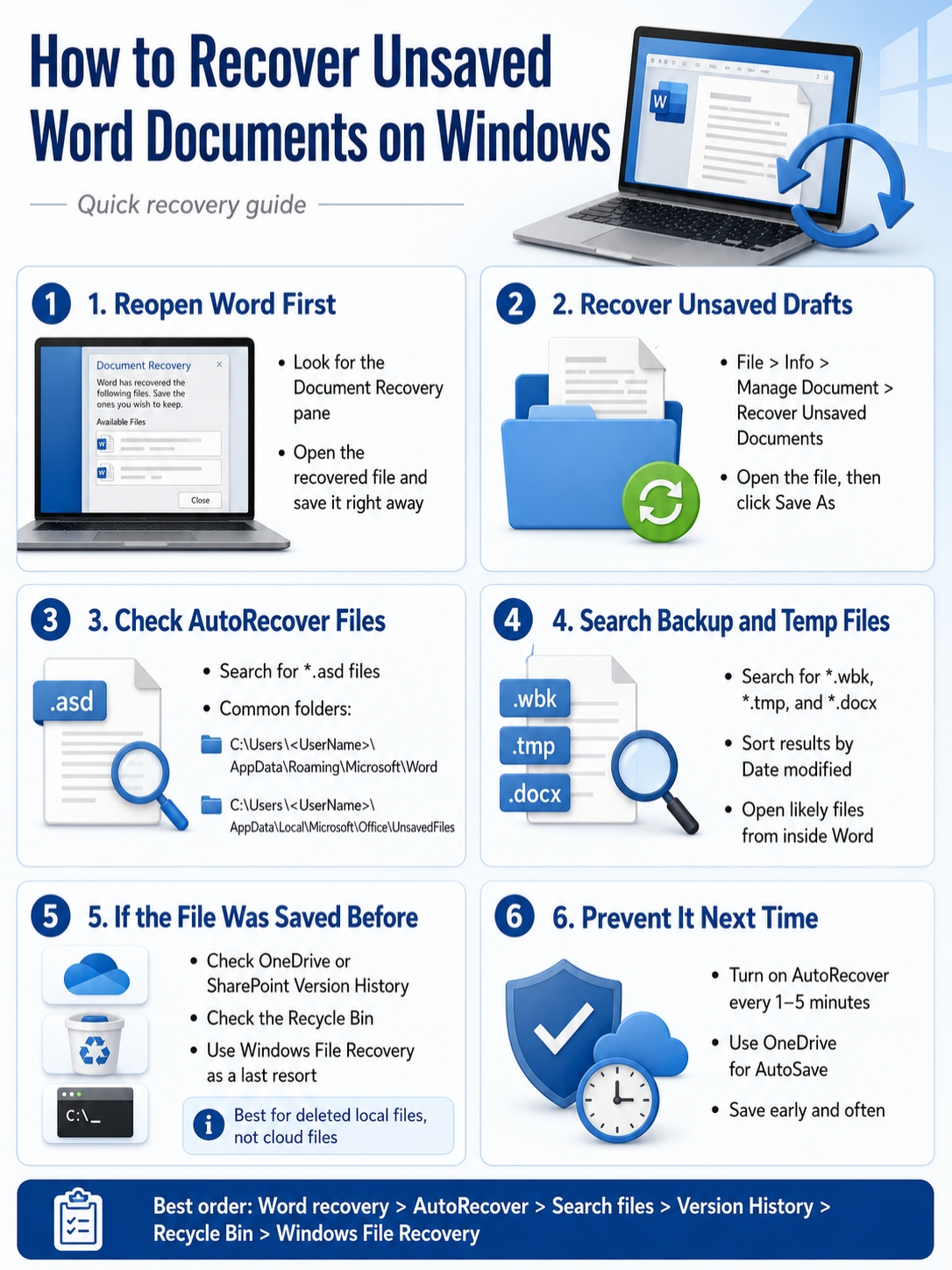
If your file was saved before but now it’s gone, treat it like a deleted file first.
Start with the Recycle Bin. It’s simple, but it solves many cases.
|
Deleted From |
Where to Check |
Restore Method |
|
Desktop |
Windows Recycle Bin |
Right-click > Restore |
|
Documents folder |
Windows Recycle Bin or OneDrive |
Depends on sync and backup settings |
|
OneDrive folder |
OneDrive Recycle Bin |
Select file > Restore |
|
SharePoint library |
SharePoint Recycle Bin |
Restore from site recycle bin |
|
USB drive |
Windows File Recovery may help |
Use recovery only if needed |
Restore from Windows Recycle Bin
Open Recycle Bin from your desktop.
Search for the file name if you remember it. If you find the document, right-click it and choose Restore.
Windows will send the file back to its original folder.
If you deleted a whole folder, restore the folder. Your Word file may be inside it.
Restore from OneDrive Recycle Bin
If the file was saved in OneDrive, check the OneDrive Recycle Bin too.
Open OneDrive in your browser. Click Recycle bin from the left menu. Find the file, select it, and click Restore.
This matters because cloud-deleted files may not always appear in your computer’s Recycle Bin. OneDrive and SharePoint have their own recycle bins.
Check Synced Folders
Many Windows users sync Desktop, Documents, and Pictures with OneDrive.
So even if a file looked “local,” it may have been backed up online. Check both places:
- Windows Recycle Bin
- OneDrive Recycle Bin
- OneDrive Documents folder
- OneDrive Desktop folder
Don’t skip this step. It often works.
Use File History, Windows Backup, or Windows File Recovery
If Word recovery, OneDrive, and Recycle Bin don’t help, move to backup and deeper recovery tools.
Windows gives you a few options, but they work in different ways.
|
Tool |
Best For |
Important Limit |
|
File History |
Restoring older personal files |
Must be enabled before the file was lost |
|
Windows Backup |
Backing up selected folders to OneDrive |
Mainly for personal Microsoft accounts |
|
Windows File Recovery |
Deleted local files not in Recycle Bin |
Uses Command Prompt |
|
Third-party recovery tools |
Last-resort recovery |
Quality and safety vary |
Restore with File History
File History backs up personal files to an external drive or network location. It can restore older versions of documents, photos, videos, and other files.
To check File History:
- Open Control Panel.
- Go to System and Security.
- Click File History.
- Select Restore personal files.
- Browse to the folder where the Word file was stored.
- Restore the version you need.
This only works if File History was turned on before the file went missing.
Check Windows Backup
Windows Backup can back up common folders like Desktop, Documents, Pictures, Videos, and Music to OneDrive.
To check it:
- Click Start.
- Search for Windows Backup.
- Open the app.
- Check whether Documents or Desktop backup was enabled.
- Open OneDrive and look for your missing file.
This helps if you reset Windows, moved to a new PC, or used OneDrive folder backup.
Use Windows File Recovery as a Last Resort
Windows File Recovery is an official Microsoft command-line tool. It can try to recover deleted files from internal drives, external drives, and USB drives.
Use it when:
- The file was saved before.
- The file was deleted.
- The Recycle Bin is empty.
- No backup exists.
- The file was on a local drive, external drive, or USB drive.
It’s not the best tool for a document that was never saved. For unsaved drafts, start with Word’s recovery tools.
Windows File Recovery also needs a different destination drive. For example, you may recover from drive C: to an external drive E:.
A basic command can look like this:
winfr C: E: /regular /n *.docx
If you’re not comfortable with Command Prompt, get help before using it. A wrong command won’t usually hurt, but recovery tools can feel confusing if you’ve never used them.
Recover Unsaved Word Document: What Works Best in Each Case
Not every method fits every problem.
Use this table to choose the right path quickly.
|
Situation |
Best Method |
Recovery Chance |
|
New file never saved |
Recover Unsaved Documents |
Medium |
|
Word crashed |
Reopen Word and check AutoRecover |
Good |
|
Clicked Don’t Save |
Manage Document and AutoRecover |
Medium |
|
Saved file overwritten |
OneDrive Version History |
Good if cloud-saved |
|
Deleted local file |
Recycle Bin |
Good if bin not emptied |
|
Deleted OneDrive file |
OneDrive Recycle Bin |
Good if still retained |
|
Old local version needed |
File History |
Good if enabled |
|
Permanently deleted local file |
Windows File Recovery |
Mixed |
|
File deleted from USB |
Windows File Recovery |
Mixed |
Best Method for a File That Was Never Saved
Use this path first:
File > Info > Manage Document > Recover Unsaved Documents
This is the main built-in way to recover unsaved word document drafts on Windows.
If nothing appears, search for .asd and .tmp files.
Best Method for a File That Was Saved Once
A saved file gives you more options.
Try these in order:
- Word Recent files
- Windows Search
- OneDrive or SharePoint Version History
- Windows Recycle Bin
- OneDrive Recycle Bin
- File History
- Windows File Recovery
The more places your file touched, the better your chances. A saved file may exist in Word’s recent list, a synced folder, a backup, or a deleted-file location.
Common Reasons Word Documents Disappear
Word documents usually disappear for simple reasons. They are not always truly gone.
Sometimes they were never saved. Sometimes they were saved in the wrong folder. Sometimes OneDrive synced a different copy. Sometimes a user overwrote the file without noticing.
|
Cause |
What Happens |
Best Prevention |
|
Word crash |
Recovery file may exist |
Keep AutoRecover on |
|
Power cut |
Recent changes may be missing |
Save early and use AutoRecover |
|
Don’t Save clicked |
Last draft may be lost |
Enable last AutoRecovered version |
|
Wrong folder |
File exists somewhere else |
Search by extension and date |
|
AutoSave overwrite |
Original gets changed |
Use Save a Copy |
|
OneDrive sync issue |
Local and cloud copies differ |
Check sync status |
|
Accidental deletion |
File moves to Recycle Bin |
Restore quickly |
AutoSave vs AutoRecover
This is one of the biggest points to understand.
AutoSave saves your changes every few seconds, but only when you use Microsoft 365 files stored in OneDrive, OneDrive for Business, or SharePoint.
AutoRecover saves recovery information at intervals. It helps after Word crashes or Windows shuts down unexpectedly.
So don’t assume AutoSave protects every Word file. If your document is stored only on your PC, AutoRecover and backups matter more.
How to Stop Losing Word Documents Again
Recovering a file feels good. Not needing to recover it feels better.
A few small habits can save you from a lot of stress.
|
Setting or Habit |
Recommended Action |
Why It Helps |
|
Save early |
Save before writing seriously |
Gives Word a file path |
|
AutoRecover |
Turn it on |
Helps after crashes |
|
AutoRecover interval |
Set to 1–5 minutes |
Reduces lost work |
|
Last AutoRecovered version |
Turn it on |
Helps after closing without saving |
|
OneDrive or SharePoint |
Use for important files |
Enables AutoSave and Version History |
|
Windows Backup |
Back up key folders |
Protects common file locations |
|
File History |
Use external or network backup |
Restores older local versions |
Save the File Before You Start Writing
This is the simplest habit, and it works.
Create the document. Save it right away. Then start writing.
Use a clear file name, such as:
- client-proposal-july-2026.docx
- resume-final-draft.docx
- history-assignment-draft.docx
- meeting-notes-marketing-team.docx
A clear name makes the file easier to find later.
Use OneDrive for Important Documents
If you use Microsoft 365, saving important files to OneDrive or SharePoint gives you stronger protection.
You get AutoSave. You get Version History. You also get access from another device if your PC fails.
That doesn’t mean every personal file must live in the cloud. But for work drafts, school assignments, reports, contracts, and client documents, cloud storage gives you more ways to recover.
Keep More Than One Backup
One safety net is good. Two are better.
Use at least two of these:
- OneDrive folder backup
- File History with an external drive
- Manual copy on another drive
- SharePoint for team files
- Regular duplicate copies for major drafts
The goal is simple: if Word fails, something else can still save you.
Mistakes That Can Make Recovery Harder
When a file disappears, it’s easy to rush. But some quick actions can reduce your recovery chances.
|
Mistake |
Why It Hurts |
Better Move |
|
Restarting again and again |
May clear temporary recovery data |
Reopen Word once and check recovery |
|
Running cleaner apps |
May delete temp files |
Search Word recovery folders first |
|
Saving large new files |
Can overwrite deleted data |
Stop using the drive |
|
Ignoring OneDrive |
Misses cloud versions |
Check Version History |
|
Editing temporary files |
Can damage your only copy |
Copy first, then open |
|
Assuming Recent files tells the full story |
File may be elsewhere |
Search by extension and date |
Don’t Run Cleaner Apps First
Some cleaner tools remove temporary files. That may include the exact recovery file you need.
Before running any cleanup tool, check:
- Word recovery pane
- Recover Unsaved Documents
- AutoRecover location
- .asd files
- .tmp files
- Recycle Bin
- OneDrive Version History
Don’t Keep Saving New Files to the Same Drive
If a saved Word document was deleted, the data may still be on the drive for a while. But Windows can overwrite it.
So if you plan to use Windows File Recovery or another recovery tool, stop using that drive as much as possible.
This matters most for local drives, USB drives, and external hard drives.
Final Thoughts
If you need to recover unsaved word document files on Windows, start with Word itself.
Reopen Word. Check the recovery pane. Then go to:
File > Info > Manage Document > Recover Unsaved Documents
If that doesn’t work, search for .asd, .wbk, .tmp, and .docx files. If the file was saved in OneDrive or SharePoint, check Version History. If it was deleted, check the Windows Recycle Bin and OneDrive Recycle Bin.
For saved local files, File History, Windows Backup, and Windows File Recovery may also help.
The best fix, though, is prevention. Save early. Keep AutoRecover on. Use OneDrive or SharePoint for important files. Back up your Documents and Desktop folders.
A lost Word file feels like a disaster in the moment. But if you follow the right order, there’s a fair chance you can get at least part of it back.
FAQs About Recovering Unsaved Word Documents on Windows
|
Question |
Short Answer |
|
Can I recover a file after clicking Don’t Save? |
Sometimes, if AutoRecover kept a copy |
|
Is AutoSave the same as AutoRecover? |
No, they work differently |
|
Can Windows File Recovery restore unsaved files? |
Usually no, it is better for deleted saved files |
|
Can I restore an overwritten OneDrive file? |
Yes, try Version History |
|
Can System Restore recover Word documents? |
Usually not the right tool |
|
Why is UnsavedFiles empty? |
Word may not have created a draft |
Can I recover a Word document after clicking Don’t Save?
Sometimes.
Open Word and go to:
File > Info > Manage Document > Recover Unsaved Documents
Also check whether Keep the last AutoRecovered version if I close without saving was turned on.
Why is the UnsavedFiles folder empty?
Word may not have created a recovery file. The document may have been open for too short a time. AutoRecover may have been off. A cleanup tool may also have removed the temporary files.
Can I recover an unsaved Word document after restarting Windows?
Yes, sometimes.
Reopen Word first. Then check Recover Unsaved Documents. If nothing appears, search for .asd, .tmp, and .wbk files.
Can Windows File Recovery recover an unsaved Word document?
Usually, no.
Windows File Recovery works better for files that were saved and then deleted. It is not the main tool for unsaved Word drafts.
For unsaved files, start inside Word.
Can I recover a Word document from OneDrive after bad edits?
Yes.
Use Version History. Open the file in Word or OneDrive online, find an older version, and restore it if it has the missing content.
What if my recovered Word file opens with strange symbols?
Try Word’s Open and Repair feature.
Go to:
File > Open > Browse
Select the file. Click the small arrow beside Open. Then choose Open and Repair.
If that doesn’t work, copy any readable text into a new document.
Is Windows 10 still safe for Word recovery?
Word recovery tools may still work on Windows 10. But Microsoft ended support for Windows 10 on October 14, 2025.
That means Windows 10 no longer gets free security updates or regular technical support from Microsoft. For long-term safety, Windows 11 is the better choice.