
Your iPhone feels hot. Not warm. Hot enough to make you stop and think, “Is something wrong?”
Maybe it happens while charging. Maybe it starts after an iOS update. Maybe it gets hot during FaceTime, gaming, 4K video, GPS, hotspot use, or even while sitting in your pocket.
That’s frustrating. It can also be worrying.
The good news? Most iPhone heat problems are fixable. In many cases, your phone is not broken. It’s just working too hard, charging in a warm spot, fighting weak signal, running a heavy app, or finishing background tasks after an update.
This iphone overheating fix guide breaks down what to do in 2026. You’ll learn how to cool your iPhone safely, what settings to check, what habits to avoid, and when the heat may point to a battery or hardware problem.
Apple says iPhones are designed to work best in places where the temperature stays between 0°C and 35°C, or 32°F to 95°F. Apple also warns that very hot conditions can shorten battery life permanently. So yes, heat matters.
Why iPhones Overheat in 2026
|
Cause |
What Happens |
What to Do First |
|
Direct sunlight |
The phone heats up fast from outside temperature |
Move it to shade |
|
Charging |
The battery warms while charging |
Unplug it for a while |
|
Wireless charging |
Heat can build between charger and phone |
Remove the case |
|
Heavy apps |
The chip works harder |
Pause the app |
|
Weak signal |
The modem uses more power |
Use Wi-Fi or Airplane Mode |
|
iOS update |
Background tasks keep running |
Give it time |
|
Aging battery |
The battery struggles under pressure |
Check Battery Health |
An iPhone is a powerful little machine. It has a bright screen, camera system, processor, battery, wireless modem, and charging parts packed into a slim body.
When all of those parts work at once, heat builds up.
That’s why your iPhone may feel warm during:
- Gaming
- Video recording
- FaceTime
- Maps navigation
- Mobile hotspot use
- Wireless charging
- Restoring from backup
- Streaming high-quality video
- Installing or updating iOS
A little warmth is normal. A hot phone that keeps heating up during simple use is not.
Warm Phone or Overheating?
There’s a big difference between normal warmth and real overheating.
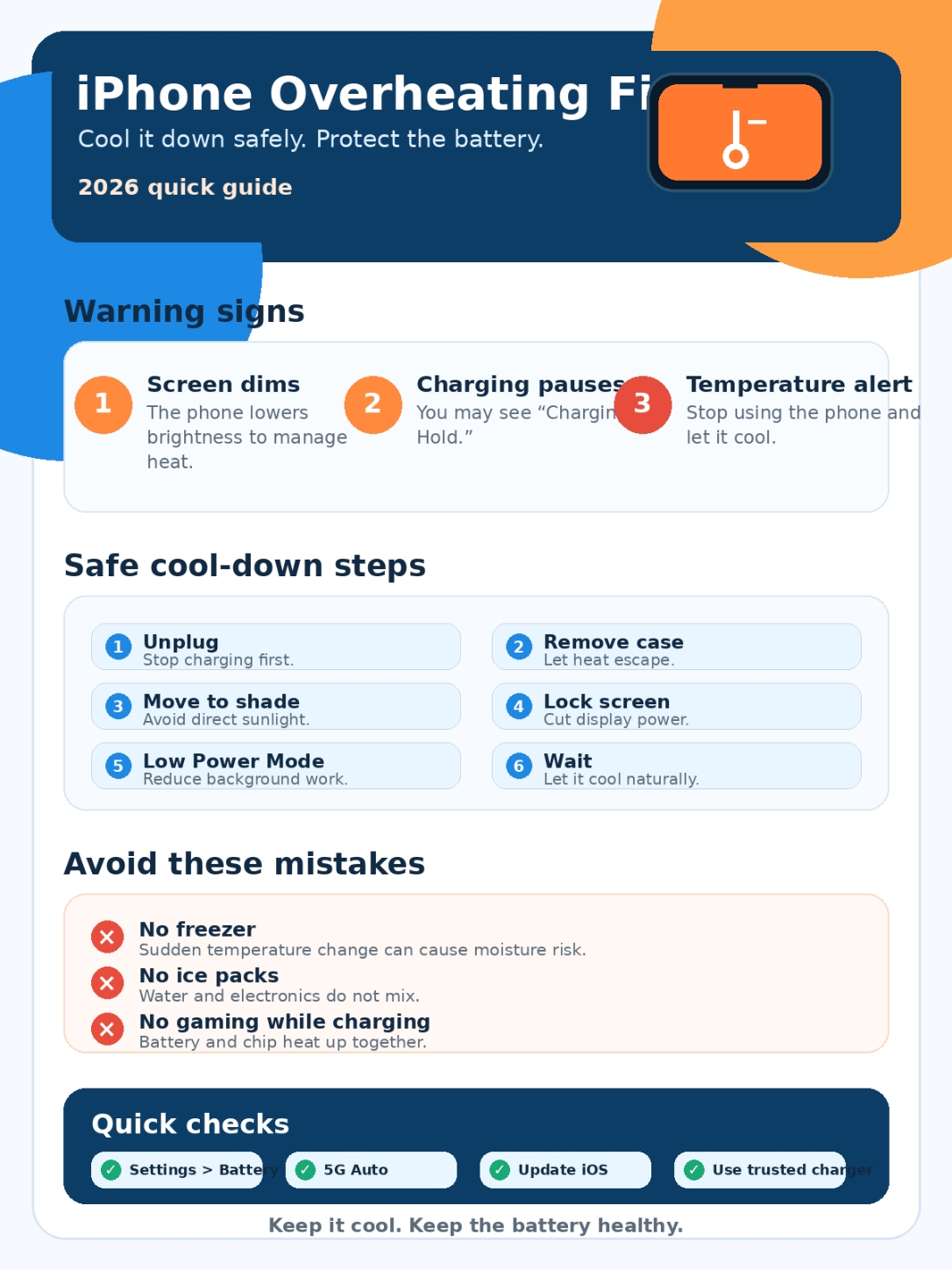
Your iPhone may be overheating if:
- The screen dims by itself.
- Charging slows down or stops.
- The phone starts lagging.
- The camera flash turns off.
- Battery drains much faster than usual.
- A temperature warning appears.
- The phone shuts down.
- It feels hot even when you’re barely using it.
If your iPhone shows a temperature warning, stop using it. That warning means the phone needs to cool down before normal use.
Quick iphone overheating fix: Cool It Down Safely
|
Step |
What to Do |
Why It Works |
|
1 |
Stop using the phone |
Reduces processor load |
|
2 |
Unplug the charger |
Stops extra charging heat |
|
3 |
Remove the case |
Helps heat escape |
|
4 |
Move it away from sunlight |
Cuts outside heat |
|
5 |
Lock the screen |
Reduces display power |
|
6 |
Turn on Low Power Mode |
Slows background activity |
|
7 |
Wait before heavy use |
Gives the battery time to cool |
The fastest iphone overheating fix is also the simplest: stop adding more heat.
If you’re gaming, recording video, using Maps, running hotspot, or charging, pause it. Then unplug the phone.
Next, remove the case. This matters more than many people think. Thick rubber, leather, rugged, and wallet-style cases can trap heat, especially during charging.
Now move the iPhone to a cooler place. Put it on a dry table, away from sunlight. Don’t leave it under a pillow, inside a bag, on a car dashboard, or near a window.
If the temperature warning appears, turn the phone off and let it cool naturally.
Don’t Cool It the Wrong Way
Never put your iPhone in the freezer.
Never place ice on it.
Never run cold water over it.
That may sound like a quick fix, but it can create moisture problems and stress the device. Let the phone cool slowly in shade or in a cool room.
Fix iPhone Overheating While Charging
|
Charging Problem |
Likely Cause |
Best Fix |
|
“Charging On Hold” message |
Battery is too hot or too cold |
Move the phone to a cooler place |
|
Charging stops near 80% |
Thermal protection is active |
Let the phone cool |
|
Gets hot on wireless charger |
Case or charger traps heat |
Remove the case |
|
Gets hot while gaming and charging |
Battery and chip heat up together |
Stop gaming while charging |
|
Hot with cheap charger |
Poor cable or adapter quality |
Use a trusted charger |
|
Slow charging after heat |
iPhone is managing temperature |
Wait and try again |
Charging is one of the biggest reasons iPhones heat up.
Your iPhone battery naturally warms during charging. That’s normal. But heat can build quickly if you charge in a warm room, use wireless charging, keep a thick case on, or use the phone heavily at the same time.
You may see a message like:
“Charging On Hold. Charging will resume when iPhone returns to normal temperature.”
That means your iPhone is protecting the battery.
Here’s what to do:
- Unplug the charger.
- Remove the case.
- Move the phone and charger away from sunlight.
- Stop gaming, video calls, hotspot, or camera use.
- Let the phone cool.
- Try charging again on a hard, open surface.
Wireless charging can add more heat because the back of the phone stays pressed against the charging pad. If your iPhone gets too warm on a MagSafe or Qi charger, remove the case and check whether the charger itself feels hot.
Is Fast Charging Bad?
Fast charging is fine when you use the right charger and the phone stays cool.
The problem starts when you mix fast charging with heavy use. For example, gaming while fast charging in a hot room is a bad combo. So is using Maps, hotspot, or 4K video while plugged in.
A better rule is simple:
Charge first. Play later.
If the phone already feels warm, don’t push it harder.
Check Battery Health and Charging Settings
|
Setting |
Where to Find It |
Why It Matters |
|
Battery Health |
Settings > Battery |
Shows battery condition |
|
Battery Usage |
Settings > Battery |
Finds power-hungry apps |
|
Low Power Mode |
Settings > Battery |
Reduces power use |
|
Charge Limit |
Battery settings on supported iPhones |
Helps reduce battery stress |
|
Optimized Battery Charging |
Battery settings |
Reduces time at full charge |
|
Service message |
Battery Health screen |
Shows if service may be needed |
Battery health plays a big role in overheating.
A weak or aging battery can heat faster, drain faster, and struggle during heavy tasks. This often shows up during gaming, camera use, navigation, or poor cellular signal.
Go to:
Settings > Battery > Battery Health
Check these details:
- Maximum Capacity
- Peak Performance Capability
- Cycle Count on supported models
- Service Recommended message
If your battery capacity is low and your iPhone gets hot during light use, the battery may be part of the problem.
Newer iPhones also give better battery information than older models. On iPhone 15 models and later, Apple says the battery is designed to retain 80% of original capacity at 1,000 complete charge cycles under ideal conditions. Older models have different battery cycle expectations.
That does not mean every battery will behave the same way. Heat, charging habits, heavy use, and age all make a difference.
Use Charge Limit If Your iPhone Supports It
Some newer iPhones let you set a charging limit. This means your iPhone can stop charging near a chosen percentage instead of always going to 100%.
That can help if your phone stays plugged in for long hours.
This is useful if you:
- Charge overnight
- Keep your phone plugged in at work
- Use CarPlay often
- Keep your iPhone on a desk charger
- Want to reduce battery stress over time
It won’t fix every heat issue. But it can help with long-term battery care.
Find Apps Causing Heat and Battery Drain
|
What to Check |
Where to Look |
What It Shows |
|
App battery use |
Settings > Battery |
Which app used the most power |
|
Background activity |
Battery details |
Apps running behind the scenes |
|
Notifications |
Battery details |
Apps waking the phone often |
|
Screen active time |
Battery chart |
How long the display stayed on |
|
Cellular coverage |
Battery insights |
Weak signal battery drain |
|
Last 8 days usage |
View All Battery Usage |
Repeated patterns |
Apps often cause overheating.
Some apps push the processor, graphics chip, screen, camera, network, and battery at the same time. That creates heat fast.
Open:
Settings > Battery > View All Battery Usage
Look for apps using more battery than expected.
Common heat-heavy apps include:
- Games
- Social media apps
- Video editors
- AI photo or video apps
- Camera apps
- Navigation apps
- Streaming apps
- Cloud backup apps
- Delivery and ride-sharing apps
If one app stands out, update it first. If that does not help, delete and reinstall it. If the problem continues, limit its background activity or remove it.
Read Also: iPhone Stuck in Recovery Mode: Complete Fix Guide
Don’t Force Close Every App
Many people swipe away every open app because they think it saves battery.
Most of the time, it doesn’t.
You only need to close an app when it freezes, crashes, or behaves strangely. Constantly closing and reopening apps can actually make the phone work harder.
A better move is to check Battery settings and find the app that is really causing trouble.
Control 5G, Weak Signal, Hotspot, and Location Use
|
Feature |
Why It Can Heat the Phone |
Better Setting |
|
5G On |
Keeps 5G active more often |
Use 5G Auto |
|
Weak signal |
Phone works harder to stay connected |
Use Wi-Fi |
|
Mobile hotspot |
Uses modem, Wi-Fi, and battery together |
Turn it off when done |
|
GPS navigation |
Screen, GPS, and data run at once |
Lower brightness |
|
Background location |
Apps check location often |
Allow only while using |
|
Low Data Mode |
Cuts background network use |
Use it in weak signal areas |
Weak signal can quietly heat your iPhone.
When your phone struggles to stay connected, it uses more power. More power means more heat.
This is common in:
- Elevators
- Basements
- Rural areas
- Crowded events
- Moving cars or trains
- Buildings with thick walls
- Areas with unstable 5G coverage
If your iPhone gets hot in low-signal areas, use Wi-Fi when possible. If you don’t need calls or data for a while, turn on Airplane Mode.
Use 5G Auto
If your iPhone supports 5G, use 5G Auto instead of 5G On.
Go to:
Settings > Cellular > Cellular Data Options > Voice & Data > 5G Auto
5G Auto lets the iPhone switch between 5G and LTE when needed. That can save battery and reduce heat.
Keeping 5G On all day may sound better, but it can use more power in places where 5G is weak or not useful.
Mobile Hotspot Heat Is Normal
Hotspot mode is demanding. Your iPhone handles cellular data, Wi-Fi sharing, and battery power at the same time.
To reduce hotspot heat:
- Keep the phone out of the sun.
- Remove the case.
- Lower brightness.
- Use hotspot only when needed.
- Turn it off when done.
- Keep the phone on a hard surface.
If hotspot makes your iPhone very hot every time, check signal strength. Poor cellular signal makes hotspot heat worse.
Adjust Display, Camera, Gaming, and Power Mode
|
Feature |
Why It Adds Heat |
What to Do |
|
High brightness |
Screen uses more power |
Lower brightness |
|
Long video recording |
Camera and chip work hard |
Take breaks |
|
4K video |
Needs more processing |
Use lower settings when practical |
|
Games |
CPU and GPU stay active |
Lower graphics |
|
FaceTime |
Camera, screen, mic, and network run together |
Use Wi-Fi |
|
Low Power Mode |
Reduces power use |
Turn it on when warm |
The screen is one of the biggest power users on your iPhone.
If the phone feels hot, lower brightness first. Also lock the screen when you’re not using it.
Camera use can also heat the phone quickly. Long 4K recording, slow motion, cinematic mode, and outdoor shooting can all push the device hard.
Gaming does the same thing. Some games use console-style graphics, high frame rates, and constant network activity. That can heat any phone, not just an iPhone.
Turn on Low Power Mode
Low Power Mode is not only for low battery. It can also help when your iPhone feels warm.
Go to:
Settings > Battery > Low Power Mode
Low Power Mode reduces background activity and limits some visual and system features. That lowers power use and helps the phone cool down.
Use it when:
- You’re outdoors
- Your phone feels warm
- Battery is draining fast
- You’re traveling
- You’re in a weak signal area
- You need the phone to last longer
This is one of the easiest iphone overheating fix habits you can use daily.
Fix Overheating After an iOS Update
|
Symptom |
Why It Happens |
Best Action |
|
Warm after update |
Background tasks are still running |
Give it time |
|
Battery drains fast |
Indexing and syncing may continue |
Check Battery settings |
|
One app heats phone |
App may need an update |
Update apps |
|
Heat lasts for days |
Could be a bug or battery issue |
Check iOS and Battery Health |
|
Update available |
Bug fix may help |
Install it |
It’s common for an iPhone to feel warmer after an iOS update.
That does not always mean something is wrong.
After an update, your iPhone may continue working in the background. It may index files, sync photos, update app data, rebuild search results, or finish setup tasks.
This can affect heat and battery life for a short time.
Give it a day or two. If the phone still overheats after that, check Battery settings and update your apps.
Software bugs can also cause heat. A known example happened with iPhone 15 models. Apple later released iOS 17.0.3 to fix a bug that made some devices run warmer than expected.
That’s why updates matter.
Check here:
Settings > General > Software Update
Then update your apps from the App Store.
When iPhone Overheating Needs Repair
|
Warning Sign |
Possible Cause |
What to Do |
|
Hot during light use |
Battery or hardware issue |
Check Battery Health |
|
Repeated temperature warnings |
Thermal or battery problem |
Contact Apple Support |
|
Swollen screen or case |
Battery safety issue |
Stop using it |
|
Heat near charging port |
Cable, port, or battery problem |
Stop charging |
|
Sudden shutdowns |
Battery can’t handle peak load |
Get service |
|
Heat after drop or water exposure |
Internal damage possible |
Get inspection |
Most overheating problems are easy to fix at home. But some need repair.
Get help if your iPhone:
- Gets hot while idle
- Shows temperature warnings often
- Shuts down by itself
- Stops charging every day
- Drains fast during light use
- Gets hot near the charging port
- Has a swollen screen or back
- Started overheating after a drop or water exposure
A swollen battery is serious. Stop charging the phone and get help from Apple or a trusted repair provider.
Don’t keep using it and hope it improves.
Mistakes That Make iPhone Overheating Worse
|
Mistake |
Why It’s Bad |
Safer Choice |
|
Putting it in a freezer |
Sudden temperature change can cause problems |
Let it cool naturally |
|
Using ice |
Moisture risk |
Place it in shade |
|
Charging while hot |
Adds more heat |
Unplug it first |
|
Gaming while charging |
Chip and battery heat up together |
Charge first |
|
Ignoring warning screen |
The phone is protecting itself |
Let it cool |
|
Using cheap chargers |
Can cause charging issues |
Use reliable accessories |
|
Leaving it in a car |
Cabin heat rises fast |
Take it with you |
Some “fixes” do more harm than good.
Do not freeze your iPhone. Do not use ice packs. Do not keep charging when it already feels hot.
Also, don’t charge it under soft materials. Beds, pillows, blankets, and car seats trap heat. Use a flat, hard, open surface instead.
If your iPhone says charging is on hold, leave it alone for a while. That message is there to protect the battery.
Final Thoughts
|
Daily Habit |
Why It Helps |
|
Keep your iPhone out of direct sun |
Stops heat from building fast |
|
Use 5G Auto |
Saves battery in many situations |
|
Avoid gaming while charging |
Reduces combined heat |
|
Check Battery settings |
Finds problem apps |
|
Turn on Low Power Mode when warm |
Cuts background load |
|
Update iOS and apps |
Fixes bugs and app issues |
|
Replace weak batteries |
Improves performance and stability |
The best iphone overheating fix is not a secret setting. It’s a set of small habits that work.
Keep your iPhone out of direct sun. Don’t charge it under a pillow. Remove the case when it feels hot. Use 5G Auto. Lower brightness. Turn on Low Power Mode when needed. Check Battery settings when heat keeps coming back.
Most heat problems come from heavy apps, charging, weak signal, hot weather, or background work after an update. Those are usually easy to manage.
But don’t ignore repeated overheating during light use. If your iPhone gets hot while idle, shuts down, shows warning messages, or has poor battery health, get it checked.
Your iPhone already tries to protect itself. When it pauses charging, dims the screen, or shows a temperature warning, take the hint. Let it cool, find the cause, and fix it before the battery takes a bigger hit.
FAQs About iPhone Overheating in 2026
|
Question |
Short Answer |
|
Why is my iPhone hot after updating iOS? |
Background tasks may still be running |
|
Why does charging stop at 80%? |
The battery may be too warm |
|
Can 5G make an iPhone hot? |
Yes, especially with weak signal |
|
Does closing every app help? |
No, close only problem apps |
|
Can a case trap heat? |
Yes, especially while charging |
|
Should I replace the battery? |
Maybe, if health is low or heat is constant |
Why is my iPhone overheating after an iOS update?
Your iPhone may still be working in the background after the update. It can sync photos, index files, update apps, and finish setup tasks. This can make the phone warmer for a short time.
If it still overheats after a few days, check Battery settings and update your apps.
Why does my iPhone say Charging On Hold?
It means your iPhone is too hot or too cold to charge safely. Move it to a cooler place, remove the case, and wait. Charging should resume when the phone returns to a normal temperature.
Can 5G cause iPhone overheating?
Yes. 5G can add heat when signal is weak or data use is heavy. Use 5G Auto instead of 5G On. It gives you 5G when useful and saves power when LTE is enough.
Is it bad to use an iPhone while charging?
Light use is usually fine. Heavy use is not ideal.
Gaming, hotspot, video calls, 4K recording, and navigation while charging can make the phone hot quickly. If the phone already feels warm, let it charge without using it.
Does Low Power Mode help with overheating?
Yes, it can help. Low Power Mode cuts background activity and reduces power use. That can help your phone cool down and save battery at the same time.
Should I close all apps when my iPhone gets hot?
No. Closing every app is not the answer. Check Battery settings instead. Find the app using too much power, then update it, limit it, or remove it.
Can a phone case cause overheating?
A case usually does not cause overheating by itself. But a thick case can trap heat during charging, gaming, hotspot use, or outdoor use. Remove it when the phone feels hot.
Why does my iPhone get hot in my pocket?
It may be struggling with poor signal, running background apps, using location, or sitting in a warm environment. Check Battery settings and Location Services. Also make sure the screen is not turning on often from notifications.