
You set the brightness exactly where you want it. Then it drops. You slide it back up. A few minutes later, it changes again. It may happen while reading in bed, watching YouTube, editing a photo, using Maps in the car, or checking your phone outside.
That’s usually Auto-Brightness doing its thing.
The feature isn’t bad. In fact, Apple turns it on by default because it helps your iPhone react to the light around you. In a dark room, the screen gets dimmer. In bright sunlight, it gets brighter.
But here’s the problem: Auto-Brightness doesn’t always guess right.
Sometimes it dims the screen when you still want it bright. Sometimes it keeps shifting while you’re trying to focus. And sometimes you just want full control.
If you want to turn off iphone auto brightness, you can do it in less than a minute. The tricky part is finding the setting. Apple doesn’t put it where most people expect.
Let’s walk through the right way to turn it off, what happens after you do, and what to check if your iPhone still keeps dimming.
What iPhone Auto-Brightness Really Does
Auto-Brightness uses the ambient light sensor on your iPhone. That sensor reads the light around you and changes your screen brightness based on the room, sunlight, shadows, or nearby lamps.
That’s why your brightness slider may move on its own. Your iPhone is adjusting the screen in the background.
Most of the time, this helps. You don’t need to keep changing brightness all day. Your phone handles it for you.
But it can also get annoying.
A lamp beside your bed can confuse it. A shadow over the top of the screen can make it dim too much. Bright sunlight through a window can push the brightness higher than you want.
|
Key Point |
What It Means |
|
Auto-Brightness uses a light sensor |
Your iPhone reacts to the light around you |
|
It is turned on by default |
Most users never switch it on manually |
|
The brightness slider can move alone |
That’s normal when Auto-Brightness is active |
|
It can help battery life |
Lower brightness uses less power |
|
It can feel inconsistent |
Mixed lighting can confuse the sensor |
Why Apple Keeps Auto-Brightness On
Apple keeps Auto-Brightness on because it helps with two things: comfort and battery life.
A screen that’s too bright in a dark room can hurt your eyes. A screen that’s too dim outside can be hard to read. Auto-Brightness tries to balance both without making you touch the slider all day.
It can also save battery. The display is one of the biggest power users on any phone. A lower screen brightness can stretch your battery longer.
When Auto-Brightness Becomes a Problem
Auto-Brightness is helpful for casual use. But it can get in the way when you need a steady screen.
You may want to turn it off if you:
- Edit photos or videos on your iPhone.
- Read for long periods.
- Watch videos in low light.
- Use your phone in a car.
- Record video outdoors.
- Play games and want steady brightness.
- Prefer manual control.
That’s when learning how to turn off iphone auto brightness makes sense.
How to Turn Off iPhone Auto Brightness
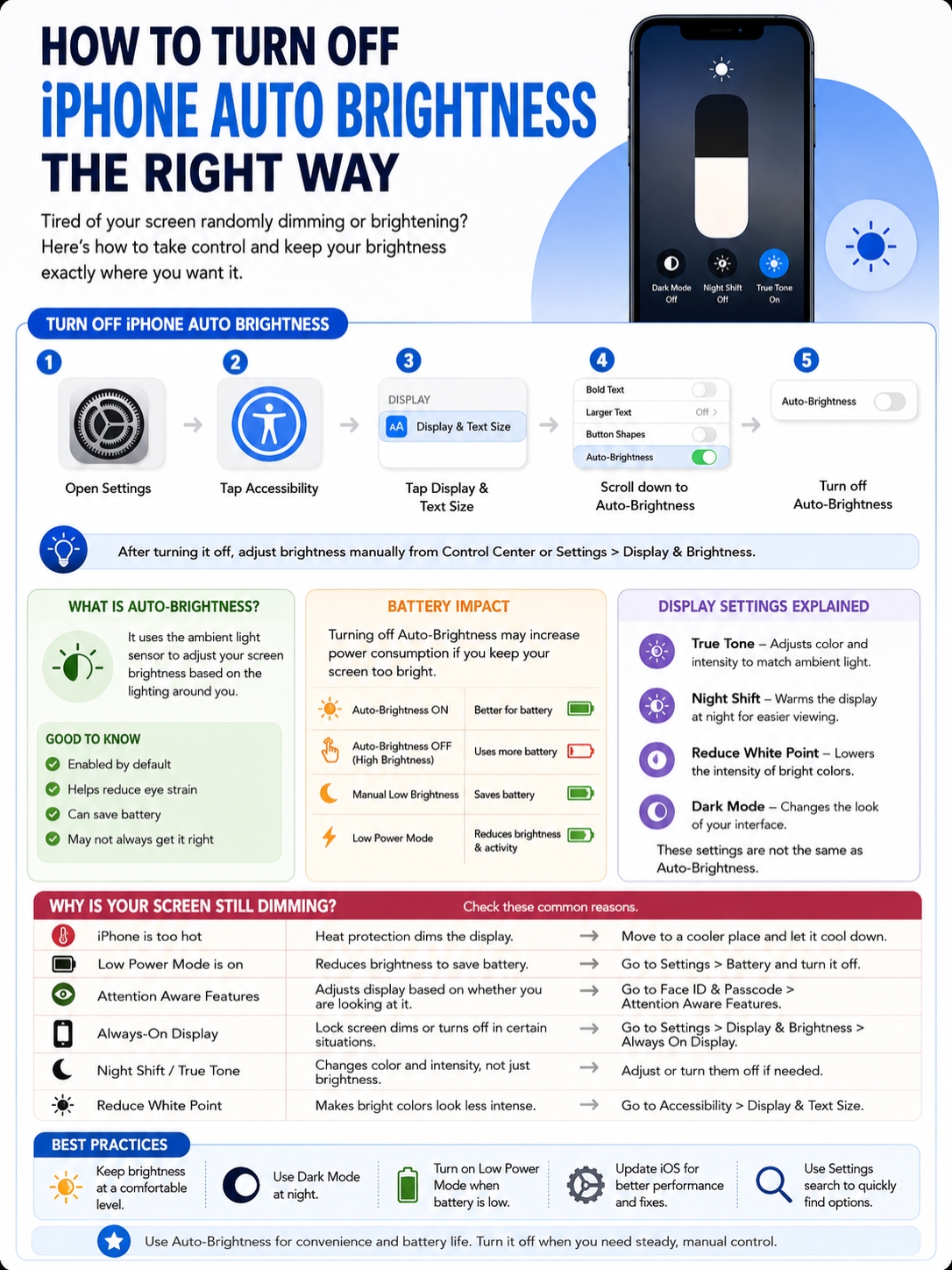
Here’s the correct path:
- Open Settings.
- Tap Accessibility.
- Tap Display & Text Size.
- Scroll to the bottom.
- Turn off Auto-Brightness.
That’s it.
Once you turn it off, your iPhone stops changing screen brightness based on surrounding light.
|
Step |
What to Tap |
What Happens |
|
1 |
Settings |
Opens your iPhone settings |
|
2 |
Accessibility |
Shows accessibility controls |
|
3 |
Display & Text Size |
Opens display-related options |
|
4 |
Scroll down |
Finds Auto-Brightness near the bottom |
|
5 |
Turn it off |
Stops automatic brightness changes |
Why Auto-Brightness Is Hard to Find
This setting trips up a lot of people.
You’d expect Auto-Brightness to sit under:
Settings > Display & Brightness
But it doesn’t.
The brightness slider is there. True Tone is there. Night Shift is there too. But Auto-Brightness lives under:
Settings > Accessibility > Display & Text Size
So if you checked Display & Brightness and couldn’t find it, you weren’t missing anything. Apple simply placed it in a different menu.
How to Adjust Brightness After Turning It Off
After you turn off Auto-Brightness, you control the brightness yourself.
You can adjust it in two ways:
- Swipe into Control Center and drag the brightness slider.
- Go to Settings > Display & Brightness and move the slider.
For most indoor use, keep brightness around the middle. At night, lower it. Outside, raise it only when you need to.
That gives you control without wasting battery.
Know the Battery Trade-Off First
Turning off Auto-Brightness gives you a steadier screen. But it can also drain your battery faster if you leave brightness too high.
That’s the part many users miss.
If Auto-Brightness is on, your iPhone can lower brightness in dark rooms. If it’s off, the phone won’t make that adjustment for you. So if you set the brightness high and forget about it, your battery takes the hit.
|
Setting |
Screen Behavior |
Battery Impact |
|
Auto-Brightness on |
iPhone adjusts brightness automatically |
Usually better for battery |
|
Auto-Brightness off |
You control brightness manually |
Can drain faster if brightness stays high |
|
Low manual brightness |
Screen stays dim |
Saves battery |
|
High manual brightness |
Screen stays bright |
Uses more power |
|
Low Power Mode |
Reduces some display and background activity |
Helps extend battery life |
The Mistake That Drains Battery Fast
The mistake is simple.
People turn off Auto-Brightness, drag the brightness slider high, and leave it there all day.
That can drain battery quickly. It can also make the phone warmer during heavy use, like video recording, gaming, streaming, or GPS navigation.
A better habit is easy:
- Keep brightness lower indoors.
- Raise it outside only when needed.
- Lower it again when you come back inside.
- Use Low Power Mode when your battery is low.
- Turn Auto-Brightness back on if battery life matters more than manual control.
Check Battery Suggestions
Your iPhone can sometimes show battery suggestions in Settings.
Go to:
Settings > Battery
You may see suggestions like:
- Enable Auto-Brightness
- Enable Auto-Lock
- High Brightness
If you see “High Brightness,” your iPhone is warning you that the screen is using more power than it should.
That doesn’t mean you must turn Auto-Brightness back on. But it does mean you should lower the slider if battery life matters.
Auto-Brightness Is Not the Same as True Tone or Night Shift
This is where things get confusing.
You may turn off iphone auto brightness and still feel like the screen is changing. That doesn’t always mean the setting failed.
Your iPhone has several display features. They all affect the screen in different ways.
|
Feature |
What It Changes |
Where to Find It |
|
Auto-Brightness |
Screen brightness based on light |
Accessibility > Display & Text Size |
|
True Tone |
Screen color and intensity |
Display & Brightness |
|
Night Shift |
Warmer screen color at night |
Display & Brightness > Night Shift |
|
Reduce White Point |
Intensity of bright colors |
Accessibility > Display & Text Size |
|
Dark Mode |
App and system appearance |
Display & Brightness |
True Tone Changes the Look of Colors
True Tone adjusts the color and feel of your screen based on nearby light.
In a warm room, your screen may look warmer. In cooler light, it may shift the other way. It’s meant to make the display look more natural.
For normal use, it’s fine.
But if you edit photos, graphics, product shots, thumbnails, or videos, turn it off while working. It can make colors look different from how they really are.
To turn it off:
Settings > Display & Brightness > True Tone
You can also open Control Center, press and hold the brightness slider, and tap True Tone.
Night Shift Makes the Screen Warmer
Night Shift is different.
It makes the screen warmer in the evening or at night. That means whites may look yellowish or orange.
To adjust it:
Settings > Display & Brightness > Night Shift
If your screen looks too warm at night, check this setting before blaming Auto-Brightness.
Reduce White Point Helps at Night
Reduce White Point is one of the most useful iPhone display settings, but many people never use it.
It lowers the intensity of bright colors. So even if your brightness is already low, the screen can feel softer.
To find it:
Settings > Accessibility > Display & Text Size > Reduce White Point
This is great for reading in bed or using your phone in a dark room.
Why Your iPhone Still Dims After Auto-Brightness Is Off
This is a common complaint.
You turn Auto-Brightness off. Then your iPhone still dims. Annoying, right?
But Auto-Brightness isn’t the only reason your screen can change.
Your iPhone can still dim because of heat, Low Power Mode, Attention Aware Features, Always-On Display, Auto-Lock, True Tone, Night Shift, or Reduce White Point.
|
Reason |
What Happens |
What to Check |
|
iPhone is too hot |
Screen dims or may go black |
Move it out of heat |
|
Low Power Mode is on |
Display may reduce brightness |
Settings > Battery |
|
Attention Aware Features |
Screen reacts to whether you’re looking |
Face ID & Passcode |
|
Always-On Display |
Lock screen dims or turns dark |
Display & Brightness |
|
Night Shift |
Screen looks warmer |
Display & Brightness |
|
Reduce White Point |
Bright colors look less intense |
Accessibility > Display & Text Size |
Heat Can Dim the Screen
This is one of the biggest reasons.
Even with Auto-Brightness off, your iPhone can dim the display when it gets too hot. This protects the internal parts.
You may notice this when you:
- Use Maps in a hot car.
- Record video in direct sunlight.
- Play heavy games.
- Charge while using the phone.
- Leave the phone on a dashboard.
- Use the camera for a long time outdoors.
Read Also: How to Fix iPhone Overheating in 2026
You can’t turn this safety feature off.
The fix is to cool the phone down. Move it out of sunlight. Stop heavy apps. Remove a thick case for a few minutes. Don’t put it in a fridge or freezer. Just let it cool naturally.
Low Power Mode Can Lower Brightness
Low Power Mode helps your battery last longer. But it can also make your iPhone feel more aggressive about saving energy.
To check it:
Settings > Battery > Low Power Mode
If it’s on, your phone may reduce display brightness and limit some background activity.
That’s good when you’re low on battery. But if you want steady brightness, turn it off and manage the screen manually.
Attention Aware Features Can Affect Dimming
On Face ID iPhones, Attention Aware Features can check whether you’re looking at the screen.
If you’re looking, the phone may keep the display from dimming. If you look away, it may dim sooner.
To check it:
Settings > Face ID & Passcode > Attention Aware Features
You may also see related settings under:
Settings > Accessibility > Face ID & Attention
If the screen dims while reading, this setting is worth checking.
Always-On Display Has Separate Rules
On supported iPhone models, Always-On Display works separately from Auto-Brightness.
The lock screen can dim when your phone is idle. It may also turn dark when the phone is face down, in your pocket, connected to CarPlay, in Sleep Focus, or using Low Power Mode.
To adjust it:
Settings > Display & Brightness > Always On Display
If your lock screen keeps dimming, this may be the setting you need.
Best Brightness Settings for Different Uses
There’s no one perfect brightness setup.
The best setting depends on how you use your iPhone. A reader, gamer, traveler, photographer, and casual user all need different things.
|
Situation |
Best Setup |
Why It Works |
|
Daily use |
Auto-Brightness on |
Easy and battery-friendly |
|
Photo editing |
Auto-Brightness off, True Tone off |
More consistent colors |
|
Night reading |
Low brightness, Dark Mode, Reduce White Point |
Softer on the eyes |
|
Outdoor use |
Auto-Brightness on or higher manual brightness |
Easier to see |
|
Battery saving |
Auto-Brightness on and lower brightness |
Uses less power |
|
Gaming |
Manual brightness, watch heat |
Keeps the screen steady |
Best Setup for Photo and Video Editing
If you edit content on your iPhone, changing brightness can trick your eyes.
Turn off:
- Auto-Brightness
- True Tone
- Night Shift
Then set the brightness manually.
Try to edit in steady lighting too. Don’t edit one photo under a warm lamp and the next beside a bright window. Your screen may be stable, but your eyes still react to the room.
This won’t turn your iPhone into a professional calibrated monitor. But it gives you a cleaner, more consistent view.
Best Setup for Reading at Night
For night reading, don’t just pull the brightness slider down.
Try this setup:
- Lower brightness.
- Turn on Dark Mode.
- Use Reduce White Point.
- Use Night Shift if warmer colors feel better.
- Set Auto-Lock to a time that works for you.
This makes the screen easier to look at without blasting your eyes in a dark room.
Best Setup for Battery Life
For battery life, Auto-Brightness is usually better.
It keeps the screen from staying too bright when it doesn’t need to be. That helps during long days, travel, work, or heavy phone use.
If you still want manual brightness, keep the slider low indoors. Raise it outside. Then lower it again when you come back in.
It sounds basic, but it works.
Should You Keep Auto-Brightness Off All the Time?
You can keep it off all the time. It won’t damage your iPhone.
But it may not be the smartest choice for everyone.
If you move between indoor rooms, sunlight, cars, shops, and dark spaces all day, Auto-Brightness saves you work. It also helps keep battery use under control.
If you need a steady screen, turn it off.
|
User Type |
Better Choice |
Why |
|
Regular iPhone user |
Keep Auto-Brightness on |
Easy and battery-friendly |
|
Photo or video editor |
Turn it off while working |
Better screen consistency |
|
Night reader |
Optional |
Reduce White Point may help more |
|
Gamer |
Test both |
Manual brightness feels steady |
|
Traveler |
Keep it on |
Lighting changes often |
|
Battery-focused user |
Keep it on |
Helps reduce power use |
A Practical Middle Ground
You don’t have to pick one setting forever.
Use Auto-Brightness most of the time. Turn it off when you need control.
That’s the cleanest approach.
For example, keep it on during normal use. Turn it off when editing photos, recording video, reading at night, or playing games. Then turn it back on later.
This gives you control when you need it and battery help when you don’t.
Turn Off iPhone Auto Brightness: Quick Troubleshooting Checklist
If your screen still acts weird, run through this quick checklist.
|
Problem |
Likely Cause |
Fix |
|
Brightness slider moves by itself |
Auto-Brightness is still on |
Turn it off in Accessibility |
|
Screen looks yellow |
Night Shift or True Tone |
Turn them off |
|
Screen dims outside |
iPhone is too hot |
Cool the phone |
|
Screen dims while reading |
Attention Aware or Auto-Lock |
Check Face ID and Auto-Lock |
|
Battery drains faster |
Brightness is too high |
Lower brightness |
|
Screen feels bright at minimum |
White point is too high |
Use Reduce White Point |
|
Lock screen keeps dimming |
Always-On Display |
Adjust Always-On Display settings |
Clean the Sensor Area
The light sensor needs a clear view.
Dust, a thick screen protector, or a badly fitted case can sometimes affect how the sensor reads light.
Clean the top area of the screen gently. If the problem started after you added a screen protector, test the phone without it.
Restart Your iPhone
A restart can fix odd display behavior.
After restarting, check the setting again:
Settings > Accessibility > Display & Text Size > Auto-Brightness
Make sure it stayed off.
Update iOS
If your iPhone started dimming strangely after an update, check for a newer one.
Go to:
Settings > General > Software Update
Software bugs happen. A newer iOS version may fix display or battery behavior.
Final Thoughts
The fastest way to turn off iphone auto brightness is simple:
Settings > Accessibility > Display & Text Size > Auto-Brightness
Turn it off when you want full control over your screen. It’s useful for reading, gaming, editing photos, recording videos, or working in tricky lighting.
But don’t forget the trade-off. If you leave the screen too bright, your battery will drain faster. Your iPhone may also still dim because of heat, Low Power Mode, Attention Aware Features, Always-On Display, Night Shift, True Tone, or Reduce White Point.
So here’s the best advice: don’t treat Auto-Brightness like a setting you must always keep on or always keep off.
Use it when you want better battery life. Turn it off when you need a steady screen.
That’s the right way to turn off iphone auto brightness without creating new problems.
Uncommon FAQs About iPhone Auto-Brightness
|
Question |
Quick Answer |
|
Can Siri turn off Auto-Brightness? |
Not reliably. Use Settings. |
|
Can I add Auto-Brightness to Control Center? |
No simple built-in toggle is available. |
|
Does Auto-Brightness affect outdoor brightness? |
Yes, but heat can still limit brightness. |
|
Is True Tone the same thing? |
No. True Tone changes color and intensity. |
|
Does Low Power Mode affect brightness? |
Yes, it can reduce display brightness. |
Why can’t I find Auto-Brightness on my iPhone?
Because it’s not under the main Display & Brightness page.
Go here:
Settings > Accessibility > Display & Text Size > Auto-Brightness
You can also use the search bar inside Settings and type “Auto-Brightness.”
Does turning off Auto-Brightness save battery?
Not usually.
It only saves battery if you keep brightness low manually. If you leave the screen bright all day, your battery may drain faster.
For battery life, Auto-Brightness is usually the safer choice.
Why does my iPhone dim in sunlight after Auto-Brightness is off?
Your iPhone may be getting hot.
When the phone gets too warm, it can dim the screen to protect itself. This can happen during video recording, Maps navigation, gaming, charging, or direct sun exposure.
Move it somewhere cooler and wait a few minutes.
Does turning off Auto-Brightness damage the iPhone?
No.
Turning it off is safe. The main downside is battery use. If you keep brightness too high for too long, your battery drains faster.
Should I turn off True Tone too?
For everyday use, you can keep it on.
For photo editing, video work, graphic design, or checking product colors, turn it off. True Tone changes how colors appear.
Why is my screen still too bright at minimum brightness?
Try Reduce White Point.
Go to:
Settings > Accessibility > Display & Text Size > Reduce White Point
This lowers the intensity of bright colors and makes the screen feel softer.
Should most people keep Auto-Brightness on?
Yes.
Most people should leave it on because it’s easy and battery-friendly. But if you need steady brightness, turn it off when needed.