
You don’t need Buffer, Hootsuite, or another social media tool just to publish an X post later.
X already has a built-in scheduler. If you want to schedule posts on X, you can do it straight from the web composer. Write the post, pick a date and time, and X will hold it until it’s ready to go live.
For simple scheduling, that’s usually enough.
There are a few limits worth knowing, though. The regular X mobile app doesn’t offer the same scheduling controls as the web version. Longer Premium posts can’t currently be scheduled on the web either. X Pro, Media Studio, and X Ads also have their own scheduling systems and rules.
That sounds more complicated than it really is. For everyday posts, the standard x.com scheduler is the easiest place to start.
Can You Schedule Posts on X Without a Third-Party App?
Yes.
X includes scheduling in its regular web post composer. Open x.com, write your post, click the calendar icon, choose when you want it published, and confirm the schedule.
You can find scheduled posts later under Unsent posts.
Basic web scheduling is separate from X Pro, the product that replaced TweetDeck. X currently reserves X Pro for Premium+ subscribers, but you don’t need X Pro just to schedule a normal post through x.com.
That makes the native scheduler a good fit if you:
- Mainly publish on X.
- Manage one account or only a few.
- Schedule posts individually.
- Don’t need a cross-platform content calendar.
- Don’t need bulk uploads.
- Prefer not to connect another service to your X account.
For a creator, small business, publisher, or solo marketer, that covers a lot of everyday use cases.
|
Question |
Standard X Web Scheduler |
|
Third-party app required? |
No |
|
Premium required for basic scheduling? |
X does not list it as a Premium-only feature |
|
Where do you use it? |
x.com web composer |
|
Can you pick a future date and time? |
Yes |
|
Can you review scheduled posts later? |
Yes |
|
Best for |
Simple individual post scheduling |
How to Schedule Posts on X: Step by Step
The easiest way to schedule posts on X is through x.com on a desktop or laptop.
1. Sign in to the Right Account
Open x.com and log in.
If you manage more than one profile, check the username and profile picture before you start writing. It’s a small habit, but it can save you from publishing a client post on your personal account.
2. Write Your Post
Click Post or open the composer.
Write the post as you normally would.
A standard X post supports up to 280 characters. You can also add supported media such as photos, a GIF, or video.
Before scheduling, check the basics:
- Spelling
- Links
- Mentions
- Hashtags
- Images or video
- Alt text where needed
- Campaign dates
- The publishing account
Scheduling makes life easier, but it also makes it easier to forget about a mistake you made three days earlier.
Read Also: How to Turn Off For You and See Following Only on X
3. Click the Calendar Icon
Look under the composer.
You should see a calendar icon. Click it to open the scheduling controls.
This is X’s native scheduling button.
4. Pick the Date and Time
Choose when you want the post to go live.
Several current scheduling guides, including Sprout Social, Brandwatch, and iDownloadBlog, report that X lets users schedule posts up to 18 months ahead.
X’s own general help page confirms future scheduling but doesn’t currently spell out that maximum. So it’s better to treat 18 months as a well-supported current interface limit rather than a formal X policy.
The other thing to watch is timezone.
If you work with an international audience, travel often, or manage accounts from another region, double-check the time shown before confirming.
A 9:00 a.m. post in Dhaka is obviously not the same thing as a 9:00 a.m. post in New York.
5. Confirm the Schedule
Once the date and time look right, click Confirm.
You’ll return to the composer with the scheduled time attached.
6. Click Schedule
The normal publishing button will now act as a scheduling button.
Click it, and the post moves into your queue.
You don’t need to keep the browser open. X handles the publication after that.
|
Step |
What to Do |
What to Check |
|
1 |
Sign in to x.com |
Correct account |
|
2 |
Write the post |
Text, links, media |
|
3 |
Click the calendar icon |
Scheduler opens |
|
4 |
Choose date and time |
Date, hour, timezone |
|
5 |
Confirm |
Publishing time |
|
6 |
Schedule |
Post enters the queue |
How to View, Edit, or Delete Scheduled Posts
Scheduling is only useful if you can still change your mind later.
X keeps scheduled posts in the Unsent posts area of the composer.
Open the composer again and look for your scheduled content. From there, you can review posts that haven’t gone live yet.
Current browser guides also show users opening the scheduled-post section from the scheduler itself. The wording may change slightly as X updates its interface, but the basic idea stays the same: scheduled posts live in the draft or unsent area until publication.
You may want to edit a scheduled post because:
- The publishing time changed.
- A link needs replacing.
- An event was postponed.
- The wording feels outdated.
- You spotted a typo.
- You want to publish it sooner.
This is also why it’s worth checking your queue regularly.
A post that looked perfectly fine on Monday may feel completely wrong by Thursday.
|
Management Task |
What to Do |
|
Find scheduled posts |
Open Unsent/Scheduled posts |
|
Review copy |
Open the queued item |
|
Change date or time |
Edit the schedule |
|
Publish sooner |
Remove or change scheduled timing |
|
Delete a post |
Discard it |
|
Check campaign order |
Review the full queue |
Can You Schedule Posts on X From a Phone?
Not through the normal X mobile app in the same way you can on desktop.
That catches people out.
Current guides from Sprout Social and iDownloadBlog still point users toward the browser when they want X’s native scheduler.
There is a simple workaround.
Open x.com in Safari, Chrome, Firefox, or another mobile browser instead of using the X app. Current browser testing shows that scheduling can work through mobile web.
The experience isn’t as comfortable as desktop, especially if you’re managing several posts, but it can be handy when you’re away from your computer.
Don’t confuse that with X Pro.
X says X Pro doesn’t work on mobile-sized displays. It requires a larger browser viewport and is currently tied to Premium+.
So paying for Premium+ doesn’t suddenly turn X Pro into a full mobile scheduling app.
|
Method |
Works on Phone? |
Third Party? |
Best For |
|
X mobile app |
Yes, but not for standard native scheduling |
No |
Normal posting |
|
x.com mobile browser |
Yes |
No |
Occasional scheduling |
|
x.com desktop browser |
Yes |
No |
Best basic scheduling setup |
|
X Pro |
Not on mobile-sized displays |
No |
Advanced workflows |
|
Third-party scheduler |
Usually |
Yes |
Cross-platform publishing |
What Can and Can’t You Schedule Natively?
Not every type of X post follows the same rules.
Standard Posts
Regular posts are the simplest.
X officially documents native scheduling for normal posts through the web composer.
You can schedule text posts and regular posts with supported media.
Longer Premium Posts
This is where things change.
X Premium users can publish much longer posts, up to 25,000 characters.
But X currently says those longer posts can’t be saved as drafts or scheduled on the web.
So a Premium subscription doesn’t remove every scheduling limit.
If you’re writing a long Premium post, you may still have to publish it manually.
Threads
X specifically documents scheduled threads through X Pro.
X Pro lets users compose threads and include media in scheduled posts. That makes it more useful for people who publish longer sequences instead of single posts.
The catch is access.
X Pro currently comes with Premium+.
If thread scheduling matters to you, check the exact workflow before building a campaign around it.
Direct Messages
You can’t schedule Direct Messages through X Pro.
X states that scheduled DMs aren’t supported.
|
Content Type |
Native Scheduling Status |
|
Standard post |
Supported |
|
Standard post with media |
Supported |
|
Longer Premium post |
Not currently schedulable on web |
|
X Pro thread |
Supported |
|
Scheduled Direct Message |
Not supported |
|
Media Studio post |
Supported through its own workflow |
|
X Ads post |
Supported through Ads Composer |
Standard Scheduler vs X Pro, Media Studio, and X Ads
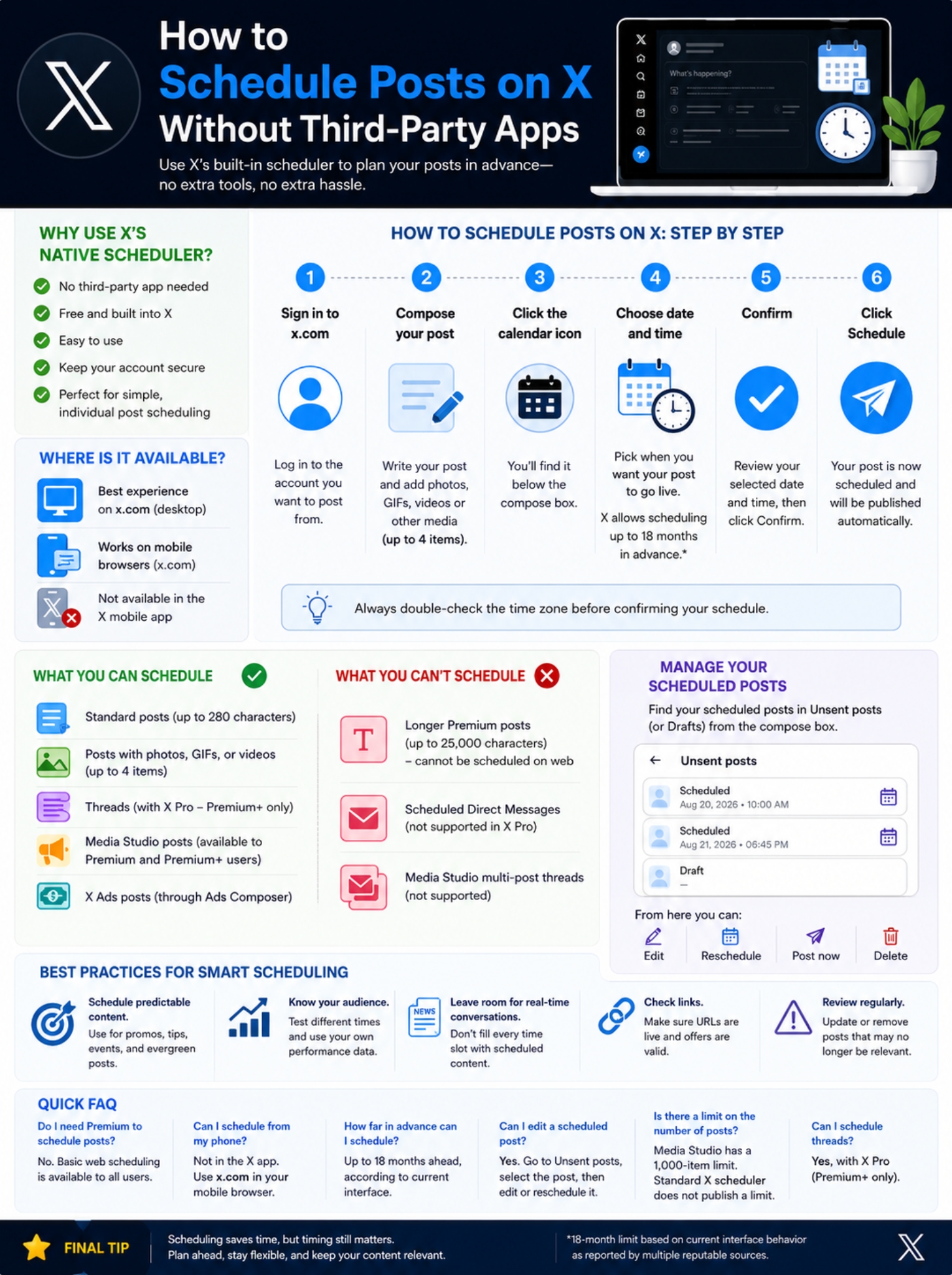
X has more than one native publishing tool.
That’s why online guides sometimes seem to contradict one another. They’re often talking about different X products.
Standard x.com Scheduler
This is the one most people need.
It works well if your goal is simple: write a post now and publish it later.
There’s no need to add another social platform or learn a complicated dashboard.
X Pro
X Pro is built for heavier use.
It’s useful for people who monitor several streams, work with more than one account, or want a more advanced publishing workspace.
It also supports scheduled threads.
X currently offers X Pro through Premium+.
Media Studio
Media Studio is more focused on uploaded media.
It has its own scheduling system and a few rules that don’t apply to the regular x.com composer.
For example, X says Media Studio can hit a scheduling rate-limit error when an account reaches 1,000 draft or scheduled posts.
That number belongs to Media Studio. It shouldn’t be treated as the standard limit for ordinary X scheduling.
Media Studio also has stricter editing behavior. If you schedule content there and later want to change it, you may have to delete and recreate the post inside Media Studio.
X Ads
X Ads has another scheduler for advertising workflows.
Advertisers can schedule organic and Promoted-only posts through Ads Composer. X also says the Post ID stays the same once a scheduled Ads post goes live.
|
Tool |
Best For |
Scheduling Style |
|
x.com composer |
Everyday users |
Simple post scheduling |
|
X Pro |
Power users |
Advanced scheduling and threads |
|
Media Studio |
Media-heavy publishing |
Media library scheduling |
|
X Ads |
Advertisers |
Campaign and promoted-post scheduling |
How to Schedule Posts on X Without Creating a Messy Queue
The technical part is easy.
The harder question is what you should schedule in the first place.
Not every post belongs in a queue.
Scheduling works well for predictable content such as:
- Article promotions
- Newsletter announcements
- Podcast releases
- Confirmed event reminders
- Product launches
- Evergreen tips
- Educational posts
- Campaign messages approved in advance
Breaking news is different.
A post written on Tuesday can look embarrassing by Friday if the situation changes.
Leave Space for Real-Time Posts
I wouldn’t schedule every slot on the calendar.
X still works best when an account feels present.
If your entire day is already packed with scheduled posts, there’s little room for reactions, conversations, corrections, or breaking news.
Keep some space open.
Don’t Blindly Follow a “Best Time to Post”
There’s no magic hour that works for every account.
A football news account, a SaaS company, a local newspaper, and a fashion creator won’t have the same audience behavior.
Use your own engagement data when possible.
Look at when your followers respond, click, repost, and reply.
Broad studies can give you a starting point. Your own account should make the final decision.
Recheck the Context
This matters more than people think.
Suppose you schedule a cheerful travel promotion three days ahead. Then a major transport accident happens on the morning it’s due to publish.
The post may suddenly feel careless.
The same applies to:
- Humor
- Sales promotions
- Celebration posts
- Political content
- Sports reactions
- Public events
Scheduling should save time, not remove judgment.
Check Every Link
A scheduled post can be perfectly written and still fail if the link is broken.
Before adding it to the queue, confirm:
- The URL works.
- The page is live.
- The offer is still valid.
- Tracking parameters are correct.
- The headline matches the destination.
- The page loads properly on mobile.
|
Weak Habit |
Better Choice |
|
Queue everything months ahead |
Schedule only predictable content |
|
Never check the queue again |
Review it regularly |
|
Post at the same time forever |
Learn from your own audience |
|
Ignore breaking events |
Pause unsuitable posts |
|
Schedule untested links |
Open and test them first |
|
Automate every interaction |
Keep conversations human |
Native X Scheduling vs Third-Party Tools
X’s built-in scheduler won’t replace every social media platform.
It doesn’t need to.
Native scheduling is best when your work mainly happens on X.
Third-party tools become more useful when you’re managing several networks from one place.
For example, an agency may want to schedule content for X, LinkedIn, Facebook, Instagram, and Pinterest from one calendar. That’s where a dedicated social media management platform starts to make sense.
There’s also the permissions question.
Every third-party service connected to your X account creates another account relationship to manage.
That doesn’t mean reputable scheduling platforms are unsafe. It simply means you should only grant access when you actually need the extra features.
If X’s own scheduler already does the job, keeping the workflow native is often simpler.
|
Need |
X Native Scheduler |
Third-Party Tool |
|
Schedule regular X posts |
Yes |
Usually |
|
Extra account connection |
No |
Yes |
|
Cross-platform calendar |
No |
Usually |
|
Multi-network publishing |
No |
Usually |
|
Team approval tools |
Limited |
Often better |
|
Advanced reporting |
Limited |
Often better |
|
Simple setup |
Strong |
Depends on the platform |
Common Problems When Scheduling Posts on X
The Calendar Icon Isn’t There
First check where you’re posting from.
If you’re using the iPhone or Android app, switch to x.com in a browser.
That’s the most common reason people can’t find the scheduler.
Your Long Post Won’t Schedule
Check the length.
X says longer Premium posts can reach 25,000 characters, but they can’t currently be scheduled on the web.
Try shortening the post or publishing it manually.
The Time Looks Wrong
Check your timezone.
This is especially important if you:
- Recently travelled.
- Changed your computer clock.
- Work with another country.
- Use a remote computer.
A correct date with the wrong timezone is still a bad schedule.
You Can’t Find the Scheduled Post
Open the composer and look for Unsent posts.
That’s where X keeps drafts and scheduled items.
Media Studio Won’t Let You Edit a Scheduled Post
That can happen because Media Studio follows different rules from the ordinary web composer.
X says scheduled Media Studio posts may need to be deleted and recreated if you want to change them within Media Studio.
|
Problem |
Likely Cause |
What to Try |
|
Calendar icon missing |
Wrong interface |
Use x.com |
|
Long post won’t schedule |
Long-post restriction |
Shorten it or post manually |
|
Wrong time |
Timezone mismatch |
Check timezone |
|
Scheduled post missing |
Looking in the wrong place |
Open Unsent posts |
|
Media Studio edit issue |
Product-specific limit |
Delete and recreate |
Frequently Asked Questions
Do I need X Premium to schedule a normal post?
X’s regular Help Center documents scheduling through the standard x.com composer and doesn’t list basic scheduling as a Premium-only feature.
X Pro is different. That product currently requires Premium+.
How far ahead can I schedule a post?
Current guides from Sprout Social, Brandwatch, and iDownloadBlog report a maximum of 18 months.
X’s basic Help Center confirms future scheduling but doesn’t currently publish that exact limit, so the 18-month figure is best treated as a current interface limit reported by several reputable sources.
Can I schedule X posts from Safari or Chrome on my phone?
Yes, according to current mobile-browser testing.
Open x.com in your browser instead of the X app.
The browser version is the better option when you need native scheduling from a phone.
Can I schedule a 25,000-character Premium post?
Not through the current web scheduler.
X says longer posts can’t currently be scheduled on web.
Can X Pro schedule threads?
Yes.
X says X Pro supports threads as part of its scheduled-post workflow.
X Pro currently requires Premium+.
Can I schedule Direct Messages?
No.
X Pro doesn’t support scheduled DMs.
Does the 1,000-item Media Studio limit apply to normal X scheduling?
There’s no good reason to assume that it does.
X documents the 1,000 draft-or-scheduled-post limit specifically for Media Studio.
It shouldn’t be presented as the normal x.com scheduler limit.
Final Thoughts
You don’t need another social media platform just to schedule posts on X.
For most people, the native web scheduler does the job.
Open x.com, write the post, click the calendar icon, choose the date and time, and add it to your queue. You can come back later if you need to edit, delete, or reschedule it.
The tool isn’t perfect.
The X mobile app still doesn’t offer the same scheduling experience. Longer Premium posts can’t currently be scheduled on the web. And more advanced workflows may require X Pro, Media Studio, or a third-party platform.
But for regular posts, native scheduling is simple, practical, and free from extra software.
The bigger lesson is not to over-automate.
Schedule the things you already know: article promotions, campaign reminders, evergreen tips, and planned announcements.
Leave breaking news, replies, sensitive topics, and real conversations for the moment they actually happen.
That’s how scheduling saves time without making your account feel like nobody is home.