
A phone screen is fine for quick clips. It’s not so great when you want to watch a movie, show holiday photos, give a presentation, or share something with a group.
That’s where casting helps.
You can cast Android to TV in several ways. Some TVs support Google Cast. Samsung phones offer Smart View. LG has Screen Share. Roku and Fire TV use their own systems. And when wireless casting refuses to cooperate, an HDMI cable usually saves the day.
The tricky part is compatibility. Not every Android phone works with every TV. A Pixel phone may connect easily to Google TV but fail to mirror directly to Roku. A Samsung Galaxy may show Smart View, while another phone may call the same feature Cast, Screencast, Wireless Display, or Screen Share.
This guide explains what works, what doesn’t, and which method makes the most sense for your setup.
Casting and Screen Mirroring Aren’t the Same Thing
People often use “casting” and “screen mirroring” to mean the same thing. They’re different.
Casting sends a specific video, song, or piece of media to your TV. The TV or streaming device plays the content, while your phone acts like a remote.
Screen mirroring copies your entire phone display to the television. Every swipe, app, menu, and visible notification can appear on the big screen.
|
Feature |
Casting |
Screen Mirroring |
|
What appears on TV |
Selected media |
Your full phone screen |
|
Can you use other apps? |
Usually yes |
Other apps may appear on TV |
|
Are notifications visible? |
Usually no |
They can be |
|
Battery use |
Lower |
Higher |
|
Video quality |
Often smoother |
Depends more on Wi-Fi |
|
Best for |
Movies, YouTube, music |
Photos, slides, websites, unsupported apps |
For Netflix, YouTube, Spotify, and similar services, direct casting is usually the better option.
For presentations, photos, webpages, or apps without a Cast button, screen mirroring makes more sense.
What You Need Before You Start
Most wireless methods need three things: a compatible Android phone, a compatible TV or streaming device, and a working local network.
Your phone and TV usually need to be connected to the same Wi-Fi network.
|
What You Need |
What to Check |
|
Android phone |
Look for Cast, Smart View, Screen Share, or Wireless Display |
|
Smart TV or streaming device |
Check for Google Cast, Miracast, or brand-specific sharing |
|
Wi-Fi network |
Put both devices on the same network |
|
Updated software |
Update the phone, TV, and streaming apps |
|
HDMI adapter |
Confirm that the phone supports video output first |
Your TV may support one or more of these options:
- Google Cast
- Miracast
- Samsung Smart View
- LG Screen Share
- Roku screen mirroring
- Fire TV display mirroring
- App-based casting
One small warning: a button called “Cast” doesn’t always mean Google Cast. On some phones, it opens a Miracast-style wireless display menu instead.
How to Cast Android to TV With Google Cast
Google Cast is the easiest option for Google TV, Android TV, Chromecast, Google TV Streamer, and TVs with built-in Google Cast support.
Cast From a Supported App
This is the smoothest way to watch videos or play music on a TV.
- Connect your phone and TV to the same Wi-Fi network.
- Open an app that supports Google Cast.
- Tap the Cast icon.
- Choose your TV or streaming device.
- Start the video, song, or other content.
- Tap the Cast icon again when you want to disconnect.
The Cast icon usually looks like a small screen with curved lines in one corner.
|
Step |
What Happens |
|
Open a supported app |
The Cast icon appears |
|
Select the TV |
The phone connects to the receiver |
|
Start content |
The TV plays it directly |
|
Use the phone |
Pause, skip, seek, or choose something else |
|
Disconnect |
Playback stops or returns to the TV app |
Direct casting has a big advantage: your phone doesn’t have to send every frame to the TV. The television handles playback itself.
That usually means smoother video, fewer interruptions, and lower battery use.
You can often lock your phone or open another app without stopping playback.
Read Also: How to Mirror iPhone to TV Without Apple TV
Mirror Your Full Android Screen With Google Home
Use this method when the app doesn’t have a Cast button.
- Connect your phone and receiver to the same Wi-Fi network.
- Open the Google Home app.
- Find your TV or streaming device.
- Touch and hold its device tile.
- Tap Cast my screen.
- Tap Cast screen to confirm.
Google Home screen casting requires Android 8.0 or later.
Keep in mind that full-screen mirroring uses more processing power than normal casting. Older or budget phones may show more lag.
Also, turn on Do Not Disturb before you start. Otherwise, private messages and notifications may pop up on the TV.
How to Cast Android to a Samsung TV
Samsung Galaxy phones come with Smart View, which makes screen mirroring fairly simple on compatible televisions.
Use Samsung Smart View
- Turn on the TV.
- Connect the phone and television to the same network.
- Swipe down from the top of the phone screen.
- Swipe down again to expand Quick Settings.
- Tap Smart View.
- Choose the television.
- Tap Start now.
- Approve the connection on the TV or enter the displayed PIN.
|
Smart View Problem |
What to Try |
|
TV doesn’t appear |
Check the network and device compatibility |
|
TV asks for permission |
Select Allow |
|
Connection fails |
Restart both devices |
|
Picture doesn’t fit |
Adjust the aspect ratio in Smart View |
|
It worked before but stopped |
Update the phone and TV |
Smart View works well for photos, presentations, browser tabs, and apps that don’t offer direct casting.
It also gives you more control over screen orientation and aspect ratio than some basic mirroring tools.
Use SmartThings
You may also be able to mirror through the SmartThings app.
- Open SmartThings.
- Select or add your Samsung TV.
- Open the TV device page.
- Tap the menu.
- Look for Mirror Screen or Smart View.
The exact wording can change depending on the phone, television model, software version, and region.
How to Mirror Android to an LG TV
Many LG smart TVs support Android screen sharing through a feature called Screen Share.
- Turn on the LG TV.
- Open Screen Share on the television if your model requires it.
- Swipe down from the top of your phone.
- Tap Screen Share, Cast, Smart View, or Wireless Display.
- Choose the LG TV.
- Accept the connection request.
|
LG Option |
Best For |
|
Screen Share |
Mirroring the full phone display |
|
Google Cast on supported models |
Casting from compatible apps |
|
Smart Share |
Playing supported media files |
|
HDMI |
Stable wired video |
LG has used different feature names across webOS versions, so the menu may not look exactly the same on every model.
Some newer LG televisions support Google Cast. On those TVs, direct casting from an app may work better than mirroring the whole phone screen.
How to Cast Android to Roku
Roku supports three different ways to show phone content:
- Casting from a supported app
- Full-screen mirroring
- Play on Roku for personal media
These options aren’t interchangeable.
Cast From a Supported App
- Connect your phone and Roku to the same Wi-Fi network.
- Open a supported app.
- Tap the Cast icon.
- Choose your Roku device.
- Start playing the content.
This only works when the mobile app supports Roku and the matching service is available on the Roku device.
Mirror Your Full Android Screen
First, prepare the Roku:
- Open Settings.
- Go to System.
- Select Screen mirroring.
- Open Screen mirroring mode.
- Choose Prompt or Always allow.
Then open Smart View, Cast, Screen Mirroring, or Wireless Display on your phone and choose the Roku.
|
Android Device |
Native Roku Mirroring |
|
Many Samsung Galaxy phones |
Often works through Smart View |
|
Miracast-compatible Android phones |
May work |
|
Google Pixel phones |
Usually not supported natively |
|
Phones without Miracast |
Use app casting or another receiver |
This is where many people run into trouble.
Roku relies on Miracast for Android screen mirroring. Google Pixel phones generally don’t support native Miracast, so they may not find Roku in the phone’s screen-mirroring menu.
A Pixel may still cast from supported apps, but that’s not the same as mirroring the full screen.
How to Mirror Android to Fire TV
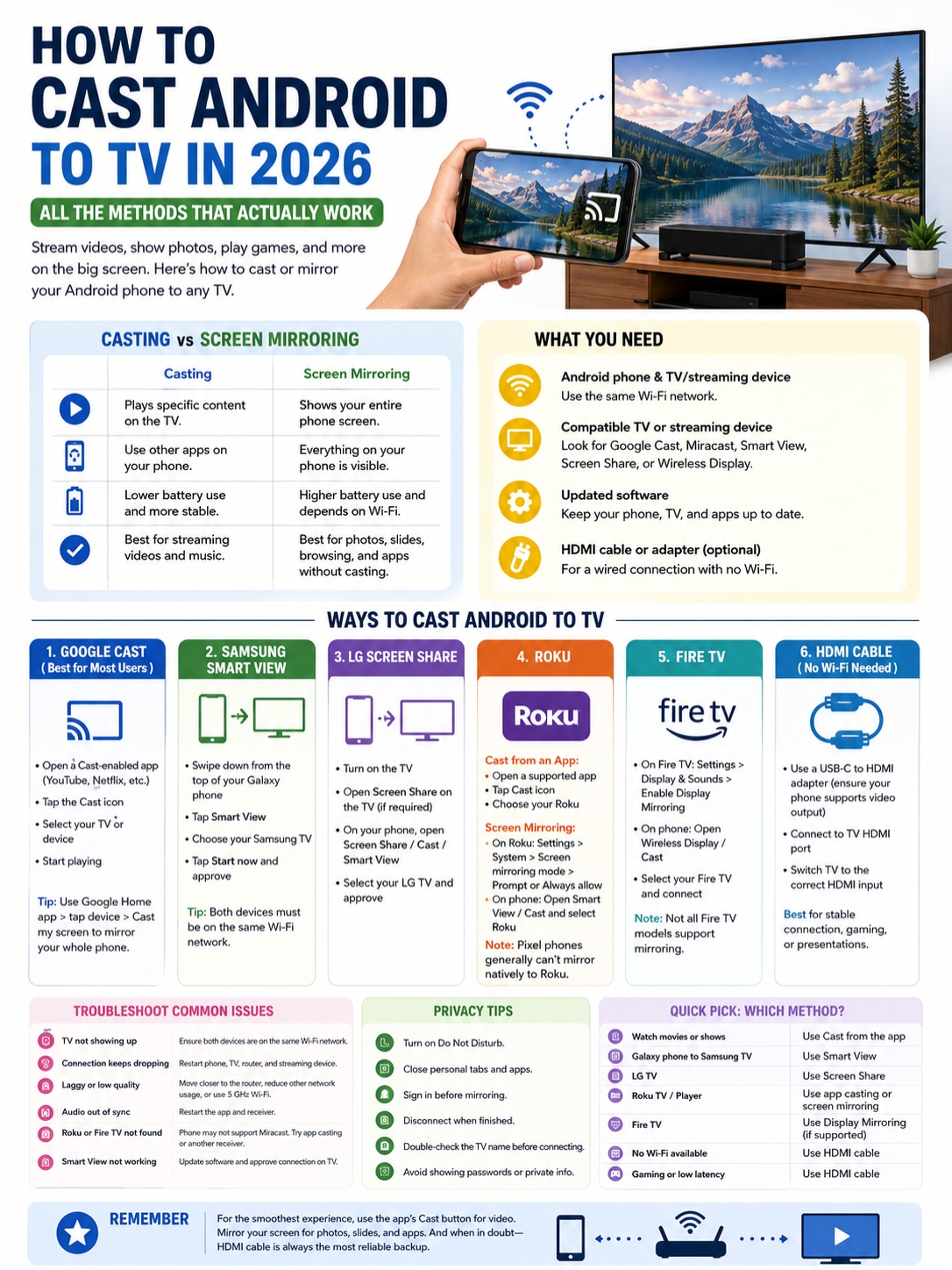
Some Fire TV devices support Miracast-style screen mirroring.
- Open Settings on Fire TV.
- Select Display & Sounds.
- Choose Enable Display Mirroring.
- Open your phone’s wireless display or mirroring menu.
- Choose the Fire TV.
- Approve the connection if prompted.
|
What You See |
What It Means |
|
Enable Display Mirroring is available |
The Fire TV supports native mirroring |
|
The option is missing |
The model may not support it |
|
Fire TV doesn’t appear on the phone |
The phone may lack Miracast |
|
A streaming app shows a device button |
App-based casting may still work |
Not every Fire TV model supports screen mirroring. The easiest way to check is to look for the Enable Display Mirroring option.
Some apps can also send content directly to Fire TV. That depends on the app and the specific Fire TV device.
How to Cast Android to TV Without Wi-Fi
You don’t always need home internet, but most wireless casting methods still need some kind of local connection.
If you don’t have reliable Wi-Fi, a cable is often the cleanest solution.
|
Method |
Internet Needed? |
Local Network Needed? |
|
USB-C to HDMI |
No |
No |
|
Miracast |
No |
Uses a direct wireless link |
|
Mobile hotspot |
Only for online content |
Yes |
|
Google Cast |
Usually |
Yes |
Use USB-C to HDMI
A wired connection avoids most wireless problems.
- Check whether your phone supports external video output.
- Connect a compatible USB-C-to-HDMI adapter.
- Plug an HDMI cable into the adapter and TV.
- Switch the TV to the correct HDMI input.
- Unlock your phone.
- Choose mirroring or desktop mode if prompted.
Here’s the catch: not every USB-C phone can send video.
A USB-C port may support charging and file transfer but not external display output.
Look for terms such as:
- DisplayPort Alt Mode
- USB-C video output
- HDMI output
- Desktop mode
- Samsung DeX
Samsung DeX phones are a good example. Supported models can connect to a monitor or TV and show either a desktop-style interface or a mirrored phone display.
Don’t buy an adapter until you’ve checked the official specifications for your phone.
Use a Mobile Hotspot
A second phone or portable hotspot can create a network for both the Android phone and TV.
This can work, but online streaming will use mobile data. It may also feel less stable than a normal router.
Using the same phone as both the hotspot and casting controller can be awkward. A separate hotspot device usually works better.
Why Your Android Phone Can’t Find the TV
A missing TV usually points to one of four problems:
- The devices are on different networks
- The phone and TV use different casting standards
- A permission is blocking the connection
- One of the devices needs an update
|
Problem |
Likely Cause |
Best Fix |
|
TV doesn’t appear |
Different Wi-Fi networks |
Connect both to the same network |
|
Roku is missing |
Phone may not support Miracast |
Use app casting or Google Cast hardware |
|
Fire TV mirroring is missing |
Model may not support it |
Use a supported app or another receiver |
|
Google Cast device is missing |
Discovery or Wi-Fi problem |
Restart Wi-Fi and Google Home |
|
Smart View fails |
TV permission or software issue |
Approve access and update both devices |
|
Connection keeps dropping |
Weak or busy network |
Move closer to the router |
Check the Network Name
Look at the exact Wi-Fi name on both devices.
Routers often create several networks, such as:
- 2.4 GHz
- 5 GHz
- Guest Wi-Fi
- Mesh Wi-Fi
- Extender networks
Even if the names look similar, the devices may not be on the same local network.
Guest networks can also block connected devices from seeing one another.
Restart Everything
It sounds basic, but it works surprisingly often.
Restart:
- The phone
- The television
- The streaming device
- The router
- The modem
Then reopen the app and try again.
Install Updates
Update anything involved in the connection:
- Android
- Google Home
- The streaming app
- The TV operating system
- Roku OS
- Fire OS
- SmartThings
- Google Cast components
Casting problems often appear after one device updates while another stays behind.
Turn Off the VPN
A VPN may stop your phone from discovering devices on the local network.
Disconnect it for a moment and try again.
Private DNS tools, firewall apps, ad blockers, and router security settings can cause similar problems.
How to Fix Lag, Blurry Video, or Delayed Audio
Screen mirroring sends a live copy of your phone display. Some delay is normal.
Direct casting usually performs better because the TV streams the media itself.
|
Problem |
What to Do |
|
Video keeps stuttering |
Move closer to the router |
|
Picture looks blurry |
Stop other downloads and streams |
|
Audio is out of sync |
Restart the app and receiver |
|
Gaming feels slow |
Use HDMI |
|
Connection drops |
Improve Wi-Fi or restart the router |
|
Phone gets hot |
Lower brightness and close unused apps |
A 5 GHz Wi-Fi connection may reduce congestion when you’re close to the router. A 2.4 GHz connection may reach farther through walls.
For movies, use the app’s Cast button whenever possible.
For gaming or presentations where timing matters, a cable usually gives you the most reliable result.
Privacy Tips Before You Mirror
Screen mirroring can reveal much more than you planned.
|
Risk |
Simple Fix |
|
Private notifications appear |
Turn on Do Not Disturb |
|
Personal tabs stay open |
Close unrelated apps |
|
Passwords show on TV |
Sign in before mirroring |
|
A shared TV remembers access |
Disconnect when finished |
|
You choose the wrong TV |
Check the device name carefully |
|
Work material stays visible |
Stop mirroring before walking away |
Avoid opening banking apps, password managers, private messages, or health apps while mirroring.
This matters even more in hotels, classrooms, offices, and shared homes. TVs often have similar names, so double-check before you connect.
Which Method Should You Use?
|
Situation |
Best Option |
|
Watching content from a supported app |
Use the Cast button |
|
Using Google TV or Chromecast |
Google Cast |
|
Mirroring a Galaxy phone |
Smart View |
|
Connecting to LG TV |
Screen Share |
|
Using Roku with a Miracast phone |
Roku screen mirroring |
|
Using a Pixel with Roku |
App casting or a Google Cast receiver |
|
Using a compatible Fire TV |
Fire TV display mirroring |
|
No reliable Wi-Fi |
USB-C to HDMI |
|
Playing games |
Wired connection |
|
Showing slides or a webpage |
Full-screen mirroring |
The simplest rule is this: use direct casting for video, screen mirroring for apps and documents, and HDMI when wireless options fail.
Final Thoughts
There’s no single method that works with every Android phone and every television. The easiest way to cast Android to TV is to match the phone’s casting system with the TV or streaming device.
Google Cast works best with Google TV, Android TV, Chromecast, and compatible televisions. Smart View is the obvious choice for many Samsung Galaxy users. Roku and Fire TV mirroring depend on Miracast, which explains why some phones work and others don’t. LG Screen Share covers many compatible Android devices.
When wireless casting becomes unreliable, HDMI is still the dependable fallback. Start with the Cast button inside the app. It usually gives you smoother video and keeps your private phone screen off the TV. Use full-screen mirroring when you need to show photos, slides, webpages, or unsupported apps. And before buying new hardware, check the standards your phone and television actually support. That one step can save you a lot of trial and error.
Frequently Asked Question (FAQs) About Casting Android to TV
Can I Cast Android to a Non-Smart TV?
Yes. Plug a compatible streaming device into the TV’s HDMI port. The device then acts as the receiver.
Can I Lock My Phone While Casting?
Usually, yes, when you cast from a supported app. The TV handles playback.
Full-screen mirroring normally needs the phone to stay awake.
Does Casting Use Mobile Data?
Casting over a home network doesn’t automatically use mobile data.
However, streaming online video through a mobile hotspot will use your data plan.
Why Does My TV Appear in YouTube but Not in My Phone’s Cast Menu?
YouTube may use app-level casting or TV pairing, while your phone’s system Cast menu may rely on a different standard.
App casting and full-screen mirroring aren’t the same thing.