
If you’ve used a Xiaomi, Redmi, or POCO phone for even a few days, you already know the feeling. You open a system app and see a recommendation. A notification pops up suggesting an app. The Themes app tries to sell you something.
It’s not broken. It’s just how Xiaomi software is built.
But here’s the part most people miss: you can xiaomi block system ads without rooting your phone or installing sketchy tools. You just need to know where these ads are hiding.
Most of them sit inside system settings, not random apps. Once you turn those off, the phone feels noticeably cleaner.
Let’s go step by step.
What “blocking system ads” actually means on Xiaomi
People often expect a single switch that kills all ads. That doesn’t exist.
On Xiaomi phones, ads come from different layers. Some come from system services. Some come from built-in apps. Others come from notifications that look like harmless suggestions.
So when we talk about xiaomi block system ads, what we really mean is cleaning up all those layers one by one.
It’s less about “blocking ads” and more about “taking control back from default recommendations.”
Table: Where Xiaomi ads actually come from
|
Source |
What you see |
|
System service (MSA) |
App suggestions |
|
Xiaomi apps |
Promotions and banners |
|
Notifications |
Pop-ups and alerts |
|
App Vault |
Feed-style content |
|
Third-party apps |
Normal ads |
Step 1: Turn off MSA (this one matters the most)
MSA is basically Xiaomi’s system ad service. If you do only one thing from this guide, do this.
Go into settings and find:
Settings → Passwords & security → Authorization & revocation → MSA → turn it off
On newer HyperOS phones, it may sit under Privacy or system services instead.
Tap revoke when asked. If it doesn’t work right away, don’t worry. That happens. Try again after a few seconds or restart the phone.
Once this is off, you’ll usually notice fewer system-level suggestions.
What changes after disabling MSA
|
Before |
After |
|
Frequent suggestions |
Reduced |
|
System pop-ups |
Fewer |
|
App promotions |
Lower |
|
Phone behavior |
Same performance |
Step 2: Stop Xiaomi from tracking ad preferences
This setting doesn’t remove ads, but it makes them less targeted and less intrusive.
Go here:
Settings → Privacy → Ad services → Personalized recommendations → Off
Think of this as cutting off the “profiling” part. Xiaomi stops using your behavior to fine-tune suggestions.
You’ll still see ads in some places, but they won’t feel as “personal.”
What this actually does
|
Setting |
Result |
|
ON |
Personalized ads |
|
OFF |
Generic ads only |
|
Tracking |
Reduced |
|
Suggestions |
Slight drop |
Step 3: Clean up ads inside Xiaomi apps
This is where most users finally notice a real difference.
Xiaomi hides a lot of promotions inside its own apps. You won’t find them in one place. You have to open each app and switch them off.
Security app
Open Security → Settings → turn off “Receive recommendations”
You’ll also want to check Cleaner and Boost tools. They often push suggestions too.
Themes app
Go into Themes and disable ads and recommendations. This alone removes a lot of visual clutter.
Mi Browser
Inside settings, turn off feed content and personalized services. If it still feels noisy, switching browsers is honestly easier.
Downloads and File Manager
Look for anything like “recommended content” and switch it off.
These apps quietly push suggestions in the background.
Read Also: Xiaomi 13T Review: The New King of Smartphone Photography
Table: App cleanup summary
|
App |
What to turn off |
|
Security |
Recommendations |
|
Themes |
Ads + suggestions |
|
Browser |
Feed + personalization |
|
Downloads |
Suggested content |
|
File Manager |
Tips and promos |
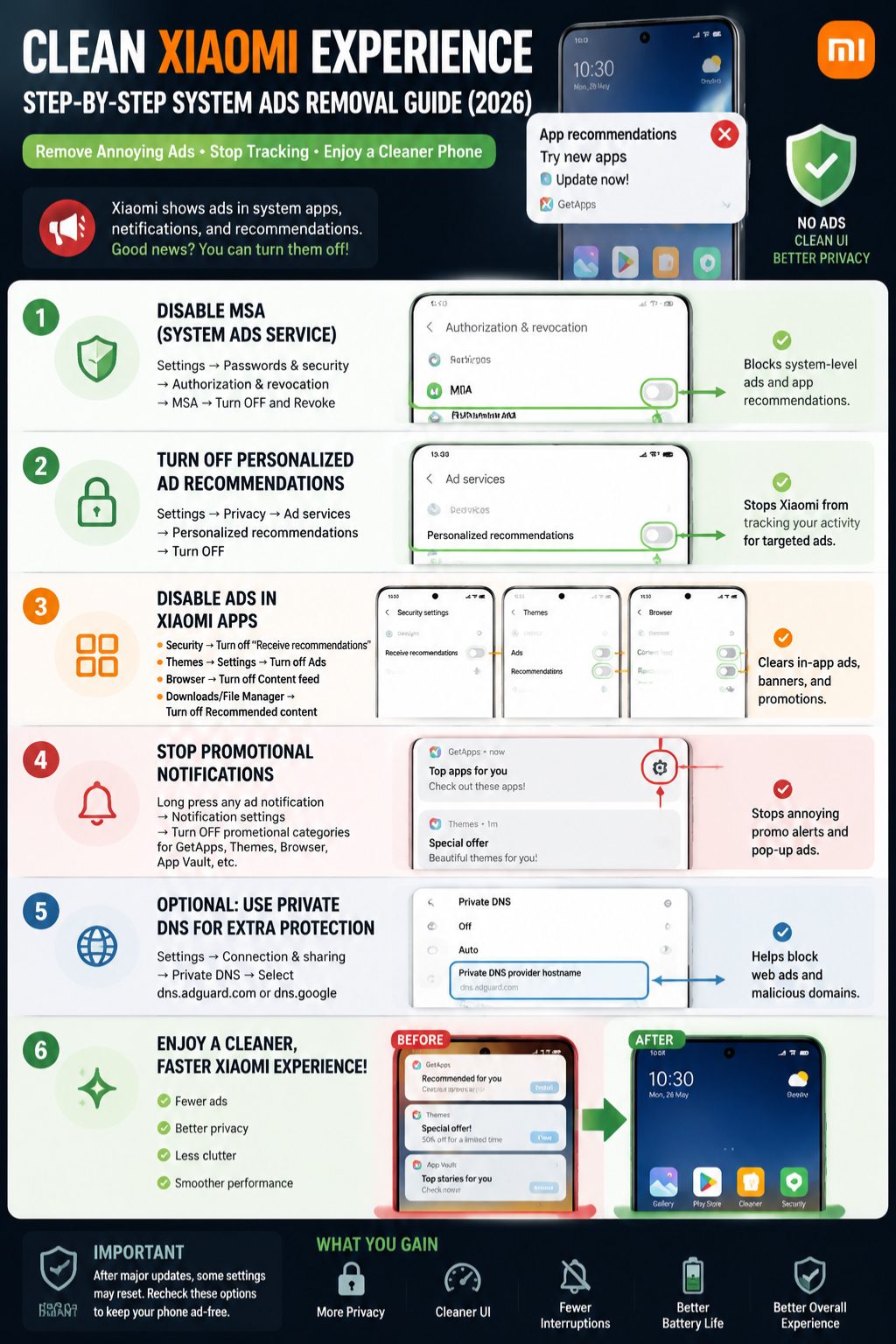
Even after you clean everything, Xiaomi apps can still send promo notifications.
They show up like normal alerts, which makes them easy to miss.
The fix is simple:
Long press the notification → turn off that category
Do this for apps like GetApps, Themes, Browser, and App Vault.
After this, your notification shade feels much quieter.
Table: Notification sources
|
App |
Type of alert |
|
GetApps |
App suggestions |
|
Themes |
Offers |
|
Browser |
Content feed |
|
App Vault |
News + promos |
Step 5: Optional Private DNS trick (light cleanup)
This is optional, but useful if you still see ads in browsers.
You can set Private DNS like this:
Settings → Network & Internet → Private DNS → dns.google or adguard
It won’t touch Xiaomi system ads directly, but it helps clean up web ads and some app traffic.
Think of it as an extra filter, not a full solution.
What DNS helps with
|
Area |
Effect |
|
Browser ads |
Reduced |
|
App ads |
Partially blocked |
|
System ads |
Mostly unchanged |
|
Speed |
Usually stable |
Step 6: Be careful with “Xiaomi ad blocker” apps
You’ll find plenty of apps claiming to remove all Xiaomi ads instantly.
Most of them are unnecessary.
Some ask for deep permissions like VPN control or accessibility access. That’s where you should pause.
Stick to system settings first. That alone solves most of the problem.
If you still install something, make sure it’s from a trusted store and not a random APK site.
Simple safety check
|
Safe |
Risky |
|
Built-in settings |
Unknown APKs |
|
Play Store apps |
Full system access tools |
|
Manual controls |
“One tap fix everything” apps |
If your friend follows the same steps and can’t find the same menu, this is why.
MIUI and HyperOS don’t always label things the same way.
HyperOS often moves settings under Privacy or system services. MIUI keeps them inside Security or Passwords settings.
The logic is the same. The paths just shift around.
Table: UI differences
|
Feature |
MIUI |
HyperOS |
|
MSA location |
Security menu |
Privacy/system services |
|
Layout |
Older structure |
Cleaner UI |
|
Settings naming |
Traditional |
Simplified |
|
Ad system |
Same core system |
Same core system |
Step 8: Final setup checklist (clean phone mode)
If you want the cleanest possible Xiaomi experience without breaking anything, follow this:
- Turn off MSA
- Disable personalized ads
- Switch off app recommendations
- Clean Security and Themes apps
- Disable Browser feed
- Turn off GetApps notifications
- Remove App Vault content
- Add Private DNS if needed
- Avoid random ad blocker apps
- Recheck after updates
This is the practical setup most users end up with when they want a cleaner phone.
Final result overview
|
Area |
Improvement |
|
UI experience |
Much cleaner |
|
Notifications |
Less spam |
|
Ads |
Reduced heavily |
|
Privacy |
Better control |
|
Stability |
No impact |
Final Thoughts
If you came here to xiaomi block system ads completely, here’s the honest answer: you won’t erase every single ad.
But you can get very close.
Once MSA is off, app recommendations are disabled, and notifications are cleaned up, Xiaomi phones feel completely different. Less noisy. Less distracting. More personal.
And the best part is you don’t need any risky tools to get there.
Here are 5 clean, SEO-optimized FAQs for your article:
FAQs: Xiaomi Block System Ads in 2026
1. Can I completely remove Xiaomi system ads?
No, you cannot remove every single ad completely. But you can reduce them heavily by disabling MSA, turning off personalized ads, and cleaning app-level recommendations.
2. What is the safest way to xiaomi block system ads?
The safest method is using built-in settings only:
- Disable MSA
- Turn off personalized ad recommendations
- Disable ads inside system apps like Security, Themes, and Browser
No root or third-party tools are required.
3. Does disabling MSA stop all Xiaomi ads?
No. It reduces system-level ads, but you still need to turn off app recommendations and notification-based promotions for full cleanup.
4. Why do Xiaomi phones show ads in system apps?
Xiaomi includes ads and recommendations in system apps as part of its software ecosystem. These appear as suggestions, banners, or promotional content.
5. Is it safe to disable ads on Xiaomi phones?
Yes. Disabling ads through official settings is safe and does not affect phone performance or core functions.