
There’s a blank page, a sidebar, and no obvious clue about what to build first. Then you watch a few tutorials and see people running their entire lives from giant dashboards packed with formulas, trackers, widgets, and automations.
That’s usually where beginners get stuck.
You don’t need a complicated “second brain” to get value from Notion. You need one useful page that solves one real problem.
Maybe your notes are scattered across several apps. Maybe you keep missing deadlines. Or perhaps you need one place to plan articles, manage classes, track projects, or organize client work.
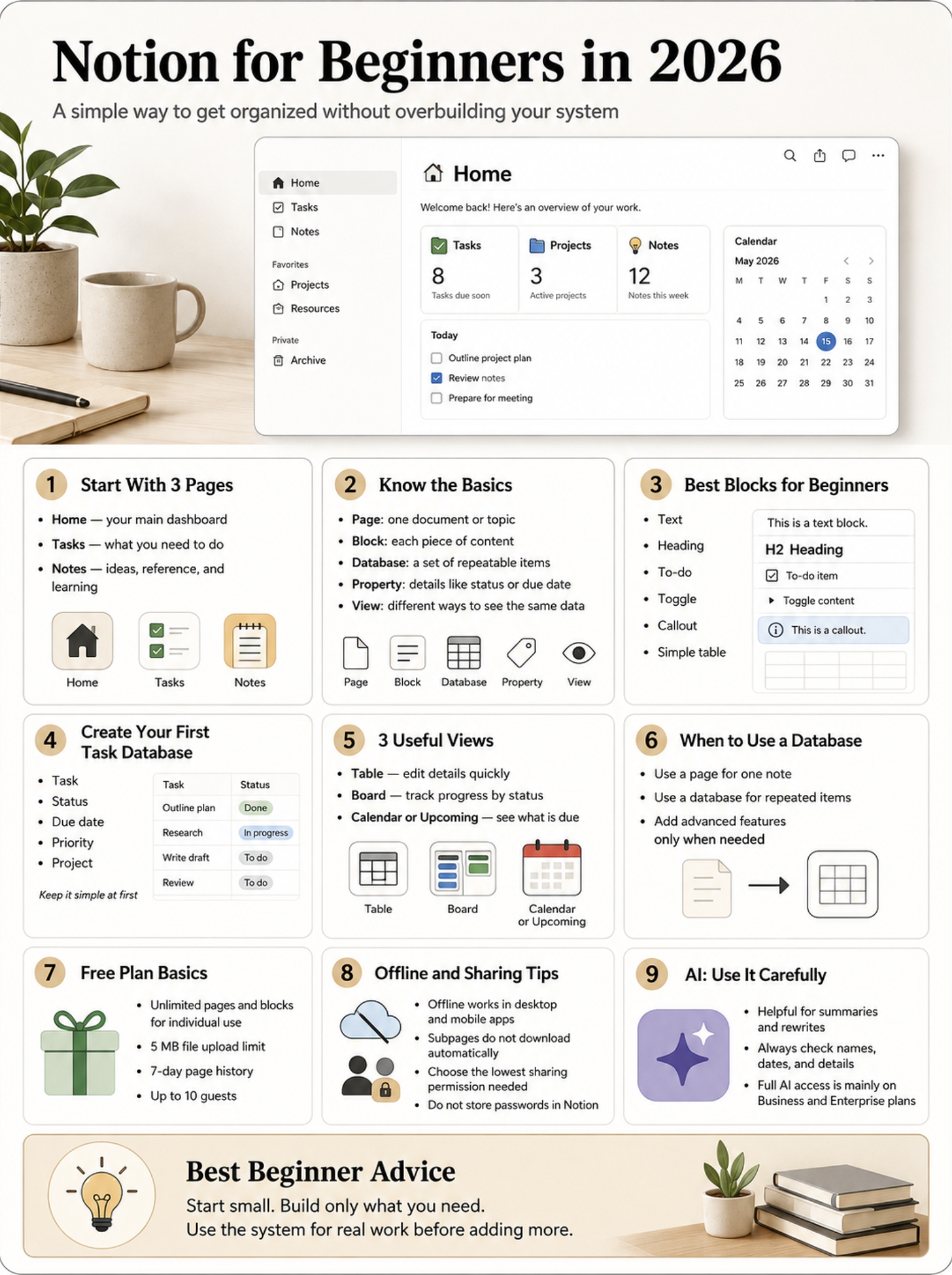
That’s the best way to approach notion for beginners in 2026: start small, use it for real work, and add features only when you need them.
This guide walks you through pages, blocks, databases, views, templates, sharing, offline access, plans, and Notion AI. No fancy setup required.
Start With the Basics: Pages, Blocks, and Databases
|
Notion element |
What it does |
Simple example |
|
Workspace |
Holds all your content |
Personal workspace |
|
Page |
Stores one topic or area |
Weekly Plan |
|
Block |
Adds one piece of content |
Heading or checklist |
|
Subpage |
Sits inside another page |
Notes inside a project |
|
Database |
Organizes repeating items |
Task tracker |
|
Property |
Stores structured details |
Status or due date |
|
View |
Shows the same data differently |
Table, board, calendar |
Notion is built around pages and blocks.
A page works like a flexible document. You can fill it with text, images, checklists, files, videos, tables, databases, and even more pages.
Each piece of content is a block.
A paragraph is a block. A heading is a block. So is a checkbox, image, divider, quote, or embedded video.
Type / on an empty line to open the block menu. From there, you can add almost anything.
Useful commands include:
- /heading for a section title
- /todo for a checkbox
- /image for an image
- /callout for a highlighted note
- /divider for a section break
- /table for table options
You can drag blocks around, move them into columns, or turn one block into another.
Databases work a little differently.
A Notion database is a collection of pages. Each row, card, or calendar item can open as its own page. That page can hold notes, files, comments, checklists, and links.
Use a normal page when you’re writing one document.
Use a database when you need to manage many similar items, such as tasks, projects, books, clients, articles, or assignments.
Notion for Beginners: Build a Simple Workspace First
|
Page |
What it’s for |
What to add |
|
Home |
Your main starting point |
Links and priorities |
|
Tasks |
Work you need to finish |
Task database |
|
Notes |
Ideas and reference material |
Simple pages |
|
Projects |
Bigger pieces of work |
One page per project |
|
Archive |
Old or inactive content |
Completed pages |
Don’t try to move your whole life into Notion on the first day.
Start with three pages:
- Home
- Tasks
- Notes
That’s enough to learn the basics without making a mess.
Read Also: How to Fix a Mac Running Slow in 2026
Create a useful Home page
Your Home page should help you reach important information quickly.
It doesn’t need a clock, weather widget, quote of the day, or ten decorative sections. Those things may look nice, but they often slow you down.
Keep it practical.
Add:
- A short “Today” checklist
- A link to Tasks
- A link to Notes
- Links to active projects
- A small section for quick ideas
You can link pages by typing [[ and choosing the page you want. Notion also creates a backlink, so you can see where that page has been mentioned.
Give pages clear names.
“Client Projects” is better than “Work Stuff.” “Reading Notes” is better than “Random.”
Move pages you use often into Favorites. Put old material inside an Archive page instead of leaving it in the main sidebar.
A good workspace should feel easy to scan. You shouldn’t have to hunt for things every time you open the app.
Learn Blocks Before You Build Databases
|
What you need |
Best option |
|
A short note |
Text block |
|
A simple checklist |
To-do block |
|
A small comparison |
Basic table |
|
Hidden supporting details |
Toggle |
|
A warning or tip |
Callout |
|
A long list of repeating items |
Database |
A common beginner mistake is turning everything into a database.
Not every list needs filters, properties, views, and formulas.
A shopping list can be a group of checkboxes. A meeting agenda can live on a normal page. A short comparison can use a simple table.
Build a database only when you need to:
- Sort information
- Filter items
- Add due dates
- Group work by status
- Assign people
- Track several similar entries
- Show the same data in different layouts
This is one of the most useful lessons in any notion for beginners guide.
Simple pages are often faster to build and easier to maintain. Databases make sense when the information repeats.
Create Your First Task Database
|
Property |
Type |
Example |
|
Task |
Title |
Finish homepage draft |
|
Status |
Status |
Not started |
|
Due date |
Date |
August 12, 2026 |
|
Priority |
Select |
High |
|
Project |
Select |
Website redesign |
|
Assignee |
Person |
Team member |
Create a new page and name it Tasks.
Choose a table database. Then add a few real tasks instead of filling it with test data you’ll never use.
Keep the setup small.
You only need:
- Task name
- Status
- Due date
- Priority
- Project
That’s enough for most beginners.
Open each task as a page
Click a task name and it opens as a full page.
Inside, you can add:
- A description
- A checklist
- Links
- Files
- Notes
- Comments
This keeps your main table clean.
Instead of adding 15 columns, place longer details inside the task page.
Leave advanced features for later
Notion includes relations, rollups, and formulas.
Relations connect databases. Rollups pull information from those connections. Formulas calculate or change values.
They’re useful, but they also add more work.
Don’t use them just because they appear in a tutorial. Add one only when it solves a problem you already have.
Use Different Views for the Same Database
|
View |
Best for |
|
Table |
Editing details quickly |
|
Board |
Moving work between stages |
|
List |
A clean, simple overview |
|
Calendar |
Tracking dates |
|
Timeline |
Planning work over time |
|
Gallery |
Visual cards and images |
One of Notion’s best features is the ability to show the same database in different ways.
You don’t need to copy your tasks into several places.
The same task database can appear as a table, board, list, calendar, timeline, or gallery.
Each view can have its own filters, sorting, grouping, and visible properties.
Start with three views.
All Tasks
Use a table.
Sort it by due date, then by priority.
This view works best when you need to edit several tasks at once.
Board by Status
Create a board grouped by status.
You can drag tasks from “Not started” to “In progress” and then to “Done.”
This gives you a quick picture of what’s moving and what’s stuck.
Upcoming
Use a list or calendar.
Filter it to show unfinished tasks with a due date.
That’s usually more useful than creating a huge calendar full of every item in your workspace.
Only create a view when it answers a clear question.
For example:
- What should I do today?
- What’s overdue?
- What’s in progress?
- Which tasks belong to this project?
Use Templates, but Don’t Let Them Take Over
|
Template type |
When it helps |
Possible problem |
|
Blank page |
Learning the basics |
Takes longer to set up |
|
Official template |
Common workflows |
May include extra sections |
|
Marketplace template |
Specialized needs |
Can be too complicated |
|
Database template |
Repeated pages |
Needs maintenance |
|
Custom template |
Your own process |
Works best after testing |
Notion has templates for almost everything.
You’ll find planners, habit trackers, content calendars, study dashboards, client portals, project systems, and more.
Templates can save time, but they can also make Notion feel harder than it is.
Before using one, ask:
- Will I open this every week?
- Do I understand how it works?
- Which fields will I actually update?
- Can I delete half of it?
- Does it solve a problem I have now?
If the answer is no, skip it.
Create your own database templates
Database templates work well for content briefs, meeting notes, lesson plans, client records, and repeated tasks.
Open the arrow beside the New button, then choose New template.
You can add:
- Preset properties
- Repeated headings
- Checklists
- Questions
- Instructions
- Standard page layouts
You can also make some templates repeat on a daily, weekly, monthly, or yearly schedule.
The best template is usually the one you build after using the same process several times.
Use Notion AI as a Helper, Not a Replacement
|
AI feature |
What it can help with |
What to check |
|
Summaries |
Shorten long notes |
Missing context |
|
Rewriting |
Improve clarity or tone |
Voice and accuracy |
|
AI Autofill |
Add labels or summaries |
Wrong categories |
|
Workspace search |
Find internal information |
Source permissions |
|
Research tools |
Build reports |
Claims and references |
|
Meeting Notes |
Create summaries and tasks |
Consent and mistakes |
|
Agents |
Handle multi-step work |
Scope and cost |
Notion AI has grown into a much larger set of tools.
It can help write and edit pages, search your workspace, summarize meetings, fill database fields, create reports, and carry out multi-step tasks through agents.
Full access mainly sits inside Business and Enterprise plans. Free and Plus users usually receive limited trial use.
You don’t need AI to learn Notion.
Get comfortable with pages, blocks, and databases first.
Then use AI for small jobs, such as:
- Turning rough notes into an outline
- Summarizing a long document
- Rewriting an unclear paragraph
- Suggesting task categories
- Pulling action items from meeting notes
- Finding information across your workspace
Always check the output.
AI can get dates wrong, miss context, confuse names, or assign the wrong action to the wrong person.
Meeting transcription also needs care. Get consent before recording or transcribing a call. Don’t upload sensitive information unless your company has approved the process.
Pick the Right Notion Plan
|
Plan |
Best for |
Main points |
|
Free |
Individual beginners |
Basic pages, databases, and limited history |
|
Plus |
Heavy personal use or small teams |
Larger uploads and longer history |
|
Business |
Teams using full AI tools |
Advanced AI and permissions |
|
Enterprise |
Large organizations |
Stronger security and admin controls |
|
Education Plus |
Eligible students and teachers |
Free one-person Plus workspace |
The Free plan is enough for most people starting out.
It supports unlimited pages and blocks for individual use.
Current Free plan limits include:
- Files up to 5 MB each
- Seven days of page history
- Up to 10 guests
- One chart
- Manual offline downloads
The Plus plan adds larger file uploads, 30 days of page history, unlimited guests, more charts, and better offline support.
Business adds full Notion AI access, advanced controls, and 90 days of history.
Enterprise offers stronger security, admin tools, and unlimited history.
Pricing can change by country, billing cycle, taxes, and current offers. Check Notion’s live pricing page before paying.
Free access for students and teachers
Eligible college and university students and teachers can get a free one-person Plus workspace.
You need an institutional email from a recognized school.
A student ID on its own isn’t enough. The offer also doesn’t cover every K–12 user.
|
Permission |
What it allows |
|
Full access |
Edit and manage sharing |
|
Can edit |
Change content |
|
Can edit content |
Edit database entries |
|
Can create |
Add new database entries |
|
Can comment |
Read and comment |
|
Can view |
Read only |
|
Public link |
Open through a shared URL |
Use the Share menu to invite people, copy links, set permissions, or publish a page.
Choose the lowest permission someone needs.
A client may only need Can view.
An editor may need Can comment.
A close teammate may need Can edit.
Avoid giving full access unless the person truly needs it.
Remember that subpages can inherit access from their parent page. Someone may also have wider access through another workspace group or shared area.
Before sending a link:
- Check the page and its subpages.
- Review who already has access.
- Open the link in a private browser window.
- Remove access when the project ends.
- Keep passwords and recovery codes elsewhere.
Notion is useful for documentation. It isn’t a password manager.
Use Notion Offline and Keep Backups
|
What you need |
What Notion offers |
Main limitation |
|
Read pages offline |
Download pages in the app |
Not available in a browser |
|
Automatic downloads |
Recent and favorite pages |
Paid plans |
|
Offline databases |
Download the database page |
Limited rows and views |
|
Import files |
Word, PDF, CSV, Markdown, HTML |
Formatting may change |
|
Export pages |
PDF, HTML, Markdown, CSV |
Not always a perfect copy |
|
Export workspace |
Download content and files |
Relationships may not rebuild |
Notion supports offline access on its desktop and mobile apps.
It doesn’t work offline in a web browser.
Open a page, choose the three-dot menu, and turn on Available offline.
Keep these limits in mind:
- Subpages don’t download automatically.
- Downloads are saved per device.
- A database download includes the first 50 rows of its first view by default.
- Embeds, forms, buttons, and AI features may still need internet access.
- Sharing settings can’t be changed offline.
Paid plans can automatically download recent and favorited pages.
Importing files
Notion can import several file types, including:
- Word
- CSV
- Markdown
- HTML
- Text files
- ZIP archives
It also supports imports from selected apps such as Trello, Asana, Confluence, and Evernote.
Imports work on desktop and web, not mobile.
Complex layouts, comments, scripts, or special app features may not transfer perfectly. Always check the result.
Exporting your work
You can export pages as PDF, HTML, Markdown, or CSV, depending on the content.
You can also export an entire workspace.
Treat the export as a portable copy, not a perfect clone. Views, relations, permissions, and integrations may not rebuild exactly the same way.
For important work, keep original files and regular exports.
Try This Seven-Day Beginner Plan
|
Day |
Task |
|
Day 1 |
Create Home, Tasks, and Notes |
|
Day 2 |
Practice blocks and page links |
|
Day 3 |
Build a simple task database |
|
Day 4 |
Add table, board, and upcoming views |
|
Day 5 |
Make one database template |
|
Day 6 |
Check sharing and offline settings |
|
Day 7 |
Remove unused pages and properties |
You don’t need to learn everything at once.
Use this simple plan for your first week.
At the end of the week, ask yourself:
- Which page did I use most?
- Which property did I ignore?
- Did I save the same information in several places?
- Was anything hard to find?
- What one change would make the setup easier?
Make one or two improvements.
Don’t tear the whole system down because one part felt awkward.
Common Notion Mistakes Beginners Make
|
Mistake |
Better choice |
|
Copying a giant dashboard |
Start with three pages |
|
Making every list a database |
Use normal blocks |
|
Adding too many properties |
Keep only useful fields |
|
Saving the same deadline everywhere |
Use one source of truth |
|
Decorating before testing |
Use the system first |
|
Giving broad access |
Limit permissions |
|
Trusting AI without checking |
Review the details |
The biggest mistake is spending more time building Notion than using it.
It’s easy to lose an afternoon changing icons, colors, covers, and layouts. None of that matters if the system doesn’t help you finish your work.
Keep it plain at first.
Use it for a week.
Notice what helps and what gets in the way.
Then improve it.
Final Thoughts
|
Start now |
Add later |
Skip for now |
|
Home, Tasks, and Notes |
Database templates |
Complex formulas |
|
Basic blocks |
Linked views |
Huge dashboards |
|
One task database |
Relations and rollups |
Heavy automation |
|
Three useful views |
AI workflows |
Decorative widgets |
|
Weekly review |
Team permissions |
Features without a purpose |
The best setup for notion for beginners is simple enough to use every day.
Create three pages. Learn a few blocks. Build one task database. Add a table, board, and upcoming view.
Then stop building and start using it.
Notion works best when it grows from real needs. It becomes frustrating when you copy someone else’s system without knowing why it works.
Start with the problem in front of you.
Build the smallest setup that solves it.
You can add the clever stuff later.
FAQs About Notion for Beginners
|
Question |
Quick answer |
|
Is the Free plan enough? |
Yes, for most beginners |
|
Does every note need a database? |
No |
|
Can Notion work offline? |
Yes, with limits |
|
Does deleting a view erase data? |
Usually not |
|
Can I publish a page online? |
Yes |
|
Should I store passwords in Notion? |
No |
Can I use Notion without databases?
Yes.
You can write notes, create checklists, upload files, link pages, and organize projects without building a database.
Databases are helpful, not required.
Does deleting a database view delete my entries?
Usually, no.
A view only changes how a database appears. Deleting the view removes that layout, filter, or grouping.
Make sure you’re deleting the view and not the original database.
Can Notion replace Google Docs or Microsoft Word?
For many tasks, yes.
Notion works well for notes, internal guides, project documents, team wikis, and drafts.
Google Docs or Microsoft Word may still be better for formal documents, strict print layouts, tracked changes, or files that must be shared in a standard office format.
Can I publish a Notion page as a website?
Yes.
You can publish a page from the Share menu and give people a public link.
Free accounts can publish Notion Sites and use a notion.site address. Paid plans offer more customization.
Always test the public page in a private browser window before sharing it.