
You sit down, ready to watch something, and then it hits you. The Roku remote is gone. Or worse, it stopped working right when you need it.
It’s annoying, but not the end of the road.
Figuring out how to set up Roku without remote is actually possible in a few real situations. Sometimes your phone can take over. Sometimes you’ll rely on your Wi-Fi. And in a few cases, you may still need a physical remote.
The trick is knowing which situation you’re in. Because not every method works everywhere.
Let’s keep it simple and walk through what actually works in real life.
Can You Set Up Roku Without a Remote?
Yes, you can. But not always the way people expect.
Roku doesn’t rely on Bluetooth-style pairing. It leans heavily on Wi-Fi. That means your options depend on whether the device is already online or completely offline.
If it’s already connected, you’re in luck. If it’s not, things get trickier.
When it works smoothly
- Your Roku is already connected to Wi-Fi
- Your phone is on the same network
- The Roku app can see your device
- You have Ethernet access (on supported models)
When it becomes difficult
- Roku was factory reset
- No internet connection exists
- You’re setting it up from scratch
- Your router blocks local device discovery
Quick reality check
|
Situation |
What usually works |
Difficulty |
|
Roku already online |
Roku mobile app |
Easy |
|
Wi-Fi changed |
App or hotspot trick |
Medium |
|
No connection at all |
Ethernet or remote |
Medium |
|
Factory reset |
Physical remote needed |
Hard |
What You Need Before You Start
Before jumping into setup roku without remote, it helps to get your basics right. Most failed attempts come down to missing network access.
What you should have ready
- A smartphone (Android or iPhone)
- Official Roku mobile app installed
- Wi-Fi connection at home
- Roku account login details
- TV power and HDMI connected
One thing people miss
Your phone and Roku must be on the same Wi-Fi network. That’s how the app finds the device. If they’re not on the same network, the app won’t see anything.
On iPhone, there’s one extra step too. You need to allow Local Network access for the Roku app. Without it, the device often stays invisible.
Quick checklist
|
What you need |
Why it matters |
|
Same Wi-Fi |
Device detection |
|
Roku app permission |
App connectivity |
|
Stable internet |
Setup and streaming |
Method 1: Use the Roku Mobile App as a Remote
This is the easiest way to handle how to set up Roku without remote when your device is already online.
The official Roku app basically turns your phone into a full remote. It’s surprisingly smooth once it connects.
Step-by-step
- Install the Roku app
- Connect your phone to the same Wi-Fi
- Open the app
- Allow permissions (important on iPhone)
- Wait for your Roku device to appear
- Tap it and open the remote
What you can do with it
Once connected, your phone becomes your control center:
- Navigate menus
- Type passwords easily
- Open apps
- Control playback
- Use voice search (if supported)
Read Also: How to Reset Alexa Echo Dot: Step-by-Step Guide
The catch
If your Roku is not already connected to Wi-Fi, the app can’t help. It’s not a magic offline controller. It only works when the device is already reachable on the network.
Quick view
|
Feature |
Works? |
|
Navigation |
Yes |
|
Typing |
Yes |
|
Voice |
Sometimes |
|
Offline setup |
No |
Method 2: Connect Roku to Wi-Fi Without Remote
This works only if your Roku already shows up in the app.
Once connected, you can actually change or update Wi-Fi settings without touching a physical remote.
How it works
The Roku app talks to your device over the same network. From there, you can push new Wi-Fi settings directly.
Steps
- Open Roku app
- Select your device
- Go to settings
- Open Network
- Choose wireless setup
- Enter new Wi-Fi details
Where people get stuck
Most people try this after changing homes or routers. But if the Roku is still trying to connect to an old network, the app won’t detect it.
Simple breakdown
|
Step |
What happens |
|
Connect app |
Finds Roku |
|
Open settings |
Access network |
|
Enter Wi-Fi |
Reconnect device |
Method 3: Use Ethernet (If Your Device Supports It)
This is the most stable option when Wi-Fi setup fails.
Some Roku devices can plug directly into the internet using Ethernet. That gives you instant connectivity.
Why it helps
Once Roku gets internet access through cable, the mobile app can detect it right away.
Steps
- Plug Ethernet into router
- Connect to Roku or Roku TV
- Turn on the device
- Open Roku app
- Connect and control
Supported devices (general)
- Roku Ultra
- Some Roku TVs
- Roku streaming boxes (select models)
Streaming sticks usually don’t support Ethernet unless you use an adapter.
Quick view
|
Device type |
Ethernet support |
|
Roku Ultra |
Yes |
|
Roku TV |
Some models |
|
Streaming Stick |
No |
Method 4: Mobile Hotspot Trick (Use With Care)
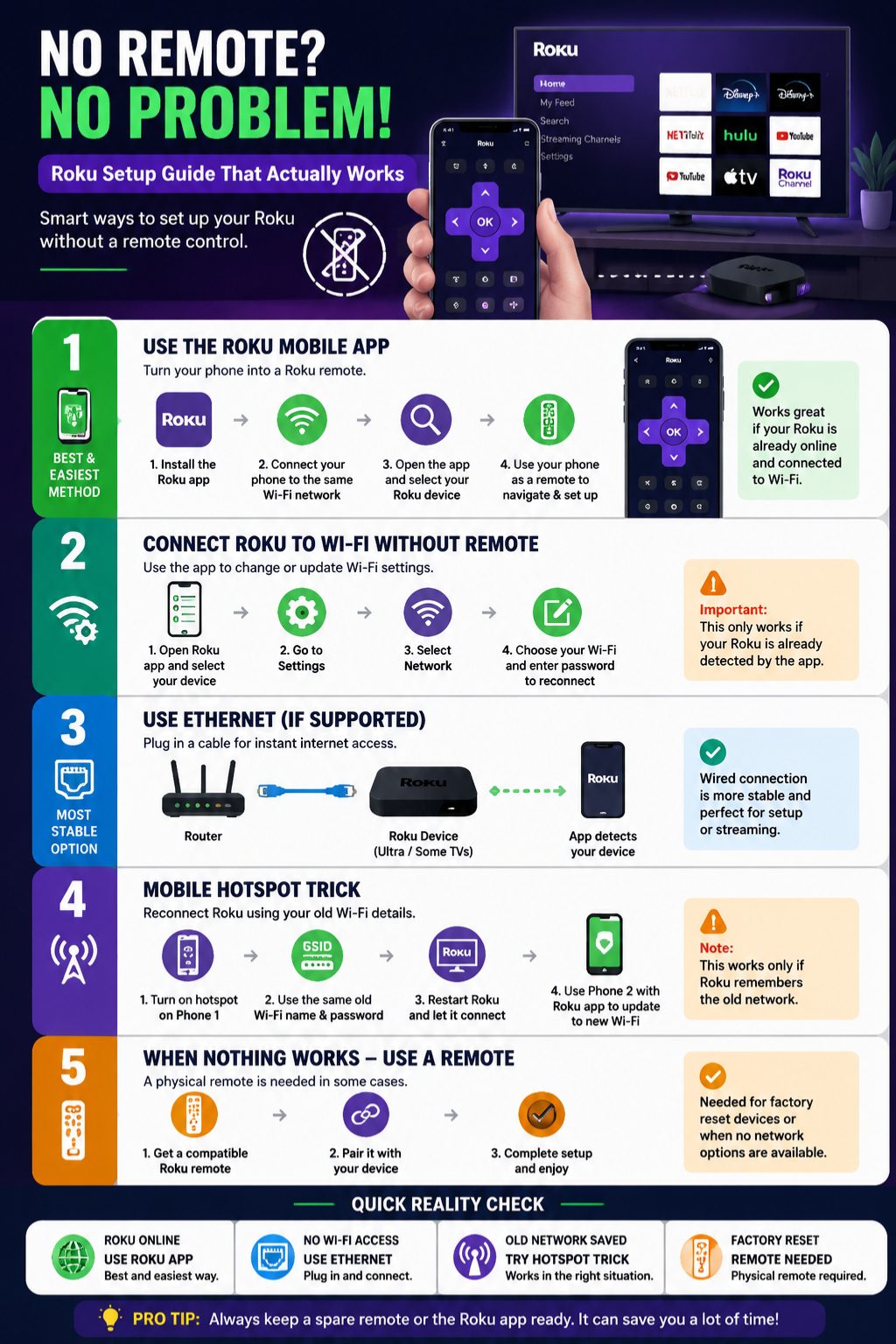
This one feels a bit technical, but it can work in the right situation.
The idea
You recreate your old Wi-Fi network using a hotspot so the Roku reconnects automatically.
Steps
- Turn on hotspot on Phone 1
- Use the exact old Wi-Fi name
- Use the exact old password
- Restart Roku
- Let it reconnect
- Open Roku app on Phone 2
- Change Wi-Fi settings
Important truth
This only works if your Roku still remembers the old network. If it was factory reset, this method usually fails.
Quick view
|
Requirement |
Needed |
|
Old Wi-Fi details |
Yes |
|
Second phone |
Helpful |
|
Factory reset device |
No |
Method 5: Use a Replacement Remote
Sometimes the simplest solution is still the best one.
If nothing else works, a proper remote saves time and frustration.
Types of remotes
- Basic IR remote
- Voice remote
- Roku TV-specific remote
Pairing basics
- Insert batteries
- Turn on Roku
- Press pairing button (if available)
- Wait for connection
When you should choose this
- Roku is reset
- No network connection exists
- App cannot detect device
- Hotspot trick fails
Method 6: Roku TV Buttons (Limited Help Only)
Some Roku TVs come with physical buttons. They help a little, but not much.
What you can do
- Turn TV on/off
- Adjust volume
- Switch inputs
What you can’t do
- Complete setup
- Enter Wi-Fi details
- Navigate full menus
Real-world truth
These buttons are support tools, not a replacement for a remote.
Roku App Not Finding Device: Quick Fix
This is the most common issue.
Why it happens
- Different Wi-Fi networks
- VPN turned on
- Router isolation mode
- Missing app permissions
Fix it fast
- Put both devices on same Wi-Fi
- Turn off VPN
- Restart router
- Restart Roku
- Reopen app
Quick fix table
|
Problem |
Fix |
|
No device found |
Same Wi-Fi |
|
App not loading |
Restart app |
|
Connection fails |
Restart router |
Final Thoughts
If you’re trying to figure out how to set up Roku without remote, the answer depends on one thing: whether your Roku is already online.
If it is, the Roku app is your fastest fix. If it isn’t, Ethernet or a replacement remote becomes your best option. And if the device has been factory reset, don’t overthink it — you’ll likely need a physical remote.
Once you understand that simple rule, everything becomes easier. You’re not stuck. You just need the right method for the situation in front of you.
FAQs About How to Set Up Roku Without Remote
1. Can I set up Roku without a remote at all?
Yes, in many cases you can. If your Roku is already connected to Wi-Fi or can be reached through Ethernet, you can use the official Roku mobile app as a remote. But if the device is completely offline or factory reset, you may need a physical remote.
2. Why is my Roku app not finding my device?
This usually happens when your phone and Roku are not on the same Wi-Fi network. It can also be caused by VPNs, guest Wi-Fi, or missing permissions like Local Network access on iPhone.
3. Can I use my phone as a Roku remote permanently?
Yes. The official Roku mobile app can fully replace a remote for daily use. You can navigate, type, search, and control playback as long as both devices are on the same network.
4. Can I connect Roku to Wi-Fi without a remote after reset?
It is difficult. After a factory reset, Roku often cannot be detected by the app because it has no saved network. In that case, a physical remote or Ethernet connection is usually required.
5. What is the easiest method if I lost my Roku remote?
If your Roku is already online, the easiest solution is the Roku mobile app. It works like a full remote and takes only a few minutes to set up. If not, a replacement remote is the most reliable backup option.