
Related Keywords: Find My iPhone, lost iPhone offline, iPhone powered off tracking, iCloud Find Devices, Lost Mode, Activation Lock, stolen iPhone, iPhone last known location, Find My network, erase iPhone remotely
Losing an iPhone feels personal. It is not just a phone. It has your photos, bank apps, passwords, chats, work files, travel tickets, and probably half your daily life sitting inside it. So when the phone is missing and it looks powered off, the panic gets real fast.
The good news is that you may still be able to find lost iPhone even if it is offline, out of battery, or switched off. Apple’s Find My system can show the device location, its last known location, or help detect it through the Find My network, depending on your iPhone model and settings.
The bad news is also simple. These features work best only if Find My was already turned on before the phone went missing. You cannot magically enable it after the device is gone.
This guide explains what actually works, what does not, and what you should do in the first few minutes after losing your iPhone. It also covers Lost Mode, iCloud Find Devices, remote erase, stolen phone safety, and the settings you should turn on before this ever happens again.
Apple says some devices, including iPhone, can still send their location for up to 24 hours after being turned off or when battery life is low. That does not mean every lost iPhone is always trackable, but it does mean “powered off” is not always the end of the search.
|
Article Snapshot |
Details |
|
Main user problem |
Lost iPhone is offline, powered off, or stolen |
|
Best tool |
Find My app or iCloud Find Devices |
|
Most important setting |
Find My iPhone |
|
Best security action |
Turn on Lost Mode |
|
Biggest mistake |
Removing the device from Find My too early |
|
Search intent |
Urgent how-to and device recovery |
Find Lost iPhone: What You Should Do First
The first few minutes matter. Do not waste time calling the phone again and again if it is already off. Go straight to Find My or iCloud Find Devices. If your iPhone can still report a location, this is where you will see it.
Use another Apple device if you have one nearby. It can be your iPad, Mac, Apple Watch, or a family member’s Apple device if Family Sharing is set up. If you do not have another Apple device, use a browser and open iCloud Find Devices.
Apple’s current support guidance says users can find a missing iPhone through the Find My app, through Find Devices on iCloud, or from a family member’s device.
|
First Action |
Why It Matters |
|
Open Find My |
Shows location or last known location |
|
Check Devices tab |
Lists your linked Apple devices |
|
Select the missing iPhone |
Opens map, sound, Lost Mode, and erase options |
|
Turn on Lost Mode |
Locks the phone and protects payment cards |
|
Avoid direct confrontation |
Safer if theft is possible |
Check Find My Before Anything Else
Open the Find My app and tap the Devices tab. Choose the missing iPhone from the list. If it appears on the map, check the time shown with the location.
A recent location is more useful than an old one. If the location is old, the phone may have gone offline after that point. Still, an old location can help you remember where you last had it.
Use iCloud Find Devices If You Do Not Have Another Apple Device
Use a browser and sign in to iCloud Find Devices with the Apple Account linked to the missing iPhone. Select your iPhone from the device list.
This method is useful if your only trusted Apple device is the one that is missing. You can still check location, mark the device as lost, or erase it if needed.
Do Not Remove the iPhone From Your Account
This is a big one. Do not remove the lost iPhone from Find My just because you feel hopeless. Removing it may affect Activation Lock and make the device easier for someone else to use or sell.
Keep the device linked to your Apple Account while you try to recover it.
How Find My Works When an iPhone Is Powered Off
Find My is not just a simple GPS tracker. It uses several signals, including location services, internet connection, Bluetooth, and Apple’s Find My network. That is why a missing iPhone may still appear even when it is not connected to Wi-Fi or cellular data.
When an iPhone is online, Find My can show its location more directly. When it is offline, Find My may show the last detected location. In some cases, nearby Apple devices can help detect the missing iPhone through the Find My network.
Apple describes the Find My network as a crowdsourced network of Apple devices that can help locate missing devices in a private and secure way.
|
Find My Status |
What It Usually Means |
|
Online |
iPhone can report current location |
|
Offline |
iPhone is not connected but may show last known location |
|
Powered off |
Some supported iPhones may still be findable for a limited time |
|
No location found |
Find My cannot currently show a usable location |
|
Notify When Found |
You may get an alert when the device reports location again |
Powered Off Does Not Always Mean Invisible
Some iPhones can remain findable after shutdown for a limited time. Apple says some devices can send location for up to 24 hours after being turned off or when battery is low.
This depends on the device, settings, battery condition, and whether Find My network was enabled before the phone disappeared.
The Find My Network Uses Nearby Apple Devices
The Find My network can detect missing devices using nearby Apple devices. In simple terms, your missing iPhone may quietly signal nearby Apple devices.
Those devices can help send an approximate location back to you without exposing the helper device owner’s identity. Apple says this process is designed with privacy and encryption in mind.
Last Known Location Still Matters
Even if you cannot see a live location, the last known location is useful. It may show the café, office, taxi, shop, airport, or friend’s house where the phone last connected.
Check the timestamp carefully. A location from 3 minutes ago is very different from a location from yesterday.
Settings Required Before You Can Track a Lost iPhone
This is the part many people learn too late. You cannot use Apple’s full recovery tools unless Find My was already enabled on the missing iPhone. If the feature was off before the phone disappeared, Apple cannot turn it on remotely for you.
For best results, Find My iPhone, Find My network, and Send Last Location should be active before the device is lost. Apple’s setup guide says users can turn on Find My from Settings under their name, then Find My, then Find My iPhone.
|
Setting |
Why It Helps |
|
Find My iPhone |
Lets you locate, lock, or erase the device |
|
Find My network |
Helps locate the phone even when offline or powered off |
|
Send Last Location |
Sends location when battery is critically low |
|
Location Services |
Helps provide accurate location data |
|
Strong passcode |
Protects data if someone has the device |
Find My iPhone Must Be On
Find My is the base feature. Without it, your iPhone will not appear properly in Find My or iCloud Find Devices.
If the phone is still with you, turn it on now. Go to Settings, tap your name, tap Find My, then Find My iPhone.
Find My Network Helps With Offline Tracking
Find My network is the setting that matters most when the phone is offline or powered off. Apple recommends turning it on to help find devices even when they are powered off or disconnected.
This does not guarantee recovery. But it gives you a much better chance.
Send Last Location Is a Safety Net
Send Last Location tells the iPhone to send its location when the battery is very low. This is helpful when the phone dies in a taxi, hotel room, bus seat, or park bench.
It may not give you a live location later, but it can show where the phone was before it shut down.
Read Also: How to Free Up iPhone Storage Without Deleting Photos
How to Find Lost iPhone Using the Find My App
The Find My app is usually the easiest option. It is already installed on Apple devices, and it gives you quick access to location, directions, Lost Mode, Play Sound, and erase options.
This method is best if you have another Apple device nearby. It also works from a family member’s device if Family Sharing is set up and your device appears under your account.
Apple’s instructions say to open Find My on another Apple device, choose Devices or Items, select the lost device, and then use options such as Directions or Play Sound.
|
Find My Option |
Best Use |
|
Map location |
See where the iPhone is or was last detected |
|
Directions |
Navigate to a safe known location |
|
Play Sound |
Find the phone nearby |
|
Lost Mode |
Lock phone and show message |
|
Erase This Device |
Protect data when recovery is unlikely |
Step 1: Open the Find My App
Use another iPhone, iPad, Mac, or Apple Watch. Open Find My and go to the Devices tab.
Look for the missing iPhone in the list. If you have many Apple devices, check the device name carefully.
Step 2: Select the Missing iPhone
Tap the missing iPhone. The app should show a map if location data is available.
If the phone is offline, you may still see its last known location. If no location appears, look for options such as Notify When Found.
Step 3: Use Play Sound If It May Be Nearby
If the map suggests the phone is at home, office, car, or a familiar place, tap Play Sound.
If the device is online, it can play a sound to help you find it. If it is offline, the sound may play later when it reconnects.
Step 4: Use Directions Carefully
If the location is somewhere you know, use Directions. If the location is unfamiliar, do not go alone.
A phone is replaceable. Personal safety is not.
How to Find Lost iPhone Using iCloud Find Devices
If you do not have another Apple device, iCloud Find Devices is the next best option. You can use it from a Windows laptop, Android phone, borrowed phone, office computer, or public computer.
This method is especially useful when the missing iPhone was your only Apple device. It gives you browser access to Apple’s device recovery tools.
Apple says users can sign in to iCloud Find Devices to find an iPhone, mark it as lost, or use other recovery options.
|
iCloud Find Devices Feature |
What It Does |
|
Device list |
Shows Apple devices linked to your account |
|
Map |
Shows location if available |
|
Lost Mode |
Locks the missing iPhone |
|
Contact message |
Shows phone number or recovery message |
|
Erase |
Deletes data remotely when needed |
Step 1: Open iCloud Find Devices
Open a browser and go to iCloud Find Devices. Sign in with your Apple Account.
Use a private browser window if you are on someone else’s device. Sign out when you are finished.
Step 2: Select Your Missing iPhone
Choose the iPhone from the Devices menu. If a location is available, the map will zoom to it.
The location shown is approximate. So do not expect perfect room-level accuracy.
Step 3: Mark It as Lost
If you cannot recover it immediately, turn on Lost Mode. Add a phone number and a short message.
Keep the message simple. Do not write your home address, Apple Account details, or anything sensitive.
What to Do If the iPhone Shows Offline or No Location Found
Offline does not always mean stolen. The phone may be out of battery, inside a place with poor signal, disconnected from Wi-Fi, or simply powered off. It may also be somewhere the Find My network cannot detect it.
No Location Found is more frustrating. It means Find My cannot currently show a usable location. Still, you should keep Lost Mode active and keep checking.
Apple notes that if the battery has run out or the device has not sent its location recently, you may not see a current location.
|
Message You See |
What to Do Next |
|
Offline |
Check last known location and enable Lost Mode |
|
No Location Found |
Turn on Notify When Found if available |
|
Old location |
Check the timestamp before acting |
|
Location moving |
Avoid confrontation and contact police if stolen |
|
Device not listed |
Find My may not have been enabled |
Check the Timestamp First
Always check when the location was last updated. A map pin without a timestamp can be misleading.
If the location is hours old, the phone may no longer be there. Use it as a clue, not a guarantee.
Turn On Notify When Found
If the option appears, use Notify When Found. This can alert you when the iPhone connects again or reports a location.
It is useful when the phone is in a low-signal area or powered off temporarily.
Keep Lost Mode Active
Even when location is unavailable, Lost Mode still matters. If the phone comes online, the lost command can take effect.
Do not cancel Lost Mode unless you have the phone back in your hand.
Turn On Lost Mode to Protect Your iPhone
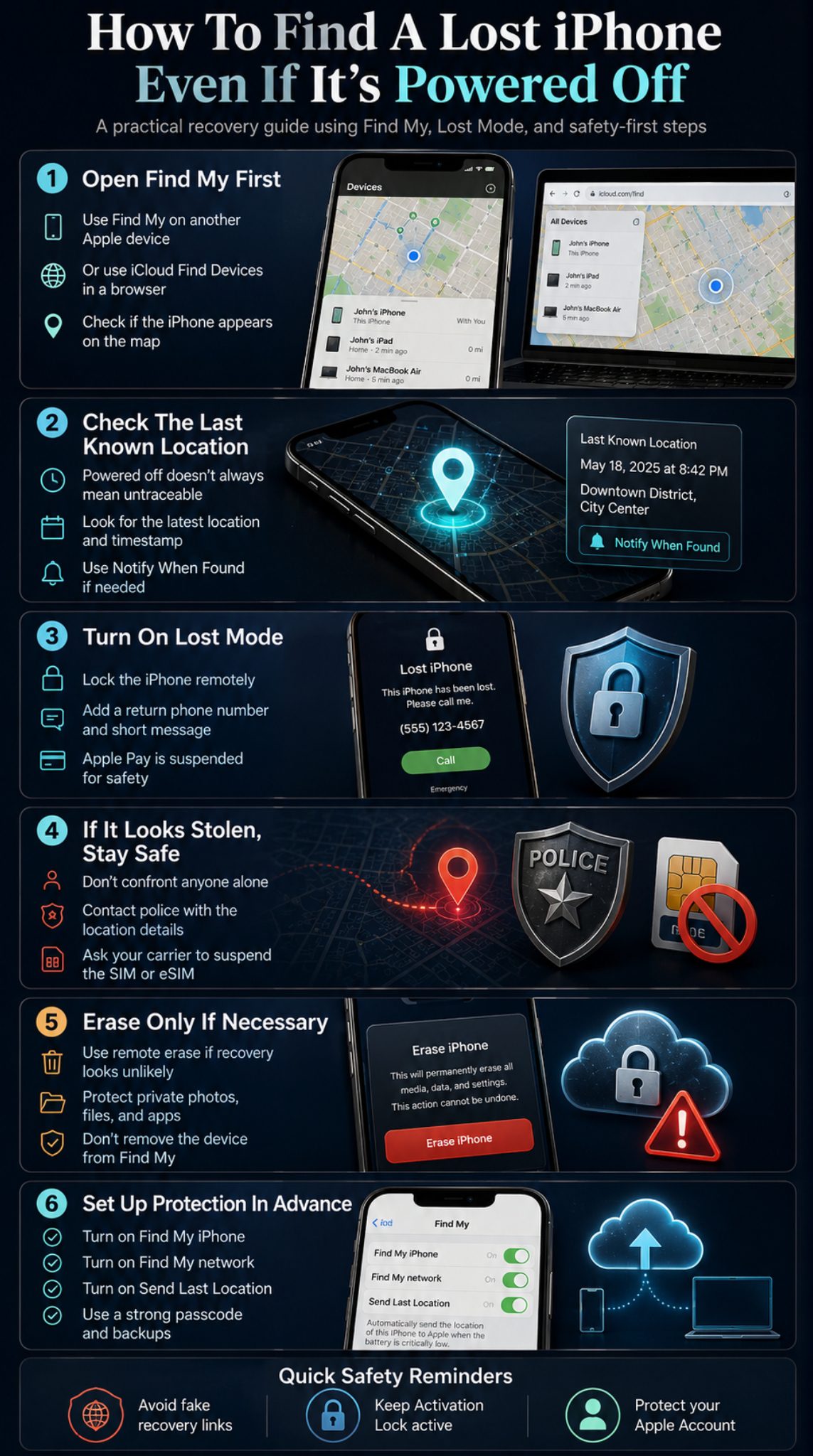
Lost Mode is not just a tracking feature. It is a protection tool. It locks the device with your passcode, helps protect payment cards, and lets you show a message on the screen.
This is one of the first things you should do if your iPhone is not clearly beside you. Even if you think you left it in a shop or rideshare, Lost Mode gives you a safer recovery path.
Apple says when you mark an iPhone as lost, it is locked with your passcode, and payment cards and passes used with Apple Pay are suspended.
|
Lost Mode Feature |
Benefit |
|
Locks the iPhone |
Prevents casual access |
|
Shows contact message |
Helps honest finders reach you |
|
Suspends Apple Pay |
Reduces payment risk |
|
Keeps tracking active |
Helps recovery if location updates |
|
Works through Find My |
Can be started remotely |
How to Turn On Lost Mode
Open Find My, select the missing iPhone, scroll to Mark As Lost or Lost Mode, and activate it.
Follow the screen steps. Add a contact number and a short return message.
What Message Should You Use?
Use a calm message like this:
This iPhone is lost. Please call this number to return it.
Do not offer too much personal information. Do not include your Apple Account email, home address, or passcode.
Lost Mode Is Better Than Panic Calling
Calling your phone again and again may drain battery if it is still on. Lost Mode is more useful because it protects the device and gives the finder a clear way to contact you.
You can still call once or twice if you think it is nearby. But after that, secure it.
What to Do If You Think the iPhone Was Stolen
If the iPhone location appears in a strange area or keeps moving, treat the situation carefully. Do not chase the phone. Do not knock on unknown doors. Do not confront anyone.
Your Find My location can help police, but it should not turn you into a detective. Let law enforcement handle risky recovery.
Apple’s stolen-device guidance says users should not attempt to recover a stolen iPhone themselves and should contact local law enforcement instead.
|
Stolen iPhone Step |
Why It Matters |
|
Mark as Lost |
Locks the device remotely |
|
Contact police |
Safer recovery process |
|
Contact carrier |
Blocks SIM or cellular misuse |
|
Keep Activation Lock |
Makes the phone harder to reuse |
|
Avoid phishing |
Protects your Apple Account |
Report It to Local Law Enforcement
Share the location, serial number, IMEI, and device details if asked. You can usually find serial or IMEI details on the box, receipt, carrier records, or Apple Account device list.
Do not exaggerate the location accuracy. Say it is an approximate location from Find My.
Contact Your Carrier
Ask your carrier to suspend the SIM or eSIM. This helps stop misuse of calls, SMS, or mobile data.
Also ask about insurance, replacement, and whether the device can be flagged on the network.
Watch for Fake Apple Messages
Scammers often send fake texts saying your iPhone has been found. They may ask you to sign in through a fake link or remove the device from your account.
Apple warns that it will never contact users to say a lost iPhone has been found, and users should never share passwords, passcodes, verification codes, or recovery keys.
Should You Erase a Lost iPhone Remotely?
Remote erase is useful, but it is not the first button I would press unless the phone is clearly gone or contains sensitive data. Once you erase the device, your data is removed from it. That is good for privacy, but it may change how you think about recovery.
If the device is stolen, remote erase can protect your photos, files, messages, and app data. But you should still keep the device in Find My afterward.
Apple says users can erase a lost or stolen device through Find Devices.
|
Situation |
Better Action |
|
Phone is likely nearby |
Use Play Sound and Directions |
|
Phone is in unknown place |
Use Lost Mode and contact police |
|
Phone contains sensitive data |
Consider remote erase |
|
Phone is offline |
Erase request may wait until it comes online |
|
Phone is erased |
Do not remove it from Find My |
When You Should Wait
Wait if the location is familiar, recent, and safe. You may have left the iPhone at work, in a restaurant, or with a friend.
In that case, Lost Mode is enough for the moment.
When Erasing Makes Sense
Erase the iPhone if recovery looks unlikely or the data risk is high. This may be the right move if the phone is stolen, traveling to unknown locations, or contains private business files.
Make sure you understand what erasing does before confirming it.
Do Not Remove It From Find My After Erase
This is where many people make a costly mistake. Keep the iPhone linked to your Apple Account.
Activation Lock is designed to stop someone else from using your lost or stolen iPhone. Removing the device too early can weaken that protection.
What If Find My Was Not Turned On?
This is the worst-case situation. If Find My was not enabled before your iPhone was lost, Apple’s tracking options are very limited. You cannot turn on Find My remotely after the phone is gone.
You should still protect your accounts. Change your Apple Account password, secure your email, check banking apps, and contact your carrier.
Apple’s stolen iPhone guidance says if Find My was not turned on before the device was lost or stolen, it will not appear in Find My or iCloud Find Devices, and users cannot mark it as lost or erase it remotely through Find My.
|
If Find My Was Off |
What You Can Still Do |
|
Change Apple Account password |
Protects account access |
|
Contact carrier |
Suspends SIM or eSIM |
|
Change email password |
Protects password resets |
|
Check banking apps |
Reduces financial risk |
|
File police report |
Useful for theft and insurance |
Change Your Apple Account Password
Do this quickly. Your Apple Account connects to iCloud, App Store, backups, photos, and other services.
Use a strong password that you do not use anywhere else.
Secure Your Email First
Your email is the key to many other accounts. If someone can access your email, they may reset passwords for banking, social media, shopping, and cloud apps.
Change your email password and review recent login activity.
Check Other Location Tools Carefully
Some people use Google Maps Timeline or third-party family tracking apps. These may help only if they were already enabled.
Do not install “track any iPhone” tools or pay random recovery websites. Most are scams or useless after the phone is already lost.
How to Prepare Your iPhone Before It Gets Lost Again
The best time to protect an iPhone is before it disappears. I know that sounds painfully obvious, but most people only check these settings after the panic starts.
Take five minutes today and turn on the right options. It may save you hours of stress later.
Apple recommends turning on Find My iPhone, Find My network, and Send Last Location from the Find My settings area.
|
Preparation Step |
Recommended Setting |
|
Find My iPhone |
On |
|
Find My network |
On |
|
Send Last Location |
On |
|
Screen passcode |
Strong six-digit or alphanumeric |
|
Apple Account recovery |
Updated phone and email |
|
iCloud backup |
On |
Turn On Find My iPhone
Go to Settings, tap your name, tap Find My, then Find My iPhone. Turn it on.
This is the foundation. Without it, your recovery options shrink fast.
Turn On Find My Network
This helps when the iPhone is disconnected, offline, or powered off. It is one of the most important settings for this topic.
After turning it on, keep Bluetooth enabled during daily use when possible.
Use a Strong Passcode
A weak passcode makes your phone easier to unlock. Use at least a six-digit passcode. An alphanumeric passcode is stronger.
Face ID is convenient, but your passcode is still the backup key.
Keep Backups Active
A backup will not help you find the phone, but it helps you recover your data if the phone is gone forever.
Use iCloud Backup or a computer backup. The phone can be replaced. Old photos and work files are harder to replace.
Common Mistakes People Make After Losing an iPhone
When people panic, they click the wrong things. They trust fake messages. They remove the phone from Find My. They go to unsafe places. They wait too long before locking the device.
A calm checklist works better than guessing. Treat the lost iPhone as both a recovery problem and a data security problem.
The goal is simple: locate the device if possible, protect your data immediately, and avoid helping a thief unlock or resell it.
|
Mistake |
Better Choice |
|
Removing device from account |
Keep it linked to Find My |
|
Sharing Apple password |
Never share account details |
|
Visiting unknown location alone |
Contact police |
|
Ignoring Lost Mode |
Turn it on quickly |
|
Waiting to call carrier |
Suspend SIM or eSIM early |
Removing the Device Too Early
Do not remove the device from Find My unless you are selling it, giving it away, or you are fully sure you should remove Activation Lock.
For a lost or stolen iPhone, keeping it attached to your Apple Account is safer.
Trusting Fake Recovery Links
A fake message may say your iPhone was found and ask you to sign in. The page may look like Apple. It may not be Apple.
Open iCloud Find Devices yourself. Do not sign in through random SMS or email links.
Waiting Too Long to Lock It
Lost Mode should be one of your first moves. It gives honest finders a way to contact you and makes the device harder to misuse.
Even if the phone is offline, activate Lost Mode anyway.
Final Thoughts
You can find lost iPhone in many cases, even if it is offline or powered off, but only when the right settings were already active. Find My iPhone, Find My network, and Send Last Location are the three settings that matter most.
If your iPhone is missing now, open Find My or iCloud Find Devices first. Check the map, turn on Lost Mode, and avoid unsafe recovery attempts. If the device looks stolen, contact police and your carrier. If recovery seems unlikely, remote erase can protect your data, but keep the device linked to Find My so Activation Lock can continue doing its job.
The honest truth is simple. Apple gives you strong tools, but they work best when you prepare early. So once this situation is over, take five minutes to check your settings. Future you will be thankful.
Frequently Asked Questions About Find Lost iPhone
Can I find my iPhone if it is powered off?
Yes, sometimes. Apple says some iPhones can send their location for up to 24 hours after being turned off or when battery life is low. This depends on the device and whether Find My network was enabled before the phone was lost.
Can I track my iPhone if the battery is dead?
You may see its last known location. If the battery is fully dead and the phone cannot send any signal, live tracking will not work. Still, the last known location can help you start the search.
Can I turn on Find My after losing my iPhone?
No. Find My must be turned on before the iPhone is lost. If it was off, the device will not appear properly in Find My or iCloud Find Devices.
Why does my iPhone say No Location Found?
It may be powered off, out of battery, disconnected, outside the Find My network, or unable to send location data. Keep Lost Mode active and use Notify When Found if the option appears.
Can someone unlock my lost iPhone?
A strong passcode makes that much harder. Lost Mode also locks the device. Activation Lock helps stop someone from using the device with another Apple Account.
Should I erase my iPhone if it was stolen?
Erase it if you believe recovery is unlikely or your data is at risk. But do not remove it from Find My afterward. Keeping it linked helps preserve Activation Lock.
Can Apple track my lost iPhone for me?
Apple provides Find My tools, but it does not personally track your phone for you. You need to use Find My, iCloud Find Devices, your carrier, and law enforcement if needed.
Is iCloud Find Devices safe to use from another phone?
Yes, if you open it yourself and sign out afterward. Avoid logging in through links sent by text or email because stolen-iPhone scams often use fake Apple pages.