
A frozen Mac can turn a normal workday into a small personal crisis. One minute you’re writing, editing, browsing, or joining a call. The next minute the cursor stops, the colorful spinning wheel appears, and your Mac acts like it needs a long vacation.
If your mac keeps freezing, don’t panic first. Panic is rarely a good troubleshooting tool. A frozen Mac can happen because of one bad app, too many browser tabs, low storage, login items, overheating, outdated software, or hardware trouble.
The good news is that most freezing problems can be checked at home. You don’t need to erase your Mac right away. You don’t need to install every “cleaner” app you see online either. Start with simple checks, then move deeper only if the problem keeps coming back.
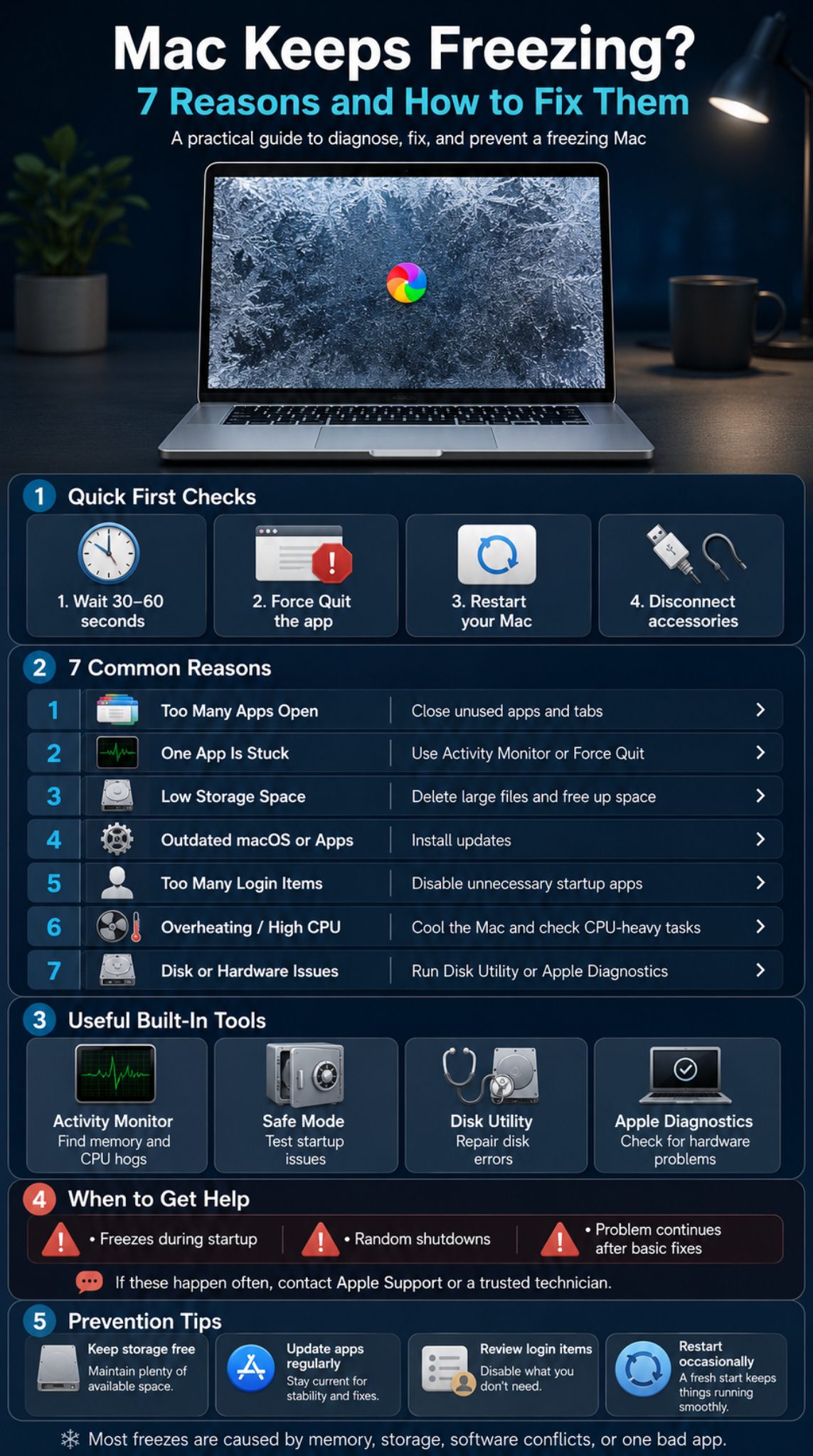
This guide walks through the 7 most common reasons your Mac freezes and how to fix each one safely.
|
Quick detail |
Recommendation |
|
Best first step |
Force quit the frozen app |
|
Best tool to check apps |
Activity Monitor |
|
Common cause |
Low memory, low storage, or one stuck app |
|
Useful repair mode |
Safe Mode |
|
Hardware check |
Apple Diagnostics |
|
Risky step |
Erasing or reinstalling macOS without backup |
Mac Keeps Freezing: Quick Diagnosis Before You Panic
When a Mac freezes, the first job is to notice the pattern. Does it freeze inside one app? Does it freeze after login? Does it happen when Chrome has 30 tabs open? Does it happen when an external monitor, USB hub, or drive is connected?
These clues save time. A Mac that freezes only in one app probably has a software problem. A Mac that freezes during startup may have a disk, macOS, or hardware issue. A Mac that freezes while hot or loud may be under heavy CPU load.
Apple’s own troubleshooting tools are enough for many cases. Activity Monitor can show unresponsive apps and heavy CPU or memory use, while Safe Mode can help test whether startup software is part of the problem.
|
Symptom |
Likely cause |
First thing to try |
|
One app freezes |
App bug or memory issue |
Force quit the app |
|
Whole Mac freezes |
CPU, memory, storage, or system issue |
Restart and check Activity Monitor |
|
Freezes after login |
Login item or background tool |
Start in Safe Mode |
|
Freezes during startup |
Disk or macOS issue |
Use Recovery and Disk Utility |
|
Freezes with accessories |
Peripheral conflict |
Disconnect devices |
|
Freezes while hot |
Heavy CPU or thermal load |
Check CPU usage |
Wait for a Short Moment First
A short freeze is not always a disaster. Your Mac may be opening a large file, syncing cloud data, indexing files, loading a video project, or trying to recover from an app delay.
Wait 30 to 60 seconds if the screen is still responding. If only one app is stuck, force quit that app instead of holding the power button. A forced shutdown should be the last move because unsaved work can disappear.
Force Quit the Frozen App
Press Command + Option + Esc. Choose the app that is not responding. Click Force Quit.
You can also open Activity Monitor and quit a stuck process from there. Apple says Activity Monitor can quit or force quit a process that is looping or not responding, and unresponsive processes may appear marked as “Not Responding.”
Restart Your Mac
A restart clears temporary system problems. It also closes apps and background processes that may be eating memory.
If the mouse and keyboard still work, restart from the Apple menu. If the whole Mac is locked, hold the power button until it turns off. Use this only when nothing else works.
Disconnect External Devices
Unplug external drives, USB hubs, docks, printers, SD cards, and external monitors. Restart the Mac and test it again.
If the freezing stops, reconnect devices one by one. Apple also recommends removing accessories when a Mac has startup delays or startup trouble, then testing again.
1. Too Many Apps or Browser Tabs Are Using Memory
Memory pressure is one of the most common reasons a Mac feels frozen. This can happen even on newer Macs if several heavy apps are open at the same time. Browsers, video editors, design tools, virtual machines, AI apps, and messaging apps can quietly pile up in the background.
Apple’s Activity Monitor has a Memory tab that shows how efficiently your Mac is using RAM. Apple explains that green memory pressure means RAM is being used efficiently, yellow means your Mac may eventually need more RAM, and red means it needs more RAM.
|
What to check |
Why it matters |
|
Memory Pressure |
Shows whether RAM is under stress |
|
Memory Used |
Shows total active memory use |
|
Swap Used |
Shows how much macOS is using disk space as memory |
|
Browser tabs |
Each tab can use memory |
|
Heavy apps |
Editing, design, and virtual machine apps can freeze older Macs |
Signs Memory Is the Problem
Your Mac may freeze when you switch between apps. Typing may lag. Browser tabs may reload on their own. The spinning wheel may appear every time you open a new tab or file.
This is common on Macs with 8GB RAM, especially when using Chrome, Photoshop, Final Cut, Zoom, Slack, large spreadsheets, or multiple cloud apps together.
How to Fix Memory-Related Freezing
Open Activity Monitor from Applications > Utilities. Click the Memory tab. Look at the Memory Pressure graph first.
Then sort apps by memory use. Quit apps you don’t need. Close unused browser tabs. Remove unnecessary browser extensions. Restart your Mac if memory pressure stays high after closing apps.
Better Daily Habits
Don’t keep every app open “just in case.” A Mac can sleep, but memory pressure does not magically vanish when too many apps stay open for days.
Try this simple habit: restart your Mac once or twice a week if you use heavy apps daily. It’s boring advice, but it often works.
2. One App or Background Process Is Not Responding
Sometimes your Mac is not the real problem. One app is. A stuck app can make the whole system feel frozen, especially if it uses too much CPU, memory, disk access, or network activity.
This often happens with browsers, VPN tools, cloud sync apps, old printer software, video editors, antivirus tools, and outdated menu bar utilities. A newly installed app can also trigger freezing if it does not play nicely with your current macOS version.
|
Problem app clue |
What it may mean |
|
Same app freezes every time |
App bug or compatibility issue |
|
App says Not Responding |
Process is stuck |
|
Freeze starts after update |
App update may be unstable |
|
Freeze stops after quitting app |
System is probably fine |
|
App uses high CPU |
Process may be looping |
Use Activity Monitor to Find the Bad App
Open Activity Monitor and check the CPU tab. Sort by % CPU. If one app is using a huge amount of CPU while doing nothing useful, it may be the problem.
Next, check the Memory tab. If one app is using far more memory than expected, close it and reopen it. Apple’s Activity Monitor guide supports quitting stuck apps and processes from the app itself.
Update or Reinstall the App
If the same app keeps freezing, check for updates. App Store apps can be updated from the App Store. Apps downloaded from the web may need updates from the developer’s website.
If updating does not help, uninstall and reinstall the app. Before removing work-related tools, save settings, projects, and login details.
Read Also: How to Speed Up Slow Mac in 2026: Complete Guide
Watch Browser Extensions
Browser extensions are small, but they can cause big headaches. Disable extensions you don’t use. If your Mac freezes mostly while browsing, test the same sites in Safari and another browser.
If the freezing stops in one browser but not another, your issue is probably browser-related.
3. Your Mac Is Running Low on Storage
A full Mac is a cranky Mac. macOS needs free storage for updates, caches, temporary files, app data, downloads, and memory swap. When storage gets too tight, basic tasks can slow down or freeze.
Apple says macOS includes built-in tools to free up storage and can optimize storage by using iCloud to make more room when needed. Apple also recommends deleting or moving files you no longer need.
|
Storage area |
What to review |
|
Downloads |
Old installers, PDFs, ZIP files |
|
Applications |
Apps you never use |
|
Movies and videos |
Large media files |
|
iPhone backups |
Old device backups |
|
Trash |
Files still taking space |
|
iCloud files |
Local copies you may not need |
Signs Low Storage Is Causing Freezing
Your Mac may warn you that storage is almost full. Apps may take longer to open. Downloads may fail. macOS updates may not install. Large files may freeze during export or save.
A Mac running low on storage may also use swap more aggressively. That means the system leans on disk space when memory is tight. If the disk is nearly full too, the slowdown gets worse.
How to Free Up Space Safely
Go to Apple menu > System Settings > General > Storage. Review the largest categories.
Delete old downloads. Remove apps you don’t use. Move large videos and archives to an external drive. Empty the Trash. Check old iPhone or iPad backups if you sync devices with your Mac.
What Not to Delete Randomly
Don’t delete system folders because someone on a forum said it “worked.” Don’t clear random Library files unless you know what they are.
Start with files you created or downloaded. That is safer than removing system-level items.
4. macOS or Apps Are Outdated
Outdated software can cause freezes, crashes, and strange slowdowns. This can happen when an app is no longer compatible with the current macOS version. It can also happen when macOS itself needs a stability or security update.
Updates are not magic, but they often fix bugs. They can also improve compatibility with newer apps, browsers, drivers, and accessories.
|
Update area |
Why it matters |
|
macOS |
Fixes system bugs and security issues |
|
Browser |
Improves tab stability and web compatibility |
|
Creative apps |
Fixes export, GPU, and memory issues |
|
Printer/scanner tools |
Prevents background conflicts |
|
VPN/security tools |
Reduces network and startup issues |
Check for macOS Updates
Go to Apple menu > System Settings > General > Software Update. If an update is available, read the notes and install it when you have time.
Back up important files before major macOS upgrades. A small update is usually simple. A major upgrade deserves more caution.
Update Apps Too
Don’t update macOS and ignore the apps. That is where many compatibility problems start.
Open the App Store and check Updates. For apps downloaded outside the App Store, open the app and check its menu for “Check for Updates.” You can also visit the developer’s website.
Remove Abandoned Apps
If an app has not been updated in years, it may cause issues on newer macOS versions. Remove apps you no longer trust or use.
Pay special attention to apps that run all the time in the menu bar. Small tools can create big freezes when they break.
5. Login Items and Startup Tools Are Slowing Everything Down
Many apps want to open when your Mac starts. Some are useful. Many are not. Over time, your Mac can collect cloud sync tools, launch agents, menu bar apps, messaging apps, update helpers, VPN clients, and background utilities.
When too many items launch together, your Mac may freeze right after login. You may see the desktop, but clicks feel delayed and apps bounce forever.
Safe Mode is useful here. Apple says Safe Mode can help identify whether issues are caused by software that loads as your Mac starts up.
|
Startup item type |
Possible issue |
|
Cloud sync apps |
Heavy disk and network use |
|
VPN apps |
Network conflicts |
|
Menu bar tools |
Background CPU use |
|
Old drivers |
Startup delays |
|
Cleaner apps |
Unnecessary background tasks |
|
Browser helpers |
Memory use after login |
Check Login Items
Go to System Settings > General > Login Items. Turn off anything you don’t need at startup.
Restart your Mac and test again. If the freezing improves, one of those items was likely part of the problem.
Start in Safe Mode
For Apple silicon Macs, shut down the Mac. Hold the power button until startup options appear. Select the startup disk. Hold Shift and click Continue in Safe Mode.
For Intel Macs, restart and immediately hold Shift until the login window appears. Apple says “Safe Boot” should appear in the menu bar on the login window.
Test Before Adding Items Back
If Safe Mode works well, restart normally. Then add login items back slowly.
Don’t turn everything back on at once. That defeats the point. Add one or two, restart, and test.
6. Your Mac Is Overheating or Under Heavy CPU Load
A hot Mac can feel frozen even when it is technically still working. Heavy CPU use can slow everything down. Video editing, gaming, screen recording, browser overload, AI tools, virtual machines, and background indexing can all push the processor hard.
Apple says the kernel_task process can use a large percentage of CPU to help manage temperature by making the CPU less available to intense processes. When CPU temperature drops, kernel_task activity should reduce.
|
Heat or CPU clue |
What to do |
|
Fan is loud |
Check Activity Monitor CPU tab |
|
Mac feels hot |
Move it to a flat surface |
|
Freezes during exports |
Close other heavy apps |
|
kernel_task is high |
Reduce heat and CPU load |
|
Battery drains fast |
Check energy-heavy apps |
Check CPU in Activity Monitor
Open Activity Monitor and click CPU. Sort by % CPU.
If one app is using too much CPU, quit it. If the app is doing a real task, like exporting video, wait until it finishes or pause other work.
Give the Mac Better Airflow
Use your Mac on a desk, not on a blanket or pillow. Soft surfaces trap heat. If you use an Intel MacBook, blocked airflow can make freezing worse.
External monitors can also increase load on some Macs. If the freezing happens during monitor use, test without the monitor.
Don’t Ignore Constant Heat
A warm Mac during heavy work is normal. A Mac that gets hot while doing almost nothing deserves attention.
Check for runaway processes. Remove suspicious background tools. Restart. If heat and freezing continue, run diagnostics or contact support.
7. Disk, Hardware, or Peripheral Problems Can Freeze a Mac
If software fixes don’t work, look at disk and hardware issues. A damaged startup disk, failing external drive, bad hub, unstable dock, power issue, or internal hardware problem can cause repeated freezing.
This is more likely if your Mac freezes during startup, restarts by itself, shows a flashing folder, or freezes even after you remove login items and update software.
Apple says a flashing question mark folder means the startup disk is not available or does not contain a working Mac operating system. Apple recommends starting from macOS Recovery and using Disk Utility to repair the startup disk.
|
Hardware clue |
Possible cause |
|
Freezes during startup |
Startup disk or macOS issue |
|
Freezes with external drive |
Drive or cable problem |
|
Freezes with USB hub |
Accessory conflict |
|
Random shutdowns |
Power or hardware issue |
|
Diagnostics reference code |
Hardware may need service |
Test External Devices
Disconnect everything except power, keyboard, mouse, and display if needed. Restart and test.
If the Mac works normally, reconnect one device at a time. A cheap USB hub, old external drive, or unstable dock can cause more trouble than expected.
Repair the Disk With Disk Utility
If your Mac freezes during startup or shows startup errors, use macOS Recovery. Apple says Disk Utility is available in Recovery and can repair the startup disk.
Run First Aid on the startup disk. If Disk Utility finds errors it cannot repair, back up your data if possible and contact Apple Support.
Run Apple Diagnostics
Apple Diagnostics can test your Mac for possible hardware problems. Apple says it can help determine which hardware component might be at fault. It also recommends disconnecting external devices except essentials before running the test.
If you see a reference code, write it down. That code can help Apple Support or an authorized service provider understand the issue faster.
What to Do If the Mac Keeps Freezing After Basic Fixes
If the mac keeps freezing after you check apps, memory, storage, updates, login items, heat, and accessories, move carefully. This is where many people make the mistake of erasing everything too soon.
Start with Safe Mode. Then use Disk Utility. Then consider reinstalling macOS if needed. Back up your files before any major repair step.
macOS Recovery includes tools such as Restore from Time Machine, Reinstall macOS, and Disk Utility. Apple says Disk Utility in Recovery can repair or erase the startup disk, so read each option carefully before clicking.
|
Advanced step |
Use it when |
Risk level |
|
Safe Mode |
Freezing after login |
Low |
|
Disk Utility First Aid |
Startup or disk errors |
Low to medium |
|
New user account test |
Possible user-profile issue |
Low |
|
Reinstall macOS |
System files may be damaged |
Medium |
|
Erase Mac |
Last resort only |
High |
Test in Safe Mode Again
Safe Mode is not just a startup trick. It helps separate system-level problems from login items, extensions, and startup software.
If your Mac works well in Safe Mode but freezes normally, the problem is probably something that loads during normal startup.
Try a New User Account
Create a temporary user account from System Settings > Users & Groups. Log into that account and test the Mac.
If the new account works fine, your main user profile may have bad settings, login items, extensions, or app data.
Reinstall macOS Carefully
Reinstalling macOS can fix deeper system issues. It should not be the first fix. It should come after updates, Safe Mode, storage cleanup, Activity Monitor checks, and disk repair.
Back up before reinstalling. Even when a reinstall is designed to keep files, backups protect you from mistakes, power loss, or disk problems.
How to Stop Your Mac From Freezing Again
Once the Mac is stable, keep it that way. Prevention is much easier than emergency troubleshooting at midnight with unsaved work on the screen.
The best routine is simple: keep storage healthy, update apps, remove unused startup tools, restart sometimes, and watch Activity Monitor when things feel slow.
Google’s helpful content guidance also applies to troubleshooting articles like this one: content should help real users solve real problems, not just repeat generic tips. That is why a practical Mac freezing guide should explain symptoms, safe fixes, risks, and when to get expert help.
|
Prevention habit |
How often |
|
Check storage |
Monthly |
|
Restart Mac |
Weekly or after heavy work |
|
Review login items |
Every 2–3 months |
|
Update apps |
Monthly |
|
Back up files |
Regularly |
|
Check Activity Monitor |
When Mac feels slow |
Keep Enough Free Storage
Don’t wait until macOS screams at you. Keep a healthy amount of free space for updates, temporary files, and normal system work.
Delete old downloads and unused apps. Move large media files to external storage if needed.
Update Apps Before They Break
Browsers, creative apps, VPNs, and cloud tools should stay updated. These apps change often and can cause freezing when they fall behind.
Also remove old apps you forgot about. If you don’t use it, it should not run in the background.
Use Activity Monitor Instead of Guessing
Activity Monitor is not just for advanced users. It is one of the easiest ways to see what your Mac is doing.
Check CPU when the Mac feels hot. Check Memory when apps lag. Check Disk when saving files feels slow.
When Freezing May Be a Serious Problem
Most freezing issues are fixable. But some signs deserve professional help. If your Mac freezes during startup, restarts again and again, shows disk errors, fails Apple Diagnostics, or freezes after a clean macOS reinstall, don’t keep guessing forever.
Apple Diagnostics can show reference codes when hardware issues are found. Apple also says users can contact Apple Support for service options if diagnostic results point to a problem.
|
Serious warning sign |
What it may mean |
|
Freezes before login |
Startup disk or macOS issue |
|
Repeated shutdowns |
Hardware or power issue |
|
Diagnostic code appears |
Possible hardware fault |
|
Disk Utility cannot repair disk |
Storage problem |
|
Freezing after reinstall |
Hardware or deep system issue |
|
Liquid or drop damage |
Service needed |
Contact Apple Support If Freezing Keeps Returning
Get help if freezing happens every day, if work files are at risk, or if the Mac shows hardware warning signs.
Do not keep force shutting down the Mac again and again. That can increase the chance of file corruption.
Back Up Before Service
Before repair, back up everything important. Use Time Machine or another backup method you trust.
If your Mac is too unstable to back up normally, ask a technician before trying risky steps.
Final Thoughts
When your mac keeps freezing, start small. Force quit the stuck app. Restart. Check Activity Monitor. Free up storage. Update macOS and apps. Remove unnecessary login items. Test Safe Mode. Disconnect accessories.
Most freezing problems come from software, storage, memory pressure, or one badly behaved app. Those are fixable without drama. But if the freezing happens during startup, comes with disk errors, or returns after every basic fix, it may be time to run Apple Diagnostics or contact Apple Support.
The goal is not just to unfreeze your Mac once. The goal is to understand why it froze, fix the real cause, and stop it from ruining your work again.
|
Final action |
Best for |
|
Force quit |
One frozen app |
|
Activity Monitor |
Finding heavy apps |
|
Storage cleanup |
Low-space problems |
|
Safe Mode |
Startup software conflicts |
|
Disk Utility |
Disk or startup issues |
|
Apple Diagnostics |
Possible hardware problems |
Frequently Asked Questions About Mac Freezing
Freezing problems often look similar, but the cause can be different. These questions cover issues that readers often search after the first few fixes fail.
|
Question type |
Reader intent |
|
Random freezing |
Wants cause |
|
Spinning wheel |
Wants meaning |
|
Startup freeze |
Wants urgent fix |
|
Browser freeze |
Wants app-specific help |
|
Reset decision |
Wants safe next step |
Why does my Mac freeze but the mouse still moves?
This usually means one app or system process is stuck, but the whole Mac is not fully locked. Try Command + Option + Esc and force quit the frozen app. If the same app keeps doing it, update or reinstall that app.
Why does my Mac freeze after waking from sleep?
This can happen because of external monitors, docks, Bluetooth devices, network drives, or background apps that struggle after sleep. Disconnect accessories and test the Mac for a day. Also check for macOS and app updates.
Can Chrome make my Mac freeze?
Yes, any browser can freeze a Mac if it uses too much memory or CPU. Chrome with many tabs, extensions, video pages, social media dashboards, or web apps can become heavy. Check Activity Monitor and test the same workflow in Safari or another browser.
Why does my Mac freeze during video calls?
Video calls use the camera, microphone, browser or app resources, internet connection, and sometimes screen sharing. Close heavy apps before calls. Check CPU and memory use if freezing happens during Zoom, Google Meet, Teams, or FaceTime.
Is it bad to force shut down a frozen Mac?
Doing it once in an emergency is usually fine. Doing it often is not a good habit. It can cause unsaved work loss and may increase the risk of file or disk problems if the Mac was writing data.
Should I erase my Mac if it keeps freezing?
Not at first. Erasing should be a last resort after backups, Activity Monitor checks, software updates, Safe Mode, storage cleanup, Disk Utility, and diagnostics. If hardware is failing, erasing macOS may not fix the real problem.
How do I know if my Mac freezing is caused by hardware?
Look for freezing during startup, random shutdowns, failed Apple Diagnostics, Disk Utility errors, or freezing that continues after a clean reinstall. Those signs point beyond normal app trouble.