
Forgetting a Wi-Fi password is common. Maybe your phone connected months ago, and now you need the same password for a laptop, tablet, smart TV, or a guest’s phone. The good news is that newer Android phones make this much easier than before.
This guide explains how to find saved WiFi passwords on Android using the built-in Settings app, QR codes, Samsung Galaxy tools, Google Lens, and router settings. The steps may look a little different depending on your phone brand and Android version, but the main idea stays the same.
This article is only for networks you own or have permission to use. Android protects Wi-Fi details for a reason. So, the goal here is simple: recover or share your own saved Wi-Fi password safely, without using shady apps or risky tricks.
Quick Answer: Can You See Saved WiFi Passwords on Android?
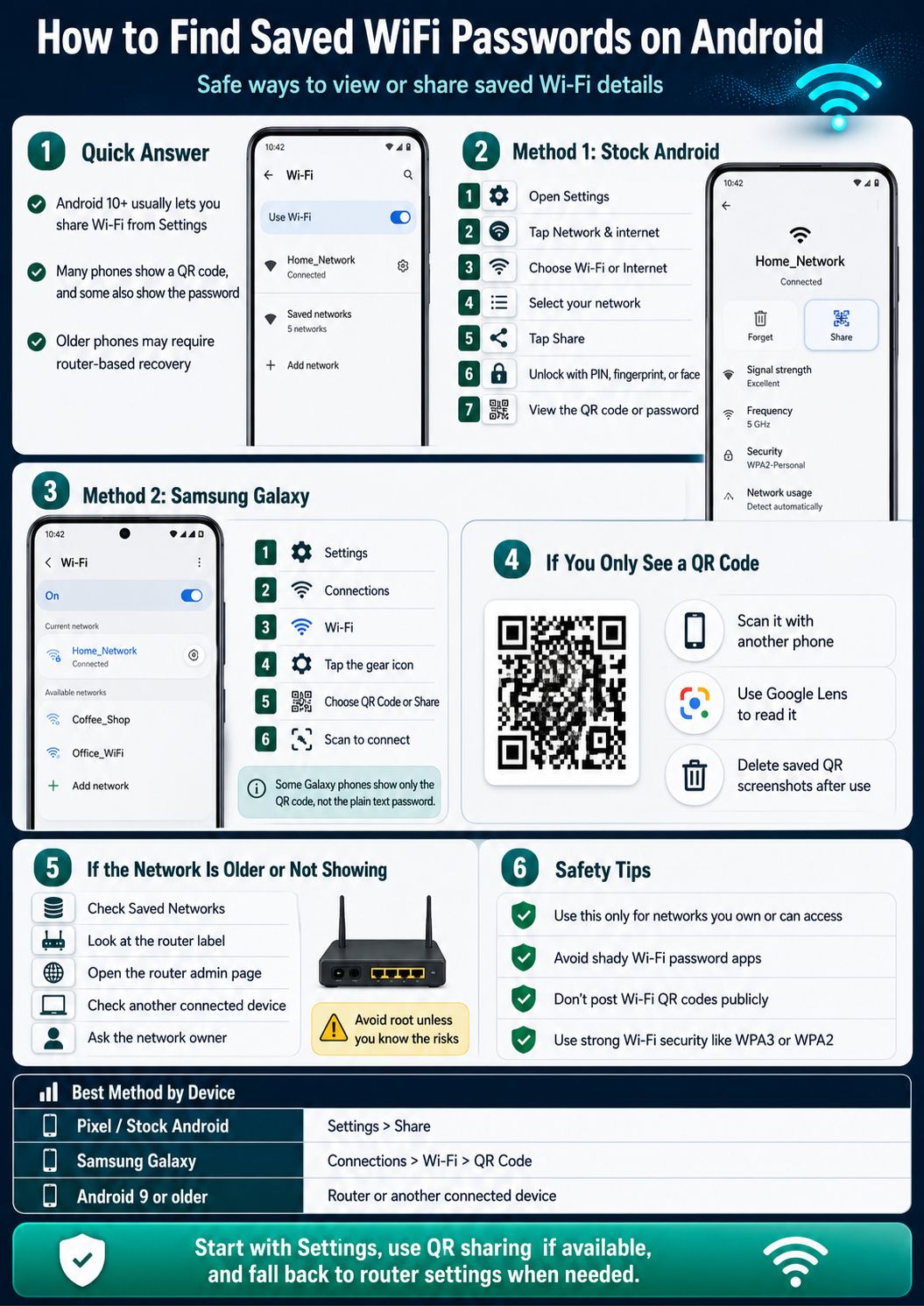
Yes, many modern Android phones let you view or share saved Wi-Fi details. On Google Pixel and many stock Android phones, you can open the Wi-Fi network details, tap Share, verify your identity, and get a QR code. Google’s Android help page confirms that Android can share Wi-Fi info through a QR code from the Settings app.
On some devices, the password appears under the QR code. On others, especially some Samsung Galaxy models, you may only see the QR code. That still helps because another phone can scan it and connect without typing the password.
Older Android phones are more limited. If the phone runs Android 9 or older, the built-in password-sharing option may not be available. In that case, the safest options are checking the router, another connected device, or the network owner.
|
Key Point |
What It Means |
|
Best method |
Use Android Settings and the Share option |
|
Most useful for |
Android 10 and newer phones |
|
Samsung method |
Use Connections > Wi-Fi > QR Code |
|
Older Android issue |
May not show saved passwords without root |
|
Safest alternative |
Check router settings or router label |
What Most Users Should Try First
Start with Settings. Go to your Wi-Fi network details and look for Share, QR code, or a similar option. This is safer than downloading a third-party Wi-Fi password viewer app.
Before You Start: Check These Things First
Before trying to view android wifi passwords, check your phone version, your network access, and your reason for viewing the password. This matters because Wi-Fi passwords are private credentials. You should only recover passwords for your own home, office, or approved network.
Android phone makers also change menu names. A Google Pixel may say Network & internet. Samsung usually says Connections. Xiaomi, Oppo, Vivo, OnePlus, and Motorola may use slightly different names. So, do not panic if your menu does not match every word in this guide.
Also, make sure your phone has a screen lock. Android may ask for your PIN, pattern, fingerprint, or face unlock before it shows a QR code or password. This is a normal security step.
|
Before You Begin |
Why It Matters |
|
Confirm permission |
Avoid accessing networks you do not own |
|
Check Android version |
Newer versions support easier sharing |
|
Use screen lock |
Required for QR/password sharing on many phones |
|
Know your phone brand |
Samsung and Pixel menus differ |
|
Avoid unknown apps |
Reduces privacy and malware risk |
Only Use This for Networks You Own or Can Use
This guide is not for breaking into Wi-Fi networks. It is for finding a password already saved on your phone or sharing your own network with another device.
Android Versions Can Change the Steps
Android 10 and newer versions usually offer better Wi-Fi sharing options. Android 9 and older versions may need router-based methods instead.
How to Find Saved WiFi Passwords on Android Using Settings
The easiest way to find saved WiFi passwords on Android is through the Settings app. This works best on Google Pixel, Motorola, Nokia, and other phones with a cleaner Android layout.
Open Settings and look for Network & internet. Then tap Internet or Wi-Fi. Choose the network you are connected to, tap Share, and verify your identity if asked. Google says this process creates a QR code that another device can scan to join the same network.
On many Android phones, the password appears below the QR code. If you do not see it, the QR code is still useful. Another phone can scan it and connect without manual typing.
|
Step |
Action |
What to Look For |
|
1 |
Open Settings |
Gear icon on your phone |
|
2 |
Tap Network & internet |
Sometimes called Wi-Fi or Internet |
|
3 |
Select your Wi-Fi network |
Current network or saved network |
|
4 |
Tap Share |
May require PIN or fingerprint |
|
5 |
Check QR code/password |
Password may appear below the code |
Step-by-Step Method for Stock Android
- Open the Settings app.
- Tap Network & internet.
- Tap Internet or Wi-Fi.
- Select your connected Wi-Fi network.
- Tap Share.
- Confirm your PIN, pattern, fingerprint, or face unlock.
- Check the QR code and password area.
Read Aslo: What is WiFi 6 and Why You Should Use it?
What If You Only See a QR Code?
That is still normal. Some Android builds show only the QR code. You can use another phone to scan it, or save the QR image and read it with a supported scanner.
How to Find Saved WiFi Passwords on Samsung Galaxy
Samsung Galaxy phones use One UI, so the steps are a little different. You will usually find Wi-Fi options under Connections instead of Network & internet.
Samsung’s own support page says Galaxy phones can share a Wi-Fi password with other Android phones by using a QR code. The common path is Settings, Connections, Wi-Fi, network gear icon, and QR Code.
Some Samsung phones may display the password after authentication. Others may only show the QR code. If you only see a QR code, that is still enough for sharing the network with another phone.
|
Samsung Option |
What to Do |
|
Settings path |
Settings > Connections > Wi-Fi |
|
Network details |
Tap the gear icon beside the network |
|
Sharing option |
Tap QR Code or Share |
|
Password text |
May or may not appear |
|
Workaround |
Scan QR code using another phone or Lens |
Samsung Galaxy Step-by-Step Guide
- Open Settings.
- Tap Connections.
- Tap Wi-Fi.
- Tap the gear icon beside your connected network.
- Tap QR Code or Share.
- Use the QR code to connect another device.
Why Samsung May Not Show the Password Text
Samsung often focuses on QR sharing. That means the password may stay hidden, but the connection details can still be shared. This is useful when you want to help someone connect without exposing the actual password.
How to Find Passwords for Previously Saved Wi-Fi Networks
Sometimes you are not connected to the Wi-Fi network right now, but your Android phone remembers it. In that case, check the saved networks list.
On many Android phones, you can go to Settings, Wi-Fi, and Saved networks. Tap the network name and look for Share. If your phone supports it, Android may show a QR code or password after you verify your identity.
Samsung phones can be more restrictive with old saved networks. Some models make it easier to share the current network than a previously saved one. If the Share or QR option is missing, try another method, such as checking your router or another connected device.
|
Situation |
Best Action |
|
Network is currently connected |
Use Share or QR Code |
|
Network is saved but not connected |
Check Saved networks |
|
No Share button appears |
Try router settings |
|
Samsung hides old network details |
Reconnect first if possible |
|
You do not own the network |
Ask the network owner |
How to Check Saved Networks
Search for “Saved networks” inside your Android Settings app. This is often faster than manually opening each menu. Once you find the saved network, tap it and check whether a Share option appears.
What If the Network Is Out of Range?
If the network is out of range, some phones may still show saved details. Others may not. If your phone refuses to show it, check a router, laptop, or another phone that is already connected.
You may not need to see the password at all. If your only goal is to connect another device, QR code sharing is usually faster and safer.
Google Pixel support says users can share Wi-Fi through a QR code from Wi-Fi settings or Quick Settings after verifying their identity. This saves time and avoids typing mistakes, especially with long passwords.
The receiving phone only needs to scan the QR code. Many Android phones can scan it from the camera app or a QR scanner. Some iPhones can also scan Wi-Fi QR codes through the Camera app, though behavior can vary by model and software version.
|
Sharing Method |
Best For |
Password Visible? |
|
QR code |
Guests and family |
Not always |
|
Manual password |
Laptops, TVs, older devices |
Yes |
|
Router app |
Home network owners |
Usually yes |
|
Guest network |
Visitors |
Separate password |
|
Password manager |
Personal storage |
Yes, if saved |
Why QR Sharing Is Often Better
A QR code is quick. It also reduces the chance that someone reads, copies, or sends your Wi-Fi password to others. For a busy home or office, this is cleaner than spelling out a long password.
When You Still Need the Actual Password
You may still need the text password for a smart TV, printer, gaming console, or Windows laptop. If the QR code does not help, use router settings or another connected device.
How to Find Android WiFi Passwords Using Google Lens
Google Lens can help when your phone shows a Wi-Fi QR code but hides the password text. This method is useful for Samsung users and some Android models that only show QR sharing.
First, open the QR code screen. If your phone allows it, take a screenshot or save the QR image. Then open the image in Google Photos or Google Lens. Lens may read the QR code and show the Wi-Fi network name and password.
Be careful with screenshots. A Wi-Fi QR code can contain the network name and password. Delete the screenshot after use, especially if it is your home or office network.
|
Google Lens Method |
Details |
|
Best use case |
QR code shown but password hidden |
|
Tool needed |
Google Lens or QR scanner |
|
Security risk |
Screenshot may reveal network details |
|
Good habit |
Delete QR image after use |
|
Works best on |
Clear, bright QR code images |
How to Use Google Lens
Open Google Photos, select the saved QR screenshot, and tap Lens. If the code is clear, Lens may decode the Wi-Fi details. If it fails, crop the image around the QR code and try again.
Do Not Store Wi-Fi QR Codes Publicly
Do not upload the QR code to social media, shared drives, or public folders. Treat it like the password itself.
Android WiFi Passwords on Older Phones: What Changes?
Older Android phones are harder. If the phone runs Android 9 or earlier, the built-in Wi-Fi sharing screen may not exist. Some online guides suggest rooting the phone, but that is not a good idea for most users.
Rooting gives deeper system access, but it can also weaken security, break banking apps, void warranties, and expose private data. For a simple Wi-Fi password, that trade-off is rarely worth it.
A safer path is to check the router label, open the router admin page, look at another connected device, or ask the network owner. If it is your home network and nothing works, you can reset the Wi-Fi password from the router settings.
|
Older Android Option |
Safety Level |
Recommended? |
|
Router label |
High |
Yes |
|
Router admin page |
High |
Yes |
|
Another connected device |
High |
Yes |
|
Ask network owner |
High |
Yes |
|
Root the phone |
Low |
No for most users |
Why Rooting Is Not Worth It for Most People
Rooting can create more problems than it solves. Unless you are an advanced user who understands Android system files and security risks, avoid it.
Safer Alternatives
Check your ISP app, router sticker, router admin page, or a laptop that already uses the same Wi-Fi. These options are safer and easier.
How to Find the Wi-Fi Password from Your Router
If Android does not show the password, the router is the next best place to check. This works only when you own or manage the network.
Many routers have a sticker with the default Wi-Fi name and password. This helps if the password was never changed. If someone changed it, you need to log in to the router admin panel or ISP router app.
Once inside the router settings, look for Wireless, Wi-Fi, Security, SSID, network key, or WPA password. The exact label depends on the router brand.
|
Router Method |
What to Check |
|
Router sticker |
Default Wi-Fi name and password |
|
Router admin page |
Current wireless password |
|
ISP app |
Some providers show Wi-Fi details |
|
Wireless settings |
SSID and WPA password |
|
Password reset |
Only if you own the router |
How to Check Router Settings
Open a browser on a connected device and enter the router gateway address. Common addresses include 192.168.0.1 or 192.168.1.1, but this varies. Log in with the router admin details, then check wireless settings.
Change Weak Wi-Fi Passwords
The FTC recommends using WPA3 Personal or WPA2 Personal encryption for home Wi-Fi, with WPA3 being newer and stronger where supported. CISA also notes that WPA, WPA2, and WPA3 encrypt information between wireless routers and wireless devices.
Common Problems and Easy Fixes
Sometimes the steps do not work exactly as expected. That does not always mean your phone is broken. It may be a software version issue, brand limitation, work profile rule, or router restriction.
If you cannot find Share, use the Settings search bar and type “Wi-Fi,” “Saved networks,” or “QR code.” If your phone shows only a QR code, scan it with another phone. If the QR code does not scan, increase brightness and clean the camera lens.
If you still cannot find the password, move to the router method. For home networks, that is usually the most reliable backup.
|
Problem |
Likely Reason |
Fix |
|
No Share button |
Older Android or custom UI |
Search Settings or update phone |
|
QR code only |
Brand hides password text |
Scan QR with another device |
|
Authentication fails |
Screen lock issue |
Reset PIN or restart phone |
|
QR does not scan |
Low brightness or blur |
Increase brightness, retry |
|
Router login forgotten |
Changed admin password |
Use ISP app or reset router |
Your phone may use a different menu name. Try searching inside Settings. If it still does not appear, your Android version or phone brand may not support direct sharing for that network.
My Phone Shows QR Code but No Password
This is common. Use the QR code to connect another phone, or try Google Lens if you need the text password.
Viewing your own password is fine. Sharing it carelessly is the real problem. Once someone has your Wi-Fi password, they may be able to join your network whenever they are nearby.
For visitors, a guest network is better than your main network. It gives internet access without opening the same level of access to personal phones, laptops, smart TVs, cameras, or storage devices.
For better security, use a long password and modern encryption. NSA home network guidance recommends WPA3 where possible, or WPA2/3 when older devices need support.
|
Safety Tip |
Why It Helps |
|
Use guest Wi-Fi |
Keeps visitors separate |
|
Avoid public QR sharing |
QR code may reveal password |
|
Use WPA3 or WPA2 |
Better network encryption |
|
Change weak passwords |
Reduces guessing risk |
|
Update router firmware |
Fixes security bugs |
A Wi-Fi QR code is not just a picture. It can contain the network name, password, and security type. Keep it private.
Use a Guest Network for Visitors
Most modern routers support guest networks. Use one for guests, short-term visitors, or rental spaces.
Best Practices for Managing Android Wi-Fi Passwords
The best time to organize your Wi-Fi passwords is before you forget them. Save your home and office Wi-Fi details in a trusted password manager or a secure note that only you can access.
Use clear network names. Avoid names that reveal too much personal information, such as your full name, apartment number, or phone number. A simple but private SSID is better.
Review your Wi-Fi password from time to time. If too many people know it, change it. If you run a small office, change guest passwords regularly.
|
Best Practice |
Recommended Action |
|
Save password securely |
Use a password manager |
|
Keep phone updated |
Install Android security updates |
|
Use strong Wi-Fi password |
Prefer long, unique phrases |
|
Create guest access |
Separate visitors from main network |
|
Remove old networks |
Forget networks you no longer use |
Keep Android Updated
Updates often fix bugs and improve security. They can also change how Wi-Fi sharing appears in Settings.
Forget Old Networks You Do Not Use
If your phone remembers many public networks, remove the ones you no longer trust. This keeps your saved networks cleaner.
How to Find Saved WiFi Passwords on Android: Best Method by Device
The best method depends on your device. Pixel and stock Android phones usually work well with the Settings app. Samsung phones are best handled through the QR Code option. Older Android phones may need router-based recovery.
This is why there is no single button that works on every phone. Android is shared across many brands, and each brand customizes the menu. Still, the safest order is simple: Settings first, QR code second, router third.
Avoid random Wi-Fi password viewer apps. Many ask for unnecessary permissions. Some also rely on root access, which most users should avoid.
|
Device Type |
Best Method |
|
Google Pixel |
Settings > Network & internet > Internet > Share |
|
Samsung Galaxy |
Settings > Connections > Wi-Fi > QR Code |
|
Motorola/Nokia |
Settings Wi-Fi sharing method |
|
Xiaomi/Oppo/Vivo |
Wi-Fi details or QR sharing |
|
Android 9 or older |
Router or another connected device |
Best Method for Most Readers
Use the built-in Wi-Fi sharing option. It is simple, fast, and safer than third-party apps.
Best Backup Method
Use router settings. If you own the network, the router admin panel usually gives the most direct answer.
Final Thoughts
The easiest way to recover a Wi-Fi password is to use the tools already on your phone. For most modern devices, the Settings app and QR code sharing are enough. Samsung Galaxy users may need the QR Code option, while older Android users may need to check the router or another connected device.
The main thing is to stay safe. Do not use risky apps just to reveal android wifi passwords. Do not root your phone unless you truly understand the trade-offs. And do not share QR codes publicly.
If you want the safest answer to how to find saved WiFi passwords on Android, start with Settings, use QR sharing when available, and fall back to router settings only when needed.
Frequently Asked Questions About Android Wi-Fi Passwords
Can I see saved Wi-Fi passwords on Android without root?
Yes, on many Android 10 and newer phones. Use Wi-Fi settings and tap Share. Older Android versions may not support this without root.
Why does my phone show a QR code instead of the password?
Some Android skins hide the plain text password and only show a QR code. This still lets another device connect safely.
Can I find a Wi-Fi password after forgetting the network?
Usually no. If you removed or forgot the network from Android, the saved credentials may be deleted. Check the router or ask the owner.
Can I use a screenshot of the Wi-Fi QR code later?
Technically, yes, but it is not a good habit. The screenshot can expose your Wi-Fi password if someone else sees it.
Can Android show passwords for public Wi-Fi networks?
Only if the network details are saved and your phone allows sharing. Many public networks use login pages, so there may not be a normal Wi-Fi password to show.
Are Wi-Fi password viewer apps safe?
Be careful. Many need root access or sensitive permissions. Built-in Android settings, router settings, and password managers are safer choices.
Often, yes. The iPhone camera may scan a Wi-Fi QR code and offer to join the network. If it does not work, type the password manually.