
Booting up your computer and typing in your password should take you straight to your colorful desktop. But instead, you are staring at a completely dark monitor. Sometimes you might see a lonely white mouse cursor floating around, while other times it is just a solid void. This glitch is incredibly frustrating, especially when you have urgent work to do or a game you want to play. You might think your computer is entirely broken, but your files and hardware are usually perfectly safe.
This display failure happens when the operating system struggles to load the user interface right after authenticating your credentials. It is a known bug that affects many users, often triggered by a recent background update or a sudden driver crash. If you are wondering how to fix Windows 11 black screen after login, you are in the right place. We will walk through everything from immediate keyboard shortcuts to deeper system repairs to get your PC running normally again.
Understanding the Root Causes Behind the Screen Glitch
Before you start changing settings, it helps to know exactly what is going wrong inside your machine. When you enter your password, Windows is supposed to hand over the visual rendering from the lock screen to your desktop environment. This transition requires your graphics card, your system files, and the user shell to work in perfect harmony. If any of these components fail to communicate, the screen goes dark. Below is a breakdown of the specific software and hardware conflicts that typically trigger this login issue.
|
Cause Category |
Specific Component |
Description of Failure |
|
Driver Issues |
Graphics Card Driver |
The video driver crashes or fails to wake up after the lock screen. |
|
OS Updates |
Windows Patch |
A recent feature or security update installed incorrectly or has a known bug. |
|
Software |
Explorer.exe |
The main shell process that controls your taskbar and desktop fails to launch. |
|
Hardware |
Cables/Peripherals |
A faulty HDMI cable or a conflicting USB device interrupts the display signal. |
Graphics Driver Mismatches
Your graphics processing unit, or GPU, relies on software drivers to talk to the rest of your computer. When Windows 11 gets a major update, your older GPU drivers might suddenly become incompatible. The system tries to load the high-resolution desktop, but the driver crashes, leaving you with no visual output.
Windows Update Failures
Microsoft pushes out updates constantly to patch security holes and add features. Sometimes these updates get interrupted during installation due to a power blip or a background process conflict. A partially installed update can corrupt the specific files responsible for rendering your user profile.
Corrupted System Files
Over time, the core files that keep your operating system stable can get damaged. Sudden power losses, failing hard drives, or aggressive third-party antivirus software can delete or alter these crucial files. Without them, the system simply does not know how to draw your desktop.
Stuck Explorer Process
The entire visual layout of your desktop, including the taskbar and file manager, is run by a single program called the Windows Explorer. If this program hangs or fails to execute during the login sequence, you will be left with a functional computer but no graphical interface to interact with.
Quick Fixes for the Black Screen Issue
When you are locked out of your interface, the best approach is to start with the simplest, least invasive solutions. These methods take only a few seconds and do not require you to reboot your machine or dive into complex command menus. Often, the system just needs a tiny nudge to wake up the display components that got stuck during the transition. Try these immediate steps before moving on to deeper troubleshooting.
|
Quick Fix Method |
Action Required |
Best Used When |
|
Keyboard Reset |
Press Win + Ctrl + Shift + B |
The screen is totally black but the PC is running. |
|
Task Manager |
Restart Windows Explorer |
You can see your mouse cursor on the black screen. |
|
Hard Reboot |
Hold the power button |
The system is completely frozen and unresponsive. |
The Magic Keyboard Shortcut
Microsoft actually built a specific keyboard command into the operating system just for this type of graphics failure. Press the Windows key, Control, Shift, and the letter B all at the same time. You will likely hear a short beep, and your screen will flicker. This command forces the operating system to immediately restart the video driver without affecting any of your open programs or unsaved work.
Restarting the Windows Explorer Process
If your graphics driver is fine but the desktop shell failed, you can manually jumpstart it. Press Control, Shift, and Escape together to pull up the Task Manager. Click on “More details” at the bottom if it looks like a small, blank window. Click on the “File” menu at the top left, select “Run new task,” type explorer.exe into the box, and hit enter. Your taskbar and background should instantly pop into view.
Performing a Clean Hard Reboot
Sometimes a simple restart is all it takes to clear a temporary glitch from the system memory. Since you cannot use the start menu, you will have to do this physically. Press and hold the physical power button on your computer case or laptop for about ten seconds until the machine powers down completely. Wait a few moments, then turn it back on to see if it loads properly.
Advanced Troubleshooting: How to Fix Windows 11 Black Screen After Login
If the quick nudges did not work, the problem is likely buried deeper in your system settings or corrupted drivers. Because you cannot use your desktop normally, you will need to rely on alternative diagnostic environments. This involves accessing recovery menus and using specialized modes designed to bypass the errors. The steps below detail exactly how to fix Windows 11 black screen after login using the built-in advanced repair tools.
|
Advanced Method |
Tool Used |
Purpose of the Fix |
|
Safe Mode |
Advanced Startup Options |
Loads Windows with minimal drivers to isolate the issue. |
|
Driver Rollback |
Device Manager |
Removes faulty graphics updates causing the crash. |
|
System Repair |
Command Prompt |
Scans for and replaces missing or broken core OS files. |
|
Update Removal |
Windows Recovery Environment |
Deletes recent patches that broke the login sequence. |
Booting Into Windows 11 Safe Mode
Safe Mode is a diagnostic environment that starts your computer with only the most basic files and drivers required to run. It completely ignores third-party apps, custom startup programs, and complex graphics drivers. To get there from a dark display, you must force the computer into the Automatic Repair screen. Turn your computer on, and the moment you see the manufacturer logo, hold the power button to shut it off. Do this three times in a row. On the fourth boot, let it run. You will enter the recovery menu. Navigate to Troubleshoot, then Advanced options, then Startup Settings, and click Restart. When it reboots, press the number 5 key to enter Safe Mode with Networking.
Rolling Back or Reinstalling Graphics Drivers
Once you have successfully reached the desktop in Safe Mode, your first target should be the display driver. Right-click the start button and open the Device Manager. Find the section labeled Display adapters and click the arrow to expand it. Right-click your specific graphics card name and choose Properties. Look under the Driver tab. If you recently updated your driver, click the Roll Back Driver button to return to the previous working version. If that button is grayed out, choose Uninstall Device instead, and ensure you check the box to attempt to remove the driver software. Restart your computer normally, and Windows will fetch a fresh, stable driver automatically.
Repairing Damaged System Files
If your drivers are clean, your system architecture might be fragmented. You can fix this using built-in terminal commands. While still in Safe Mode, click the start menu, type cmd, right-click the Command Prompt app, and choose Run as administrator. Type sfc /scannow and hit enter. This utility scans every core system file and replaces any damaged ones from a cached backup. Let it run to 100 percent. Afterward, type DISM.exe /Online /Cleanup-image /Restorehealth and hit enter. This command reaches out to official Microsoft servers to download healthy files and patch deeper system corruption.
Uninstalling Problematic Recent Updates
Many users find that their computer worked perfectly until a mandatory system update was installed overnight. If you suspect an update is the culprit, you can easily remove it. Boot back into the Automatic Repair screen using the three-reboot method mentioned earlier. Go to Troubleshoot, then Advanced options, and look for Uninstall Updates. You will see two choices. Try removing the latest quality update first, as these are the smaller, routine patches that usually cause sudden bugs. If that does not work, go back and try removing the latest feature update.
Checking Hardware Connections and External Devices
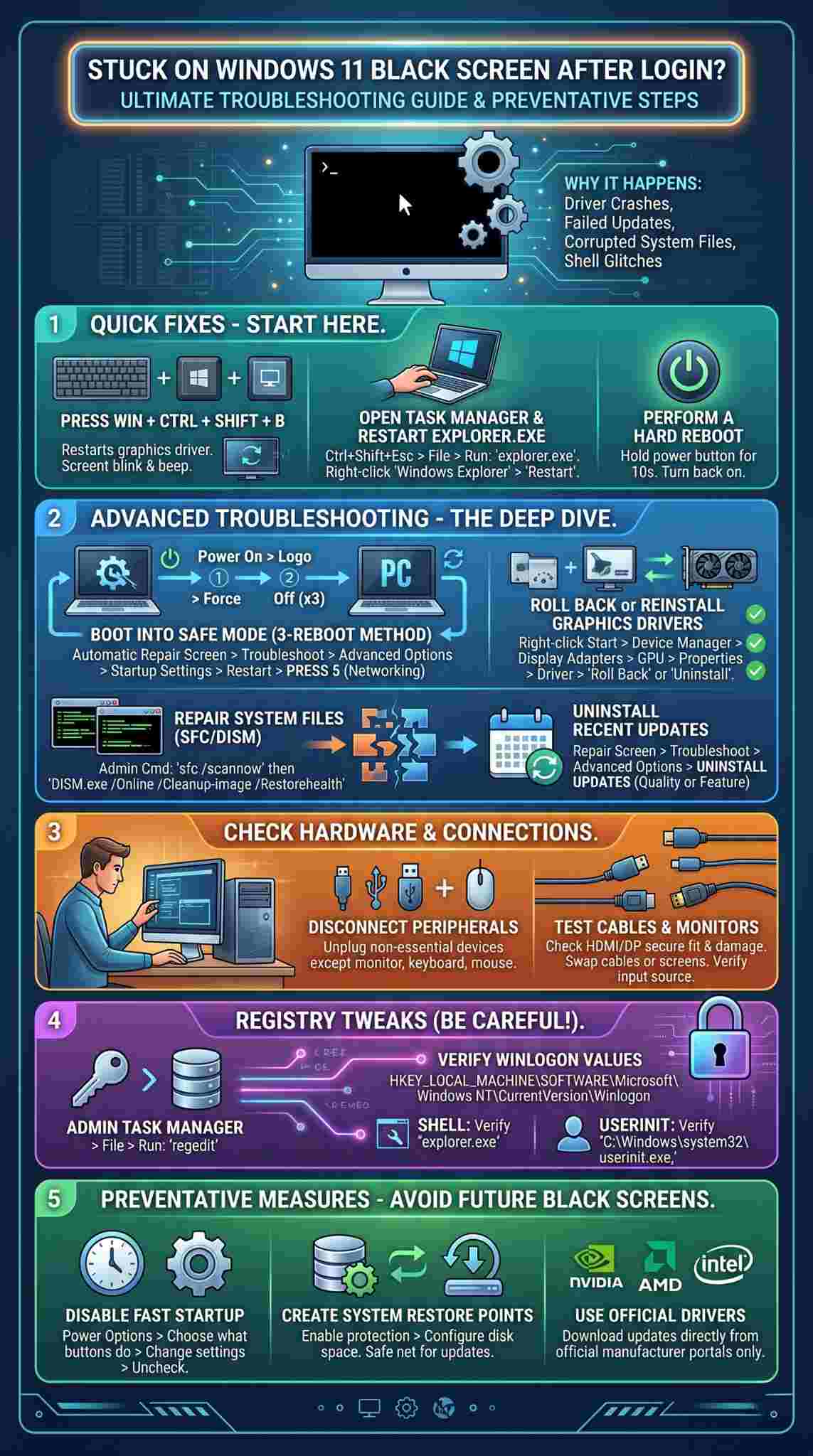
We often blame software for all our computer woes, but physical hardware connections are just as likely to cause display dropouts. Your operating system constantly scans for connected devices during the boot process. A damaged wire or a malfunctioning USB gadget can confuse the system, causing the display output to hang indefinitely. Taking a few minutes to physically inspect your setup can save you from hours of software troubleshooting.
|
Hardware Check |
Component |
Why It Matters |
|
Peripherals |
USB Devices |
Faulty devices can stall the operating system boot sequence. |
|
Cables |
HDMI/DisplayPort |
A damaged pin or loose fit will fail to transmit the video signal. |
|
Monitors |
External Displays |
Incorrect input settings or a dying panel will look like a system crash. |
|
Power Supply |
Wall Outlets/Strips |
Inconsistent voltage can prevent the GPU from drawing enough power to render. |
Disconnecting Unnecessary Peripherals
It sounds strange, but a faulty gaming mouse, a broken external hard drive, or even a basic USB hub can send bad data to the motherboard. This bad data can actually freeze the operating system right at the login screen. Unplug everything from your computer except for your primary monitor, your keyboard, and your mouse. Restart the machine. If it boots to the desktop perfectly, start plugging your devices back in one by one until the screen goes black again. That will identify the exact piece of hardware causing the conflict.
Testing Cables and Monitors
Sometimes the issue is literally right in front of your eyes. The cable connecting your computer to your monitor might have a pinched wire or a bent pin. If you have a spare HDMI or DisplayPort cable lying around, swap it out and see if the connection stabilizes. Additionally, double-check that your monitor is set to the correct input source. If you use a laptop connected to an external screen, try unplugging the external screen completely to see if the laptop’s built-in display renders the desktop properly.
Using Advanced Registry Tweaks for Shell Rebuilding
When the standard task manager tricks and safe mode repairs do not force the interface to load, the registry might be pointing to the wrong startup parameters. The Windows Registry is a massive database of configuration settings. If a malicious program or a bad update changed the default shell value, the system will never load your desktop, no matter how many times you restart. Editing this database is a delicate process, but it is highly effective.
|
Registry Element |
Target Value |
Correct Setting |
|
Winlogon Key |
Shell |
explorer.exe |
|
Winlogon Key |
Userinit |
C:\Windows\system32\userinit.exe, |
|
Task Manager |
New Task |
regedit |
Accessing the Registry Editor Without a Desktop
Since you cannot click on a start menu, you have to launch the editor manually. Press Control, Shift, and Escape to bring up the Task Manager. Click on File, then Run new task. Type regedit into the text field, check the box to create the task with administrative privileges, and press enter. This will open the Registry Editor window floating over your dark background.
Verifying the Winlogon Shell Value
You need to navigate through the folder tree on the left side of the editor. Go to HKEY_LOCAL_MACHINE, then Software, then Microsoft, then Windows NT, then CurrentVersion, and finally click on the Winlogon folder. Look at the right side of the screen for a file named Shell. Double-click it. The value data box should say exactly explorer.exe and nothing else. If there is a strange file path or a different program listed there, delete it, type explorer.exe, and click OK.
Checking the Userinit Value
In that exact same Winlogon folder, look for another file named Userinit. Double-click this one as well. The value data must be set to C:\Windows\system32\userinit.exe, including the comma at the very end. If a virus or a broken update altered this path, your user profile will fail to initialize. Correct the text, click OK, close the Registry Editor, and restart your computer using the Task Manager.
Long-Term Preventative Measures
Fixing a computer glitch is a great relief, but preventing it from happening again is even better. Once you have successfully restored your desktop and your machine is running smoothly, you should implement a few basic maintenance habits. Windows 11 is a complex operating system, and a little bit of proactive care goes a long way in keeping the software environment stable and responsive.
|
Preventative Action |
Tool/Setting |
Benefit |
|
Disable Fast Startup |
Power Options |
Prevents the system from loading corrupted cached states during boot. |
|
Regular Backups |
System Restore |
Allows instant rollback to a working state if an update breaks things. |
|
Official Drivers |
Manufacturer Apps |
Ensures graphics updates are stable and specific to your hardware. |
Keeping Drivers Updated Safely
Many users rely on free, third-party driver updater software to keep their system current. You should avoid these programs entirely. They often pull incorrect, generic, or outdated drivers from unverified servers, which is a massive cause of display failures. Instead, get your updates straight from the source. If you have an NVIDIA card, use the GeForce Experience app. For AMD, use the Adrenalin software. For Intel, use the Intel Driver and Support Assistant. These official apps guarantee compatibility.
Disabling the Fast Startup Feature
Windows 11 includes a feature called Fast Startup, which is turned on by default. When you shut down your PC, it does not actually turn off completely. It saves a snapshot of the kernel and loaded drivers to your hard drive to make booting up faster the next time. However, if your graphics driver crashed right before you shut down, Fast Startup will just reload that broken state. To turn it off, press the Windows key, type Control Panel, and open it. Go to Power Options, click Choose what the power buttons do on the left, click Change settings that are currently unavailable, and uncheck the box for Turn on fast startup. Save your changes.
Maintaining System Backups
You never know when a random power outage or a forced Microsoft update will break your system again. You should set up System Restore points so you have a safety net. Press the Windows key, type Create a restore point, and hit enter. Click on your main C: drive in the list and click the Configure button. Ensure that Turn on system protection is selected, and allocate about five percent of your disk space to it. Now, Windows will automatically save a snapshot of your healthy system before installing any major software.
Final Thoughts
Running into a blank display right when you need to use your computer is enough to cause panic, but it is rarely a permanent hardware death sentence. By understanding the underlying causes, such as driver conflicts and shell process failures, you can approach the problem calmly and logically. Whether you use a simple keyboard shortcut or dive into Safe Mode to run system repair commands, knowing exactly how to fix Windows 11 black screen after login gives you total control over your machine. Remember to turn off Fast Startup and keep your drivers sourced from official channels to prevent this annoying glitch from ruining your day in the future.
Uncommon FAQs
When dealing with complex system errors, users often have highly specific questions that do not fit into standard troubleshooting guides. Based on search trends and technical forums, we have gathered some of the most unusual but important questions regarding this display failure.
|
FAQ Topic |
Core Concern |
Short Answer |
|
Data Loss |
Will fixing this delete my files? |
No. Your personal data is completely safe. |
|
BIOS Access |
Can I reach BIOS with a black screen? |
Yes, BIOS loads before Windows even starts. |
|
Audio Cues |
Why do I hear startup sounds but see nothing? |
The OS loaded successfully, but the video output failed. |
|
Laptop Lids |
Does closing the lid cause this bug? |
It can, if the sleep state drivers fail to wake up the screen. |
Will fixing this delete my personal files or photos?
Absolutely not. The troubleshooting methods we discussed, such as repairing system files, using Safe Mode, or rolling back drivers, only target the operating system framework. Your personal documents, downloaded games, and saved photos are stored in completely separate user directories on the hard drive and will remain untouched.
Why do I hear the Windows startup chime but see absolutely nothing?
Hearing the startup sound is actually a very good sign. It proves that the operating system successfully booted, your hard drive is functioning, and your processor is executing commands. The issue is strictly isolated to the visual rendering pipeline, meaning it is a pure graphics driver or shell interface crash, rather than a catastrophic hardware failure.
Can a dying CMOS battery cause a blank screen on boot?
While rare, a depleted CMOS battery on your motherboard can reset your BIOS settings to their factory defaults. If your motherboard defaults to using integrated graphics instead of your dedicated graphics card, and your monitor is plugged into the card, you will get no signal. Replacing the inexpensive coin battery and correcting the BIOS settings will solve this.
Does closing my laptop lid trigger this specific glitch?
Yes, it is quite common on laptops. When you close the lid, the laptop enters a low-power sleep state. When you open it, the graphics driver must instantly wake up and restore the display state. If the sleep drivers are outdated or buggy, the screen will simply remain dark while the rest of the laptop powers up. Updating your display adapters usually resolves this sleep-wake cycle bug.