
Handing someone your iPhone can feel harmless until they start swiping one photo too far. Maybe it is a personal screenshot, a gift idea, a private document, or a photo you simply do not want others to see. That is where learning how to hide photos iphone users want private becomes useful.
The iPhone already has built-in tools for hiding photos and videos. You do not need to download a random “secret vault” app right away. Apple’s Photos app has a Hidden collection, and recent iOS versions lock Hidden and Recently Deleted with Face ID, Touch ID, or your passcode by default. You can also remove the Hidden album from view for another layer of privacy.
Still, hiding photos is not the same as making them impossible to access. If someone knows your passcode, uses your Apple Account, or has access to shared albums, your privacy may still be weak. This guide explains the safe way to hide photos on iPhone, lock them properly, manage app access, check iCloud, and avoid common mistakes.
How to Hide Photos iPhone Users Want Private
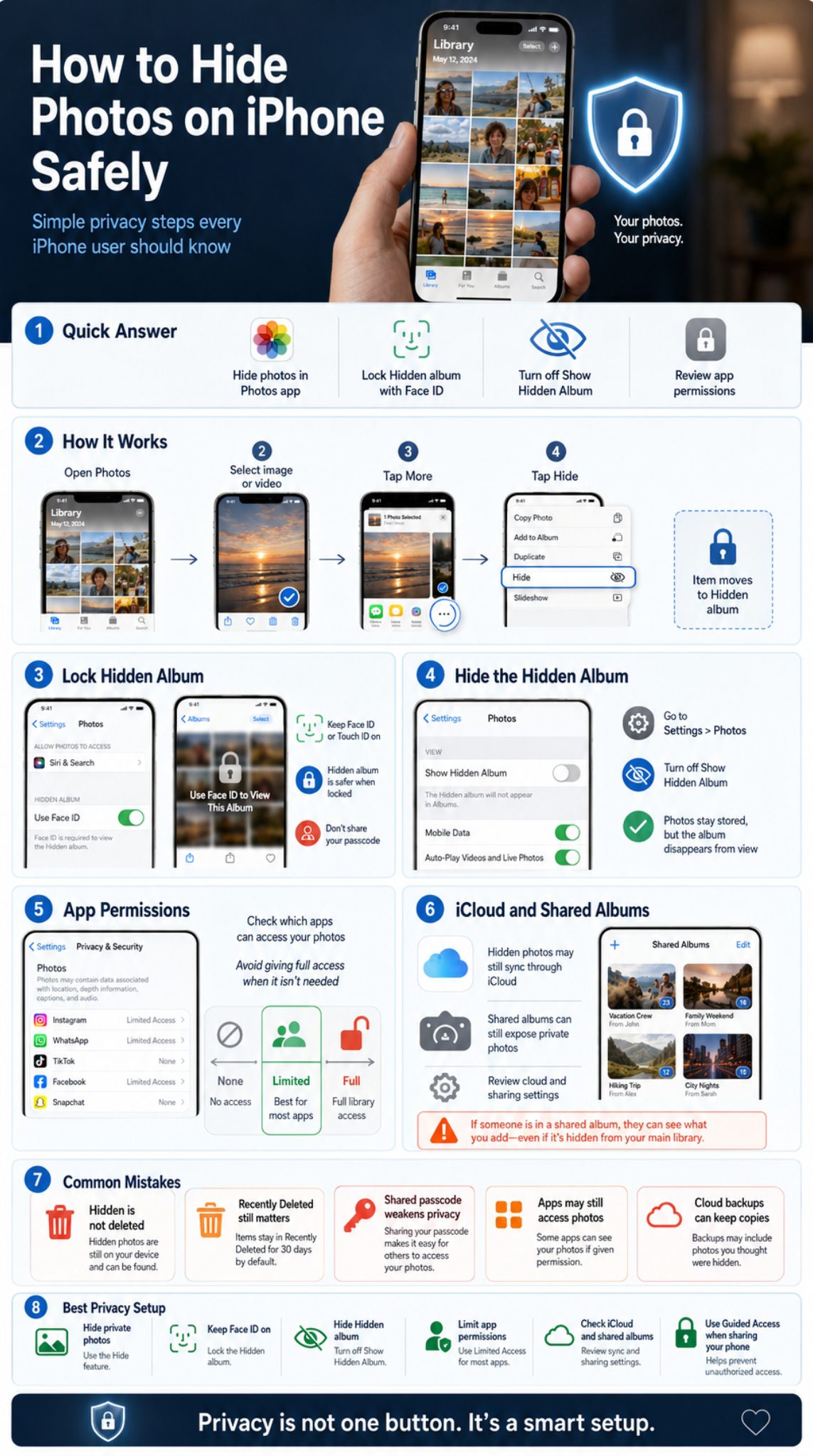
The fastest way to hide photos on iPhone is to use the built-in Hide option in the Photos app. Open Photos, select the image or video, tap the More button, tap Hide, and confirm. The item moves out of your main library and goes into the Hidden collection.
For better privacy, do not stop there. Go to Settings, tap Apps, open Photos, and turn off Show Hidden Album. This removes the Hidden collection from normal view inside the Photos app. Your photos are still there, but the album is harder to find casually.
|
Action |
Why It Matters |
|
Hide the photo |
Removes it from normal library browsing |
|
Keep Face ID or Touch ID on |
Adds authentication before viewing hidden items |
|
Turn off Show Hidden Album |
Removes the Hidden album from visible Photos sections |
|
Review app permissions |
Stops unnecessary apps from accessing your photo library |
|
Check shared albums |
Makes sure the photo is not already shared elsewhere |
Best Method for Most Users
Use the built-in Hidden album with Face ID or Touch ID turned on. It is simple, free, and already part of iOS. This is enough for most everyday privacy needs, such as stopping someone from seeing private photos while scrolling through your library.
Best Method for Stronger Privacy
Hide the photo, hide the Hidden album, limit third-party app photo access, and check iCloud or Google Photos backups. If you share your passcode with someone, change it. A hidden album is much less useful if another person can unlock your phone.
What Happens When You Hide Photos on iPhone?
When you hide a photo on iPhone, it does not disappear from your device. It moves from the main Photos library to the Hidden collection. That means it should not appear during normal scrolling, but it is still stored on your iPhone unless you delete it separately.
Apple’s current Photos privacy settings allow users to lock Hidden and Recently Deleted with Face ID, Touch ID, or passcode. You can also turn off Show Hidden Album if you want the Hidden collection removed from view.
|
Feature |
What It Does |
|
Hide |
Moves photo or video to Hidden collection |
|
Hidden collection |
Stores hidden photos and videos |
|
Face ID or Touch ID lock |
Protects access to Hidden and Recently Deleted |
|
Show Hidden Album toggle |
Controls whether Hidden appears in Photos |
|
Delete |
Moves item to Recently Deleted first |
Hidden Photos Are Not Deleted
This is the most common misunderstanding. Hiding a photo only removes it from normal view. It does not erase the image from your iPhone. If you want to remove the photo completely, you must delete it and then clear it from Recently Deleted.
Hidden Photos Are Not Fully Invisible Everywhere
If the same photo was uploaded to Google Photos, sent in a message, shared in an album, or saved in Files, hiding it inside Apple Photos will not remove those other copies. Treat the Hidden album as one privacy layer, not a magic erase button.
How to Hide One Photo or Video on iPhone
Hiding a single image is quick. This is useful when you notice one personal photo, document screenshot, or private video sitting in your main library. You can do it directly from the Photos app without installing anything.
The same basic method works for both photos and videos. It is also easy to reverse later if you decide to unhide the item.
|
Step |
What to Do |
|
1 |
Open the Photos app |
|
2 |
Tap the photo or video |
|
3 |
Tap the More button |
|
4 |
Tap Hide |
|
5 |
Confirm the action |
When This Method Works Best
Use this when you only need to hide a few items. It works well for private screenshots, ID photos, surprise gift ideas, personal travel photos, or work-related images. I would use this method first before trying any third-party vault app.
A Simple Privacy Habit
After hiding the photo, check the Hidden collection once to make sure the item moved correctly. Then turn off Show Hidden Album if you do not want that collection visible in Photos settings.
How to Hide Multiple Photos on iPhone at Once
If you want to hide several photos, you do not need to repeat the process one by one. The Photos app lets you select multiple items and hide them together. This is helpful after a trip, event, work shoot, or screenshot cleanup.
Be careful before confirming the action. Once you hide a large group, you may need to go into the Hidden collection later to find specific images again.
|
Use Case |
Why Bulk Hiding Helps |
|
Personal event photos |
Moves a full set out of casual view |
|
Screenshots |
Cleans up sensitive saved information |
|
Work photos |
Separates private work material |
|
Family photos |
Keeps personal memories less visible |
|
Document images |
Protects receipts, IDs, or forms |
Step-by-Step Method
Open Photos, tap Select, choose the photos and videos you want to hide, tap the More button, then tap Hide. Confirm the action. The selected items will move to the Hidden collection.
Before You Hide a Large Batch
Check your selection carefully. It is easy to include normal photos by mistake when selecting many items. Also remember that hidden photos may still sync across your Apple devices if iCloud Photos is enabled.
How to Find Hidden Photos on iPhone
If you hid photos and cannot find them, do not panic. They are usually inside the Hidden collection under Utilities in the Photos app. You may need to unlock the album with Face ID, Touch ID, or your passcode.
If you cannot see the Hidden album, the Show Hidden Album setting may be turned off. That does not mean your hidden photos are gone. It only means the album is not visible inside Photos.
|
Problem |
Likely Reason |
|
Hidden album missing |
Show Hidden Album may be off |
|
Photo not in main library |
It may be hidden |
|
Photo not in Hidden |
It may be deleted or stored elsewhere |
|
Face ID required |
Hidden album lock is active |
|
Photo appears on another device |
iCloud Photos may be syncing |
How to View Hidden Photos
Open Photos, tap Collections, scroll to Utilities, tap Hidden, then tap View Album. Use Face ID, Touch ID, or your passcode to unlock it. You can then view, select, share, delete, or unhide items.
Read Also: How to Find Lost iPhone Even If Powered Off
How to Unhide a Photo
Open the Hidden collection, select the photo, tap the More button, and choose Unhide. The photo returns to your main library based on its original date, not necessarily today’s date.
How to Lock Hidden Photos with Face ID or Touch ID
The Hidden album is much better when it is locked. On recent iOS versions, Hidden and Recently Deleted are locked by default. Users can unlock them with Face ID, Touch ID, or passcode.
For most people, the safer choice is to keep this protection on. Turning it off makes the Hidden album easier to open if someone gets access to your unlocked iPhone.
|
Setting |
Recommended Choice |
|
Use Face ID |
Keep on |
|
Use Touch ID |
Keep on if your iPhone supports it |
|
Use Passcode |
Use a strong passcode |
|
Show Hidden Album |
Turn off for extra privacy |
|
Shared passcode |
Avoid sharing it |
How to Check the Lock Setting
Go to Settings, tap Apps, tap Photos, and look for Use Face ID, Use Touch ID, or Use Passcode. Keep it turned on. If you do not see the same wording, your iOS version or device model may show a slightly different label.
Why Your Passcode Still Matters
Face ID and Touch ID are helpful, but your passcode is still important. If someone knows your passcode, they may be able to unlock protected areas. For stronger privacy, use a longer passcode and do not share it casually.
How to Hide the Hidden Album on iPhone
This is the step many people miss. Hiding a photo moves it into the Hidden collection, but the Hidden collection itself may still be visible in the Photos app. If someone knows where to look, they may tap it and try to open it.
You can remove the Hidden collection from view by changing Photos settings. This adds another privacy layer because the Hidden album no longer sits openly inside the Photos app.
|
Option |
Result |
|
Show Hidden Album on |
Hidden collection appears in Photos |
|
Show Hidden Album off |
Hidden collection is removed from view |
|
Face ID on |
Authentication required to open Hidden |
|
Face ID off |
Hidden may be easier to access |
|
Photos still stored |
Hidden items are not deleted |
Does This Delete Hidden Photos?
No. Turning off Show Hidden Album does not delete your hidden photos. It only removes the album from view. You can turn the setting back on later if you need to access those photos again.
Who Should Use This Setting?
Use it if you often hand your iPhone to friends, coworkers, children, or family members. It is also useful if you keep private screenshots, personal documents, or sensitive images in the Hidden collection.
How to Control Which Apps Can Access Your Photos
Hiding photos inside Apple Photos is only one part of privacy. Apps can also request access to your photo library. You should review app permissions regularly, especially for social media, editing, scanner, cloud storage, and messaging apps.
This matters because many apps do not need full photo access. A photo editor may need selected images. A social media app may only need the photo you want to upload. Giving every app full access is not a smart privacy habit.
|
App Type |
Safer Permission Choice |
|
Social media apps |
Limited Access |
|
Photo editors |
Limited Access or Selected Photos |
|
Cloud storage apps |
Review carefully |
|
Scanner apps |
Limited Access |
|
Messaging apps |
Limited Access |
|
Unknown apps |
None |
How to Review Photo Permissions
Open Settings, tap Privacy & Security, then tap Photos. Review each app and change access where needed. Depending on the app and iOS version, you may see options such as None, Limited Access, or Full Access.
Why Limited Access Is Better
Limited Access lets you choose which photos an app can see. This is useful when you only want to upload or edit a few images. It gives the app what it needs without opening your entire library.
How to Keep Photos Private When You Hand Over Your iPhone
The biggest privacy risk is often not a hacker. It is a normal person holding your unlocked phone. Someone may swipe through your camera roll, open another app, or tap around without thinking.
Guided Access can temporarily restrict iPhone to a single app. It is useful when you let a child use your device or when you want someone to stay inside one app only.
|
Situation |
Better Privacy Move |
|
Showing one photo |
Open that photo only |
|
Letting a child use phone |
Turn on Guided Access |
|
Sharing vacation photos |
Create a safe album |
|
Showing work content |
Use a separate folder or album |
|
Lending phone briefly |
Avoid giving unlocked full access |
Use Guided Access
Guided Access can keep the person inside one app and limit what they can do. This is helpful if someone needs to watch a video, use a learning app, or view one page without browsing the rest of your phone.
Use Lock or Hide Apps Where Available
Newer iOS versions allow users to lock or hide supported apps with Face ID, Touch ID, or passcode. This can help protect apps that may contain private images, attachments, saved media, or personal conversations.
If iCloud Photos is enabled, your photo library can sync across Apple devices signed in with the same Apple Account. That is convenient, but it also means privacy settings should be checked beyond one iPhone. A hidden photo on your iPhone may still matter on your iPad, Mac, or other iCloud-connected device.
Shared Albums are another common privacy gap. If you already shared a photo with someone, hiding it on your own device will not always remove the other person’s access.
|
Area to Check |
Why It Matters |
|
iCloud Photos |
Photos may sync across devices |
|
Shared Albums |
Other people may already have access |
|
iCloud Links |
Anyone with a link may view shared items |
|
Old devices |
Signed-in devices may still show photos |
|
Shared Apple Account |
Personal photos may mix across users |
Open Photos and review Shared Albums. If a private photo is inside a shared album, hiding it in your own library may not remove access for others. Remove the photo from the shared album or stop sharing the album if needed.
Be Careful with Public Sharing
Shared Albums and iCloud sharing options can make photos accessible outside your own phone. If privacy matters, check who can see the album, whether a link was created, and whether the image was already sent through another app.
Should You Use Google Photos Locked Folder or Third-Party Apps?
Some iPhone users also back up photos to Google Photos. If that is you, hiding a photo only in Apple Photos may not be enough. Google Photos has a Locked Folder feature that stores sensitive photos and videos away from the main photo grid, albums, search, and memories.
Third-party vault apps can also help, but they are not always necessary. Some offer a separate PIN, decoy folders, or cloud backup. Others may have weak privacy policies, ads, subscriptions, or confusing recovery systems.
|
Option |
Best For |
Watch Out For |
|
Apple Hidden album |
Most iPhone users |
Passcode access still matters |
|
Google Photos Locked Folder |
Google Photos users |
Account security matters |
|
Notes app lock |
A few private images |
Password recovery limits |
|
Files app |
Manual storage |
Not a true photo vault by default |
|
Third-party vault app |
Advanced organization |
Privacy policy and backup risk |
When Google Photos Locked Folder Helps
Use it if your iPhone photos also back up to Google Photos. Moving sensitive items into Locked Folder keeps them away from the main Google Photos grid, albums, memories, and search. Make sure your Google Account has strong security.
When to Avoid Random Vault Apps
Avoid vault apps with unclear privacy policies, poor reviews, aggressive ads, or confusing subscription models. Before trusting an app with private photos, check whether the photos stay on your device or upload to external servers.
Common Mistakes People Make When Hiding Photos
Most privacy problems happen because people hide a photo and assume the job is finished. It usually is not. A private image can still exist in Recently Deleted, iCloud, Google Photos, Messages, WhatsApp, Shared Albums, Files, or another app.
Deleted photos and videos may stay in Recently Deleted for a limited time before permanent removal. That means deleting a sensitive photo does not always remove it instantly unless you clear that folder too.
|
Mistake |
Better Approach |
|
Thinking hidden means deleted |
Know the difference |
|
Leaving Hidden album visible |
Turn off Show Hidden Album |
|
Sharing passcode |
Use a private, stronger passcode |
|
Forgetting Recently Deleted |
Clear it if needed |
|
Ignoring cloud backups |
Check iCloud and Google Photos |
|
Giving apps full access |
Use Limited Access |
|
Using random vault apps |
Check privacy policy first |
Mistake 1: Forgetting Recently Deleted
If you delete a private photo, it may still sit in Recently Deleted for a limited period. Open Recently Deleted, authenticate, and delete it permanently if you are sure you no longer need it.
Mistake 2: Forgetting Other Copies
A photo may exist in Messages, email attachments, cloud drives, or shared albums. If privacy matters, check where the photo has already been sent or saved.
Final Thoughts
The safest way to hide photos iphone users want private is to combine several simple steps. First, use the built-in Hide option in Photos. Then keep Face ID or Touch ID turned on for the Hidden collection. After that, turn off Show Hidden Album so it does not appear casually inside the Photos app.
For stronger privacy, review app photo permissions, check Shared Albums, look at iCloud Photos, and remember that Google Photos may have its own copy. If you often hand your phone to someone, use Guided Access or open only the photo you want them to see.
The main idea is simple: hiding a photo is useful, but privacy is a habit. A locked Hidden album, a private passcode, limited app access, and careful sharing settings work better together than any single button.
Frequently Asked Questions About Hide Photos iPhone
Can I hide photos on iPhone without downloading an app?
Yes. You can use the built-in Hide feature in the Photos app. Hidden photos move to the Hidden collection, which is locked by default with Face ID, Touch ID, or passcode on supported iPhones.
Can I hide the Hidden album itself?
Yes. Go to Settings, tap Apps, tap Photos, and turn off Show Hidden Album. This removes the Hidden collection from view, but it does not delete your hidden photos.
Yes. Hidden photos are still stored on your device or in iCloud Photos if syncing is enabled. Hiding does not free storage. To free space, you need to delete photos and clear Recently Deleted if necessary.
They may appear across devices if iCloud Photos is enabled and those devices use the same Apple Account. Check every device where your Photos library syncs.
Photo access depends on iOS permissions and how the app interacts with your library. You should review app permissions under Settings, Privacy & Security, Photos, and avoid giving Full Access to apps that do not need it.
Is the Hidden album safe if someone knows my passcode?
It is less safe. Face ID and Touch ID help, but your passcode is still a key part of iPhone security. If someone knows it, change it and avoid sharing it again.
What is better: Hidden album or Google Photos Locked Folder?
Use the Hidden album for Apple Photos and Google Photos Locked Folder for sensitive items backed up in Google Photos. If you use both services, check both places.
Can I hide photos from Memories and Search?
Hidden photos are removed from normal library browsing areas in Apple Photos. Google Photos Locked Folder also keeps selected items away from the main photo grid, albums, memories, and search.