
Ever typed out an email late at night and thought, “I hope this doesn’t bother them”? Or maybe you work with teams across different time zones and need messages to arrive at the right moment. That’s where the ability to schedule emails in Outlook and Gmail comes in.
Scheduling lets you write now and send later—simple, professional, and stress-free. In this guide, we’ll cover Gmail, Outlook (desktop, web, and mobile), tips, common mistakes, and practical tricks to make your email timing work for you—not against you.
Can You Schedule Emails in Outlook and Gmail?
Yes, both platforms allow you to schedule emails for future delivery. Gmail uses the Schedule Send feature, while Outlook offers Schedule Send on web and new Outlook, and Delay Delivery on classic desktop.
Quick Comparison Table:
|
Feature |
Gmail |
Outlook |
|
Scheduling Feature |
Schedule Send |
Schedule Send / Delay Delivery |
|
Web Support |
Yes |
Yes |
|
Mobile Support |
Yes |
Yes (varies by version) |
|
Storage of Scheduled Emails |
Scheduled folder |
Drafts / Outbox (version-dependent) |
|
Editing Before Send |
Cancel & Edit |
Open & Edit / Cancel & Edit |
|
Best Use |
Simple personal/business |
Business, Microsoft 365, Desktop |
What Does Scheduling an Email Mean?
Scheduling is more than delaying a message. It’s preparing an email now and letting the system send it automatically at a chosen time.
Key Differences:
- Draft vs Scheduled: Drafts sit until you manually hit send. Scheduled emails are set to go automatically.
- Undo Send vs Scheduled: Undo send gives a few seconds of buffer. Scheduling is planned in advance—hours or days ahead.
- Scheduled vs Automation: One-off scheduling is different from full email automation used in marketing tools.
Why Schedule Emails?
Timing can make or break an email’s impact. Scheduling ensures your messages arrive when recipients are most likely to read and respond.
Main Reasons:
- Time Zone Management: Send emails when your recipient is active.
- Avoid Late-Night Sends: Keep your emails professional without disturbing others.
- Better Reply Rates: Emails during working hours often get faster attention.
- Prepped Follow-Ups: Stay organized with planned follow-ups.
- Reduce Stress: Once scheduled, you can focus on other tasks.
Table: Scheduling Benefits
|
Benefit |
Description |
|
Professionalism |
Emails reach recipients at appropriate hours. |
|
Productivity |
Write now, schedule later, reduce task juggling. |
|
Global Teams |
Supports remote and international communications. |
|
Follow-ups |
Prepare in advance for deadlines or reminders. |
Before Scheduling: Checklist
- Recipient’s Time Zone: Avoid sending at awkward hours.
- Attachments: Double-check files and links.
- Date & Time: Confirm AM/PM and calendar date.
- Email Content: Ensure spelling, grammar, and tone are final.
- App Behavior: Gmail schedules server-side; Outlook may require the desktop app open.
Table: Pre-Schedule Checklist
|
Check |
Why It Matters |
|
Time zone |
Avoid sending at night or early morning. |
|
Attachments |
Prevent missing or wrong files. |
|
Date & Time |
Ensure message lands when intended. |
|
Proofread |
Avoid embarrassing mistakes. |
|
App status |
Ensure Outlook sends as expected. |
How to Schedule an Email in Gmail (Desktop)
Steps:
- Open Gmail and click Compose.
- Add recipient, subject, message, attachments.
- Click the arrow beside Send → Schedule send.
- Pick a suggested time or set a custom date/time.
- Confirm. Your email moves to the Scheduled folder.
Read Also: Chrome High Memory Usage: How to Fix It in 2026
Tip: Gmail limits scheduled emails to 100 at a time.
Table: Gmail Desktop Scheduling
|
Step |
Action |
|
Compose |
Open Gmail, click Compose |
|
Draft Email |
Add recipient, subject, body, attachments |
|
Schedule |
Click arrow → Schedule send |
|
Set Time |
Choose suggested/custom time |
|
Confirm |
Email moves to Scheduled folder |
Gmail Mobile App Scheduling
Steps:
- Open Gmail app → Compose.
- Tap three-dot menu → Schedule send.
- Pick time or set custom date/time.
- Confirm → message appears in Scheduled folder.
Tip: Update the app if options are missing.
Managing Scheduled Emails in Gmail
- View: Open Scheduled folder.
- Edit: Cancel scheduled email → moves back to drafts → edit → reschedule.
- Cancel: Stop scheduled email → moves back to drafts.
Table: Gmail Email Management
|
Action |
How |
|
View |
Scheduled folder |
|
Edit |
Cancel → Drafts → Edit → Reschedule |
|
Cancel |
Cancel → Drafts |
Scheduling Emails in Outlook (Web & New Outlook)
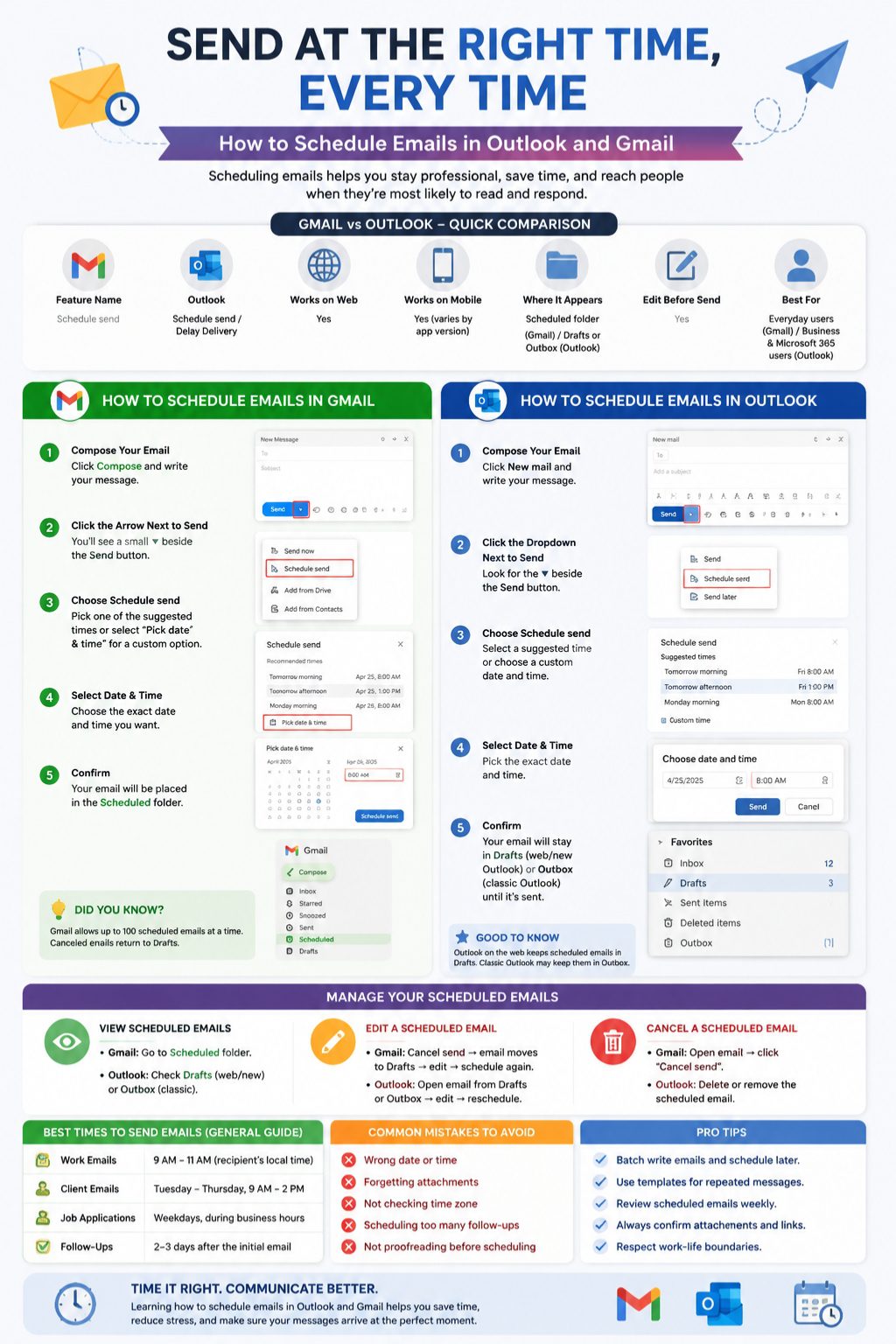
Web Steps:
- Open Outlook.com or Microsoft 365 → New Email.
- Add recipients, subject, message, attachments.
- Click dropdown next to Send → Schedule send.
- Pick suggested/custom date & time → confirm.
- Message usually stays in Drafts until sending time.
Table: Outlook Web Scheduling
|
Step |
Action |
|
Compose |
Open Outlook Web → New Email |
|
Draft |
Fill recipient, subject, body, attachments |
|
Schedule |
Dropdown → Schedule send |
|
Set Time |
Suggested/custom |
|
Confirm |
Email stored in Drafts |
Classic Outlook Desktop (Delay Delivery)
- Open Outlook → New Email.
- Go to Options → Delay Delivery.
- Check Do not deliver before → pick date/time.
- Close → Click Send. Email waits in Outbox until scheduled time.
Tip: Desktop must often remain open for sending.
Table: Classic Outlook Delay Delivery
|
Step |
Action |
|
Compose |
New Email |
|
Options |
Delay Delivery |
|
Set Time |
Do not deliver before date/time |
|
Confirm |
Close & Send (email in Outbox) |
Outlook Mobile App Scheduling
- Open Outlook app → Compose → three-dot menu → Schedule send.
- Pick time/date → confirm.
- Feature availability varies by version and account type.
Gmail vs Outlook: Ease of Use
Gmail: Simple, clean, mobile-friendly.
Outlook: Powerful, integrates with Microsoft 365, multiple versions may confuse beginners.
Table: Platform Ease Comparison
|
Platform |
Pros |
Cons |
|
Gmail |
Easy, quick, mobile-friendly |
Limited advanced options |
|
Outlook |
Business-ready, flexible |
Version differences, may require desktop open |
Tips for Professional Email Scheduling
- Batch-write emails for efficiency.
- Use templates for routine messages.
- Schedule follow-ups carefully.
- Review scheduled emails weekly.
- Avoid over-scheduling to prevent spamming.
Table: Productivity Tips
|
Tip |
Benefit |
|
Batch Writing |
Saves time |
|
Templates |
Consistency |
|
Follow-ups |
Timely reminders |
|
Weekly Review |
Avoid mistakes |
|
Limit Frequency |
Keep communication professional |
Common Mistakes
- Sending without proofreading
- Wrong attachments
- Ignoring recipient time zones
- Scheduling sensitive emails too early
- Not checking scheduled folder
Best Practices for Timing
- Morning or early afternoon local time works best for work emails.
- Avoid weekends and late nights.
- Follow-up emails should respect recipient response time.
Table: Timing Tips
|
Email Type |
Suggested Timing |
|
Work |
9 AM–3 PM local time |
|
Client |
Midday, business hours |
|
Follow-up |
1–3 days after initial email |
|
Job application |
Business hours |
Final Thoughts
Knowing how to schedule emails outlook gmail gives you control, professionalism, and peace of mind. Gmail is perfect for fast, simple scheduling. Outlook excels in corporate workflows with advanced options.
Always double-check recipients, attachments, date, time, and time zone. A scheduled email is only useful if the content is ready and accurate.
FAQs (Uncommon & Extra)
Can I schedule emails with attachments larger than 25MB?
No. Standard Gmail limit is 25MB per email; Outlook depends on server rules.
Will scheduled emails fail if my internet is down?
Gmail: No, scheduling is server-side.
Outlook Desktop: Yes, Outlook often needs to be open and online.
Can I forward a scheduled email?
Not directly. You must wait until it’s sent, then forward.
Do scheduled emails count toward daily sending limits?
Yes, they may count once scheduled depending on platform.
Can I see when a scheduled email was opened?
Not in Gmail or Outlook by default; tracking requires read receipts or third-party tools.