
You open the app for one quick scroll. A few videos turn into twenty. Then TikTok hits you with a screen time message. Sometimes that reminder helps. Other times, it just gets in the way, especially if you use TikTok for work, content ideas, social media research, or brand management.
This guide shows you how to turn off tiktok screen time limit without getting lost in settings. It also explains why TikTok may still block you even after you turn off the limit inside the app.
That part matters. TikTok has its own screen time tools. But your phone may also have separate limits through iPhone Screen Time or Android Digital Wellbeing. Parents can also manage limits through TikTok Family Pairing or device-level parental controls.
So, let’s fix the right setting instead of tapping around blindly.
What TikTok Screen Time Limit Actually Does
|
Setting |
What it does |
Where you control it |
|
Daily screen time |
Limits or reminds you after a set amount of TikTok use |
TikTok app |
|
Screen time breaks |
Reminds you to pause during long scrolling sessions |
TikTok app |
|
Sleep reminders |
Nudges you to stop using TikTok near bedtime |
TikTok app |
|
Screen time dashboard |
Shows time spent, app opens, and day/night use |
TikTok app or Family Pairing |
|
App limits |
Blocks TikTok from your phone settings |
iPhone Screen Time or Android Digital Wellbeing |
TikTok’s screen time limit is part of its built-in wellbeing tools. The main option is called Daily screen time. It lets you set a daily cap for how long you use TikTok.
TikTok also has Screen time breaks and Sleep reminders. These are different.
A screen time break reminds you to pause after a long session. A sleep reminder appears near your chosen bedtime. Daily screen time is the setting that usually stops you after you’ve used TikTok for a set amount of time.
You can find it here:
Profile > Menu ☰ > Settings and privacy > Screen time > Daily screen time
TikTok also lets users manage screen time settings from the web version through profile settings.
This is where many people get confused. You may turn off Daily screen time, but still get sleep reminders. Or you may turn off TikTok’s own limit, but your iPhone or Android phone may still block the app.
So before you assume TikTok is broken, check where the limit is coming from.
Why TikTok Uses Screen Time Tools
TikTok is built for fast watching. Videos start quickly. The next one loads without effort. The For You feed keeps giving you something new.
That’s why time moves weirdly inside the app. Ten minutes can disappear before you even notice.
Screen time tools add a pause. They don’t stop you from using TikTok forever. They just make you notice how long you’ve been there.
There’s a reason these tools exist. Pew Research Center reported that around six-in-ten U.S. teens used TikTok in 2024, and about six-in-ten teen users visited it daily. Pew also found that 16% of teens said they were on TikTok almost constantly.
Ofcom’s 2025 UK online habits report found that children aged 8–14 spent almost three hours online daily on monitored devices. For 13–14-year-olds, that number rose to about four hours.
That doesn’t mean TikTok is bad. It means time control matters.
People use TikTok for entertainment, news, product reviews, learning, search, trends, and community. The goal isn’t to panic about the app. The goal is to use it with some control.
How to Turn Off TikTok Screen Time Limit
|
Step |
What to do |
Why it matters |
|
1 |
Open TikTok |
Use the account where the limit appears |
|
2 |
Tap Profile |
Opens your account page |
|
3 |
Tap Menu ☰ |
Opens the settings menu |
|
4 |
Tap Settings and privacy |
Main account controls live here |
|
5 |
Tap Screen time |
Shows TikTok’s time tools |
|
6 |
Tap Daily screen time |
Opens the daily limit setting |
|
7 |
Turn off the limit |
Removes TikTok’s own screen time cap |
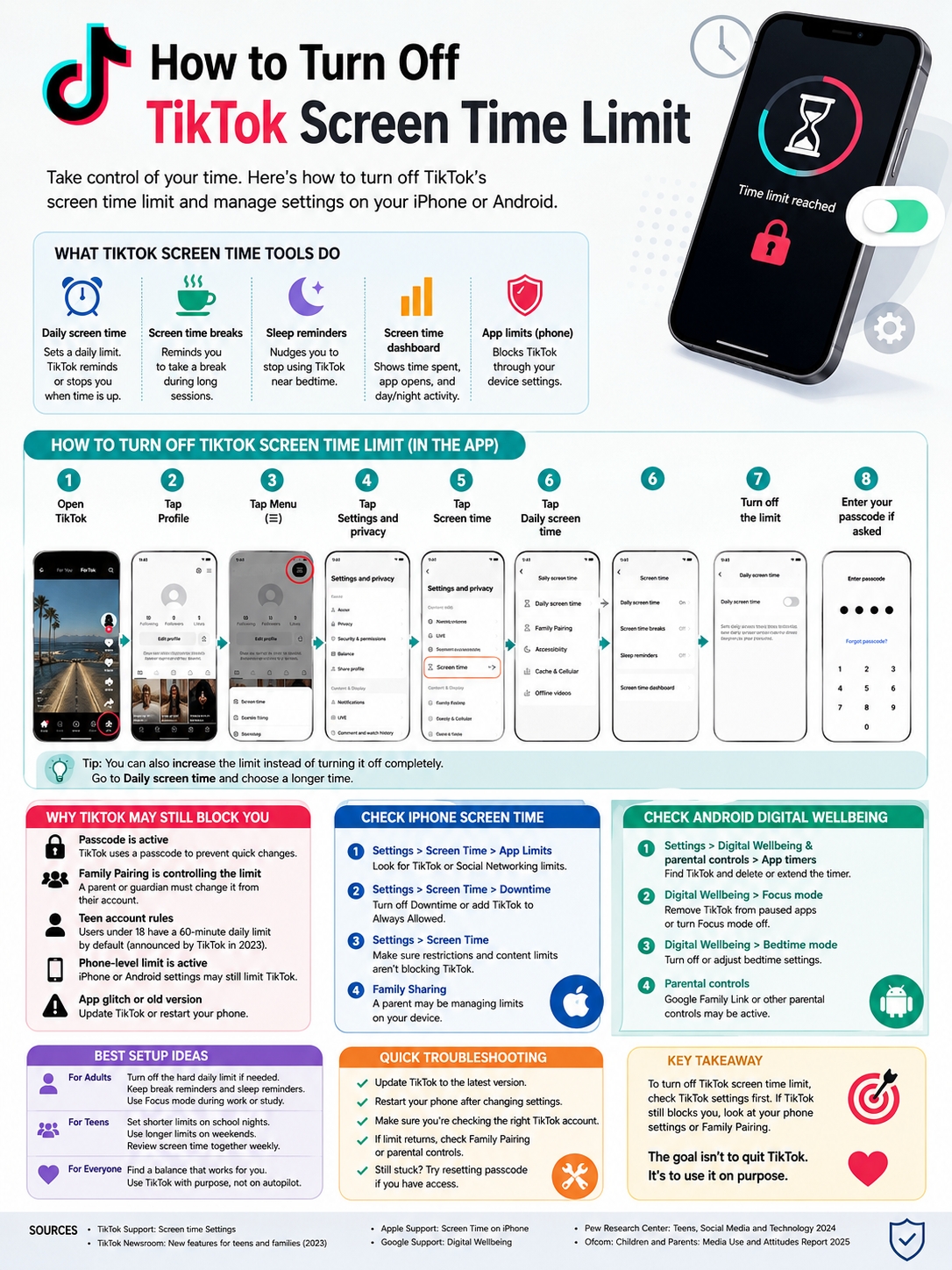
Here’s the easiest way to turn off tiktok screen time limit inside the app:
- Open the TikTok app.
- Tap Profile in the bottom-right corner.
- Tap the Menu ☰ button in the top-right corner.
- Tap Settings and privacy.
- Tap Screen time.
- Tap Daily screen time.
- Turn off the daily limit.
- Enter your screen time passcode if TikTok asks for it.
That should remove TikTok’s own daily screen time limit.
If the menu looks slightly different, update TikTok first. App layouts change from time to time. The wording may also vary by country, account type, app version, or age settings.
Still, the option should sit inside the Screen time section.
Change the Limit Instead of Removing It
You don’t have to turn the setting off completely.
Sometimes, raising the limit works better.
For example, maybe your current limit is 40 minutes. That may feel too short if you use TikTok for content research or social media work. Instead of switching it off, you can raise it to a longer time.
This gives you more room without removing the safety net.
A hard limit can feel annoying. A softer limit can still help you avoid endless scrolling.
Turn Off Screen Time Breaks
If TikTok only reminds you to take a break, the issue may not be Daily screen time.
It may be Screen time breaks.
To turn it off:
Profile > Menu ☰ > Settings and privacy > Screen time > Screen time breaks
From there, you can switch off the reminder or change how often it appears.
This setting is useful if you want a light nudge. But if you already manage your time another way, you may not need it.
Turn Off Sleep Reminders
If TikTok interrupts you mostly at night, check Sleep reminders.
Go to:
Profile > Menu ☰ > Settings and privacy > Screen time > Sleep reminders
You can turn the reminder off or adjust your sleep schedule.
Sleep reminders are different from Daily screen time. Turning off one does not always turn off the other.
That’s why it’s worth checking every screen time option before assuming the app has a bug.
Why TikTok Still Shows a Screen Time Message
|
Problem |
Likely cause |
Best fix |
|
TikTok still asks for a passcode |
Daily screen time is protected |
Enter the passcode or reset it if possible |
|
No option to turn it off |
Family Pairing may control the setting |
Ask the paired parent account to change it |
|
TikTok still locks on iPhone |
App Limits or Downtime may be active |
Check iPhone Screen Time |
|
TikTok still locks on Android |
App timer or Focus mode may be active |
Check Digital Wellbeing |
|
Alert appears only at night |
Sleep reminders may still be on |
Turn off Sleep reminders |
|
Limit returns again |
Teen settings or parent controls may apply |
Check account age and Family Pairing |
If TikTok still blocks you after you turn off Daily screen time, don’t keep changing the same setting. The limit may be coming from somewhere else.
This is the most common problem.
TikTok has its own screen time controls. Your phone has separate screen time controls. Parents can also set limits through Family Pairing or family safety tools.
So yes, you may have more than one TikTok limit active at the same time.
Read Also: How to See Who Shared Your TikTok Video
Family Pairing Can Control the Limit
TikTok’s Family Pairing feature lets a parent or guardian link their account to a teen’s account.
Through Family Pairing, adults can manage daily screen time, view a screen time dashboard, and control some safety settings.
If Family Pairing controls the limit, the teen usually cannot remove it from their own account. The parent or guardian has to change it from the paired account.
TikTok has also added custom screen time options for families. Parents can set different limits for different days. That means a teen may have one limit on school days and another on weekends.
So if the limit keeps coming back, Family Pairing is one of the first things to check.
Teen Accounts May See a 60-Minute Prompt
TikTok announced in 2023 that accounts for users under 18 would be set to a 60-minute daily screen time limit.
When teens reach that limit, TikTok asks them to enter a passcode to keep watching. For users in TikTok’s under-13 experience, a parent or guardian must enter or set a passcode to allow more watch time.
This doesn’t always mean TikTok is fully locked. It means TikTok wants the user to pause before continuing.
TikTok also said teens who opt out of the 60-minute default and spend more than 100 minutes on the app in a day may be prompted to set a daily screen time limit.
That’s why some teen users may see screen time prompts even if they don’t remember setting one up manually.
Check iPhone Screen Time If TikTok Still Locks
|
iPhone setting |
What it does |
Where to find it |
|
App Limits |
Sets daily limits for TikTok or app categories |
Settings > Screen Time > App Limits |
|
Downtime |
Blocks most apps during scheduled times |
Settings > Screen Time > Downtime |
|
Always Allowed |
Lets selected apps work during Downtime |
Settings > Screen Time > Always Allowed |
|
Family Sharing |
Lets parents manage a child’s Screen Time |
Settings > Family > Child profile |
|
Screen Time passcode |
Protects limits from quick changes |
Settings > Screen Time |
If you already turned off TikTok’s own limit and the app still locks, check your iPhone settings.
iPhone Screen Time can block TikTok at the system level. It can limit one app, a whole app category, or nearly all apps during Downtime.
That means TikTok can still stop working even when TikTok’s own screen time setting is off.
To remove a TikTok limit on iPhone:
- Open Settings.
- Tap Screen Time.
- Tap App Limits.
- Look for TikTok or a Social Networking limit.
- Tap the limit.
- Choose Delete Limit or turn it off.
- Enter the Screen Time passcode if asked.
Now check Downtime too.
Downtime can block apps during a set schedule, such as bedtime, school hours, or work hours.
To check it:
- Open Settings.
- Tap Screen Time.
- Tap Downtime.
- Turn off Downtime or change the schedule.
- Go to Always Allowed if you want TikTok to work during Downtime.
If your iPhone is part of a family account, a parent may control these settings through Apple Family Sharing. In that case, you may not be able to remove the limit yourself.
Check Android Digital Wellbeing If TikTok Still Stops You
|
Android setting |
What it does |
Where to find it |
|
App timers |
Limits daily use of TikTok |
Settings > Digital Wellbeing & parental controls |
|
Focus mode |
Pauses selected distracting apps |
Digital Wellbeing > Focus mode |
|
Bedtime mode |
Helps reduce phone use at night |
Digital Wellbeing > Bedtime mode |
|
Parental controls |
Lets parents manage app use |
Digital Wellbeing & parental controls |
|
App timer reset |
Resets daily limits at midnight |
Digital Wellbeing app timer settings |
Android has its own screen time tools too.
Google’s Digital Wellbeing can show your screen time, app opens, notifications, and app use. It also lets you set app timers. When an app timer runs out, Android closes the app and dims its icon. App timers usually reset at midnight.
To remove a TikTok timer on Android:
- Open Settings.
- Tap Digital Wellbeing & parental controls.
- Tap App timers or the usage dashboard.
- Find TikTok.
- Tap the timer.
- Delete the timer or set a longer one.
- Save the change.
You should also check Focus mode.
Focus mode can pause selected apps and block their notifications while it’s active.
To check Focus mode:
- Open Settings.
- Tap Digital Wellbeing & parental controls.
- Tap Focus mode.
- Remove TikTok from the paused apps list.
- Or turn Focus mode off.
Android menus are not identical on every phone. Samsung, Pixel, Xiaomi, Oppo, Vivo, and OnePlus may use different labels. Still, the setting usually appears under Digital Wellbeing, App timers, Focus mode, or Parental controls.
Should You Turn Off TikTok Screen Time Limit Completely?
|
Option |
Best for |
Possible downside |
|
Turn it off |
Adults, creators, marketers, researchers |
Easier to over-scroll |
|
Increase the limit |
People who need more time but still want boundaries |
Still interrupts later |
|
Keep break reminders |
Users who want soft nudges |
Easy to ignore |
|
Use phone-level limits |
Parents or users who want stronger control |
May block useful work sessions |
|
Use sleep reminders |
Night scrollers |
Only helps around bedtime |
You can turn off tiktok screen time limit, but think for a second before you do.
If TikTok is part of your job, turning off the hard limit makes sense. Social media managers, creators, marketers, journalists, researchers, and small business owners often need more time in the app.
But if TikTok mainly steals your sleep, focus, or study time, changing the limit may be better than removing it.
The app itself is not the full problem. Losing track of time is the problem.
TikTok can be useful. People use it for recipes, product reviews, tutorials, breaking trends, news clips, language learning, book recommendations, and niche communities.
So the smarter question is not, “Should I quit TikTok?”
It’s this:
“Which setting helps me use TikTok without letting it eat my day?”
A Better Setup for Adults
If you’re an adult and use TikTok often, try a balanced setup:
- Turn off the hard daily limit if it interrupts your work.
- Keep screen time breaks on.
- Use sleep reminders at night.
- Mute TikTok notifications during work hours.
- Use iPhone Focus or Android Focus mode when you need deep work.
- Review your weekly screen time once in a while.
This setup gives you freedom without removing every guardrail.
A Better Setup for Teens
For teens, turning off every limit may not be the best move.
A better setup can look like this:
- Shorter TikTok limit on school nights.
- Longer limit on weekends.
- Sleep reminders before bedtime.
- No TikTok during homework hours.
- Weekly screen time review with a parent.
- Clear rules instead of surprise restrictions.
Limits work better when people understand them. A quiet block with no explanation usually creates frustration. A simple conversation works better.
Troubleshooting TikTok Screen Time Problems
|
Issue |
What it usually means |
Fix |
|
“You’ve reached your time limit” still appears |
A device-level limit may be active |
Check iPhone or Android settings |
|
TikTok asks for a passcode |
Screen time settings are protected |
Enter the passcode or use the parent account |
|
Daily limit is off, but night alerts continue |
Sleep reminders are still active |
Disable Sleep reminders |
|
Limit applies only on some days |
Custom daily schedule may be active |
Check daily screen time settings |
|
Teen cannot turn it off |
Family Pairing may be active |
Parent account must change it |
|
TikTok menu looks different |
App version may be outdated |
Update TikTok |
When TikTok screen time settings get messy, start simple.
First, check TikTok’s own Screen time menu. Then check your phone settings. Then check Family Pairing or parental controls.
That order saves time.
Update TikTok
Open the App Store or Google Play Store and update TikTok.
Old app versions may show different menus. Newer versions may also fix bugs related to settings.
Restart Your Phone
Yes, it sounds basic. But it helps.
After changing screen time settings, restart your phone. This refreshes the app and the system-level limits.
Check the Right TikTok Account
If you manage more than one TikTok account, check the active account.
A screen time setting may be active on one account but not another. This is common for creators, agencies, and business users.
Check Parent or Family Controls
If the phone belongs to a child account, school-managed profile, or family-managed device, you may not control every setting.
On iPhone, parents can manage a child’s Screen Time through Family Sharing.
On Android, parents may manage limits through Digital Wellbeing, parental controls, or Google Family Link.
If those tools are active, you’ll need the parent or admin account to change the limit.
Final Thoughts
|
Main point |
What to remember |
|
TikTok has its own screen time setting |
Check Daily screen time inside TikTok |
|
Your phone can also block TikTok |
Check iPhone Screen Time or Android Digital Wellbeing |
|
Family Pairing may override teen settings |
A parent account may need to change the limit |
|
Passcodes are normal |
They stop quick limit changes |
|
Turning it off is optional |
Adjusting the limit may work better |
The easiest way to turn off tiktok screen time limit is to open TikTok and go to:
Profile > Menu ☰ > Settings and privacy > Screen time > Daily screen time
From there, turn off the limit and enter the passcode if TikTok asks for it.
If TikTok still blocks you, the problem is probably outside the app. Check iPhone Screen Time, Android Digital Wellbeing, Family Pairing, or parental controls.
For adults, turning off the limit can make sense if TikTok is part of work, content research, marketing, or creator activity. For teens, it’s usually better to adjust the limit with care instead of removing every boundary.
The goal is not to fear TikTok. The goal is to use it on purpose.
Keep the settings that help. Turn off the ones that get in your way.
FAQs About TikTok Screen Time Limit
|
Question |
Short answer |
|
Can I turn it off without a passcode? |
Usually no, not if a passcode protects it |
|
Is TikTok’s limit the same as iPhone Screen Time? |
No, they are separate |
|
Does Android have separate TikTok limits? |
Yes, through Digital Wellbeing app timers |
|
Can parents control TikTok time? |
Yes, through Family Pairing or device controls |
|
Does the limit reset daily? |
TikTok and device limits usually work as daily settings |
|
Can I keep sleep reminders but remove daily limits? |
Yes, they are separate settings |
Why can’t I turn off TikTok screen time limit?
You may not have permission.
If Family Pairing controls the account, the parent or guardian must change the setting. If iPhone Screen Time or Android Digital Wellbeing is active, TikTok may still be blocked even after you turn off TikTok’s own limit.
Can I turn off only Daily screen time but keep break reminders?
Yes.
Daily screen time, Screen time breaks, and Sleep reminders are separate tools. You can remove the hard daily limit and still keep reminders.
Does deleting TikTok remove the screen time limit?
Not always.
Deleting TikTok may remove some local app data, but it will not always remove account-level settings, Family Pairing settings, iPhone Screen Time limits, or Android app timers.
If the limit comes from your phone, it may return after you reinstall TikTok.
Why does TikTok ask teens for a passcode after 60 minutes?
TikTok announced a 60-minute daily screen time default for accounts under 18.
When teens reach that limit, TikTok asks for a passcode so they pause and make an active choice before continuing. For younger users in TikTok’s under-13 experience, a parent or guardian must allow extra watch time.
Can I turn off TikTok screen time limit from desktop?
Yes, TikTok says users can manage Daily screen time from web settings too.
On desktop, go through your profile settings, open Screen time, then choose Daily screen time.
Why does TikTok still stop me after I turned off the limit?
The limit may come from your phone, not TikTok.
Check:
- iPhone: Settings > Screen Time > App Limits or Downtime
- Android: Settings > Digital Wellbeing & parental controls > App timers or Focus mode
- TikTok: Family Pairing and Sleep reminders
Is it better to use TikTok’s limit or my phone’s limit?
Use TikTok’s limit if you want a light reminder inside the app.
Use iPhone Screen Time or Android Digital Wellbeing if you want stronger control. Phone-level settings are harder to ignore because they work outside TikTok too.