
Your iPhone is plugged in. The charging icon is showing. The cable looks fine. But the battery won’t move past 80%.
Annoying? Yes. A sign your iPhone is broken? Not always.
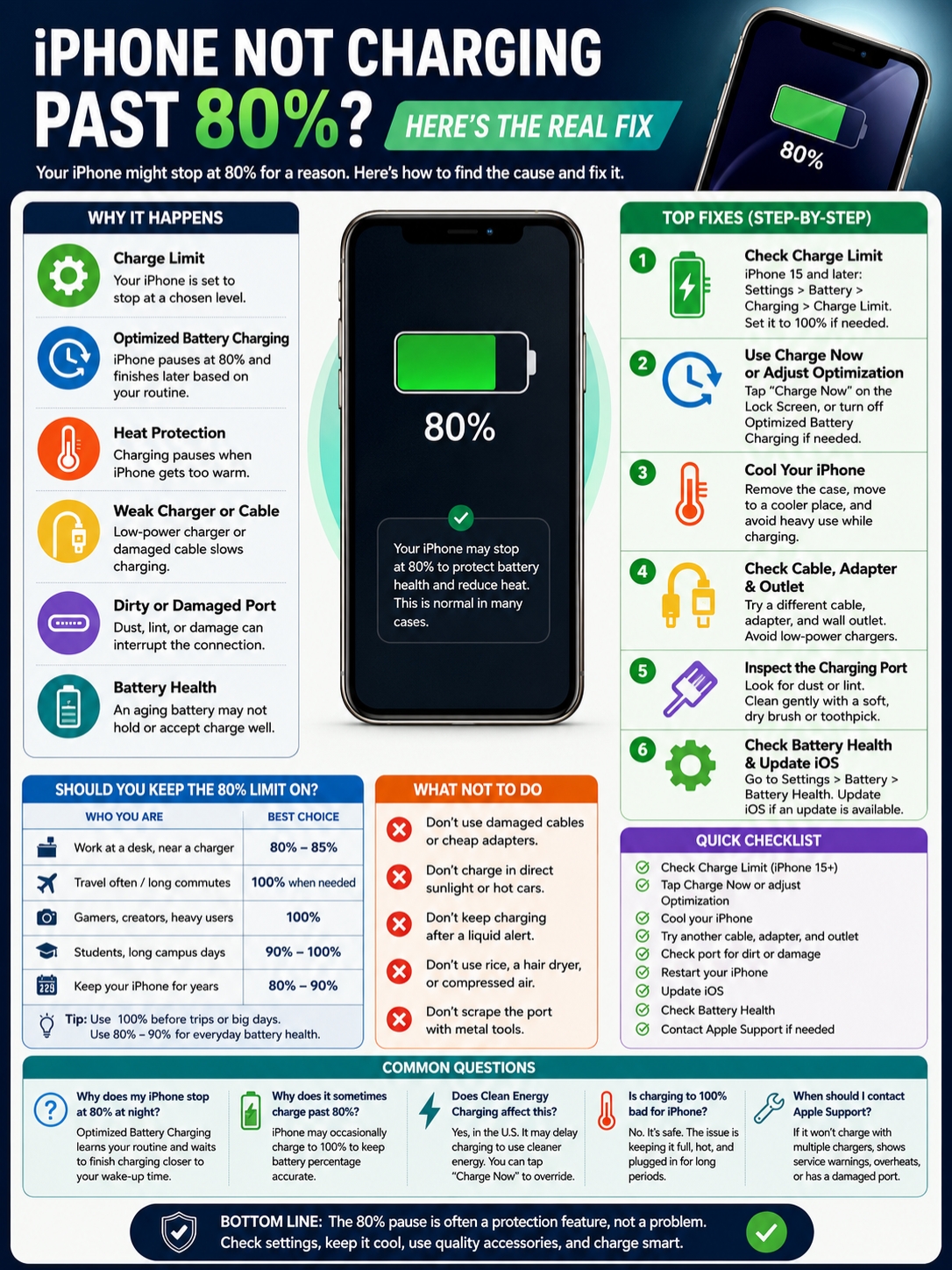
If you searched for iphone not charging past 80, there’s a good chance your phone is doing this on purpose. Apple has built several battery-protection features into iOS. Some pause charging at 80%. Some slow charging near the top. Some stop charging when the phone gets too warm.
That’s good for battery health. But it can be frustrating when you need a full charge before leaving home.
The trick is knowing what’s causing it. Is it Charge Limit? Optimized Battery Charging? Heat? A weak charger? A dirty charging port?
This guide breaks it down in plain English. You’ll learn what the 80% stop means, how to fix it, and when you should leave the setting alone.
Quick Diagnosis: Why Your iPhone Stops at 80%
|
Cause |
What’s Happening |
What to Try First |
|
Charge Limit |
Your iPhone is set to stop at a chosen battery level |
Go to Battery settings and change the limit |
|
Optimized Battery Charging |
iPhone pauses charging based on your routine |
Tap Charge Now or adjust the setting |
|
Heat |
iOS pauses charging to protect the battery |
Move the phone to a cooler place |
|
Weak charger |
The charger can’t deliver enough power |
Try another cable, adapter, or outlet |
|
Dirty charging port |
The cable connection is unstable |
Check the port carefully |
|
Battery aging |
The battery may be worn |
Check Battery Health |
The 80% mark isn’t random.
Apple says iPhone usually charges quickly up to about 80%. After that, it slows down. This helps reduce heat and stress on the battery.
So, slower charging after 80% is normal.
But if your iPhone sits at 80% for hours and never moves, something else may be going on.
iPhone Not Charging Past 80: What It Actually Means
|
What You Notice |
Likely Reason |
Should You Worry? |
|
Stops at 80% overnight, then reaches 100% later |
Optimized Battery Charging |
No |
|
Stops at 80%, 85%, 90%, or 95% every day |
Charge Limit |
No |
|
Stops at 80% and feels warm |
Heat protection |
Usually no |
|
Shows “Charging On Hold” |
Temperature issue |
Usually temporary |
|
Charges very slowly |
Weak charger or cable |
Easy to test |
|
Won’t charge with any cable |
Hardware, port, or battery issue |
Needs deeper checking |
When people say iphone not charging past 80, they usually mean one of these things:
- The phone pauses at 80% overnight.
- A charge limit is turned on.
- The phone is too hot.
- The charger or cable isn’t working well.
- The charging port has lint, dust, or damage.
- The battery needs service.
The first two are the most common.
Apple’s Optimized Battery Charging feature learns your daily charging habits. If your iPhone thinks it will stay plugged in for a long time, it may stop at 80% and finish charging closer to the time you usually unplug it.
That’s why this often happens at night.
It’s not a bug. It’s iOS trying to slow battery wear.
Still, if you need 100% now, you can override it.
Fix 1: Check Charge Limit on iPhone 15 and Later
|
Step |
What to Do |
|
1 |
Open Settings |
|
2 |
Tap Battery |
|
3 |
Tap Charging |
|
4 |
Check Charge Limit |
|
5 |
Set it to 100% if you need a full charge |
If you use an iPhone 15 or newer, start here.
Apple added Charge Limit controls to newer iPhones so users can choose where charging stops. You may see options such as 80%, 85%, 90%, 95%, and 100%.
If your iPhone is set to 80%, it will usually stop around 80%. That’s the whole point of the feature.
To change it:
- Open Settings.
- Tap Battery.
- Tap Charging.
- Find Charge Limit.
- Pick a higher limit or choose 100%.
That should fix the issue if your phone was simply following the limit.
Why does it sometimes go above 80% anyway?
This can look confusing.
Even with an 80% limit, your iPhone may occasionally charge to 100%. Apple says this helps keep the battery percentage reading accurate.
So, don’t worry if it happens once in a while. It doesn’t mean the setting is broken.
What charge limit should you use?
Here’s the practical answer:
Use 80% or 85% if you stay near a charger most of the day.
Use 100% if you travel, commute, shoot videos, use maps, play games, or need long battery life away from home.
Battery health matters. But your phone also needs to fit your day.
Fix 2: Use Charge Now or Turn Off Optimized Battery Charging
|
Option |
Best For |
What It Does |
|
Charge Now |
One-time full charge |
Keeps battery protection on |
|
Turn off Optimized Battery Charging |
Daily full charging |
Stops the 80% pause |
|
Keep it on |
Overnight charging |
Helps reduce battery wear |
Optimized Battery Charging is another major reason behind iphone not charging past 80.
This feature reduces the time your iPhone spends fully charged. That matters because staying at 100% for long periods can add wear to lithium-ion batteries.
When the feature is active, your iPhone may show a message on the Lock Screen telling you when it will finish charging.
If you need the battery full right away:
- Touch and hold the charging notification.
- Tap Charge Now.
That’s the best fix for one-time situations.
How to turn it off on iPhone 14 and earlier
- Open Settings.
- Tap Battery.
- Tap Battery Health & Charging.
- Turn off Optimized Battery Charging.
How to adjust it on iPhone 15 and later
- Open Settings.
- Tap Battery.
- Tap Charging.
- Change the charging option or charge limit.
I wouldn’t turn this off permanently unless it keeps getting in your way.
For most people, Optimized Battery Charging is useful. It works quietly in the background and helps protect battery health over time.
But if your schedule changes often, your iPhone may guess wrong. In that case, Charge Now is your friend.
Fix 3: Let Your iPhone Cool Down
|
Heat Trigger |
What to Do |
|
Charging in direct sunlight |
Move it to shade |
|
Thick phone case |
Remove the case while charging |
|
Gaming while plugged in |
Stop heavy use for a while |
|
Hot car |
Let the phone cool before charging |
|
Wireless charging heat |
Try wired charging |
|
Charging under a pillow or blanket |
Put it on a hard, open surface |
Heat is one of the biggest charging killers.
If your iPhone gets too warm, iOS may pause charging above 80%. You may also see a Charging On Hold message.
This is not random. It’s battery protection.
Heat speeds up battery wear. Apple’s guidance is clear: if the battery gets too warm, charging may stop until the temperature drops.
What to do when your iPhone feels warm
Try these simple steps:
- Remove the case.
- Put the phone on a cool table.
- Stop gaming, video recording, hotspot use, or navigation.
- Keep it away from sunlight.
- Don’t charge it in a hot car.
- Try a wired charger if wireless charging makes it hot.
- Keep it out from under pillows, blankets, or papers.
Don’t put your iPhone in a fridge or freezer. That can create moisture inside or around the device.
Let it cool naturally.
If your phone starts charging past 80% after it cools down, heat was probably the issue.
Fix 4: Check the Cable, Adapter, Outlet, and Charging Port
|
What to Check |
Warning Sign |
What to Do |
|
Cable |
Frayed, bent, or loose |
Try a different cable |
|
Adapter |
Very slow charging |
Use another power adapter |
|
Wall outlet |
Charging starts and stops |
Try another outlet |
|
Charging port |
Cable doesn’t sit firmly |
Check for debris |
|
Accessory alert |
“Not Supported” message |
Test another charger |
|
Liquid alert |
Liquid detected |
Unplug and dry the phone |
If battery settings look normal and your phone isn’t hot, check the charging setup.
Start with the cable. A damaged cable can still show the charging symbol but fail to deliver steady power.
Look for:
- Broken rubber
- Bent connector tips
- Burn marks
- Loose fit
- Charging that works only at one angle
Then check the adapter and outlet.
A weak charger can make your iPhone charge very slowly, especially after 80%. Newer iPhones may also show a Slow Charger message in Battery settings when the charger isn’t strong enough.
Try this:
- Use another cable.
- Use another wall adapter.
- Plug into a different wall outlet.
- Avoid cheap, damaged, or unknown accessories.
- Restart your iPhone and test again.
Read Also: How to Fix iPhone Overheating in 2026
Check the charging port
Use a flashlight and look inside the port.
Pocket lint is common. It can stop the cable from sitting properly.
If the cable feels loose or doesn’t click in, debris may be blocking the connection.
Be careful. Don’t use metal tools. Don’t scrape the inside of the port. If you’re not sure, get it cleaned by a professional.
Fix 5: Handle Liquid Alerts Safely
|
Situation |
Safe Move |
|
Liquid alert appears |
Unplug the cable |
|
Port may be wet |
Let it dry naturally |
|
Alert returns after 30 minutes |
Wait longer |
|
You need urgent charging |
Use wireless charging if the back is dry |
|
Alert keeps coming back |
Contact Apple Support |
Liquid can stop your iPhone from charging.
If iOS detects liquid in the connector, it may block charging to prevent damage. That’s a good thing. Charging through a wet port can corrode the connector pins.
If you see a liquid alert:
- Unplug the cable.
- Hold the iPhone with the connector facing down.
- Tap it gently to remove extra liquid.
- Leave it in a dry place with airflow.
- Wait at least 30 minutes.
- Try charging again.
If the alert returns, wait longer. Apple says it can take up to 24 hours for the connector to dry fully.
Also, skip the old rice trick.
Don’t use rice, a hair dryer, compressed air, cotton swabs, or paper towels inside the port. These can cause more damage.
Fix 6: Check Battery Health and iOS Updates
|
What to Check |
Where to Find It |
Why It Matters |
|
Battery Health |
Settings > Battery |
Shows battery condition |
|
Maximum Capacity |
Battery Health screen |
Shows how much capacity remains |
|
Peak Performance |
Battery Health screen |
Shows performance support |
|
Cycle Count |
Newer iPhones |
Shows battery use over time |
|
iOS update |
Settings > General > Software Update |
Fixes bugs and improves stability |
A worn battery usually doesn’t stop exactly at 80%. But it can cause slow charging, fast drain, shutdowns, or service warnings.
Apple says iPhone 14 models and earlier are designed to retain 80% of original capacity at 500 complete charge cycles under ideal conditions. iPhone 15 models are designed to retain 80% at 1,000 complete charge cycles under ideal conditions.
That doesn’t mean every battery will perform the same way. Heat, charging habits, heavy use, and age all matter.
To check Battery Health:
- Open Settings.
- Tap Battery.
- Tap Battery Health or Battery Health & Charging.
- Look for Maximum Capacity, Peak Performance, cycle count, or service messages.
Also check for iOS updates:
- Open Settings.
- Tap General.
- Tap Software Update.
Updates can fix charging bugs, battery reporting issues, and performance problems.
If your iPhone still won’t charge past 80% after all basic checks, Battery Health is a good place to look next.
Should You Keep the 80% Limit On?
|
User Type |
Best Charging Choice |
|
Desk worker near a charger |
80% or 85% |
|
Heavy traveler |
100% when needed |
|
Mobile photographer or creator |
100% before long sessions |
|
Student with long days |
90% or 100% |
|
User keeping the phone for years |
80% to 90% |
|
Yearly upgrader |
Optimized Battery Charging is usually enough |
The 80% limit is useful. But it’s not perfect for everyone.
If 80% gets you through the day, keeping that limit can help reduce long-term battery wear.
If 80% leaves you anxious, stuck with a power bank, or constantly hunting for outlets, raise the limit.
There’s no prize for suffering through low battery just to protect battery health.
A better routine looks like this:
- Use 80% or 85% on normal desk days.
- Use 100% before travel.
- Keep Optimized Battery Charging on overnight.
- Avoid heat whenever possible.
- Don’t let your iPhone sit dead for long periods.
- Use reliable chargers and cables.
That gives you a good balance between daily comfort and long-term battery care.
What Not to Do When Your iPhone Stops at 80%
|
Mistake |
Why It’s a Bad Idea |
|
Replacing the battery first |
The setting may be the real cause |
|
Using rice for liquid alerts |
Apple warns against it |
|
Charging while the port is wet |
It can cause corrosion |
|
Ignoring heat |
Heat can age the battery faster |
|
Using damaged cables |
Charging may become unstable |
|
Scraping the port with metal tools |
You can damage the connector |
|
Turning off all battery features |
You may increase battery wear |
When your iPhone stops at 80%, don’t jump straight to repairs.
Most cases are simple. A setting is active. The phone is warm. The charger is weak. The cable is loose. The port has lint.
Avoid these common mistakes:
- Don’t assume the battery is dead.
- Don’t buy a new charger before checking Battery settings.
- Don’t keep charging after a liquid warning.
- Don’t charge in direct sunlight.
- Don’t use a damaged cable.
- Don’t scrape the charging port.
- Don’t turn off every battery feature without a reason.
Fix the obvious things first. You’ll save time and money.
Quick Fix Checklist
|
Step |
What to Do |
|
1 |
Check Charge Limit on iPhone 15 or later |
|
2 |
Tap Charge Now if Optimized Battery Charging is active |
|
3 |
Move the phone to a cooler place |
|
4 |
Remove the case while charging |
|
5 |
Try another cable and adapter |
|
6 |
Check the charging port for lint or debris |
|
7 |
Restart your iPhone |
|
8 |
Update iOS |
|
9 |
Check Battery Health |
|
10 |
Contact Apple Support if the issue continues |
Here’s the order I’d follow:
First, check Charge Limit. This is the fastest fix on iPhone 15 and newer.
Next, check Optimized Battery Charging. If your phone is only pausing overnight, it may be working normally.
Then check heat. A warm phone can stop charging above 80% until it cools.
After that, test another cable, adapter, and outlet.
If nothing changes, check Battery Health and consider service.
That simple order covers most iphone not charging past 80 cases.
Final Thoughts
|
Main Cause |
Best Fix |
|
Charge Limit |
Change the limit in Battery settings |
|
Optimized Battery Charging |
Tap Charge Now or adjust the feature |
|
Heat |
Cool the phone and charger |
|
Weak charger |
Try another cable, adapter, or outlet |
|
Dirty port |
Check carefully for debris |
|
Battery issue |
Check Battery Health |
The iphone not charging past 80 issue looks worrying at first, but it’s usually easy to explain.
Start with Battery settings. If you use an iPhone 15 or later, check Charge Limit. If you use an older model, check Optimized Battery Charging.
Then look at heat, cable quality, the charging port, liquid alerts, iOS updates, and Battery Health.
In many cases, your iPhone is not broken. It’s trying to protect the battery.
That said, you’re still in control. Use 100% when you need every bit of power. Use 80%, 85%, or 90% when you want to reduce long-term wear and you know you’ll be near a charger.
The best setting is the one that keeps your phone useful today and healthy tomorrow.
Uncommon FAQs About iPhone Charging Past 80%
|
Question |
Quick Answer |
|
Can this happen without a bad battery? |
Yes |
|
Is 80% charging a defect? |
Usually no |
|
Can iPhone 15 stop at 80% on purpose? |
Yes |
|
Can heat stop charging above 80%? |
Yes |
|
Can Clean Energy Charging affect charging? |
Yes, but only in the U.S. |
|
Should I always charge to 100%? |
Only when you need it |
Why does my iPhone stop at 80% only at night?
Optimized Battery Charging is likely active. Your iPhone expects to stay plugged in for hours, so it waits before charging to 100%.
Why does my iPhone 15 stop at exactly 80%?
Charge Limit may be set to 80%. Go to Settings > Battery > Charging and choose a higher limit or 100%.
Why does my iPhone charge past 80% even with an 80% limit?
That can happen. Apple says iPhone may occasionally charge to 100% to keep the battery percentage reading accurate.
Can Clean Energy Charging stop my iPhone from charging?
Yes, but only in the United States. Clean Energy Charging can delay charging when cleaner electricity is expected to be available. You can override it from the Lock Screen by choosing Charge Now.
Does wireless charging make this worse?
It can. Wireless charging may create more heat, especially with thick cases or poor alignment. If your phone gets warm, try wired charging.
Is charging to 100% bad for iPhone?
No. Your iPhone is built to charge to 100%. The bigger issue is keeping it full, hot, and plugged in for long periods.
Should I drain my iPhone to 0% to fix charging?
No. You don’t need to drain your iPhone to fix this. Partial charging is fine.
When should I contact Apple Support?
Contact Apple Support if your iPhone won’t charge with multiple chargers, keeps overheating, shows repeated service warnings, has a damaged port, or keeps showing liquid alerts after drying.