
Chrome is still the browser many of us open first and blame first. One minute you’re checking email, editing a Google Doc, watching a YouTube video, and keeping 20 “important” tabs open. The next minute your laptop fan sounds like it’s preparing for takeoff.
That’s usually when people search for chrome high memory usage and hope there’s one magic switch that fixes everything.
There isn’t one switch, but there is a smart way to fix it. Chrome can use a lot of memory because modern websites are heavy, extensions run in the background, tabs stay alive, and Chrome separates many tasks into different processes for stability and security. High RAM use is not always bad. But when Chrome slows your computer, reloads tabs, freezes, or crashes, you need to find the real cause.
The good news is that Chrome now gives users better performance controls. Memory Saver can deactivate inactive tabs, Performance issue alerts can suggest quick fixes, and tab memory previews can help you spot heavy tabs faster.
|
Article Snapshot |
Details |
|
Main problem |
Chrome using too much RAM or slowing the computer |
|
Best first step |
Check Chrome Task Manager |
|
Best built-in fix |
Turn on Memory Saver |
|
Biggest hidden cause |
Heavy extensions and background tabs |
|
Best for |
Windows, macOS, Linux, and Chromebook users |
|
Difficulty level |
Beginner to intermediate |
Why Chrome Uses So Much Memory
Chrome is not just showing web pages anymore. It is running full web apps, video players, document editors, dashboards, AI tools, ads, trackers, extensions, and background services. That is why a simple browsing session can quietly turn into a memory-heavy workload.
Memory issues usually show up in a few ways. A page may get slower over time. A tab may use more memory than expected. Chrome may feel heavy even when only a few tabs are open.
Chrome Separates Tabs And Processes
Chrome often runs tabs, sites, extensions, and browser tasks in separate processes. This makes the browser more stable because one bad tab is less likely to crash everything. The tradeoff is that Windows Task Manager or macOS Activity Monitor may show many Chrome processes at once.
Modern Websites Behave Like Apps
A basic article page is light compared with Gmail, YouTube, Canva, Google Docs, Figma, Trello, Notion, Facebook, X, or AI chat tools. These services keep scripts, media, notifications, and live updates running. The longer they stay open, the more memory they may hold.
Extensions Add Another Layer
Extensions can be useful, but they are still extra software running inside the browser. Grammar checkers, ad blockers, shopping tools, VPN extensions, screenshot tools, password managers, and AI assistants can all add memory load.
|
Cause |
Why It Uses Memory |
What To Check |
|
Many tabs |
Each tab may run scripts, images, and trackers |
Chrome Task Manager |
|
Heavy web apps |
Web apps behave like desktop apps |
Gmail, Docs, Canva, dashboards |
|
Extensions |
Add-ons may run on many sites |
chrome://extensions |
|
Background apps |
Chrome may keep tasks alive after closing |
Chrome System settings |
|
Memory leaks |
A page keeps using more memory over time |
Reload tab or check DevTools |
Is Chrome High Memory Usage Always Bad?
Chrome using a lot of RAM is not automatically a disaster. RAM exists to be used. If your computer still feels smooth, high memory use may simply mean Chrome is keeping pages ready so they open quickly.
The problem starts when Chrome pushes your system into pressure. You may notice apps switching slowly, tabs reloading without warning, fan noise, battery drain, cursor lag, or repeated “Aw, Snap!” errors.
Normal Chrome Memory Usage
It is normal for Chrome to use more memory when you have many tabs open, stream video, join video calls, open large spreadsheets, use online design tools, or run several extensions. If you have 16GB or 32GB RAM, Chrome may use more memory simply because the system has room.
Read Also: How to Make Chrome Faster in 2026: Top Speed Tips
Problematic Chrome Memory Usage
It is more suspicious when Chrome uses a huge amount of RAM with only one or two tabs open. It is also a warning sign if memory keeps climbing over time without any new activity. That may point to a broken page, bad extension, profile issue, or memory leak.
Quick Reality Check
Do not fix the number only. Fix the behavior. If Chrome uses 3GB RAM but your computer feels fast, that may be fine. If Chrome uses 1.5GB RAM but your laptop freezes, that is a real problem.
|
Situation |
Normal Or Problem? |
Best Action |
|
20 tabs and video open |
Usually normal |
Use Memory Saver |
|
One tab using huge RAM |
Possible issue |
Check Chrome Task Manager |
|
RAM keeps rising over time |
Possible leak |
Reload or close tab |
|
Chrome slow after update |
Needs checking |
Restart and update again |
|
Unknown extension active |
Risky |
Disable or remove it |
Chrome High Memory Usage: First Check The Real Cause
Before changing every setting, find out what is actually eating memory. Guessing wastes time. Chrome has built-in tools that make this much easier.
Chrome Task Manager is one of the best places to start. It shows which tab, extension, or browser process is using the most memory.
Use Chrome Task Manager
Open Chrome and press Shift + Esc on Windows, Linux, or Chromebook. On Mac, go to the three-dot menu, choose More Tools, then Task Manager.
Sort the Memory footprint column. This shows which tab, extension, or process is using the most memory. If one tab looks unusually heavy, select it and click End process. Do this carefully because ending a tab can lose unsaved work.
Compare With System Task Manager
Chrome Task Manager shows what is happening inside Chrome. Your operating system shows the bigger picture. On Windows, press Ctrl + Shift + Esc. On Mac, open Activity Monitor. On Chromebook, use Search + Esc.
Watch For CPU Too
High memory and high CPU often show up together. A tab that uses a lot of CPU may also heat up your laptop and drain battery. Video sites, browser games, live dashboards, and poorly coded pages are common suspects.
|
Tool |
Best Use |
What To Look For |
|
Chrome Task Manager |
Find heavy tabs and extensions |
Memory footprint, CPU |
|
Windows Task Manager |
Check total system pressure |
RAM, CPU, disk |
|
macOS Activity Monitor |
Check memory pressure |
Memory, energy impact |
|
Chromebook Task Manager |
Find browser-heavy tasks |
Tabs, apps, extensions |
|
DevTools Performance Monitor |
Advanced page testing |
JS heap, CPU, DOM nodes |
Turn On Chrome Memory Saver
Memory Saver should be one of your first fixes in 2026. It is built into Chrome, easy to use, and safer than installing random “RAM cleaner” tools.
Memory Saver deactivates tabs you are not currently using, then reloads them when you return. Chrome also offers different tab deactivation levels, including Moderate, Balanced, and Maximum.
How To Enable Memory Saver
Open Chrome. Click the three-dot menu. Go to Settings. Choose Performance. Turn on Memory Saver.
After that, choose the deactivation level that fits your work style. If you keep many tabs open and use a low-RAM laptop, Maximum may help. If you hate tabs reloading too quickly, Balanced is a safer start.
Which Mode Should You Choose?
Moderate gives lighter memory savings and waits longer before deactivating tabs. Balanced gives a middle path. Maximum deactivates tabs faster and gives the strongest memory savings.
When Memory Saver Will Not Deactivate Tabs
Some tabs stay active because Chrome assumes they are doing something important. Active audio or video, calls, screen sharing, notifications, downloads, partially filled forms, pinned tabs, and connected devices may prevent deactivation.
|
Memory Saver Mode |
Best For |
Possible Downside |
|
Moderate |
Users who dislike tab reloads |
Smaller memory savings |
|
Balanced |
Most users |
Some tabs may reload |
|
Maximum |
Low-RAM laptops and heavy tab users |
More frequent reloads |
|
Always active sites |
Email, dashboards, music, work apps |
Too many exceptions reduce savings |
Use Chrome Performance Alerts And Tab Memory Previews
Chrome now gives more visible performance help than it used to. Instead of waiting for your laptop to choke, Chrome can warn you when performance drops and suggest deactivating tabs that are using extra resources.
This matters because many users do not know which tab is hurting performance. A visual alert can make the problem easier to catch.
Turn On Performance Issue Alerts
Go to Settings, then Performance. Performance issue alerts are usually enabled by default, but it is still worth checking if you changed Chrome settings earlier.
Use Tab Memory Usage Preview
Chrome can show memory usage when you hover over a tab. This is useful when you do not want to open Chrome Task Manager every time. It helps you spot heavy tabs faster.
Use “Fix Now” Carefully
If Chrome recommends deactivating tabs, review the tabs first. Do not deactivate a tab with unsaved work, an active form, or an important live session.
|
Feature |
What It Does |
Best Use |
|
Performance issue alerts |
Warns about performance problems |
Quick fixes |
|
Fix now |
Deactivates suggested tabs |
When Chrome slows down |
|
Tab memory preview |
Shows memory on tab hover |
Finding heavy tabs |
|
Inactive tab appearance |
Shows which tabs are inactive |
Managing many tabs |
|
Always active sites |
Keeps selected sites awake |
Email, calls, dashboards |
Clean Up Tabs Without Losing Your Workflow
Tabs are the biggest everyday reason behind Chrome RAM usage. Most people do not keep tabs open because they need them now. They keep them open because they are afraid they will forget them.
That habit turns Chrome into a messy to-do list.
Close Tabs You Do Not Need Today
If a tab is not needed in the next hour, save it. Bookmark it, add it to Reading List, paste it into a note, or group it with a clear label. Keeping it open for three days is not productivity. It is memory rent.
Use Tab Groups
Tab groups help when you work across multiple projects. You can group research tabs, writing tabs, shopping tabs, and client tabs separately. This makes it easier to close a full group when the task is done.
Restart Long-Running Tabs
Some web apps get heavier the longer they stay open. If a Gmail, Docs, dashboard, or social media tab has been open all day, reload it. This often clears temporary memory without closing your whole browser.
|
Tab Habit |
Better Option |
Why It Helps |
|
Keeping everything open |
Use bookmarks or Reading List |
Frees memory |
|
Mixing all tasks |
Use tab groups |
Reduces clutter |
|
Leaving apps open all day |
Reload heavy apps |
Clears temporary buildup |
|
Pinning too many tabs |
Pin only essentials |
Avoids permanent load |
|
Using tabs as reminders |
Use a task app |
Keeps browser lighter |
Remove Heavy Or Unused Extensions
Extensions are easy to install and easy to forget. That is why they deserve a regular cleanup. A browser with 25 extensions is not the same browser you installed.
Some extensions run only when clicked. Others can read and change data on websites, run background scripts, or check pages automatically. That can add memory usage even when you are not thinking about them.
Review Your Extensions
Type chrome://extensions into the address bar. Look at every extension. If you do not recognize it, disable it first. If nothing breaks after a day or two, remove it.
Test Extensions One By One
If chrome high memory usage started recently, disable the newest extensions first. Restart Chrome and check memory again. This simple test often finds the problem faster than reinstalling the browser.
Be Careful With Extension Permissions
Extensions that run on every website can have a bigger impact than extensions that work only when clicked. Keep tools you truly use. Remove old coupon finders, abandoned screenshot tools, duplicate grammar tools, and random tab managers.
|
Extension Type |
Memory Risk |
What To Do |
|
Grammar tools |
Medium to high |
Keep one trusted tool |
|
Coupon extensions |
Medium |
Remove if rarely used |
|
VPN extensions |
Medium |
Use only when needed |
|
AI assistants |
Medium to high |
Disable when not needed |
|
Tab managers |
Varies |
Avoid stacking multiple tools |
|
Unknown extensions |
High |
Remove immediately |
Adjust Chrome Settings That Affect Memory
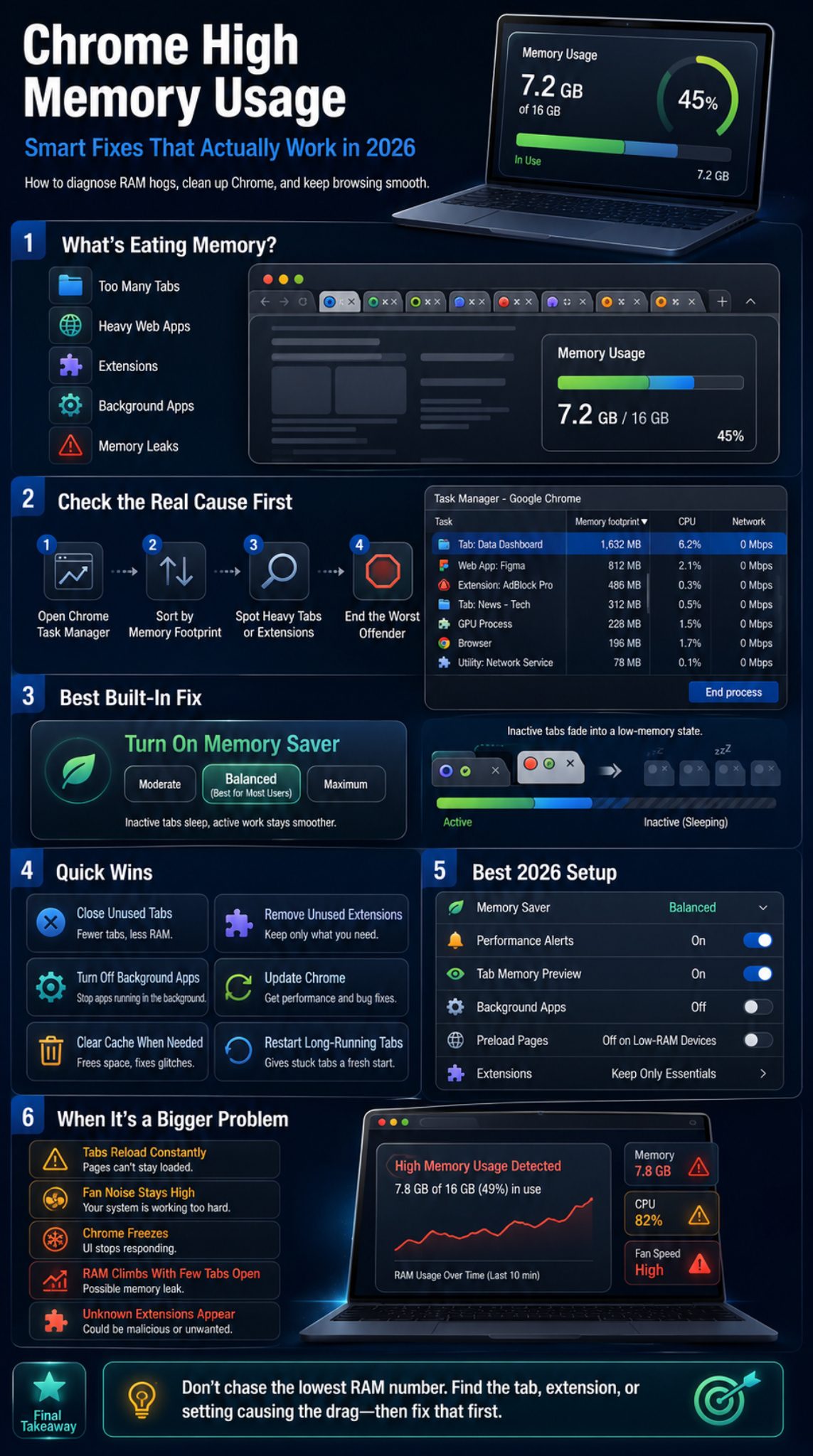
Some Chrome settings are designed for speed and convenience, but they can use more resources. You do not need to turn everything off. You just need to match the settings to your device.
Preloading can make pages open faster, but it may use extra memory and network activity. If your system has limited RAM, you may want to reduce or disable it.
Turn Off Background Apps
Go to Settings, then System. Turn off “Continue running background apps when Google Chrome is closed.” This helps when Chrome still appears in system memory after you close all browser windows.
Review Preload Pages
Preloading can make pages open faster, but it may use extra memory and network activity. If your computer has low RAM, turn it off or use the lighter option.
Test Graphics Acceleration
Graphics acceleration can help video, scrolling, gaming, and visual-heavy websites. But on some systems, it can cause freezing, flickering, or GPU-related issues. Toggle it only if you see those symptoms, then relaunch Chrome.
|
Setting |
Recommended Choice |
Reason |
|
Memory Saver |
Balanced first |
Good default |
|
Background apps |
Off for most users |
Stops hidden Chrome activity |
|
Preload pages |
Off on low-RAM systems |
Saves resources |
|
Graphics acceleration |
Test both ways |
Depends on device |
|
Performance alerts |
On |
Helps catch issues early |
Clear Cache, Site Data, And Bad Browser Buildup
Clearing cache is not a magic RAM fix. It helps in specific cases. If Chrome feels broken, a site loads strangely, or a tab keeps misbehaving after reloads, cached files or site data may be part of the problem.
Clear Cache First
Start with cached images and files. This is less disruptive than clearing all cookies. Clearing cookies can sign you out of websites, reset preferences, and create extra work.
Clear Site Data For One Problem Website
If only one site is causing trouble, clear data for that site only. This is cleaner than wiping the whole browser.
Avoid Daily Cache Cleaning
Some users clear cache every day hoping Chrome will stay light. That can backfire. Cache helps pages load faster. If you delete it constantly, Chrome has to download the same files again.
|
Cleanup Option |
When To Use |
Risk |
|
Clear cache |
Site glitches or bloated files |
Low |
|
Clear cookies |
Login or session problems |
Signs you out |
|
Clear one site’s data |
One bad website |
Low to medium |
|
Reset Chrome |
Persistent browser issues |
Disables settings/extensions |
|
Reinstall Chrome |
Last resort |
More time-consuming |
Update Chrome And Restart The Browser Properly
Chrome updates matter because performance, stability, and security fixes arrive often. Chrome usually receives regular updates, including major version updates and smaller security refreshes.
Keeping Chrome updated helps reduce bugs, security risks, and browser glitches that may affect speed or memory.
How To Update Chrome
Click the three-dot menu. Go to Help, then About Google Chrome. Let Chrome check for updates. If an update is available, install it and relaunch.
Restart Chrome Fully
Closing the window is not always the same as fully stopping Chrome, especially if background apps are enabled. Quit Chrome completely, then reopen it.
Restart Your Computer
If memory is not being released even after closing Chrome, restart your computer. This clears stuck processes and gives you a clean baseline.
|
Maintenance Step |
How Often |
Why It Helps |
|
Check Chrome updates |
Weekly or when slow |
Gets fixes |
|
Relaunch Chrome |
After updates |
Applies changes |
|
Restart computer |
When system feels stuck |
Clears memory |
|
Review extensions |
Monthly |
Removes hidden load |
|
Check Memory Saver |
After Chrome updates |
Settings may change |
Check For Malware, Pop-Ups, And Browser Hijackers
Not every memory issue is malware. Most are caused by normal tabs, extensions, or heavy sites. But if Chrome opens strange pages, shows random pop-ups, changes your search engine, or installs unknown extensions, treat it seriously.
Unwanted software can force ads, redirects, background scripts, and tracking behavior. That can increase memory use and make Chrome feel unstable.
Warning Signs
Look for new toolbars, unknown extensions, changed homepage, unfamiliar search engine, constant pop-ups, redirect loops, or Chrome launching by itself.
What To Do First
Remove suspicious extensions. Change your search engine back. Check startup pages. Run a trusted security scan using your operating system or a reputable security tool.
Reset Chrome If Needed
Resetting Chrome can fix settings changed by unwanted software. It should not be your first move, but it is useful when the browser feels hijacked.
|
Symptom |
Possible Cause |
Best Fix |
|
Random pop-ups |
Adware or bad permissions |
Remove extensions, scan device |
|
Search engine changed |
Browser hijacker |
Reset search settings |
|
Unknown extension |
Unwanted software |
Remove immediately |
|
Chrome opens by itself |
Background process or malware |
Disable background apps, scan |
|
Redirects |
Bad extension or site setting |
Reset Chrome settings |
Match Chrome To Your Computer’s RAM
Sometimes Chrome is not the only issue. The real problem is that your computer does not have enough memory for your workflow.
A 4GB laptop can still browse the web, but it will struggle with many tabs, video calls, office apps, and cloud sync running together. An 8GB laptop can work well with discipline. A 16GB machine is much more comfortable for modern multitasking. A 32GB setup is better for creators, developers, researchers, and people who keep many apps open.
Practical RAM Guidance For 2026
For light browsing, 8GB can still work. For remote work, content writing, research, video calls, and online tools, 16GB feels much safer. For editing, development, heavy research, and multiple browsers, 32GB gives more breathing room.
Do Not Blame Chrome Alone
If your antivirus, cloud sync, messaging apps, design software, and video meeting app are also open, Chrome may simply be one part of a crowded system.
Use Browser Profiles Carefully
Multiple Chrome profiles can multiply extensions, sync services, and background tasks. Keep separate profiles only when they help your workflow.
|
RAM Size |
2026 Browsing Experience |
Best Advice |
|
4GB |
Basic browsing only |
Use fewer tabs |
|
8GB |
Usable but limited |
Use Memory Saver |
|
16GB |
Good for most users |
Clean extensions monthly |
|
32GB |
Strong for heavy multitasking |
Still manage tabs |
|
64GB+ |
Creator/developer level |
Watch heavy web apps |
Advanced Checks For Developers And Power Users
Most readers do not need DevTools, but advanced users can go deeper. This is useful if one website keeps getting slower the longer it stays open.
Chrome DevTools includes performance tools that can help track CPU usage, JavaScript heap size, DOM nodes, event listeners, documents, frames, and layout activity.
Check For Memory Leaks
A memory leak happens when a page keeps holding memory it no longer needs. You may notice the page getting slower over time. Reloading helps temporarily, but the issue returns.
Use Performance Monitor
Open DevTools, use the Command menu, search for Performance monitor, and watch CPU usage and JavaScript heap size while using the page. If the numbers keep rising during simple actions, the site may have a performance problem.
Use A Clean Chrome Profile
Create a new Chrome profile without syncing extensions. Open the same websites. If the new profile is much lighter, your old profile likely has extension, setting, cache, or sync clutter.
|
Advanced Tool |
Best For |
Skill Level |
|
DevTools Performance Monitor |
Watching live page metrics |
Intermediate |
|
Heap snapshots |
Finding memory leaks |
Advanced |
|
Clean Chrome profile |
Testing profile problems |
Beginner |
|
Incognito mode |
Testing without most extensions |
Beginner |
|
System logs |
Deeper device issues |
Advanced |
Common Mistakes That Make Chrome Slower
Many users make Chrome heavier while trying to make it faster. The wrong fix can waste time or create new problems.
Installing RAM Cleaner Extensions
Avoid random memory cleaner extensions. Chrome already has Memory Saver. Adding another extension to reduce extension-related memory problems is not a great plan.
Clearing Everything Too Often
Clearing cache daily may make websites load slower. It also does not fix bad tab habits, broken extensions, or memory leaks.
Keeping Too Many Always-Active Sites
Chrome lets you keep specific sites active, which is useful for important background work. But if you add too many sites, you weaken Memory Saver.
Ignoring The Real Culprit
Do not blame Chrome as a whole when one tab or one extension is the real issue. Chrome Task Manager usually tells the story.
|
Mistake |
Why It Hurts |
Better Choice |
|
Installing RAM cleaner extensions |
Adds more browser load |
Use Memory Saver |
|
Clearing cache daily |
Slows repeat visits |
Clear only when needed |
|
Pinning too many tabs |
Keeps clutter permanent |
Pin only essentials |
|
Ignoring Task Manager |
Misses real cause |
Sort by memory |
|
Resetting too early |
Creates extra work |
Diagnose first |
Best Chrome Setup For Lower Memory Usage In 2026
A good setup should feel practical, not extreme. You do not need to make Chrome bare and boring. You need to stop waste.
Recommended Setup
Turn on Memory Saver and start with Balanced. Keep Performance issue alerts on. Enable tab memory usage preview if you often troubleshoot slow tabs. Turn off background apps if Chrome stays active after closing. Review extensions monthly.
Recommended Tab Rules
Keep active tabs for active work. Save everything else. Use tab groups for projects, but close the group when the project is done.
Recommended Extension Rules
Use fewer extensions, but better ones. Remove duplicates. Keep only tools you trust and actually use.
|
Area |
Best Setting Or Habit |
Who Needs It Most |
|
Memory Saver |
Balanced |
Everyone |
|
Performance alerts |
On |
Most users |
|
Tab memory preview |
On while troubleshooting |
Heavy tab users |
|
Background apps |
Off |
Low-RAM users |
|
Extensions |
Minimal |
Everyone |
|
Preload pages |
Off or Standard |
Low-RAM laptops |
Final Thoughts
Chrome high memory usage is annoying, but it is not always a sign that something is broken. Sometimes Chrome is doing normal browser work. Sometimes one tab, one extension, or one setting is causing the whole problem.
Start with Chrome Task Manager. Turn on Memory Saver. Keep Performance alerts enabled. Clean up extensions. Close tabs you do not need. Turn off background apps if Chrome keeps running after you close it. Clear cache only when it makes sense. Update Chrome regularly.
The best fix is not to force Chrome to use the lowest memory possible. The better goal is simple: keep Chrome fast, stable, and predictable while you work.
Uncommon FAQs About Chrome High Memory Usage
Why Does Chrome Use More Memory After I Open Gmail Or Google Docs?
Gmail and Google Docs are web apps, not simple pages. They keep scripts, autosave, notifications, document state, and account data active. If you leave them open all day, memory use can grow.
Why Do My Chrome Tabs Reload Even When I Did Not Close Them?
Chrome may reload tabs when your system is low on memory or when Memory Saver deactivates inactive tabs. If this happens too often, use Balanced instead of Maximum or add essential sites to the always-active list.
Can Too Many Bookmarks Cause Chrome High Memory Usage?
Bookmarks usually do not cause major RAM usage by themselves. Extensions, active tabs, synced profiles, and heavy web apps are much more likely causes.
Does Incognito Mode Reduce Chrome Memory Usage?
Incognito can help with testing because many extensions are disabled there by default. But Incognito is not a full memory fix. If you open the same heavy websites, they can still use plenty of RAM.
Why Does Chrome Use Memory After I Close The Window?
Chrome may keep background apps or extensions running after the window closes. Turn off background apps in Chrome’s System settings and check your extensions.
Should I Switch To Another Browser?
Try the fixes first. Many browsers now use Chromium, so switching may not solve the same tab and extension habits. Switching makes sense if Chrome still crashes after cleanup, reset, and profile testing.