
A windows update stuck downloading issue can make a normal day feel unnecessarily stressful. One moment your PC is working fine, and the next moment Windows Update is frozen at 0%, 35%, 99%, or 100%. You keep staring at the same number, hoping it moves. It does not.
The good news is that most Windows Update problems do not need a full Windows reinstall. In many cases, the cause is simple: weak internet, low storage, a paused service, damaged update files, or a temporary Microsoft update issue. The smarter move is to start with safe fixes first and only try advanced repair steps if the basic ones fail.
This guide walks you through seven practical fixes for Windows Update stuck downloading problems. The steps apply to both Windows 11 and Windows 10, although some settings may look slightly different. You will also learn what causes the issue, what not to do, and when it may be better to wait for Microsoft to release a fix.
Quick Answer: What Should You Try First?
When Windows Update freezes, do not jump straight into complicated commands. Start with the basics. Restart your PC, check your internet connection, make sure your system drive has enough free space, and then run the Windows Update troubleshooter.
Microsoft also recommends simple first steps such as restarting the PC and checking the internet connection when Windows Update appears stuck at 0% or 100%. These basic checks often solve the problem because another app, service, or connection issue may be blocking the update process.
|
Situation |
Best First Step |
Why It Helps |
|
Update stuck at 0% |
Check internet and restart PC |
The download may not have started properly |
|
Update stuck at 100% |
Wait, restart, and check again |
Windows may still be preparing files |
|
Update keeps failing |
Run Windows Update troubleshooter |
It can detect common update issues |
|
Update downloads again and again |
Clear update cache |
Old update files may be damaged |
|
PC has low storage |
Free up space on C: drive |
Updates need space to download and install |
The Safest Order to Follow
Use this order before trying advanced fixes:
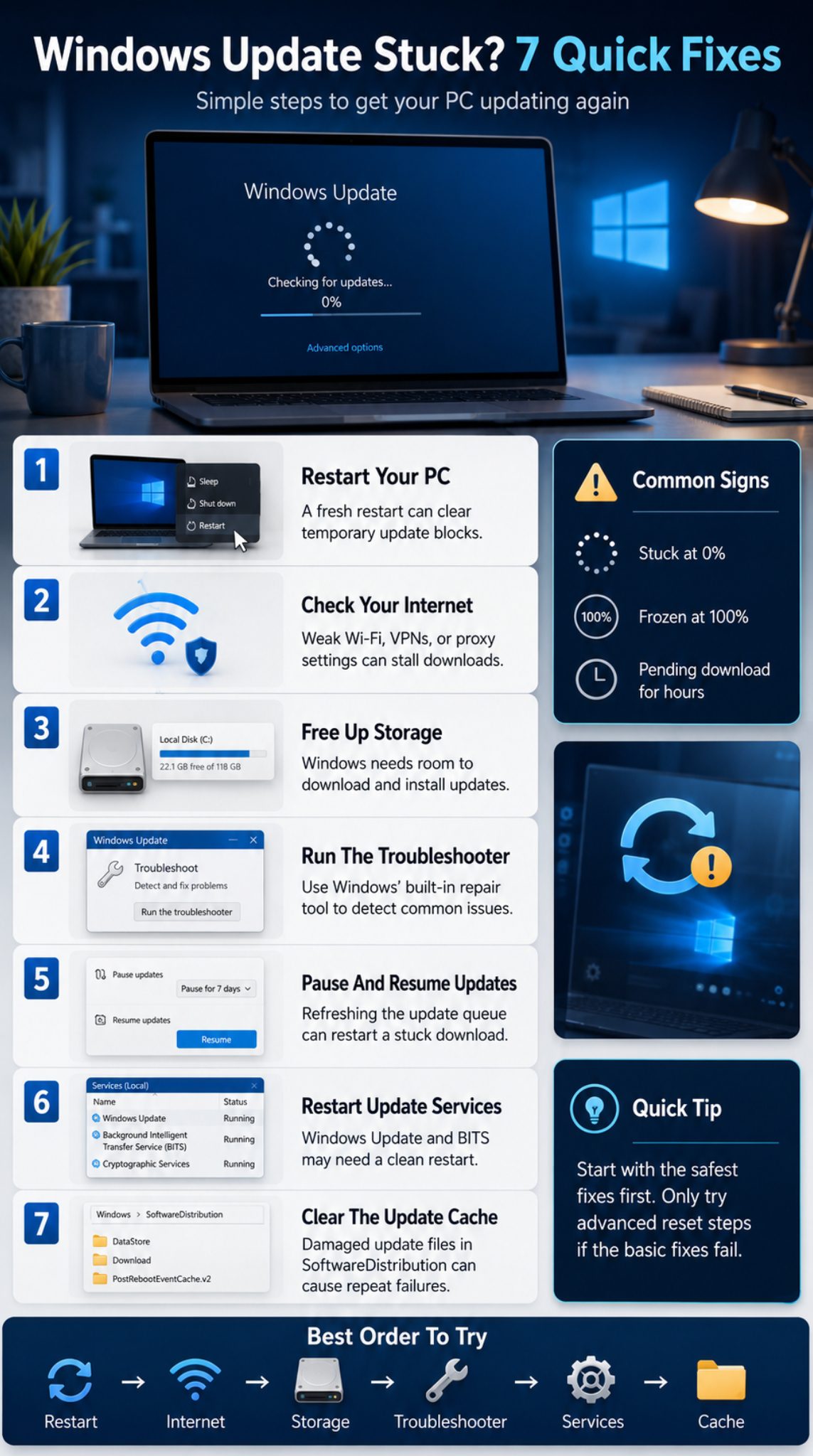
- Restart the PC.
- Check Wi-Fi, Ethernet, VPN, and proxy settings.
- Free up storage space.
- Run the Windows Update troubleshooter.
- Pause and resume updates.
- Restart update services.
- Clear the Windows Update cache.
This order matters. It keeps the process safe and avoids unnecessary changes to system files.
Why Does Windows Update Get Stuck Downloading?
Windows Update is not just one download button. It checks your device, contacts Microsoft’s update servers, downloads files, verifies them, prepares the installation, and then applies changes. If one part of that chain breaks, the update can look frozen.
Sometimes the problem is local. Your internet may drop, your C: drive may be too full, or the Windows Update service may stop responding. Other times, the problem is connected to a specific update that Microsoft later confirms as a known issue.
|
Possible Cause |
What It Looks Like |
Common Fix |
|
Weak internet |
Download stuck at 0% or very slow |
Restart router, disable VPN |
|
Low storage |
Update fails or refuses to install |
Free up drive space |
|
Damaged cache |
Same update downloads repeatedly |
Clear SoftwareDistribution files |
|
Stopped services |
Update does not start |
Restart Windows Update services |
|
Known Microsoft issue |
Error after reboot or rollback |
Check release health page |
Common Reasons Behind a Stuck Update
A Windows Update download can freeze for several reasons:
- Unstable Wi-Fi or slow internet
- VPN or proxy conflict
- Not enough free disk space
- Corrupted update cache
- Windows Update service not responding
- Background Intelligent Transfer Service problem
- Antivirus or firewall interference
- Damaged system files
- Driver conflict
- Known update bug
A stuck download does not always mean your PC is broken. It often means Windows cannot complete one part of the update process.
Is It Really Stuck or Just Slow?
This is important. Some updates sit at the same percentage for a long time, especially large feature updates. If your PC is still responsive and the disk light, CPU usage, or network activity is moving, the update may still be working.
But if the same percentage has not changed for hours, the PC is responsive, and there is no visible activity, troubleshooting makes sense. Do not force shutdown during an active installation screen unless the PC is clearly frozen for a long time.
Before You Start: Do These Safety Checks
Before fixing a windows update stuck problem, take a few basic safety steps. They only take a minute, but they can save you from losing work or making the issue worse.
Save your open files, close unnecessary apps, and plug in your laptop. Updates can take longer than expected, and a laptop dying in the middle of a system update is never fun.
|
Safety Check |
Why It Matters |
|
Save all open files |
Prevents data loss during restart |
|
Plug in laptop |
Avoids power failure during update |
|
Check C: drive space |
Updates need temporary storage |
|
Avoid random cleanup tools |
Reduces risk of deleting system files |
|
Do not force shutdown quickly |
Prevents update rollback or corruption |
Check Your Windows Version
Go to:
Settings > System > About
This tells you whether you are using Windows 11 or Windows 10. It also shows your version and system type. This matters because troubleshooting paths and update support can differ.
Microsoft states that Windows 10 reached end of support on October 14, 2025, and the final feature update for Windows 10 is version 22H2. Windows 10 devices can behave differently depending on support status and update eligibility.
Avoid Risky System Changes
Do not delete random Windows folders. Do not install unknown “update repair” tools from random websites. Do not edit the registry unless a trusted source clearly explains the step and you understand the risk.
The fixes below start with normal Windows settings first. Command-line and cache-reset steps come later because they need more care.
Fix 1: Restart Your PC and Check Windows Update Again
A restart sounds too simple, but it works more often than people expect. Windows updates can get blocked by background apps, pending restarts, locked files, or services that did not start correctly.
Microsoft recommends restarting the PC when Windows Update is stuck because another application or process may be blocking the update.
|
Step |
What to Do |
|
1 |
Save your work |
|
2 |
Click Start |
|
3 |
Select Power |
|
4 |
Choose Restart |
|
5 |
Open Windows Update |
|
6 |
Click Check for updates |
How to Restart Properly
Use the normal restart option instead of holding the power button. Go to:
Start > Power > Restart
After the restart, open:
Settings > Windows Update > Check for updates
If the update starts downloading again, let it run. It may restart from 0%, but that does not always mean failure. Windows may simply be downloading a fresh copy.
When This Fix Works Best
Restarting helps when the update is stuck after sleep mode, after a failed install, or after a long period of PC uptime. It also helps if Windows says “Pending restart” or “Pending download.”
If the update freezes again at the same point, move to the next fix.
Fix 2: Check Your Internet Connection and Disable VPN Temporarily
Windows Update depends on a stable connection. A browser may still load websites while Windows Update struggles in the background. That can happen when a VPN, proxy, DNS setting, or weak Wi-Fi signal interrupts Microsoft update downloads.
Microsoft’s Windows Update troubleshooting guidance also lists checking the internet connection as a recommended step when updates are stuck at 0% or 100%.
|
Connection Issue |
What to Try |
|
Weak Wi-Fi |
Move closer to router |
|
VPN enabled |
Turn it off temporarily |
|
Proxy enabled |
Disable manual proxy |
|
Slow connection |
Restart router |
|
Public network |
Switch to trusted private network |
Run a Quick Connection Check
Open a browser and load a few websites. Then try downloading a small file. If everything feels slow, restart your router and reconnect.
You can also switch from Wi-Fi to Ethernet if possible. Ethernet is usually more stable for large update downloads.
Read Also: How to Fix Windows 11 Black Screen After Login
Turn Off VPN or Proxy for a Short Time
VPNs are useful, but they can sometimes slow or block Windows Update. Turn off your VPN temporarily and try Windows Update again.
To check proxy settings:
Settings > Network & Internet > Proxy
If you do not use a proxy, make sure manual proxy is turned off.
Check Metered Connection Settings
Windows may delay some downloads on metered connections. Go to:
Settings > Network & Internet > Wi-Fi or Ethernet > Network Properties
If Metered connection is turned on, turn it off temporarily while updating.
Fix 3: Free Up Storage Space on Your System Drive
Low storage is one of the most common reasons Windows Update gets stuck, fails, or keeps retrying. Windows needs space not only to download updates but also to unpack, verify, and install them.
Microsoft says feature updates typically need 6 GB to 11 GB or more free space, while quality updates typically need 2 GB to 3 GB or more. The actual requirement depends on the update and device.
|
Update Type |
Typical Free Space Needed |
Notes |
|
Quality update |
2 GB to 3 GB or more |
Usually monthly security and bug fixes |
|
Feature update |
6 GB to 11 GB or more |
Larger Windows version updates |
|
Driver update |
Varies |
Usually smaller, but can still fail |
|
Failed retry |
Extra space may be used |
Old update files can pile up |
How to Check Free Space
Open File Explorer and click This PC. Look at the C: drive. If the bar is red or nearly full, free up space before trying the update again.
You can also go to:
Settings > System > Storage
This view shows temporary files, apps, downloads, and other storage categories.
Safe Ways to Free Up Space
Try these first:
- Empty Recycle Bin
- Delete old files from Downloads
- Move videos and photos to external storage
- Uninstall apps you do not use
- Remove temporary files from Storage settings
- Turn on Storage Sense
- Delete old Windows Update temporary files
Microsoft also recommends deleting files you do not need, uninstalling unused apps, or moving files to another drive when there is not enough disk space for an update.
Use External Storage If Needed
If your device has very limited storage, an external USB drive may help complete some updates. Microsoft notes that Windows may let users use an external storage device when more space is needed for a feature update.
Still, try to keep some free space on the internal C: drive. Windows needs working room even when external storage is attached.
Fix 4: Run the Windows Update Troubleshooter
The Windows Update troubleshooter is built into Windows. It checks common update problems and tries to fix them automatically. It is not magic, but it is safe and worth trying before manual repair.
Microsoft’s support page recommends going to Settings, running the Windows Update troubleshooter, restarting the device, and then checking for updates again.
|
Windows Version |
Troubleshooter Path |
|
Windows 11 |
Settings > System > Troubleshoot > Other troubleshooters |
|
Windows 10 |
Settings > Update & Security > Troubleshoot > Additional troubleshooters |
|
After running |
Restart PC and check for updates |
Steps for Windows 11
Go to:
Settings > System > Troubleshoot > Other troubleshooters
Find Windows Update and click Run. Let it finish. Restart the PC after the troubleshooter completes, even if it says no major problem was found.
Then go to:
Settings > Windows Update > Check for updates
Steps for Windows 10
Go to:
Settings > Update & Security > Troubleshoot > Additional troubleshooters
Select Windows Update and run the troubleshooter. Restart the PC after it finishes.
If you are using Windows 10, remember that support status may affect your update options depending on your version and device eligibility.
What If It Finds Nothing?
That happens. It does not always mean everything is fine. It only means the troubleshooter did not detect a problem it could automatically repair.
If Windows Update is still stuck, continue with the next fixes.
Fix 5: Pause and Resume Windows Update
Pausing and resuming updates can refresh the update request. This is useful when Windows Update is stuck on “Downloading,” “Pending download,” or “Preparing to install.”
It is also safer than clearing system folders immediately. Think of it as asking Windows to stop, reset the queue, and try again.
|
Action |
Purpose |
|
Pause updates |
Stops the current update request |
|
Restart PC |
Clears temporary blocks |
|
Resume updates |
Forces Windows to check again |
|
Check for updates |
Starts a fresh update attempt |
How to Pause and Resume Updates
Go to:
Settings > Windows Update
Click Pause updates. Restart your PC. Then return to Windows Update and click Resume updates.
After that, click Check for updates.
When This Method Helps
This method is useful when the update looks frozen but Windows itself is still working normally. It can also help when the same update sits in the queue without downloading.
If the download restarts and completes, you are done. If it freezes again, the downloaded update files may be damaged. That is when clearing the update cache becomes more useful.
Fix 6: Restart Windows Update Services
Windows Update depends on background services. If one of them freezes, stops, or fails to respond, the update may not download correctly.
The main services involved are Windows Update, Background Intelligent Transfer Service, and Cryptographic Services. Microsoft’s manual reset guidance also includes stopping BITS, Windows Update, and Cryptographic Services during deeper reset steps.
|
Service |
What It Does |
|
Windows Update |
Finds, downloads, and installs updates |
|
BITS |
Transfers update files in the background |
|
Cryptographic Services |
Helps verify update files |
|
Windows Installer |
Helps install some update components |
Restart Services From the Services App
Press:
Windows + R
Type:
services.msc
Press Enter.
Find Windows Update, right-click it, and choose Restart. Do the same for Background Intelligent Transfer Service. If the Restart option is unavailable, choose Start.
After that, restart your PC and check for updates again.
Command Prompt Method for Confident Users
Open Command Prompt as administrator and run:
net stop wuauserv
net stop bits
net stop cryptsvc
net start wuauserv
net start bits
net start cryptsvc
Only use admin commands if you are comfortable with them. Type carefully and avoid copying commands from untrusted sites.
Fix 7: Clear the Windows Update Cache Safely
If a windows update stuck downloading issue keeps returning, damaged update files may be the reason. Windows stores temporary update files in the SoftwareDistribution folder. If those files are incomplete or corrupted, Windows may keep failing with the same update.
Microsoft’s troubleshooting guidance includes stopping the Windows Update service, deleting files inside C:\Windows\SoftwareDistribution, and starting the service again when update files are missing or unavailable.
|
Cache Location |
What It Stores |
Safe Action |
|
SoftwareDistribution |
Temporary update downloads |
Delete contents after stopping service |
|
Download folder inside it |
Downloaded update files |
Can be cleared safely with proper steps |
|
catroot2 |
Update signature-related data |
Advanced reset only |
|
Random Windows folders |
System files |
Do not delete |
Manual Method
Press Windows + R, type services.msc, and press Enter.
Find Windows Update. Right-click it and choose Stop.
Now open:
C:\Windows\SoftwareDistribution
Delete the contents inside the folder. Do not delete the Windows folder. Do not delete random folders outside SoftwareDistribution.
Go back to Services, right-click Windows Update, and choose Start.
Restart your PC and check for updates again.
Command Method
Open Command Prompt as administrator and run:
net stop wuauserv
net stop bits
ren C:\Windows\SoftwareDistribution SoftwareDistribution.old
net start wuauserv
net start bits
Windows will create a fresh SoftwareDistribution folder the next time it checks for updates.
Advanced Fix: Reset Windows Update Components Manually
Try this only after the seven quick fixes fail. Manual reset steps can help when Windows Update services, download cache, and update registration files are badly stuck.
Microsoft Learn lists manual Windows Update reset steps, including stopping BITS, Windows Update, and Cryptographic Services, then renaming update-related folders such as SoftwareDistribution and catroot2.
|
Advanced Step |
Use When |
|
Reset update services |
Services keep failing |
|
Rename SoftwareDistribution |
Downloads are repeatedly corrupted |
|
Rename catroot2 |
Signature or verification issue suspected |
|
DISM/SFC repair |
System files may be damaged |
|
Manual KB install |
One specific update fails repeatedly |
When Should You Try This?
Try a manual reset if:
- Windows Update fails every time
- The same update keeps downloading again
- Troubleshooter does not help
- Update services keep stopping
- You see repeated error codes
- Update history shows many failed attempts
Use Caution With Advanced Commands
Some reset steps are more sensitive than others. Microsoft warns that resetting certain service security descriptors with sc.exe should be skipped unless other reset steps do not solve the issue.
If you are not comfortable with system-level commands, it is better to stop at the cache reset step and ask a technician for help.
What If Windows Update Is Stuck at a Specific Percentage?
The percentage can give you a clue. A download stuck at 0% is often different from an installation stuck at 35% or 100%.
A percentage is not a perfect diagnosis, but it helps you choose the right fix. Do not panic just because the number pauses for a while. Windows Update often takes longer during verification, preparation, or reboot phases.
|
Stuck Point |
Likely Meaning |
Best Fix |
|
0% |
Download not starting |
Check internet and services |
|
35% to 36% |
Installation/reboot issue |
Check known issues and storage |
|
99% |
Preparing or verifying |
Wait, restart if needed |
|
100% |
Finalizing download or install |
Wait, restart, then troubleshoot |
|
Repeated rollback |
Install failure |
Check release health and error code |
Windows Update Stuck at 0%
This usually points to a download problem. Check the internet connection, disable VPN, restart update services, and run the troubleshooter.
If it still stays at 0%, clear the update cache and try again.
Windows Update Stuck at 35% or 36%
This may happen during installation, not downloading. In May 2026, Microsoft confirmed that Windows 11 update KB5089549 could fail on some devices with error 0x800f0922 when the EFI System Partition had limited free space, especially 10 MB or less.
For this type of issue, check Microsoft’s Windows release health page or the specific KB update notes. Avoid editing partitions or registry settings unless you know what you are doing.
Windows Update Stuck at 100%
At 100%, Windows may still be verifying or preparing files. Give it some time. If the PC is responsive but the update never completes, restart and check again.
If it keeps returning to 100% and failing, run the troubleshooter and clear the update cache.
Windows 11 vs Windows 10: Does the Fix Change?
The core fixes are similar, but the settings paths and support situation are different. Windows 11 users usually find troubleshooting tools under System settings. Windows 10 users may still see update tools under Update & Security.
The repair logic is the same: check internet, check storage, run the troubleshooter, restart services, and clear the update cache.
|
Area |
Windows 11 |
Windows 10 |
|
Update settings |
Settings > Windows Update |
Settings > Update & Security |
|
Troubleshooter |
System > Troubleshoot |
Update & Security > Troubleshoot |
|
Support status |
Current supported versions vary |
General support ended Oct. 14, 2025 |
|
Best practice |
Check release health |
Check upgrade eligibility |
For Windows 11 Users
Windows 11 receives regular quality updates and feature updates. If a specific update fails, check the KB number and Microsoft’s release health information.
If your PC is managed by work or school, some update settings may be controlled by your organization.
For Windows 10 Users
Windows 10 users should check whether their device is still eligible for updates or upgrade paths. Microsoft says the last feature update for Windows 10 is version 22H2, and monthly updates require a supported version of Windows.
If your device cannot upgrade to Windows 11, your long-term update options may be more limited.
Common Windows Update Error Codes Related to Stuck Downloads
Error codes can help, but they do not always tell the full story. The same error may appear for different reasons on different PCs.
Use error codes as clues, not final answers. Pair them with what you see on screen, your update history, and whether the PC has enough storage.
|
Error Code |
Possible Meaning |
First Fix to Try |
|
0x80070002 |
Missing or damaged update files |
Clear update cache |
|
0x80070003 |
Update path or file issue |
Run troubleshooter |
|
0x80070020 |
Another program may block update |
Restart and retry |
|
0x80070422 |
Update service may be disabled |
Restart Windows Update service |
|
0x80246007 |
Download files missing |
Reset services and cache |
|
0x800f0922 |
Install failure, sometimes partition or update-specific |
Check release health and storage |
How to Find the Error Code
Go to:
Settings > Windows Update > Update history
Look for failed updates. Windows may show a KB number and an error code. Search the KB number on Microsoft’s support site to see whether there is a known issue.
Do Not Chase Every Error Code Blindly
Many websites list generic fixes for the same code. Start with official steps first. If Microsoft confirms a known issue, waiting for a fix may be safer than forcing advanced registry or partition changes.
What Not to Do When Windows Update Is Stuck
It is easy to make the problem worse by trying random fixes. A stuck update is annoying, but deleting the wrong file or forcing shutdown at the wrong time can create a bigger repair job.
Stick with safe steps first. Restart normally, use Settings, run the built-in troubleshooter, and clear only the known update cache when needed.
|
Mistake |
Why It Is Risky |
|
Force shutdown during installation |
Can trigger rollback or repair issues |
|
Delete random Windows folders |
May damage system files |
|
Use unknown repair tools |
Can install malware or break settings |
|
Edit registry without backup |
Can cause boot or update problems |
|
Ignore low storage |
Update may keep failing |
Do Not Shut Down During Active Installation Too Quickly
If Windows says it is installing updates, give it time. A forced shutdown can interrupt system file changes.
If the PC is frozen for a very long time and does not respond, you may have no choice. But do not use force shutdown as your first reaction.
Do Not Download Random Update Fixers
Use Microsoft support pages, Windows Settings, and trusted tools first. Many “one-click repair” tools online are unnecessary or unsafe.
Do Not Delete System32 or Unknown Folders
Clearing SoftwareDistribution is different from deleting system folders. Stay inside the safe steps.
When Should You Use Microsoft Update Catalog or Manual Installation?
Manual installation can help when one specific update refuses to download through Windows Update. This is more useful for experienced users who know the exact KB number and system type.
For most home users, the normal Windows Update path is safer. Manual installation should not be the first fix for a simple stuck download.
|
Manual Update Method |
Best For |
Not Ideal For |
|
Microsoft Update Catalog |
Specific KB update |
Beginners unsure of system type |
|
Installation Assistant |
Feature update issues |
Devices with compatibility warnings |
|
Media Creation Tool |
Repair or upgrade install |
PCs with unbacked files |
|
Waiting for next update |
Known Microsoft issue |
Urgent security patch needs |
When Manual Installation May Help
It may help when:
- You know the exact KB number
- The update appears in Update history
- Windows Update downloads nothing
- Other fixes did not work
- Microsoft has not paused the update
When to Avoid Manual Installation
Avoid it if you are unsure whether your PC is x64, ARM64, Windows 10, or Windows 11. Installing the wrong package wastes time and may fail anyway.
Also avoid manual installation if Microsoft has confirmed a known issue and recommends waiting or applying a managed workaround.
When to Seek Professional Help
Most Windows Update stuck problems can be fixed at home. But some signs point to a deeper issue, such as drive failure, system corruption, boot problems, or business device restrictions.
If the device contains important work files and you do not have a backup, be careful. Fixing Windows is not worth losing data.
|
Warning Sign |
What It May Mean |
|
PC enters boot loop |
Update rollback or system corruption |
|
Blue screen appears |
Driver or system-level issue |
|
BitLocker recovery screen appears |
Security recovery needed |
|
Drive health warning appears |
Storage device may be failing |
|
Work/school PC blocks updates |
Admin policy may control updates |
|
Updates fail for months |
Deeper repair may be needed |
Call a Technician If the PC Will Not Boot
If Windows cannot reach the desktop, do not keep forcing restarts. A repair environment, system restore, or backup recovery may be needed.
Ask IT If the Device Is Managed
Work and school PCs often have update policies. You may not be allowed to install, pause, or reset updates manually.
Final Thoughts
A windows update stuck downloading problem is frustrating, but it is usually fixable. Start with the simple steps: restart your PC, check your internet, free up storage, and run the Windows Update troubleshooter. These fixes solve many common cases without touching system files.
If the problem continues, restart Windows Update services and clear the update cache. Those steps give Windows a clean chance to download the update again. For repeated failures, check the error code and the specific KB update. Sometimes the issue is not your PC at all. It may be a known Microsoft update problem.
The best approach is simple: move step by step, avoid risky shortcuts, and protect your files before trying advanced repairs.
Frequently Asked Questions About Windows Update Stuck Problems
Why Is My Windows Update Stuck but My Internet Works Fine?
Your internet can work in a browser while Windows Update still has trouble downloading files. VPN settings, proxy settings, DNS issues, or Microsoft update service problems can affect Windows Update separately.
Why Does Windows Update Keep Going Back to 0%?
This can happen when Windows deletes a failed download and starts again. If it repeats, clear the update cache, restart update services, and check free storage.
Can I Use My PC While Windows Update Is Downloading?
Yes, if Windows is only downloading in the background. But avoid heavy tasks, shutting down, or disconnecting from the internet until the update finishes.
Why Is Windows Update Stuck on Pending Download?
Pending download usually means Windows is waiting for a condition before starting. This could be a metered connection, paused update setting, low battery, low storage, or a required restart.
Does Clearing SoftwareDistribution Remove Installed Updates?
No. It removes temporary update files. Installed updates and personal files should remain safe when you clear it properly.
Should I Disable Antivirus to Fix Windows Update?
Only do it temporarily if you suspect the antivirus is blocking the update. Turn it back on after testing. Do not leave your PC unprotected.
Why Does Windows Update Fail After Restarting?
A reboot-phase failure can happen because of storage, drivers, system files, or a known update bug. Check Update history for the error code and search the KB number on Microsoft’s support pages.
Can Windows Update Get Stuck Because of Low EFI Partition Space?
Yes, in some cases. Microsoft confirmed that a May 2026 Windows 11 update could fail with error 0x800f0922 on some devices with limited EFI System Partition space, especially 10 MB or less available.