
If you manage Instagram manually, you already know the problem. You create the post, write the caption, check the hashtags, wait for the right time, and then forget to publish because something else gets in the way. That is exactly why learning how to schedule instagram posts free is useful in 2026.
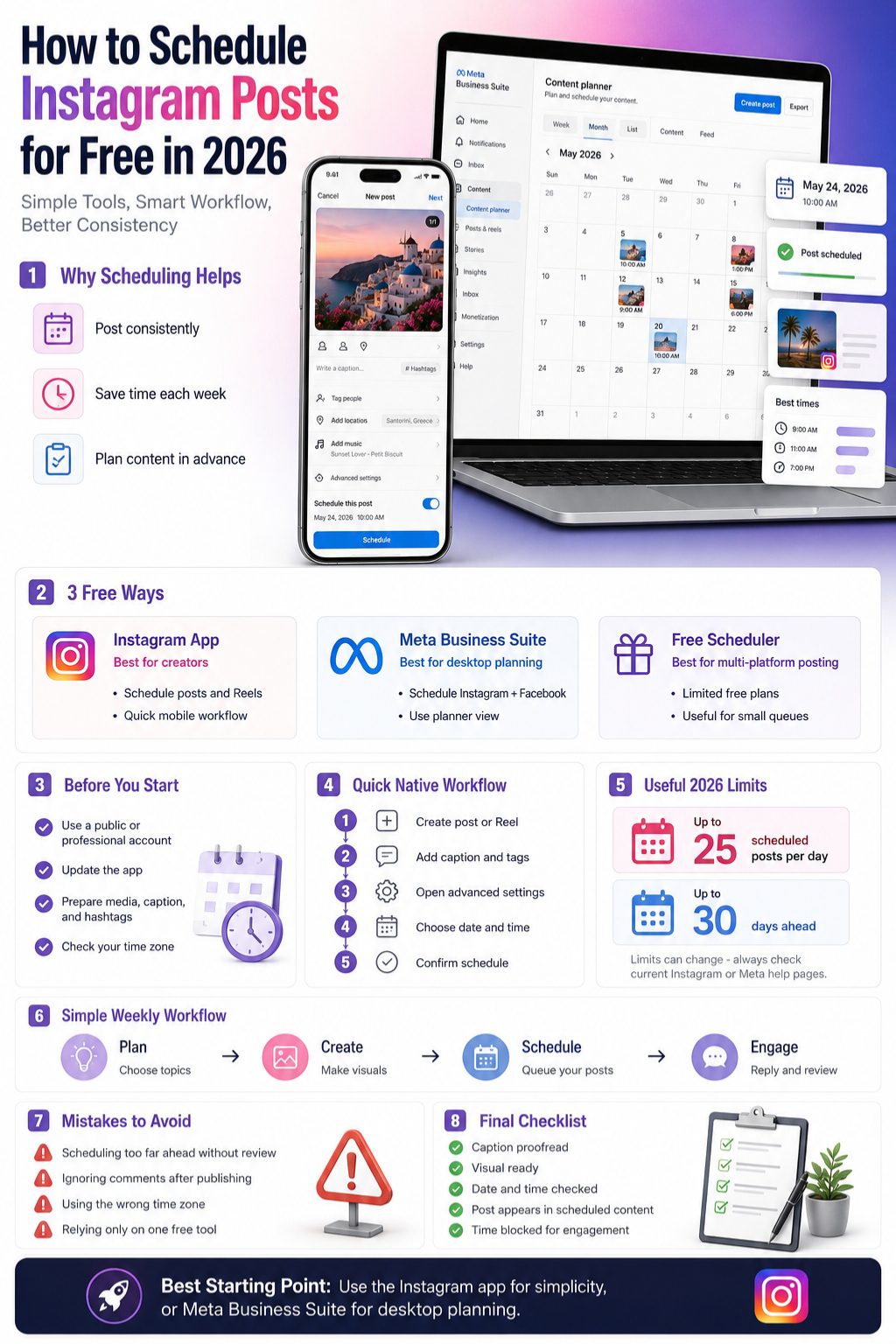
The good news is that you do not need an expensive tool to start. Instagram has its own scheduling option for many accounts. Meta Business Suite also lets creators and businesses plan Instagram content from a desktop or mobile dashboard. Free-plan tools such as Buffer can help too, especially when you want a simple queue across a few channels.
The tricky part is knowing which free method fits your workflow. Some options work better for Reels. Some are better for desktop planning. Some have limits on scheduled posts. This guide explains the easiest free methods, the current limits, and the mistakes to avoid before you build your Instagram content calendar.
What Does It Mean to Schedule Instagram Posts Free in 2026?
Scheduling Instagram posts means preparing your content now and setting it to publish later. This can include feed posts, Reels, carousels, and sometimes Stories, depending on the tool you use. In 2026, free scheduling usually happens through Instagram’s native app, Meta Business Suite, or a free plan from a trusted social media scheduler.
Free does not always mean unlimited. A native feature may limit how far ahead you can schedule. A third-party scheduler may limit how many posts can sit in your queue. A free trial is also not the same as a free plan, so users should check the pricing page before connecting an account.
|
Scheduling Option |
What It Means |
Best Use |
|
Native scheduling |
Scheduling inside the Instagram app |
Simple posts and Reels |
|
Meta Business Suite |
Scheduling through Meta’s business dashboard |
Businesses and desktop users |
|
Free-plan scheduler |
A third-party tool with limited free features |
Multi-platform planning |
|
Manual reminder |
Calendar reminder without auto-publishing |
Stories or sensitive posts |
Native Scheduling vs Third-Party Scheduling
Native scheduling is done inside Instagram or Meta Business Suite. It is usually safer for beginners because it uses Meta’s own tools and does not require another platform. If you only manage one account, this may be all you need.
Third-party scheduling tools are useful when you want a better calendar view, multi-platform posting, or a cleaner queue. They can help creators who publish on Instagram, Facebook, LinkedIn, TikTok, Pinterest, or other channels. The tradeoff is that free plans usually come with limits.
Auto-Publishing vs Reminder-Based Scheduling
Auto-publishing means your post goes live at the scheduled time without you opening the app. Reminder-based scheduling means the tool reminds you to publish manually. This matters because some Story features, stickers, music choices, tags, or advanced post settings may not work the same through every scheduler.
If you are scheduling an important campaign, test one post first. Do not schedule a full month of content before checking how the tool handles captions, covers, tags, and media quality.
Best Free Ways to Schedule Instagram Posts in 2026
The best free method depends on how you work. A solo creator who posts from a phone may prefer the Instagram app. A small business may prefer Meta Business Suite because it works on desktop and connects Facebook and Instagram. A freelancer managing several platforms may prefer a free-plan scheduler with a limited queue.
The key is not to chase the longest feature list. Choose the tool that removes friction from your posting routine. A simple free method that you use every week is better than a complex dashboard that you abandon after two days.
|
Method |
Best For |
Main Strength |
Main Limit |
|
Instagram app |
Creators and beginners |
Fast native scheduling |
Limited planning controls |
|
Meta Business Suite |
Businesses and desktop users |
Free official dashboard |
Can feel confusing at first |
|
Buffer free plan |
Multi-platform users |
Simple queue and calendar |
Limited scheduled posts |
|
Manual content calendar |
Very small accounts |
No account connection needed |
No auto-publishing |
Start With the Instagram App If You Want Simplicity
The Instagram app is the easiest starting point for many users. You create the post as usual, open advanced settings, choose a date and time, and schedule it. There is no separate tool to learn.
This works best for creators who publish from mobile. It also works well when your content is already edited and ready to go.
Use Meta Business Suite If You Prefer Desktop Planning
Meta Business Suite is useful for small businesses, agencies, and page managers who want to work from a computer. You can create posts, Stories, and Reels from the dashboard and view upcoming content in the planner.
It is also helpful if you manage both Facebook and Instagram. The interface can feel busy at first, but it becomes easier once you learn where the planner and content tabs are.
Use a Free Scheduler If You Manage More Than Instagram
A free scheduler can help when Instagram is only one part of your social media workflow. For example, Buffer’s free plan can work for beginners who need a small queue across a limited number of channels.
Before choosing any tool, check whether it has a real free plan, how many scheduled posts it allows, and whether Instagram auto-publishing is supported for your content type.
Read Also: How to Repost Instagram Stories with Credit
How to Schedule Instagram Posts Free Using the Instagram App
The Instagram app is the most direct option because you do not need to leave Instagram. For many public and professional accounts, Instagram lets users schedule feed posts and Reels from the post creation screen. It is a good choice for beginners who want a free Instagram post scheduler without extra setup.
Before you start, update the app. Also check that your account is eligible. Some users may not see the scheduling option because of account type, privacy settings, regional rollout, or temporary app issues.
|
Step |
What to Do |
Why It Matters |
|
1 |
Create your post or Reel |
Starts the normal publishing flow |
|
2 |
Add caption and settings |
Keeps the post ready before scheduling |
|
3 |
Open advanced settings |
Scheduling usually appears there |
|
4 |
Choose schedule option |
Sets future publishing |
|
5 |
Confirm date and time |
Prevents wrong-time posting |
Step-by-Step Instagram App Scheduling Process
Open Instagram and tap the create button. Choose your image, carousel, or Reel. Edit the content, write your caption, add location, tag people if needed, and review the preview.
Before publishing, go to advanced settings or more options. Turn on the scheduling option if it appears. Pick your date and time, then confirm the scheduled post. After that, check your scheduled content section to make sure the post is saved.
How to Edit or Delete a Scheduled Instagram Post
Go to your Instagram profile and open the menu. Look for scheduled content. Tap the post you want to manage. Depending on the post type and current app version, you may be able to edit, reschedule, delete, or publish it immediately.
Do not assume every detail can be edited after scheduling. If the post is important, proofread the caption, tags, media crop, and cover before you schedule it.
When the Instagram App Is Not Enough
The Instagram app is simple, but it is not perfect for every workflow. It is not ideal for team approvals, bulk planning, monthly calendars, or managing many accounts. If you want a desktop view or need to coordinate Facebook and Instagram together, Meta Business Suite is usually better.
How to Schedule Instagram Posts Free With Meta Business Suite
Meta Business Suite is Meta’s own dashboard for managing Facebook and Instagram content. It is one of the strongest free options for businesses because it supports planning from desktop and mobile. You can create scheduled content, view upcoming posts, and manage posts through the planner.
This method is best for business owners, social media managers, and creators who prefer writing captions on a computer. It also helps when you want to publish similar content to Facebook and Instagram without rebuilding everything twice.
|
Requirement |
Why You Need It |
|
Instagram professional account |
Helps connect with business tools |
|
Facebook Page connection |
Needed for many Business Suite workflows |
|
Correct permissions |
Allows posting and scheduling |
|
Updated browser or app |
Reduces publishing errors |
|
Finished media and caption |
Makes scheduling faster |
Set Up Your Instagram Account First
Before using Meta Business Suite, make sure your Instagram account is connected to the correct Facebook Page. If you manage client accounts, check your access level. Many scheduling problems happen because the user has partial permission but not publishing access.
Also confirm that you are using the correct business portfolio. It is easy to schedule content to the wrong page or profile when multiple assets are connected.
Desktop Scheduling in Meta Business Suite
Open Meta Business Suite and choose the correct business account. Go to Planner or Content. Click Create post, Create reel, or Create story, depending on the content format.
Select Instagram as the destination. Upload the media, write the caption, add any available settings, and preview the post. Instead of publishing now, choose Schedule. Pick the date and time, then confirm. After scheduling, check the planner to make sure the post appears on the calendar.
Scheduling Stories and Reels Through Meta Business Suite
Meta Business Suite can help with posts, Stories, and Reels, but the available options may vary. Basic Stories are easier to schedule than highly interactive Stories. Stickers, music, polls, and other features may not behave the same way as they do in the Instagram app.
For Reels, always check the cover, caption, and media crop before scheduling. If the Reel is part of a launch or campaign, test the process with a non-critical post first.
Using Free Third-Party Instagram Schedulers Safely
Third-party tools are helpful when you need more structure than Instagram’s own app gives you. A tool such as Buffer can give you a queue, calendar, and multi-channel workflow. That can save time if you publish on several platforms.
Still, free tools need careful checking. Some platforms offer a true free plan. Others only offer a short free trial. Some support auto-publishing for Instagram, while others use reminders for certain formats.
|
What to Check |
Why It Matters |
|
Free plan or trial |
Prevents surprise billing |
|
Scheduled post limit |
Shows whether it fits your workflow |
|
Channel limit |
Matters if you manage multiple accounts |
|
Instagram format support |
Reels, carousels, and Stories may differ |
|
Account security |
Avoid unsafe login practices |
When a Free Scheduler Makes Sense
A free scheduler makes sense if you plan content for more than Instagram. For example, a blogger may want to schedule Instagram, Facebook, and LinkedIn posts from one dashboard. A freelancer may want a small queue to avoid logging into each app every day.
It also helps if you prefer working from a calendar. Seeing a week of posts in one view can make gaps, repeated topics, and weak timing easier to spot.
Free Plan Limits You Should Notice
A free scheduling plan usually limits connected channels, scheduled posts, users, analytics, or advanced features. Buffer’s free plan, for example, allows a limited number of scheduled posts per channel. That may be enough for a beginner but not enough for an agency.
If you only post three or four times a week, a limited free queue may work well. If you plan campaigns far ahead, you may outgrow it quickly.
Security Tips Before Connecting Instagram
Use trusted platforms that support official integrations. Avoid tools that ask for suspicious access or promise fake engagement. Never trust a scheduler that claims it can bypass Instagram rules, generate fake followers, or guarantee reach.
A scheduling tool should help you publish. It should not put your account at risk.
Free Instagram Scheduling Workflow for a Full Week
Scheduling works best when you have a simple system. Without a workflow, you may spend more time moving posts around than actually creating content. A weekly plan keeps things manageable and helps you build consistency without turning Instagram into a daily emergency.
The goal is not to post nonstop. The goal is to publish useful content at realistic times and still have space for engagement, comments, and timely updates.
|
Day |
Task |
Output |
|
Monday |
Plan topics |
Weekly content list |
|
Tuesday |
Create visuals |
Posts, Reels, carousels |
|
Wednesday |
Write captions |
Captions and hashtags |
|
Thursday |
Schedule content |
Posts added to queue |
|
Friday-Sunday |
Engage and review |
Comments, saves, insights |
Plan Content Around Clear Goals
Do not schedule random posts just to fill space. Pick a goal for the week. You may want more profile visits, website clicks, saves, shares, DMs, or product awareness.
Once you know the goal, choose content formats that support it. Educational carousels often work well for saves. Reels can help with reach. Stories can support quick interaction. Product posts can help with conversions when the audience already trusts the account.
Batch Captions and Visuals Together
A simple batching system saves time. Create all visuals first, then write captions in one sitting. This reduces the mental switching that happens when you design one post, write one caption, search hashtags, and repeat the whole process again.
Keep captions in Google Docs, Notion, Sheets, or another backup file. If a scheduler fails, you still have your copy ready.
Review Scheduled Posts Before They Go Live
Check your queue at least once before publishing day. Make sure the topic is still relevant, the offer is still valid, and the caption does not mention outdated information.
This matters for news posts, seasonal content, price-sensitive offers, and campaign announcements. A scheduled post should save time, not create mistakes.
Best Times to Schedule Instagram Posts in 2026
There is no universal best time that works for every Instagram account. Audience behavior depends on location, niche, age group, work schedule, content type, and habit. A restaurant page, fitness coach, travel creator, and B2B consultant should not blindly use the same posting time.
Scheduling helps because it makes testing easier. Instead of guessing every day, you can test different time slots for a few weeks and review real account data.
|
Time Window |
Possible Fit |
What to Watch |
|
Morning |
News, education, work content |
Saves and profile visits |
|
Lunch |
Quick tips and light content |
Comments and shares |
|
Evening |
Lifestyle, Reels, entertainment |
Reach and watch time |
|
Weekend |
Travel, family, food, hobbies |
Shares and DMs |
Use Instagram Insights Instead of Guesswork
If you have a professional account, check when your audience is active. Use that as a starting point, not a final rule. Active time does not always mean best conversion time.
Test two or three time windows over several weeks. Compare reach, saves, shares, comments, follows, website clicks, and DMs. Do not judge a time slot from one post.
Post Quality Still Matters More Than Timing
Scheduling at the right time will not fix weak content. A confusing caption, poor visual, boring hook, or unclear message can still fail. Good timing only helps a post get a fair chance.
Use scheduling to support better content, not to avoid content strategy. The best results usually come from strong ideas, clear formatting, consistent publishing, and real engagement after the post goes live.
Common Problems When You Schedule Instagram Posts Free
Free scheduling is useful, but problems happen. The schedule option may not appear. A post may fail to publish. A Reel cover may look wrong. A Story feature may not carry over properly. Most of these issues can be fixed with simple checks.
The best habit is to test your workflow before using it for important content. Schedule one normal post first. Watch how it publishes. Then build a bigger system after you trust the process.
|
Problem |
Possible Cause |
Quick Fix |
|
Schedule option missing |
Account or app issue |
Update app and check account type |
|
Post failed |
Permission or connection issue |
Reconnect account |
|
Wrong time |
Time zone mistake |
Review scheduler settings |
|
Story feature missing |
Unsupported element |
Publish manually or simplify |
|
Reel cover changed |
Preview issue |
Test before campaign posts |
Why You May Not See the Schedule Option
Common reasons include a private account, outdated app, unsupported account type, temporary rollout issues, or feature restrictions. Some users may also miss the option because it is hidden under advanced settings.
Update Instagram first. Then check whether your account is public and whether you are using a professional account where needed. If the issue continues, try Meta Business Suite as an alternative.
Why Scheduled Posts Sometimes Fail
Scheduled posts can fail when account permissions change, a connected Facebook Page is removed, tool authorization expires, or the post includes unsupported elements. Time zone mistakes are also common with teams working across countries.
Check your scheduled queue after creating posts. If a post is tied to a campaign, do not wait until the publish time to confirm everything is ready.
Why Stories Need Extra Care
Stories are more interactive than feed posts. Polls, question boxes, music, stickers, links, and tags may not work the same through all scheduling methods. If a Story depends on those elements, manual publishing may be safer.
For basic image or video Stories, Meta Business Suite can be useful. For highly interactive Stories, schedule a reminder and finish the final touches inside Instagram.
Mistakes to Avoid When Scheduling Instagram Posts
Scheduling can make Instagram easier, but it can also create lazy habits. Some users schedule too far ahead and never review their content. Others post consistently but ignore comments. Some copy the same caption across every platform and wonder why engagement drops.
A good scheduling workflow should still feel human. Your audience should not feel like they are reading recycled posts from a robot.
|
Mistake |
Why It Hurts |
Better Approach |
|
Scheduling too far ahead |
Content can become outdated |
Review posts weekly |
|
Ignoring comments |
Reduces relationship building |
Block time after publishing |
|
Same caption everywhere |
Feels unnatural |
Adapt copy for Instagram |
|
Wrong time zone |
Misses audience activity |
Check scheduler settings |
|
No backup copy |
Risk of losing content |
Keep a content sheet |
Do Not Schedule and Disappear
Scheduling publishes the post. It does not build community for you. If you want comments, DMs, saves, and shares, you need to be present after the content goes live.
Plan 10 to 20 minutes for engagement after important posts. Reply to early comments, answer DMs, and interact with relevant accounts.
Avoid Overloading the Queue
A full queue can feel productive, but it can also make your content stale. This is especially risky for trends, product offers, event announcements, and news-based posts.
A good rule is to schedule evergreen content ahead and keep flexible slots open for timely posts.
Do Not Treat Free Tools as Permanent Guarantees
Free plans can change. Features can move behind paid tiers. Platform rules can shift. Keep your captions, visuals, and posting calendar backed up outside the scheduling tool.
That way, you can move to another method without losing your content system.
How to Measure Whether Instagram Scheduling Is Working
Scheduling is not successful just because posts go live on time. It works when it helps you publish better content more consistently and gives you time to engage with your audience. That means you need to measure more than likes.
The right metrics depend on your goal. A creator may care about shares and follows. A local business may care about DMs and calls. A publisher may care about profile visits and link clicks.
|
Goal |
Useful Metrics |
|
Reach |
Views, reach, shares |
|
Authority |
Saves, comments, profile visits |
|
Community |
Replies, DMs, story interactions |
|
Sales |
Clicks, leads, inquiries |
|
Retention |
Repeat engagement and returning viewers |
Look Beyond Likes
Likes are easy to see, but they do not always show real value. A post with fewer likes but more saves may be more useful. A post with fewer comments but more website clicks may perform better for a business.
Track the metrics that match your goal. Do not let vanity numbers decide your entire content strategy.
Review Every Two Weeks
A two-week review gives you enough data to spot patterns without overreacting to one post. Look at the best-performing topics, hooks, formats, posting times, and calls to action.
Then adjust the next schedule. Remove weak formats, repeat strong topics with a fresh angle, and test one new idea at a time.
Free Instagram Content Calendar Template
A content calendar does not need to be fancy. A simple spreadsheet can work better than a complicated dashboard if you actually use it. The goal is to keep your ideas, captions, visuals, and posting dates in one place.
This also protects you if a scheduling tool fails or changes its free plan. Your content remains organized outside the tool.
|
Column |
What to Add |
|
Date |
Planned publish date |
|
Time |
Scheduled publish time |
|
Format |
Post, Reel, carousel, Story |
|
Topic |
Main idea |
|
Caption |
Final copy |
|
Hashtags |
Relevant tags |
|
CTA |
Comment, save, click, DM |
|
Status |
Draft, ready, scheduled, posted |
Simple Weekly Posting Mix
A beginner can start with three posts per week. For example, post one educational carousel, one Reel, and one personal or behind-the-scenes update. Add Stories when you have something timely to share.
Small businesses can use a mix of educational posts, product explainers, customer questions, testimonials, and behind-the-scenes content. Creators can mix Reels, carousels, personal notes, and Story engagement.
Keep One Flexible Slot Open
Do not schedule every single slot weeks ahead. Leave room for sudden ideas, trends, news, product updates, or audience questions. Flexible posting keeps your account from feeling too rigid.
This is especially useful for publishers, creators, and brands that comment on current events or seasonal topics.
Is Free Instagram Scheduling Enough for Growth?
Free scheduling is enough for many beginners, creators, and small businesses. If you manage one account and post a few times a week, Instagram’s own scheduler or Meta Business Suite may cover your needs. You can schedule instagram posts free and still build a useful routine.
Paid tools become more valuable when your workflow gets bigger. Agencies, teams, and brands with approval steps may need bulk scheduling, detailed analytics, shared calendars, client reports, and content libraries.
|
User Type |
Free Scheduling Enough? |
Why |
|
Beginner creator |
Yes |
Simple posting needs |
|
Local business |
Usually yes |
Meta Business Suite can work well |
|
Freelancer |
Sometimes |
Depends on number of clients |
|
Agency |
Usually no |
Needs approvals and reporting |
|
Large brand |
Usually no |
Needs team workflow and analytics |
When Free Tools Are Enough
Free tools are enough when your main need is consistency. If your bottleneck is remembering to post, a free scheduler can solve that. If your content volume is low, you may not need paid analytics or collaboration features.
Start free. Learn your posting rhythm. Upgrade only when a paid feature solves a real problem.
When You May Need a Paid Tool Later
You may need a paid scheduler if you manage many accounts, need approval workflows, publish high volumes of content, or create client reports. Paid tools can also help with analytics, saved templates, team roles, asset libraries, and bulk scheduling.
Do not pay just because a tool looks impressive. Pay when it saves time, reduces errors, or improves reporting.
Final Thoughts on How to Schedule Instagram Posts Free
Learning how to schedule instagram posts free is one of the easiest ways to make Instagram less stressful in 2026. You do not need to sit around waiting for the perfect posting time. You can plan content, schedule it, and still leave room for real engagement.
For most beginners, the Instagram app is the quickest option. For small businesses, Meta Business Suite gives more control from desktop. For creators managing several platforms, a free-plan scheduler can help, as long as the limits fit your posting volume.
The best system is the one you can repeat. Start with a simple weekly calendar, schedule only finished content, review your queue before posts go live, and spend time engaging after publishing. Free scheduling will not replace good content, but it can give your good content a better chance to show up consistently.
Frequently Asked Questions About Free Instagram Scheduling
Can I schedule Instagram posts for free in 2026?
Yes. You can schedule Instagram posts for free using Instagram’s built-in scheduling feature, Meta Business Suite, or limited free-plan tools. The best method depends on your account type and workflow.
Can I schedule Instagram Reels for free?
Yes, many accounts can schedule Reels for free through Instagram or Meta Business Suite. Always check the cover, caption, crop, and audio before scheduling.
Can I schedule Instagram Stories for free?
You can schedule some Stories through Meta Business Suite, but interactive features may be limited. If your Story depends on stickers, polls, music, or links, test first or publish manually.
Why is the schedule option not showing on Instagram?
The feature may be missing because your app is outdated, your account is private, your account type is not eligible, or Instagram has not rolled it out to your account. Try updating the app and checking Meta Business Suite.
Do scheduled Instagram posts get lower reach?
Scheduling itself is not the main reason a post performs poorly. Content quality, audience interest, timing, format, and engagement matter more. A weak post will not perform well just because it is scheduled at a good time.
What is the best free Instagram scheduler for beginners?
The Instagram app is usually best for beginners because it is simple and native. Meta Business Suite is better if you prefer desktop scheduling or manage a business account.
Is Meta Business Suite free for Instagram scheduling?
Yes. Meta Business Suite is a free official Meta tool for creating and scheduling Facebook and Instagram content. You need the correct account connection and permissions.
How many Instagram posts should I schedule per week?
A beginner can start with three strong posts per week. Small businesses may post three to five times weekly, depending on content quality and available time for engagement.
Should I use a free third-party Instagram scheduler?
Use one if you manage multiple platforms or want a better calendar view. Check the free plan limits first, especially scheduled post limits, channel limits, and Instagram format support.
Can I schedule Instagram posts without a business account?
Some scheduling options may work for public accounts, but business and creator accounts usually get better access to scheduling and insights. If you use Instagram for marketing, switching to a professional account often makes sense.