
Google Home is great when it works. You say, “Play my playlist,” and music starts. You ask about the weather, and it answers. You tell it to turn off the lights, and it gets the job done.
Then one day, it just stops.
The Google Home app says the device is offline. Setup fails. Your Wi-Fi network does not show up. Or worse, the app keeps saying it “could not communicate” with the device.
That’s when google home wifi problems start to feel more annoying than they should.
The good news? Most of these issues are fixable at home. You usually do not need a new speaker. You do not need to reset everything right away either.
Most connection problems come from simple things: a weak signal, a changed Wi-Fi password, a phone permission issue, a guest network, router isolation settings, or an old Wi-Fi name saved inside the device.
Let’s fix it in the right order. Start with the easy checks. Then move to the router, app settings, Wi-Fi bands, and reset options only if needed.
Start With the Simple Checks
|
Check This First |
What to Do |
Why It Matters |
|
Power connection |
Make sure the device is plugged into a wall outlet |
Google Home needs steady power |
|
Internet connection |
Test your Wi-Fi on a phone or laptop |
The router may be the real problem |
|
Device distance |
Move Google Home close to the router |
Weak signal can break setup |
|
Password |
Re-enter it carefully |
Wi-Fi passwords are case sensitive |
|
Google Home app |
Update the app |
Old app versions can cause setup errors |
|
Phone software |
Use a supported Android or iOS version |
Older devices may fail during setup |
Before touching advanced router settings, slow down and check the basics.
First, make sure your home internet works. Connect your phone to Wi-Fi and open a few websites. Do not test while your phone is using mobile data. To be sure, turn on Airplane Mode, then turn Wi-Fi back on and test again.
If websites do not load, your Google Home is probably not the problem. Your router, modem, or internet service may be down.
Next, check the Google Home device itself. Google Home, Nest Mini, Nest Audio, Nest Hub, and Nest Hub Max all need to stay plugged in. A loose power cable can make setup fail or cause the device to drop offline.
Now move the speaker or display closer to the router. Google recommends keeping it within 15 to 20 feet during setup or troubleshooting. You can move it back later once everything works.
Finally, check the password. This sounds obvious, but it catches a lot of people. Wi-Fi passwords care about capital letters, numbers, symbols, and spaces.
“Homewifi2026” is not the same as “HomeWiFi2026.”
Type the password manually. Do not rely on autofill if setup keeps failing.
Google Home WiFi Problems: Why They Happen
|
What You See |
What It Usually Means |
Best First Fix |
|
Device not found |
Your phone cannot detect the speaker |
Restart the device and app |
|
Setup stops halfway |
Router or phone blocks communication |
Check app permissions and router isolation |
|
Wi-Fi name missing |
Hidden network or scan issue |
Enter the network manually |
|
Password keeps failing |
Wrong password or case mismatch |
Retype the password slowly |
|
Device goes offline often |
Weak signal or router trouble |
Move it closer to the router |
|
Works on hotspot only |
Home router setting is blocking it |
Check guest mode and access control |
A google home wifi issue can look like one problem, but it may have several causes.
The Google Home app may not find your speaker. Or it may find the speaker but fail during setup. Sometimes your Wi-Fi network does not appear at all. Other times, the device connects for a while and then goes offline again.
Setup depends on four things working together:
- Your phone or tablet
- The Google Home app
- Your router
- Your Google Home or Nest device
If one of them blocks the process, the whole setup fails.
For example, your Wi-Fi may work fine on your phone, but your router may block local device communication. Your speaker may be fine, but your iPhone may block Local Network access. Your password may be correct, but the device may still remember an old Wi-Fi network.
That is why guessing rarely helps. A step-by-step check works better.
Restart Everything the Right Way
|
Device or App |
What to Do |
Wait Time |
|
Router |
Unplug it, then plug it back in |
About 1 minute |
|
Modem |
Restart it if separate from the router |
About 1 minute |
|
Google Home |
Unplug the power cable and reconnect |
About 1 minute |
|
Google Home app |
Force close and reopen it |
10 to 20 seconds |
|
Phone Wi-Fi |
Turn Wi-Fi off and back on |
10 seconds |
A restart feels too simple, but it often works.
Start with your router. Unplug it from the power outlet. If you have a separate modem, unplug that too. Wait about one minute.
Plug the modem back in first. Then plug in the router. Give the Wi-Fi a few minutes to come back fully.
Next, restart your Google Home device. Unplug the power cable, wait one minute, then plug it back in.
This is only a reboot. It does not erase your settings.
Now force close the Google Home app.
On Android, open recent apps and swipe Google Home away. On iPhone, open the app switcher and swipe up on the app.
Then turn your phone’s Wi-Fi off and back on.
Open the Google Home app again and try setup one more time.
This clears stuck app sessions, failed setup attempts, and temporary router glitches.
Check the Wi-Fi Password and Network Name
|
Issue |
What It Looks Like |
How to Fix It |
|
Wrong password |
App says password is incorrect |
Type it manually |
|
Case mismatch |
Password looks right but fails |
Check uppercase and lowercase letters |
|
Extra space |
Password fails for no clear reason |
Delete and retype the full password |
|
New router |
Device still looks for old Wi-Fi |
Set it up again |
|
New Wi-Fi name |
Device cannot reconnect |
Forget the old network |
|
Hidden network |
Wi-Fi name does not show |
Enter the SSID manually |
A changed password can knock Google Home offline right away.
If you recently changed your router password, replaced your router, renamed your Wi-Fi, or switched internet providers, your Google Home may still be trying to connect with old details.
Open your router app or check the sticker on your router if you still use the default password. Then type it into the Google Home app by hand.
Watch for small mistakes:
- Capital letters
- Similar characters like O and 0
- Extra spaces at the start or end
- Old saved passwords
- Symbols typed in the wrong place
- A renamed Wi-Fi network
Read Also: How to Reset AirPods Pro 2: Complete Guide
Also check the Wi-Fi name, also called the SSID. If your phone is connected to “HomeWiFi-5G” but you are trying to set up Google Home on “HomeWiFi-Guest,” the setup may fail.
Use your main home network whenever possible. Avoid guest Wi-Fi for smart speakers.
Try 2.4GHz and 5GHz Wi-Fi
|
Wi-Fi Band |
Best Part |
Weak Point |
Good For |
|
2.4GHz |
Better range |
Slower and more crowded |
Smart speakers and devices far from router |
|
5GHz |
Faster speed |
Shorter range |
Devices close to the router |
|
6GHz |
Very fast on newer gear |
Not supported by many smart home devices |
Newer Wi-Fi 6E/7 devices |
Most Google Home and Nest speakers support 2.4GHz and 5GHz Wi-Fi. They do not need 6GHz.
If setup fails on 5GHz, try 2.4GHz. It usually reaches farther and works better through walls. That matters if your Google Home sits in a bedroom, kitchen, hallway, or far corner of the house.
If your router uses one name for both bands, setup usually works. But sometimes band steering causes trouble. The router may push your phone to one band while the smart speaker tries another.
A simple test helps.
Split your Wi-Fi names temporarily:
- HomeWiFi-2.4
- HomeWiFi-5G
Connect your phone to the 2.4GHz network. Then set up Google Home again.
If it works, you found the issue.
You can keep the bands split, or combine them later if your router handles smart devices well.
This fix helps many google home wifi issues, especially in homes with thick walls or older routers.
Fix Google Home App Permission Problems
|
Setting |
Android |
iPhone or iPad |
Why It Helps |
|
Wi-Fi |
Turn it on |
Turn it on |
Required for setup |
|
Bluetooth |
Turn it on |
Turn it on |
Helps find nearby devices |
|
Location |
Allow during setup |
Allow if requested |
Helps scan nearby networks |
|
Local Network |
Not the same iOS setting |
Turn it on for Google Home |
Lets the app see devices on Wi-Fi |
|
VPN |
Turn off during setup |
Turn off during setup |
VPNs can block local setup |
|
Private Relay |
Not applicable |
Turn off during setup if needed |
May interfere with setup |
Sometimes the speaker is fine. The router is fine too. The Google Home app just does not have the permission it needs.
This is common on iPhone and iPad.
Apple requires apps to ask for Local Network access. If that setting is off, the Google Home app may not see your speaker or display on Wi-Fi.
To fix it on iPhone:
- Open Settings.
- Scroll down and tap Google Home.
- Turn on Local Network.
- Turn on Bluetooth.
- Reopen the Google Home app.
If you use a VPN, turn it off during setup. Some VPNs block local traffic between your phone and smart home devices.
If you use iCloud Private Relay, turn it off temporarily if setup keeps failing. You can turn it back on once your device connects.
On Android, turn on Wi-Fi, Bluetooth, and Location. Give the Google Home app the permissions it asks for during setup.
Do not worry too much about the Location setting. It helps the app scan nearby devices and Wi-Fi networks. It is part of the setup process.
What to Do If Your Wi-Fi Network Does Not Show Up
|
Problem |
Possible Cause |
Fix |
|
Wi-Fi name missing |
Hidden SSID |
Enter it manually |
|
Only neighbor networks appear |
Router scan issue |
Restart router and app |
|
Network appears on phone, not app |
App permission issue |
Check Local Network or Location |
|
5GHz missing |
Range or band issue |
Try 2.4GHz |
|
List does not refresh |
App glitch |
Force close and reopen the app |
If your Wi-Fi name does not appear in the Google Home app, do not panic.
First, check whether your network is hidden. Hidden Wi-Fi networks do not always show in setup lists. If your router hides the SSID, you will need to enter the network details manually.
You need:
- Exact Wi-Fi name
- Security type
- Wi-Fi password
The network name must match exactly. A missing capital letter or extra space can break setup.
Next, restart the router. Then restart the Google Home device and force close the app.
If you are setting up on iPhone, check Local Network access again.
Also check your distance. If your phone barely gets Wi-Fi where the speaker sits, Google Home may struggle too. Move the device closer to the router for setup.
Once setup finishes, you can move it back and test the signal.
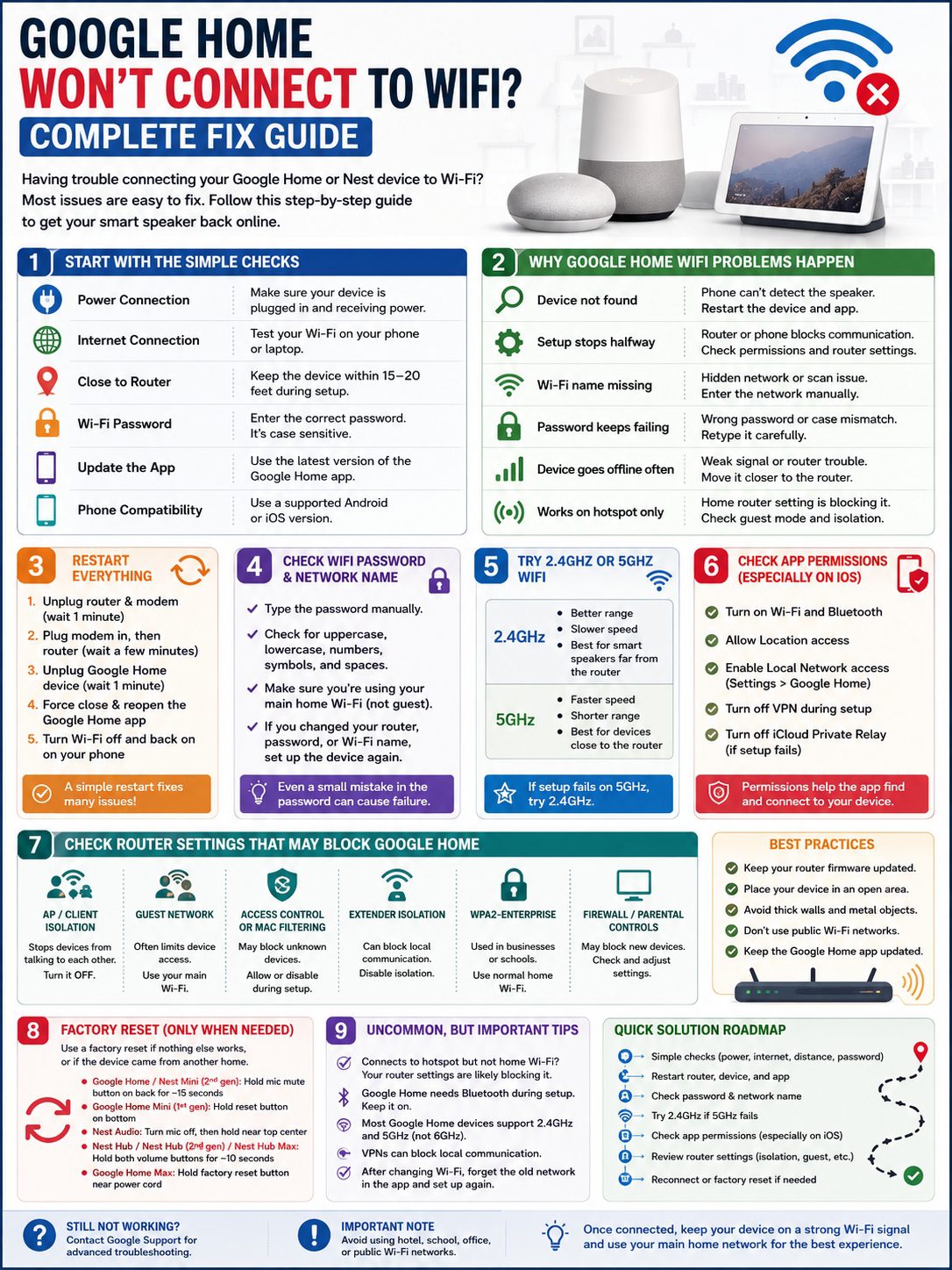
Check Router Settings That Block Google Home
|
Router Setting |
What It Does |
What You Should Do |
|
AP isolation |
Stops Wi-Fi devices from talking to each other |
Turn it off |
|
Client isolation |
Blocks local device communication |
Turn it off |
|
Guest network |
Often limits device access |
Use main Wi-Fi |
|
Access control |
Blocks unknown devices |
Allow Google Home or disable during setup |
|
MAC filtering |
Only allows approved devices |
Add the device or turn it off temporarily |
|
Extender isolation |
Blocks devices connected through extender |
Disable isolation |
|
WPA2-Enterprise |
Uses business or school login systems |
Use normal home Wi-Fi |
This is where the problem gets sneaky.
Your Wi-Fi may work. Your phone may browse the internet. Your router may look normal. But Google Home can still fail if the router blocks devices from talking to each other.
Google Home setup needs local communication. Your phone must talk to the speaker or display through the Wi-Fi network.
AP isolation, client isolation, guest network isolation, and some extender settings can block that.
Open your router app or router admin page. Look for settings under:
- Wireless
- Advanced Wi-Fi
- Security
- Guest network
- Access control
- LAN settings
- Wi-Fi isolation
Turn off AP isolation or client isolation on your main network.
Avoid guest Wi-Fi. Guest networks often block smart home setup by design.
Also avoid hotel, school, office, and public Wi-Fi. These networks often use login pages or device isolation. Google Home is not built for that kind of setup.
If you use a Wi-Fi extender, check its settings too. Some extenders create a separate network that blocks local device traffic.
Change Google Home to a New Wi-Fi Network
|
Situation |
Best Fix |
|
You changed your router |
Forget the old Wi-Fi and set up again |
|
You changed your password |
Reconnect through the Google Home app |
|
You changed the Wi-Fi name |
Set up the device on the new network |
|
The device is offline |
Try reconnecting from the app |
|
The app cannot communicate |
Factory reset may be needed |
|
You use Nest cameras |
Save important clips before removing devices |
If you changed your router, internet provider, Wi-Fi name, or password, your Google Home may still be holding onto the old network.
You need to remove that old Wi-Fi connection.
Open the Google Home app and follow these steps:
- Tap Home.
- Tap All devices.
- Touch and hold your Google Home device.
- Tap Settings.
- Tap Device information.
- Tap Wi-Fi.
- Tap Forget this network.
- Go back to the Home screen.
- Tap Add.
- Tap Device.
- Tap Search for device.
- Follow the setup steps.
This is one of the cleanest fixes after a router change.
If the app says it cannot communicate with the device, you may not be able to forget the old network from the app. In that case, a factory reset may be the only way to start fresh.
Be careful with Nest cameras and doorbells. Removing some devices from the app can erase video history. Save important clips first.
Use a Mobile Hotspot Only as a Test
|
Hotspot Result |
What It Tells You |
|
Google Home connects to hotspot |
Your speaker likely works |
|
Google Home fails on hotspot too |
App, phone, or device may be the issue |
|
Hotspot works but home Wi-Fi fails |
Router setting is likely blocking setup |
|
Hotspot drops often |
Mobile signal may be weak |
A mobile hotspot can help you test the problem.
If Google Home connects to your hotspot but not your home router, your device is probably fine. The issue is likely your router, password, Wi-Fi band, guest network, access control, or isolation setting.
But do not use a hotspot as your permanent smart home network.
Hotspots can be unstable. They depend on mobile signal, battery, data limits, and distance. They are useful for testing, not daily use.
Think of the hotspot as a clue. If it works there, go back and check your home router settings.
Factory Reset Google Home Only When Needed
|
Device |
Factory Reset Method |
|
Google Home |
Hold the microphone mute button on the back for about 15 seconds |
|
Google Home Mini 1st gen |
Hold the reset button on the bottom |
|
Nest Mini 2nd gen |
Turn the mic off, then hold the center top area |
|
Nest Audio |
Turn the mic off, then hold near the top center |
|
Nest Hub |
Hold both volume buttons for about 10 seconds |
|
Nest Hub 2nd gen |
Hold both volume buttons for about 10 seconds |
|
Nest Hub Max |
Hold both volume buttons for about 10 seconds |
|
Google Home Max |
Hold the factory reset button near the power cord |
A factory reset wipes your Google Home device and brings it back to default settings.
It can fix stubborn Wi-Fi problems, but it should not be your first move.
Try a factory reset when:
- The app cannot communicate with the device
- You cannot forget the old Wi-Fi network
- Setup fails again and again
- The device came from another home
- You changed routers and nothing else works
After the reset, set up the device like new.
For the best result:
- Keep it close to the router
- Use your main home Wi-Fi
- Avoid guest networks
- Turn on Bluetooth
- Enable Local Network access on iPhone
- Type the Wi-Fi password manually
- Try 2.4GHz if 5GHz fails
A reset can feel annoying, but it gives the device a clean start.
Fix Google Home by Error Message
|
Error or Symptom |
Likely Cause |
Best Fix |
|
“Could not communicate with your device” |
App cannot reach Google Home locally |
Check Local Network, VPN, and router isolation |
|
“Password incorrect” |
Wrong password or case mismatch |
Retype it manually |
|
Device not found |
Phone cannot detect the setup signal |
Restart device and app |
|
Wi-Fi not listed |
Hidden SSID or scan issue |
Enter the network manually |
|
Device keeps going offline |
Weak signal or router trouble |
Move it closer |
|
Works on hotspot only |
Home router conflict |
Check router settings |
|
Setup fails on iPhone |
Permission issue |
Enable Local Network access |
Error messages are not always clear, but they do give hints.
If you see “could not communicate with your device,” focus on local network access. Check iPhone Local Network permission, VPN settings, AP isolation, client isolation, and guest Wi-Fi.
If the password fails, retype it. Do not copy and paste from an old note unless you know it is correct.
If the device keeps going offline, move it close to the router for a full day. If it stays online there, signal strength is the problem.
Common signal blockers include:
- Thick walls
- Concrete
- Metal shelves
- Microwaves
- Fish tanks
- Router hidden inside a cabinet
- Poor extender placement
- Too many devices on an old router
If your google home wifi problem only happens in one room, you may need to move the router, add a mesh point, or place the speaker closer to stronger signal.
Final Thoughts
A broken google home wifi connection feels irritating, but most fixes are simple.
Start with the basics. Restart the router. Restart the Google Home device. Force close the app. Check the password. Move the speaker close to the router.
Then check the deeper stuff. Try 2.4GHz and 5GHz. Turn on Local Network access on iPhone. Turn off VPN during setup. Avoid guest Wi-Fi. Disable AP isolation or client isolation. Reconnect the device if you changed your router or password.
Only use factory reset when nothing else works.
Once your Google Home is back online, keep it on a strong Wi-Fi signal. Use your main home network. Keep the Google Home app updated. And if the device starts acting up again, come back to the simple checks first.
Most of the time, that’s all it takes to bring your smart speaker back to life.
Uncommon Google Home Wi-Fi FAQs
|
Question |
Short Answer |
|
Can Google Home use hotel Wi-Fi? |
Usually no |
|
Does it need Bluetooth during setup? |
Yes, keep Bluetooth on |
|
Can it use 6GHz Wi-Fi? |
Most Google Home/Nest speakers use 2.4GHz or 5GHz |
|
Does WPA2-Enterprise work? |
No, use normal home Wi-Fi |
|
Should I reset first? |
No, try easier fixes first |
Why does Google Home connect to my hotspot but not my router?
That usually means your Google Home device works. Your home router is likely blocking setup.
Check AP isolation, guest network settings, access control, MAC filtering, and Wi-Fi bands.
Why can’t Google Home find my Wi-Fi network?
Your network may be hidden, your app may not have the right permissions, or the device may be too far from the router.
Enter the Wi-Fi name manually if it does not appear.
Can Google Home work on public Wi-Fi?
It usually does not work well on public Wi-Fi.
Hotel, school, office, and public networks often use login pages or device isolation. Google Home needs a normal home Wi-Fi network.
Should I use 2.4GHz or 5GHz?
Try 2.4GHz first if your speaker is far from the router. It usually reaches farther.
Use 5GHz if the device is close to the router and setup works well.
Why did Google Home stop working after I changed my Wi-Fi password?
The device still has the old password saved.
Forget the old network in the Google Home app, then set up the device again with the new password.
Can a VPN block Google Home setup?
Yes. A VPN can stop your phone from talking to local devices.
Turn it off during setup. Turn it back on after Google Home connects.
Can iCloud Private Relay cause setup trouble?
It can. If setup keeps failing on iPhone, turn off Private Relay temporarily. Turn it back on after setup.
Why does Google Home go offline at night?
Check your router app. You may have scheduled restarts, parental controls, device pause rules, or eco mode turned on.
Also check signal strength. A weak signal can drop more often when the network gets busy.