
If you’re searching for disable icloud iphone, you probably want one thing: to turn off iCloud without losing your photos, contacts, notes, files, or backups. That’s the smart way to think about it.
iCloud is tied to a lot of things on your iPhone. It handles photos, backups, passwords, files, app data, Find My, and more. So one wrong tap can make your contacts disappear, remove photos from your device, or leave Activation Lock active when you try to sell the phone.
The good news? You don’t always need to sign out of iCloud completely.
Most of the time, you only need to turn off one iCloud feature, such as iCloud Photos, iCloud Backup, iCloud Drive, or sync for a specific app.
This guide shows you how to do it safely, step by step.
What Does It Mean to Disable iCloud on iPhone?
Disabling iCloud can mean different things.
Some people want to stop photos from syncing. Some want to stop iCloud Backup. Some want to remove iCloud before selling an iPhone. Others just want more privacy.
That’s why you should not treat iCloud like one big on/off switch.
iCloud is a set of services. You can turn off one part and keep the others running.
|
What you want to do |
Best iCloud setting to change |
Risk level |
|
Stop photos from syncing |
Turn off iCloud Photos |
Medium |
|
Stop cloud backups |
Turn off iCloud Backup |
Medium |
|
Stop files syncing |
Turn off iCloud Drive |
Medium |
|
Stop one app from syncing |
Turn off iCloud for that app |
Low |
|
Sell or give away iPhone |
Sign out and erase the phone |
High if done wrong |
|
Remove Activation Lock |
Turn off Find My |
High if selling device |
Apple Account vs Apple ID
Apple now uses the term Apple Account in many places. Older users still know it as Apple ID.
For normal iPhone users, both point to the same account. It’s the account you use for iCloud, App Store, iMessage, FaceTime, Find My, Apple subscriptions, and device security.
So when your iPhone asks for your Apple Account password, it usually means the password you used to call your Apple ID password.
Don’t Sign Out Just Because iCloud Storage Is Full
This is a common mistake.
If iCloud storage is full, signing out is usually not the fix. You may only need to delete old backups, clear unwanted files, manage iCloud Photos, or stop a few apps from using iCloud.
Apple gives users 5 GB of free iCloud storage. That space can fill up fast if you back up photos, videos, messages, and multiple devices.
Before you sign out, check what is using your storage.
Go to:
Settings > your name > iCloud
Then review your storage breakdown.
disable icloud iphone: What to Check Before You Start
Before you turn anything off, take a few minutes to check your data.
This is the part people skip. It’s also the part that saves them from panic later.
If your photos, contacts, notes, or files only live in iCloud, they may disappear from the iPhone when you turn off sync. That does not always mean they are deleted forever. But it can feel that way if you don’t know where they went.
|
Check first |
Why it matters |
Where to find it |
|
Latest backup |
Helps restore data if something goes wrong |
Settings > your name > iCloud > iCloud Backup |
|
iCloud Photos |
Shows if photos sync through iCloud |
Settings > your name > iCloud > Photos |
|
iPhone storage |
Needed before downloading original photos |
Settings > General > iPhone Storage |
|
iCloud Drive files |
Shows files stored in iCloud |
Files app > iCloud Drive |
|
Contacts and Notes |
May be stored only in iCloud |
Contacts app, Notes app, iCloud.com |
|
Apple Account password |
Needed for sign-out and Find My |
Settings > your name |
Back Up Your iPhone First
Don’t skip this.
If you still use iCloud Backup, go to:
Settings > your name > iCloud > iCloud Backup
Check the last backup time. If it’s old, tap Back Up Now. Keep the phone connected to Wi-Fi and power.
You can also back up to a Mac or Windows PC. This is a strong option if you want to stop using iCloud Backup but still want a copy of your iPhone data.
For a computer backup, choose an encrypted backup when possible. Encrypted backups can save more sensitive data, including saved passwords, Health data, Wi-Fi settings, website history, and call history.
Check Your Photos Before Changing iCloud Settings
Photos need extra care.
If iCloud Photos is on and your iPhone uses Optimize iPhone Storage, your phone may not store full-size photos. It may only keep smaller versions while the originals stay in iCloud.
Before you turn off iCloud Photos, go to:
Settings > your name > iCloud > Photos
If you want full-size photos on your iPhone, choose Download and Keep Originals first.
But check your iPhone storage before doing this. Large photo libraries can take a lot of space.
Open iCloud.com Before You Panic
If you’re unsure where your data lives, check iCloud.com from a browser.
Look at:
- Photos
- iCloud Drive
- Contacts
- Notes
- Calendar
- Reminders
If your data appears there, it is still in iCloud. You just need to decide whether you want a copy on your iPhone before turning off sync.
How to Turn Off iCloud for Selected Apps
This is the safest method for most users.
You stay signed in to your Apple Account, but you stop specific apps from syncing with iCloud.
That means your App Store, Find My, iMessage, and other Apple services can still work. You’re only changing the apps you choose.
|
Step |
What to do |
What happens |
|
1 |
Open Settings |
Starts the process |
|
2 |
Tap your name |
Opens Apple Account settings |
|
3 |
Tap iCloud |
Shows iCloud options |
|
4 |
Tap See All if shown |
Opens full app sync list |
|
5 |
Turn off selected apps |
Stops those apps from syncing |
|
6 |
Choose Keep on My iPhone if asked |
Keeps local data when available |
Steps to Turn Off iCloud for One App
- Open Settings.
- Tap your name at the top.
- Tap iCloud.
- Look under Saved to iCloud.
- Tap See All if your iPhone shows it.
- Turn off the app you don’t want syncing.
- If your iPhone asks what to do with the data, read the prompt carefully.
When you see Keep on My iPhone, choose it if you want a local copy.
Apps You May Want to Review
You don’t need to turn off everything.
Start with apps that use storage, hold private data, or sync across many devices.
Common options include:
- Photos
- iCloud Drive
- Messages
- Notes
- Contacts
- Calendar
- Safari
- Health
- Voice Memos
- Wallet
- Third-party apps
This is often the best way to disable icloud iphone features without breaking your whole Apple setup.
How to Turn Off iCloud Photos Without Losing Pictures
iCloud Photos is one of the most useful iCloud features. It is also the one that causes the most confusion.
When iCloud Photos is on, your photos and videos sync across your Apple devices and iCloud.com. If you delete a photo on one synced device, it can also disappear from iCloud and other synced devices.
So take your time here.
|
iCloud Photos setting |
What it does |
Best for |
|
Sync this iPhone |
Keeps photos synced with iCloud |
Users who want all devices updated |
|
Optimize iPhone Storage |
Saves space by keeping smaller versions on iPhone |
Phones with limited storage |
|
Download and Keep Originals |
Stores full-size photos on the device |
Users turning off iCloud Photos |
|
Remove from iPhone |
Removes iCloud Photos from that device |
Only when photos are safe elsewhere |
|
Turn Off and Delete from iCloud |
Starts removing iCloud Photos from iCloud |
Users leaving iCloud Photos fully |
Turn Off iCloud Photos on One iPhone
Use this if you only want to stop photo syncing on your current iPhone.
- Open Settings.
- Tap your name.
- Tap iCloud.
- Tap Photos.
- Turn off Sync this iPhone.
- Choose whether to download photos or remove them from the iPhone.
If you want to keep photos on your phone, download them first.
Read Also: How to Use iPhone as Webcam for Mac in 2026
Don’t Mix Up Two Different Choices
There’s a big difference between these two actions:
- Turning off iCloud Photos on one iPhone.
- Turning off and deleting iCloud Photos from iCloud.
The second one is much more serious.
Apple gives a recovery window before photos and videos are permanently deleted from iCloud. But don’t treat that as your safety net. Download or back up your photos first.
The Safer Photo Plan
Here’s the safer order:
- Check available iPhone storage.
- Choose Download and Keep Originals.
- Wait for the download to finish.
- Back up photos to a computer or external drive.
- Then turn off iCloud Photos.
Photos are personal. Don’t gamble with them.
How to Turn Off iCloud Backup
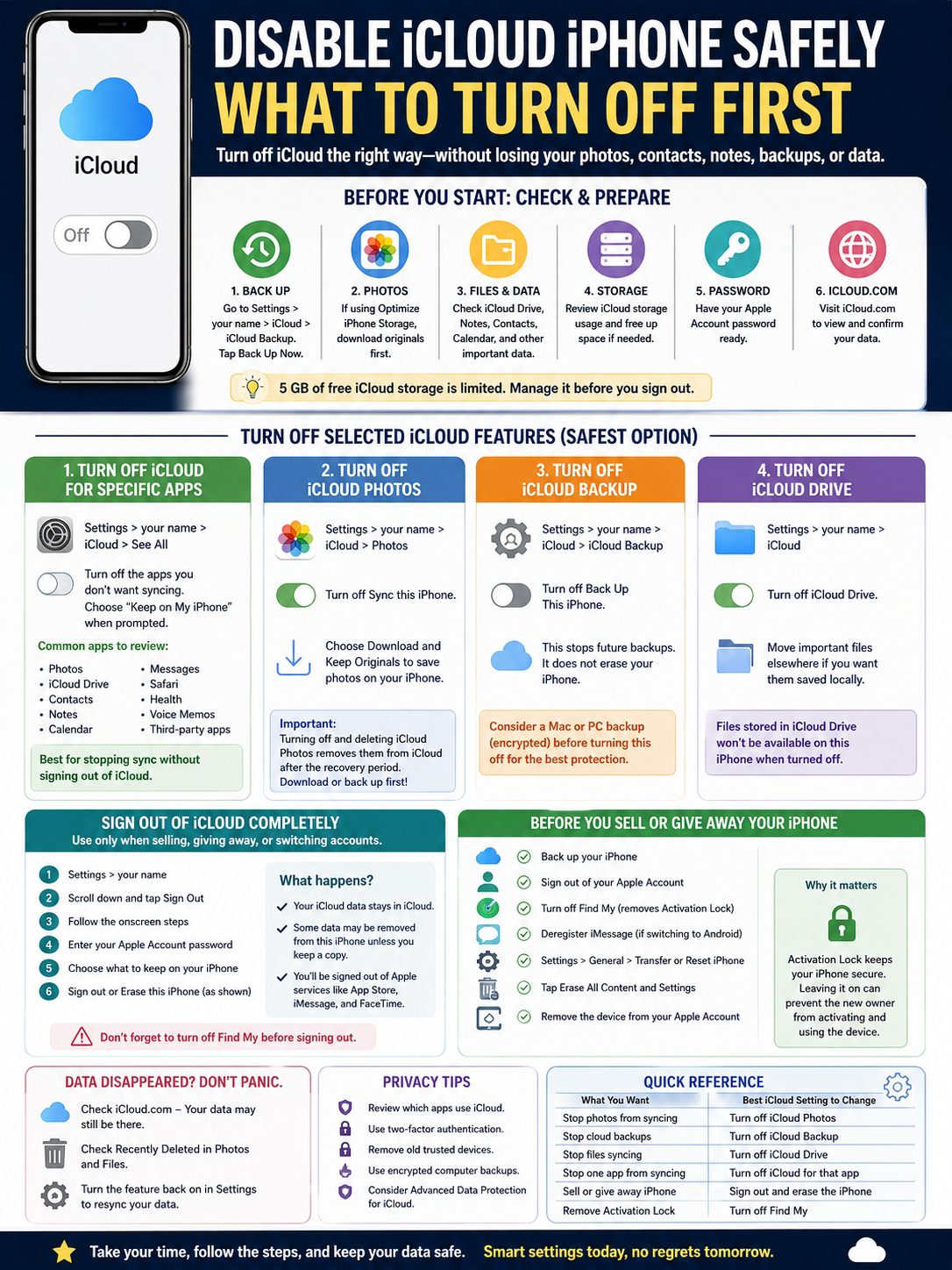
iCloud Backup is not the same as iCloud Photos or iCloud Drive.
iCloud Backup creates a device backup in iCloud. iCloud sync keeps selected data updated across devices.
This matters because some data already synced to iCloud may not be part of your regular iCloud Backup.
|
Backup option |
What it does |
Best for |
|
iCloud Backup on |
Backs up eligible iPhone data to iCloud |
Easy automatic protection |
|
iCloud Backup off |
Stops future iCloud backups |
Users with computer backups |
|
Mac or PC backup |
Saves backup locally |
Users avoiding cloud backups |
|
Encrypted computer backup |
Saves more sensitive data |
Better local backup option |
|
Delete old iCloud backup |
Frees storage |
Only when backup is no longer needed |
Steps to Turn Off iCloud Backup
- Open Settings.
- Tap your name.
- Tap iCloud.
- Tap iCloud Backup.
- Turn off Back Up This iPhone.
That stops future iCloud backups. It does not erase your iPhone.
Should You Delete Old Backups?
Be careful.
Deleting an old backup from a phone you no longer own may be fine. Deleting the only backup of your current iPhone is risky.
A better move is to create a fresh computer backup first. Then delete old iCloud backups only after you know you have another copy.
How to Sign Out of iCloud Completely
Signing out is the strongest way to remove iCloud from an iPhone.
Use it when you’re selling the phone, giving it away, switching accounts, or preparing it for repair or trade-in.
Don’t use this method just because iCloud storage is full. That is usually overkill.
|
Situation |
Should you sign out? |
Better option |
|
Selling your iPhone |
Yes |
Sign out, then erase |
|
Giving it to someone else |
Yes |
Remove Apple Account and Activation Lock |
|
Switching Apple Accounts |
Usually yes |
Back up first |
|
iCloud storage full |
No |
Manage storage |
|
Stop photo sync |
No |
Turn off iCloud Photos |
|
Stop one app syncing |
No |
Turn off iCloud for that app |
Steps to Sign Out
- Open Settings.
- Tap your name.
- Scroll down and tap Sign Out.
- Follow the onscreen steps.
- Enter your Apple Account password if asked.
- Choose whether to keep a copy of certain data on the iPhone.
Newer iOS versions may show options like Erase this iPhone or Sign Out But Don’t Erase. Older versions may use different wording.
Read the screen before tapping. This is where mistakes happen.
What Happens After You Sign Out?
Your iCloud data stays in iCloud. But some of it may leave your iPhone unless you keep a copy.
This may include:
- Contacts
- Calendars
- Notes
- Safari data
- iCloud Drive files
- Photos
- Passwords
- App data
You may also get signed out of App Store, iMessage, FaceTime, and other Apple services.
If you’re keeping the phone, save local copies of anything important.
Find My, Activation Lock, and Selling Your iPhone
Find My is not just a map feature.
It also connects to Activation Lock. That feature helps stop someone else from using your iPhone if it gets lost or stolen.
Great for security. Not great if you sell your phone and forget to remove it.
|
Feature |
What it does |
Why it matters |
|
Find My iPhone |
Helps locate your device |
Useful if lost or stolen |
|
Activation Lock |
Links iPhone to your Apple Account |
Blocks unauthorized activation |
|
Turn off Find My |
Removes Activation Lock |
Needed before selling or repair |
|
Erase All Content and Settings |
Wipes your personal data |
Final step before handover |
|
Remove from account |
Removes old device from Apple Account |
Helps avoid future issues |
Turn Off Find My
- Open Settings.
- Tap your name.
- Tap Find My.
- Tap Find My iPhone.
- Turn it off.
- Enter your Apple Account password if asked.
When you turn off Find My, Activation Lock is removed from that iPhone.
Before You Sell, Trade In, or Give Away Your iPhone
Use this checklist:
- Back up your iPhone.
- Sign out of your Apple Account.
- Turn off Find My if prompted.
- Deregister iMessage if switching to Android.
- Go to Settings > General > Transfer or Reset iPhone.
- Tap Erase All Content and Settings.
- Remove the device from your Apple Account if needed.
Never hand over an iPhone while it is still linked to your Apple Account.
What to Do If Data Disappears After Turning Off iCloud
First, don’t panic.
If contacts, notes, files, or photos disappear, they may still be in iCloud. The iPhone may only have stopped showing them because sync is off.
|
Problem |
Likely reason |
What to do |
|
Contacts disappeared |
iCloud Contacts turned off |
Check iCloud.com and turn Contacts back on |
|
Notes disappeared |
Notes were stored in iCloud |
Re-enable iCloud Notes |
|
Photos look missing |
Originals were in iCloud |
Check iCloud Photos and Recently Deleted |
|
Files disappeared |
iCloud Drive turned off |
Check Files app and iCloud.com |
|
Passwords stopped syncing |
iCloud Keychain turned off |
Turn Keychain back on |
|
New owner can’t activate phone |
Activation Lock still on |
Remove device from Apple Account |
Check iCloud.com
Open iCloud.com in a browser and sign in.
Check:
- Photos
- Drive
- Notes
- Contacts
- Calendar
- Reminders
If your data is there, it is probably safe. You may only need to turn sync back on or download a copy.
Check Recently Deleted
Photos and files may stay in Recently Deleted for a limited time.
Check:
- Photos app > Recently Deleted
- Files app > Recently Deleted
- iCloud.com recovery areas
Do this before deleting anything else.
Turn Sync Back On
If you turned off the wrong switch, go back to:
Settings > your name > iCloud
Turn the feature back on. Then wait. Syncing can take time, especially with photos and files.
Privacy Tips Before You Disable iCloud
Some users turn off iCloud because they want more privacy. That’s reasonable.
But privacy is not only about switching iCloud off. It is also about choosing what syncs, what stays local, and how your account is protected.
|
Privacy action |
Why it helps |
|
Review apps using iCloud |
Stops apps from syncing data you don’t need in iCloud |
|
Keep Find My on for daily use |
Helps protect a lost iPhone |
|
Use two-factor authentication |
Protects Apple Account access |
|
Remove old trusted devices |
Keeps your account cleaner |
|
Use encrypted computer backups |
Stores backups locally with better protection |
|
Turn off iCloud web access if needed |
Limits browser access to iCloud data |
|
Consider Advanced Data Protection |
Adds stronger encryption for more iCloud data |
Use Advanced Data Protection Carefully
Apple offers Advanced Data Protection for iCloud. It adds stronger end-to-end encryption for more categories of iCloud data, including backups, photos, and notes.
That can improve privacy. But there’s a catch.
If you lose access to your account and don’t have a recovery method, Apple may not be able to help recover some data.
So set up a recovery contact or recovery key before using it.
Don’t Turn Off Find My Too Early
For daily use, Find My is worth keeping on.
It protects your iPhone if it gets lost or stolen. Turn it off only when you are selling, trading in, repairing, or transferring the phone.
Final Thoughts
The safest way to disable icloud iphone settings is simple: don’t rush.
You probably don’t need to sign out of everything. Most users only need to turn off one feature, such as iCloud Photos, iCloud Backup, iCloud Drive, or app syncing.
Before changing anything, back up your iPhone. Download your original photos. Check iCloud.com. Review contacts, notes, files, and backups. Keep your Apple Account password ready.
If you’re selling or giving away the phone, take the full route. Sign out, turn off Find My, remove Activation Lock, and erase the device.
iCloud is useful, but it should not control your phone in ways you don’t understand. Once you know what each setting does, you can turn off what you don’t need and keep your data safe.
FAQs About Disabling iCloud on iPhone
These are the questions people often ask after something goes wrong.
|
Question |
Quick answer |
|
Can I disable iCloud without losing data? |
Yes, if you keep local copies and back up first |
|
Can I turn off only iCloud Photos? |
Yes |
|
Can I stop only iCloud Backup? |
Yes |
|
Will signing out delete my Apple Account? |
No |
|
Do I need my Apple Account password? |
Usually yes |
|
Should I disable iCloud before selling? |
Yes, then erase the phone |
Can I disable iCloud without deleting everything?
Yes. Turning off iCloud sync does not always delete data from iCloud. But it may remove data from your iPhone if you don’t keep a local copy.
Read each prompt before tapping.
Can I turn off iCloud Photos and keep photos on my iPhone?
Yes, but download originals first.
If your iPhone uses Optimize iPhone Storage, your full-size photos may still be in iCloud. Choose Download and Keep Originals before turning off sync.
Does turning off iCloud Backup delete my photos?
No.
iCloud Backup and iCloud Photos are different features. If iCloud Photos is on, your photos sync through iCloud Photos, not through the normal iCloud Backup.
Why did my contacts disappear after I turned off iCloud?
Your contacts were probably stored in iCloud.
Turn iCloud Contacts back on or check iCloud.com. Next time, choose Keep on My iPhone if your device offers that option.
Can I disable only iCloud Drive?
Yes.
Go to iCloud settings and turn off iCloud Drive. Move important files first if you want them saved locally.
Should I disable iCloud before repair?
Follow the repair provider’s instructions.
Some repairs require Find My to be turned off. Always back up your iPhone before doing that.
Is disabling iCloud the same as deleting my Apple Account?
No.
Disabling iCloud or signing out removes iCloud from that iPhone. It does not delete your Apple Account.
What if I no longer have the iPhone?
Use iCloud.com/find or your Apple Account device list to remove the iPhone if eligible. This can help remove Activation Lock when the device is no longer with you.