
Your phone is plugged in. The charging icon is there. Everything looks normal until the battery reaches 80%. Then it stops. No matter how long you wait, it refuses to move.
If android wont charge past 80, the good news is that your phone may not be broken. Many modern Android phones now stop charging at 80% on purpose to protect battery health. Samsung, Google Pixel, and several other brands use battery protection, adaptive charging, or optimized charging features to reduce long-term battery wear.
Still, that does not mean every 80% charging problem is normal. Heat, bad cables, dirty USB-C ports, software bugs, wireless charging issues, and aging batteries can also stop charging early.
This guide explains why your Android phone stops at 80%, how to check the right setting, and what to do if the problem is not caused by battery protection.
Why Android Wont Charge Past 80: The Fast Diagnosis
If your phone stops at exactly 80% every time, battery protection is the first setting to check. A clean stop at the same number usually means the phone is following a charging limit, not failing randomly.
Many Android phones now include charging tools that slow down or limit charging to reduce battery stress. Lithium-ion batteries age faster when they stay hot and fully charged for long periods. That is why phone makers now give users more control over charging limits.
But there is a difference between a planned 80% limit and a real charging fault. If your phone stops at 76% one day, 82% another day, and 64% another time, the issue may be heat, charger quality, port damage, or battery wear.
Quick signs to check first
Look at the pattern before changing random settings. The pattern often tells you where to start.
|
Charging Behavior |
Most Likely Cause |
First Fix to Try |
|
Stops exactly at 80% every time |
Battery protection or charge limit |
Check Battery settings |
|
Holds near 80% overnight, then reaches 100% |
Adaptive charging |
Check wake-up or charging routine |
|
Stops when phone is hot |
Thermal protection |
Let the phone cool |
|
Charges only with one cable |
Cable or adapter issue |
Try another charger and cable |
|
Cable feels loose |
Dirty or damaged USB-C port |
Inspect the charging port |
|
Battery percentage jumps |
Battery reporting or battery health issue |
Restart and monitor battery behavior |
Is Charging to 80% a Problem or a Feature?
An Android phone stopping at 80% can feel annoying, but it is often a battery-care feature. Phone makers use it because a battery does not love sitting at 100% all night, every night.
The 80% limit is useful for people who work from home, sit near a charger, or do not need full battery capacity every day. It keeps the battery in a more moderate range, which can help slow long-term wear.
That said, the feature can be frustrating if you travel, work outdoors, or rely on long screen-on time. A battery protection setting should help your life, not make your phone less useful.
When 80% charging is normal
It is probably normal if the phone stops at the same percentage every time and shows a message like battery protection, optimized charging, or charging paused.
|
Normal Situation |
What It Means |
|
Phone stops at 80% every day |
A charge limit is likely enabled |
|
Phone finishes charging before your alarm |
Adaptive charging is working |
|
Charging pauses during heat |
Phone is protecting the battery |
|
Pixel charges to 100% after several limited cycles |
Battery reading calibration may be happening |
|
Samsung stops at a selected limit |
Battery protection is active |
When it may be a real issue
Take the problem more seriously if the phone heats up, drains unusually fast, shuts down, or refuses to charge with multiple chargers.
|
Warning Sign |
Why It Matters |
|
Phone gets too hot to hold |
Possible thermal or battery issue |
|
Back cover starts lifting |
Possible swollen battery |
|
Battery drops quickly after 80% |
Battery may be aging |
|
Charging works only at one cable angle |
Port may be damaged |
|
Phone shuts down at 20-40% |
Battery health may be poor |
|
No charger works |
Hardware diagnosis may be needed |
Common Reasons Your Android Phone Stops Charging at 80%
Several things can cause this issue, but one cause is much more common than the others: battery protection. Start there before assuming your charger or battery has failed.
Modern Android phones are more aggressive about battery care than older models. That is why many users first notice this after a software update or after buying a newer phone.
The tricky part is that different brands use different names. One phone may call it Battery protection. Another may call it Charging optimization, Smart charging, Optimized charging, or Battery care.
Battery protection is turned on
Battery protection limits charging before the phone reaches 100%. On some phones, the limit is fixed. On others, users can choose a maximum charging level.
This is the most likely reason when android wont charge past 80 on a Samsung Galaxy or Google Pixel device. The phone is not stuck. It is following your battery-care setting.
|
Feature Name |
What It Usually Does |
|
Battery Protection |
Stops charging at a set limit |
|
Limit to 80% |
Prevents full charging for battery health |
|
Charging Optimization |
Reduces time spent at 100% |
|
Adaptive Charging |
Learns routine and finishes later |
|
Smart Charging |
Delays or manages charging automatically |
Adaptive charging is holding the battery
Adaptive charging is different from a strict 80% limit. It may hold the phone around 80% for hours, then finish charging closer to your usual wake-up time.
This is common during overnight charging. You plug in before bed, the phone quickly reaches 80%, then waits. If everything works properly, it reaches 100% near the time you usually unplug it.
Read Also: How to Recover Deleted Contacts on Android
The phone is too hot
Heat can slow or stop charging. This is not a bug. Phones reduce charging speed when heat becomes risky for the battery or internal parts.
Heat can build up when you fast charge, use wireless charging, record video, play games, use hotspot, or keep the phone in a thick case. Charging under a pillow or in direct sunlight can make things worse.
The charger or cable is weak
A bad cable can still show the charging icon while delivering unstable power. That is why a phone may appear to charge normally at first, then slow down or stop later.
Low-quality adapters can also cause slow charging, intermittent charging, or warning messages. Always test with a known-good cable and wall charger before blaming the phone.
The USB-C port is dirty or loose
Pocket lint is a boring problem, but it causes real charging trouble. Dust inside the USB-C port can stop the cable from sitting properly.
If the connector does not fit firmly, charging may cut in and out. Do not scrape the port with metal tools. Use a soft brush carefully, or visit a repair center if the port looks damaged.
Wireless charging is creating extra heat
Wireless charging is convenient, but it can generate more heat than wired charging. Poor alignment on the charging pad can make charging even less efficient.
If your phone stops at 80 only on a wireless charger, test it with a wired charger. Also remove thick cases and check for objects between the phone and the charging pad.
How to Fix Android Wont Charge Past 80
The best fix is to move in order. Do not factory reset your phone first. Start with battery settings, then check heat, accessories, software, and hardware.
Most users can solve the issue in a few minutes if it is caused by a charging limit. If the issue is heat or hardware, the fix may take more testing.
The goal is simple: find out whether the phone is protecting the battery or failing to charge properly.
Step 1: Check Battery settings
Open Settings and search for charging, battery protection, optimized charging, or adaptive charging. The search bar inside Settings is often faster than digging through menus.
Common paths include:
|
Phone Brand |
Setting to Check |
|
Samsung Galaxy |
Settings > Battery > Battery protection |
|
Google Pixel |
Settings > Battery > Battery health > Charging optimization |
|
OnePlus |
Settings > Battery > Battery health or Smart charging |
|
Xiaomi, Redmi, POCO |
Settings > Battery > Battery protection or Optimized charging |
|
Motorola |
Settings > Battery > Adaptive charging or Optimized charging |
|
Oppo, Vivo, Realme |
Settings > Battery > Smart charging or Battery health options |
Step 2: Turn off the 80% limit temporarily
Turn off the charging limit and plug in again. If the phone charges beyond 80%, the issue was a setting.
You do not have to keep the limit off forever. You can use the 80% limit during normal days and turn it off before travel, outdoor work, or long commutes.
Step 3: Restart the phone
A restart sounds too simple, but it can clear temporary charging glitches. It also helps after software updates or when battery settings behave strangely.
Hold the power button and restart the device. If your phone does not show a normal restart menu, use your brand’s force restart button combination.
Step 4: Let the phone cool down
Remove the case and stop heavy apps. Place the phone on a hard surface in a cool room. Avoid charging on beds, pillows, blankets, or inside a hot car.
If you were gaming, recording video, using maps, or running hotspot, stop those tasks and wait 15-30 minutes before charging again.
Step 5: Try another cable and adapter
Use a reliable USB-C cable and wall adapter. If possible, test with the original charger or a charger from a trusted brand.
Do not test only with a laptop USB port. Laptop ports may deliver less power than a wall adapter, especially for fast-charging phones.
Step 6: Check the charging port
Look inside the USB-C port with a flashlight. Check for lint, dust, moisture, corrosion, or bent parts.
If the cable wiggles too much or falls out easily, the port may be worn or blocked. A soft brush can help remove light debris, but do not force anything into the port.
Step 7: Update the phone
Install pending Android system updates and Google Play system updates. Also update brand apps such as Samsung Device Care or Samsung Members if you use a Galaxy phone.
Charging bugs can happen after updates, but updates can also fix battery reporting and charging behavior.
Step 8: Check battery usage by app
A power-hungry app can make charging look stuck. For example, if a game, camera, hotspot, or GPS app is draining power while charging, the battery may rise very slowly.
Go to Battery usage and check which apps used the most power. Close heavy apps and test charging again with the screen off.
Step 9: Test Safe Mode
Safe Mode starts the phone without most third-party apps. If the phone charges normally in Safe Mode, a recently installed app may be causing battery drain or charging trouble.
Remove suspicious apps one by one. Start with battery saver apps, cleaner apps, unknown launchers, and apps installed right before the issue started.
Step 10: Visit a repair center
If nothing works, get the phone checked. This is especially important if the device overheats, the battery drains quickly, the port is loose, or the back cover is lifting.
|
Fix Step |
Use This When |
Expected Result |
|
Turn off charge limit |
Stops exactly at 80% |
Charges beyond 80 |
|
Restart phone |
Issue appeared suddenly |
Clears temporary bug |
|
Cool phone |
Device feels warm |
Charging resumes |
|
Change cable |
Charging is slow or unstable |
Stable charging |
|
Clean port carefully |
Cable feels loose |
Better connection |
|
Update software |
Issue started after update |
Bug may be fixed |
|
Repair center |
Overheating or swelling |
Hardware diagnosis |
Brand-Specific Fixes for Android Phones Stuck at 80%
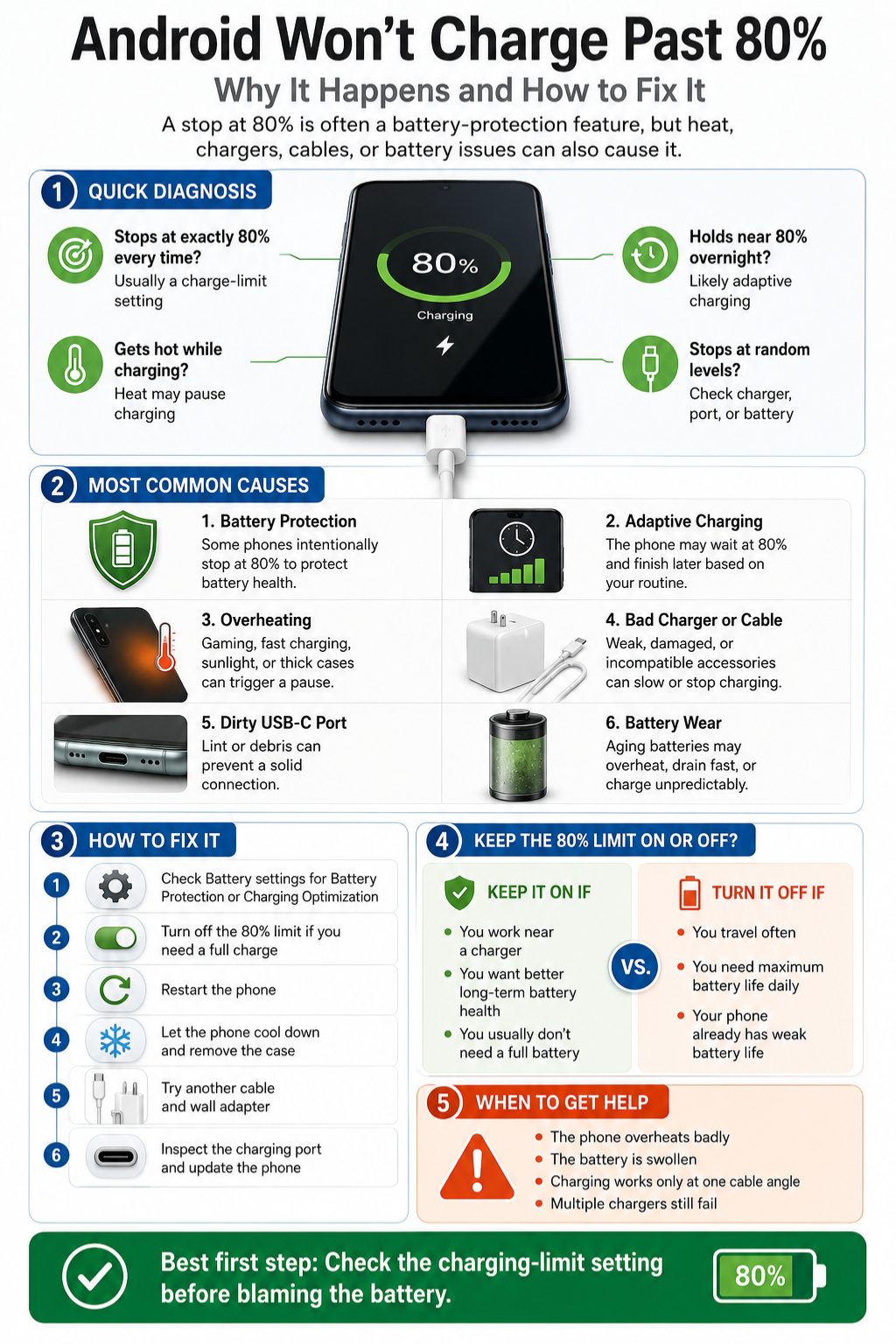
The basic idea is the same across Android phones, but the menu names vary. That is why brand-specific checks matter.
Samsung and Pixel users are the most likely to see an intentional 80% charging limit because both brands clearly document battery protection features. Other brands may offer similar tools under different names.
Use your phone’s Settings search if you cannot find the exact menu path.
Samsung Galaxy phone won’t charge past 80
On newer Samsung Galaxy phones, Battery protection can limit the maximum charge level. If the selected limit is 80%, the phone will stop there by design.
Go to Settings > Battery > Battery protection. Check whether Maximum or a custom limit is enabled. Change the limit or turn Battery protection off if you need a full charge.
Google Pixel won’t charge past 80
On supported Pixel phones, Charging Optimization can limit charging to 80%. Pixel 6a and later devices support this option.
Go to Settings > Battery > Battery health > Charging optimization. If Limit to 80% is selected, choose Adaptive Charging or turn off Charging Optimization when you need 100%.
Pixel phones may also automatically limit charging to around 70-80% in certain heat or long-charging situations. This can happen to protect the battery.
OnePlus phone won’t charge past 80
OnePlus phones may use Smart charging, Battery Health, or optimized charging options depending on the OxygenOS version and model.
Check Battery settings and search for charging limit. If you use a fast charger, test with the official adapter and cable because OnePlus fast charging often depends on compatible accessories.
Xiaomi, Redmi, or POCO phone won’t charge past 80
Xiaomi, Redmi, and POCO phones may show battery protection or optimized charging settings depending on the MIUI or HyperOS version.
Search Settings for battery protection, charging, or optimized charging. If the issue started after a system update, check for another update and restart the phone after installing it.
Motorola, Oppo, Vivo, Realme, and other Android phones
These brands may not use the same terms, but the idea is similar. Search Settings for adaptive charging, optimized charging, smart charging, battery health, or charge limit.
|
Brand |
Likely Setting Name |
Best First Action |
|
Samsung |
Battery protection |
Check maximum charge level |
|
Pixel |
Charging Optimization |
Check Limit to 80% |
|
OnePlus |
Smart charging |
Check Battery settings |
|
Xiaomi/Redmi/POCO |
Optimized charging |
Search Settings |
|
Motorola |
Adaptive charging |
Turn off and test |
|
Oppo/Vivo/Realme |
Smart charging |
Check battery tools |
Should You Keep the 80% Charging Limit On?
There is no single correct answer. The best setting depends on how you use your phone.
If you spend most of your day near a charger, the 80% limit can make sense. You still get enough battery for normal use, and the phone avoids sitting at full charge for hours.
If you travel, use mobile data heavily, play games, record videos, or work outside, the 80% limit may be too restrictive. Battery health matters, but so does having enough charge when you need it.
Keep the 80% limit on if
Use the limit if battery longevity matters more than maximum daily runtime.
- You keep your phone for three years or more.
- You work at a desk or near a charger.
- You usually end the day with battery left.
- You charge overnight.
- Your phone gets warm while charging.
- You do not need 100% most days.
Turn the 80% limit off if
Turn it off when full battery capacity matters more.
- You travel often.
- You use GPS, camera, hotspot, or mobile data heavily.
- You work outdoors.
- Your phone already has short battery life.
- You cannot charge during the day.
- You need full screen-on time.
Use Adaptive Charging as a middle option
Adaptive Charging is often the better middle ground. It lets the phone reach 100%, but tries to reduce how long it sits there.
This works well for overnight charging. The phone learns when you usually unplug it and finishes charging closer to that time.
|
User Type |
Best Charging Setting |
|
Desk worker |
80% limit or adaptive charging |
|
Traveler |
100% when needed |
|
Overnight charger |
Adaptive charging |
|
Heavy gamer |
100% when needed, avoid heat |
|
Long-term phone user |
80% limit when practical |
|
Outdoor worker |
Full charge before leaving |
Charging Habits That Help Android Battery Health
You do not need to treat your phone like fragile glass. Modern phones have charging safeguards. Still, a few habits can reduce battery stress.
The biggest rule is simple: avoid heat. A phone that stays hot while charging will age faster than a phone that occasionally charges to 100%.
Good charging habits are about balance. Use the battery when you need it. Protect it when you do not.
Avoid heat more than you avoid 100%
Charging to 100% is not a disaster. Leaving the phone hot and full for long periods is the bigger problem.
Do not charge under pillows or blankets. Avoid direct sunlight. Remove thick cases if the phone feels warm.
Use trusted chargers and cables
A good charger does not just charge faster. It also delivers power more reliably.
Use chargers from your phone brand or reputable accessory makers. Avoid damaged cables, loose adapters, and unknown high-watt chargers.
Do not drain to 0% often
Old battery myths still cause confusion. Modern lithium-ion phone batteries do not need regular full discharge cycles.
Draining to 0% again and again can add stress. Charge when convenient instead of forcing the battery down.
Update your phone regularly
Updates can improve charging behavior, battery reporting, and device safety. If the charging issue appears after an update, still check for the next patch.
|
Habit |
Why It Helps |
|
Keep phone cool |
Reduces battery stress |
|
Use reliable charger |
Prevents unstable charging |
|
Avoid repeated 0% drain |
Reduces deep-discharge stress |
|
Use adaptive charging |
Limits time at 100% |
|
Turn off 80% limit when needed |
Keeps phone practical |
|
Replace worn batteries |
Restores real battery performance |
Mistakes to Avoid When Your Phone Stops at 80%
When a phone refuses to pass 80%, it is easy to panic and try extreme fixes. Most of them are unnecessary.
Start with simple checks. Battery settings, heat, cable, and charger tests solve many cases.
Avoid anything that can damage the phone, erase data, or make the battery unsafe.
Do not factory reset first
A factory reset should be a last resort. It erases data and may not fix the problem if the cause is battery protection or a bad charger.
Check settings and accessories first. Back up your data before any major reset.
Do not use metal tools in the USB-C port
Metal tools can damage pins inside the port. They can also create safety risks.
Use a soft brush carefully or ask a technician to clean the port if you are unsure.
Do not ignore swelling or overheating
A swollen battery is not a software problem. Stop charging and get professional help.
The same applies if the phone becomes too hot to hold, smells unusual, or shuts down repeatedly.
Do not install random battery repair apps
Battery repair apps cannot physically repair a worn lithium-ion battery. Some may show ads, request unnecessary permissions, or add more battery drain.
Use built-in battery tools instead.
|
Mistake |
Better Action |
|
Factory reset immediately |
Check battery settings first |
|
Scrape port with metal |
Use soft cleaning or service |
|
Ignore heat |
Stop charging and cool phone |
|
Buy random fast charger |
Use compatible charger |
|
Install battery repair apps |
Use built-in diagnostics |
|
Keep charging swollen phone |
Contact repair center |
When to Get Professional Help
Most 80% charging issues are settings-related, but some need repair. Hardware problems should not be ignored.
Get help if the phone fails with multiple chargers and cables. Also seek service if the phone heats up badly, shuts down randomly, or shows physical damage.
If your phone is under warranty, avoid opening it yourself. DIY repair can affect warranty coverage.
Signs your phone needs repair
These signs point beyond a simple setting:
- Battery is swollen.
- Back panel is lifting.
- Charging port is loose.
- Phone only charges at one cable angle.
- Battery drains unusually fast.
- Phone shuts down before reaching 0%.
- Phone gets very hot while charging.
- No charger works reliably.
- Liquid damage happened recently.
Samsung users can run diagnostics
Samsung Galaxy users can use Samsung Members to run battery, cable charging, and wireless charging checks. This is useful before visiting a service center.
Other brands may offer similar diagnostics through their support apps or device care tools.
|
Repair Trigger |
Why You Should Not Wait |
|
Swollen battery |
Safety risk |
|
Loose charging port |
May worsen with use |
|
Heavy overheating |
Possible battery or board issue |
|
Random shutdowns |
Battery health may be poor |
|
No charger works |
Port or internal charging fault |
|
Liquid exposure |
Corrosion can spread |
Final Thoughts
If android wont charge past 80, start with the simplest explanation. Your phone may be protecting the battery on purpose.
Check Battery protection, Charging Optimization, Adaptive Charging, or Smart Charging first. If turning off the limit lets the phone charge normally, nothing is broken. You can decide whether to keep the feature on for daily use or turn it off when you need a full charge.
If the setting is not the cause, move through the practical checks: cool the phone, try another charger and cable, inspect the USB-C port, update the software, and check battery usage. Those steps solve most charging problems without panic.
The only time to stop troubleshooting at home is when safety signs appear. A swollen battery, heavy overheating, loose port, burning smell, or random shutdowns deserves professional repair. Battery health is important, but safety matters more.
Frequently Asked Questions About Android Wont Charge Past 80
These questions cover the smaller details many users search for after checking the basic fixes.
Why does my phone say charging paused at 80%?
It usually means the phone has paused charging to protect battery health or control heat. Check battery protection, optimized charging, and device temperature.
Why did my Android start stopping at 80 after an update?
A software update may add a new battery protection feature, change the default charging behavior, or expose a setting that was not obvious before. Check Battery settings after major updates.
Can I force my Android phone to charge to 100%?
Yes, if the stop is caused by a charging limit. Turn off Battery protection, Limit to 80%, or Charging optimization. If heat or hardware is the cause, forcing it is not a good idea.
Is the 80% limit better than adaptive charging?
The 80% limit is better for battery health if you do not need full capacity. Adaptive charging is better for users who still want 100% but do not want the phone sitting full for hours.
Why does my phone charge past 80 sometimes but not always?
That can happen with adaptive charging, temperature control, or battery calibration. Pixel phones, for example, may occasionally charge fully for battery reading accuracy even when an 80% limit is enabled.
Can a phone case stop charging after 80%?
Yes, indirectly. A thick case can trap heat, especially during fast or wireless charging. If the phone gets warm, it may slow or pause charging.
Does fast charging damage the battery?
Fast charging is supported on many phones, but it can create more heat. Use compatible chargers and avoid fast charging during gaming, video recording, or hot weather.
Should I charge my Android overnight?
Overnight charging is common, and modern phones manage it better than older devices. Adaptive charging or battery protection is useful if you charge overnight often.
Why does wireless charging stop before 100%?
Wireless charging can stop early because of heat, poor alignment, a thick case, or foreign objects between the phone and pad. Test with wired charging to compare.
Is my battery dead if Android wont charge past 80?
Not necessarily. If android wont charge past 80 exactly, a setting is more likely than a dead battery. Suspect battery wear only if you also see overheating, fast drain, shutdowns, swelling, or unstable charging.