
Let’s be honest. Most Mac webcams still don’t look great. They get the job done, but the image is often soft, flat, and not very flattering.
That’s where the iphone as webcam mac setup comes in.
If you’ve got an iPhone and a Mac, you already own a surprisingly good webcam. Apple’s Continuity Camera lets your Mac use your iPhone camera during video calls. No extra gear. No complicated setup.
In a few minutes, your video quality can jump from “okay” to “this actually looks professional.”
In this guide, I’ll walk you through everything step by step. What you need, how to set it up, how to fix issues, and how to get the best possible video quality without overthinking it.
What iPhone as Webcam Mac Actually Means
Apple’s Continuity Camera is the feature behind all of this.
In simple terms, it lets your Mac use your iPhone camera like it’s a built-in webcam.
Once connected, your iPhone shows up as a camera option in apps like Zoom, FaceTime, and Google Meet.
How it works in real life
You place your iPhone near your Mac.
Open a video app.
Select the iPhone as the camera.
That’s it. Your Mac starts using your iPhone’s camera instantly.
Why people switch from Mac webcam
There’s a clear reason this feature is so popular:
- The iPhone camera is just better
- Low light performance is stronger
- Background blur looks more natural
- Face tracking keeps you centered
- Desk View is useful for demos and teaching
Who actually uses this
You’ll see this setup a lot with:
- Remote workers on daily calls
- Students attending online classes
- Teachers running virtual lessons
- Freelancers meeting clients
- Creators recording tutorials
Quick comparison
|
What you get |
Mac webcam |
iPhone webcam |
|
Sharpness |
متوسط |
Very sharp |
|
Low light |
Weak |
Strong |
|
Background blur |
Limited |
Natural |
|
Movement tracking |
No |
Yes |
|
Desk view |
No |
Yes |
What You Need Before You Start
Before jumping in, check a few basics. Most problems happen when something small is missing.
iPhone requirements
You’ll need:
- iPhone XR or newer
- iOS 16 or later
- Continuity Camera turned on (usually already enabled)
If your iPhone is newer, you’ll also get better features like Desk View.
Mac requirements
Your Mac should be running:
- macOS Ventura 13 or later
Older systems simply won’t show the iPhone as a camera option.
Basic setup conditions
This part matters more than people expect:
- Same Apple ID on both devices
- Bluetooth turned on
- Wi-Fi enabled
- Devices placed close to each other
Requirements at a glance
|
Requirement |
What you need |
|
iPhone |
XR or newer |
|
iOS |
16 or later |
|
Mac |
Ventura 13+ |
|
Connection |
Wi-Fi or USB |
|
Apple ID |
Same on both |
Setting Up iPhone as Webcam Mac
This setup sounds technical, but it really isn’t.
Turn on Continuity Camera
On your iPhone:
- Open Settings
- Go to General
- Tap AirPlay & Continuity
- Switch on Continuity Camera
Most users will find this already enabled.
Get your iPhone in position
This part changes everything about how you look on camera.
- Place it near your Mac
- Keep it in landscape mode
- Lock the screen
- Make sure the rear camera faces you
- Keep it steady
If your phone is wobbling, your video will look worse. Simple as that.
Read Also: How to Transfer Photos from iPhone to Mac Without Cable
Use a stand if you can
You don’t need fancy gear. Even a basic stand helps a lot.
- Desk stand
- Tripod
- Laptop mount
- MagSafe holder
Setup checklist
|
Step |
What to do |
|
1 |
Turn on Continuity Camera |
|
2 |
Sign in with same Apple ID |
|
3 |
Enable Wi-Fi + Bluetooth |
|
4 |
Place iPhone near Mac |
|
5 |
Lock the phone |
|
6 |
Select camera in app |
Using iPhone as Webcam Mac in Real Apps
Once everything is set, the rest is pretty straightforward.
Your iPhone just appears as a camera option inside your apps.
FaceTime
- Open FaceTime
- Start a call
- Choose iPhone camera if needed
- Turn on Portrait or Studio Light for a cleaner look
Zoom
- Open Zoom settings
- Go to Video
- Pick iPhone as camera
If it doesn’t show up, restart Zoom once.
Google Meet
- Open Chrome or Safari
- Allow camera access
- Select iPhone in video settings
A quick refresh usually fixes detection issues.
Microsoft Teams
- Go to Device settings
- Choose video input
- Select iPhone camera
Restart Teams if it feels stuck.
App behavior summary
|
App |
What usually happens |
Quick fix |
|
FaceTime |
Works instantly |
Recheck camera |
|
Zoom |
Needs refresh |
Restart app |
|
Google Meet |
Browser delay |
Reload tab |
|
Teams |
Slow detection |
Restart |
Features That Actually Matter
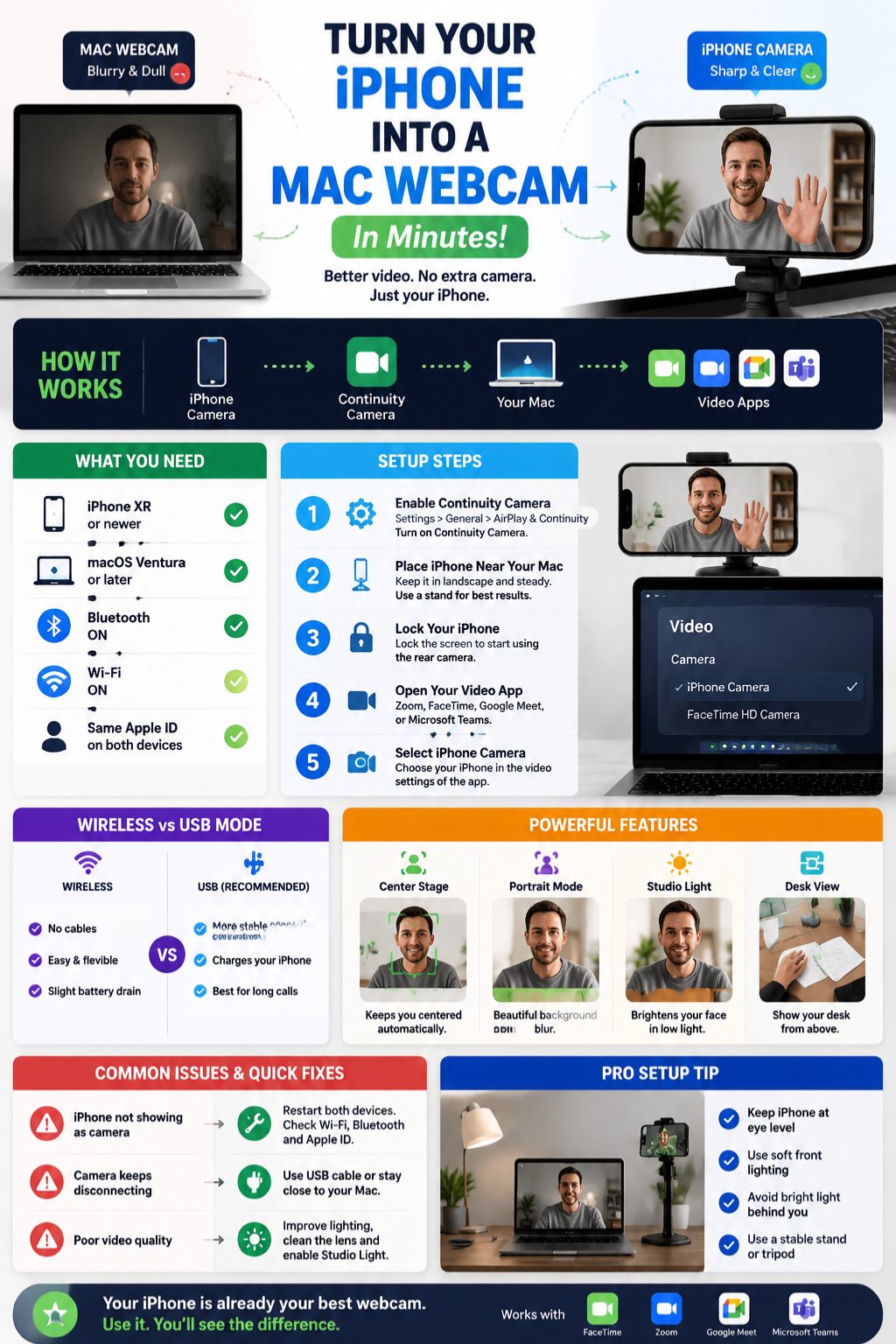
Apple added more than just a webcam mode here. Some features genuinely improve how you look.
Center Stage
This keeps you in frame even if you move around a bit.
Great for teaching or standing calls.
Portrait mode
Blurs your background so you stand out more.
Perfect if your room isn’t “camera ready.”
Studio Light
Brightens your face and tones down the background.
Useful when lighting isn’t ideal.
Desk View
This one surprises people.
It shows your desk from above using your iPhone camera.
Perfect for:
- Tutorials
- Product demos
- Teaching notes
Feature breakdown
|
Feature |
What it does |
Best use |
|
Center Stage |
Follows you |
Movement calls |
|
Portrait |
Blurs background |
Clean look |
|
Studio Light |
Improves lighting |
Dark rooms |
|
Desk View |
Shows desk |
Tutorials |
Wireless vs USB: Which One Should You Use?
Both work fine. But they feel different.
Wireless setup
This is the easiest option.
- No cables
- Clean desk
- Quick setup
But:
- Battery drains faster
- Can drop if Wi-Fi is unstable
USB setup
This is the reliable one.
- Stable connection
- Charges your iPhone
- Great for long meetings
Simple comparison
|
Mode |
Stability |
Charging |
Best for |
|
Wireless |
Good |
No |
Quick calls |
|
USB |
Excellent |
Yes |
Long sessions |
How to Make Your Video Look Better
The camera is only half the story. The rest is setup.
Fix your lighting first
This is the biggest upgrade you can make.
- Face a window during the day
- Use a soft lamp at night
- Avoid sitting with bright light behind you
Get your angle right
- Keep the camera at eye level
- Avoid low angles
- Don’t place it too far away
Clean your lens
It sounds basic, but it matters. A smudged lens ruins sharpness.
Don’t ignore audio
Good video with bad audio still feels unprofessional.
Use:
- AirPods
- External mic
- iPhone mic (if supported)
Quality checklist
|
Factor |
What helps |
|
Lighting |
Soft front light |
|
Angle |
Eye level |
|
Lens |
Clean surface |
|
Audio |
External mic if possible |
Common Problems (and Real Fixes)
Things don’t always work perfectly. Here’s what usually goes wrong.
iPhone doesn’t show up
This usually means:
- Different Apple ID
- Bluetooth off
- Wi-Fi disabled
- Devices too far apart
Fix it by restarting both devices and trying again.
Camera keeps disconnecting
Common causes:
- Weak Wi-Fi
- Low battery
- Phone moved away
Fix: use USB cable.
Video looks bad
Fixes are simple:
- Improve lighting
- Clean the lens
- Turn on Studio Light
Desk View not working
Most likely:
- Unsupported iPhone model
- Wrong positioning
- Feature not enabled
Troubleshooting table
|
Problem |
Fix |
|
Not detected |
Restart devices |
|
Disconnecting |
Use USB |
|
Poor video |
Fix lighting |
|
Desk View issue |
Check model |
Privacy and Safety
Apple keeps this pretty tight.
- You’ll see a clear indicator when camera is active
- Only trusted Apple devices work together
- Same Apple ID is required
You can turn it off anytime if you want full control.
Should You Use iPhone as Webcam Mac?
Use it if you want:
- Better video without buying anything
- Simple setup
- Clear improvement in calls
A webcam might still make sense if:
- You want a fixed studio setup
- You don’t want to mount your phone
- You record long sessions every day
Final Thoughts
The iphone as webcam mac setup is one of those upgrades that feels almost unfair once you try it. You already own the hardware. Apple just connects the dots.
If you care about how you show up on video calls, this is one of the easiest wins you can get. Set it up once, and you’re done.
For quick meetings, go wireless. For long calls or work sessions, plug in USB and forget about battery worries.
FAQs
Do I need an app to use iPhone as webcam on Mac?
No. It works natively with Continuity Camera.
Why is my iPhone not showing on Mac?
Usually it’s Wi-Fi, Bluetooth, or Apple ID mismatch.
Does it work with Zoom and Meet?
Yes, both support it.
Can I use USB instead of wireless?
Yes, and it’s more stable.
Does it drain battery?
Yes in wireless mode, less in USB mode.