
You join a meeting. The camera works. Everyone is waving. Then comes the classic line: “Can you hear me?”
Few tech problems feel more annoying than zoom audio not working right when a meeting starts. Sometimes you can hear everyone, but they can’t hear you. Sometimes your mic works in other apps, but Zoom acts like it has never seen a microphone before. Other times, you share a video and the picture plays perfectly, but the sound disappears.
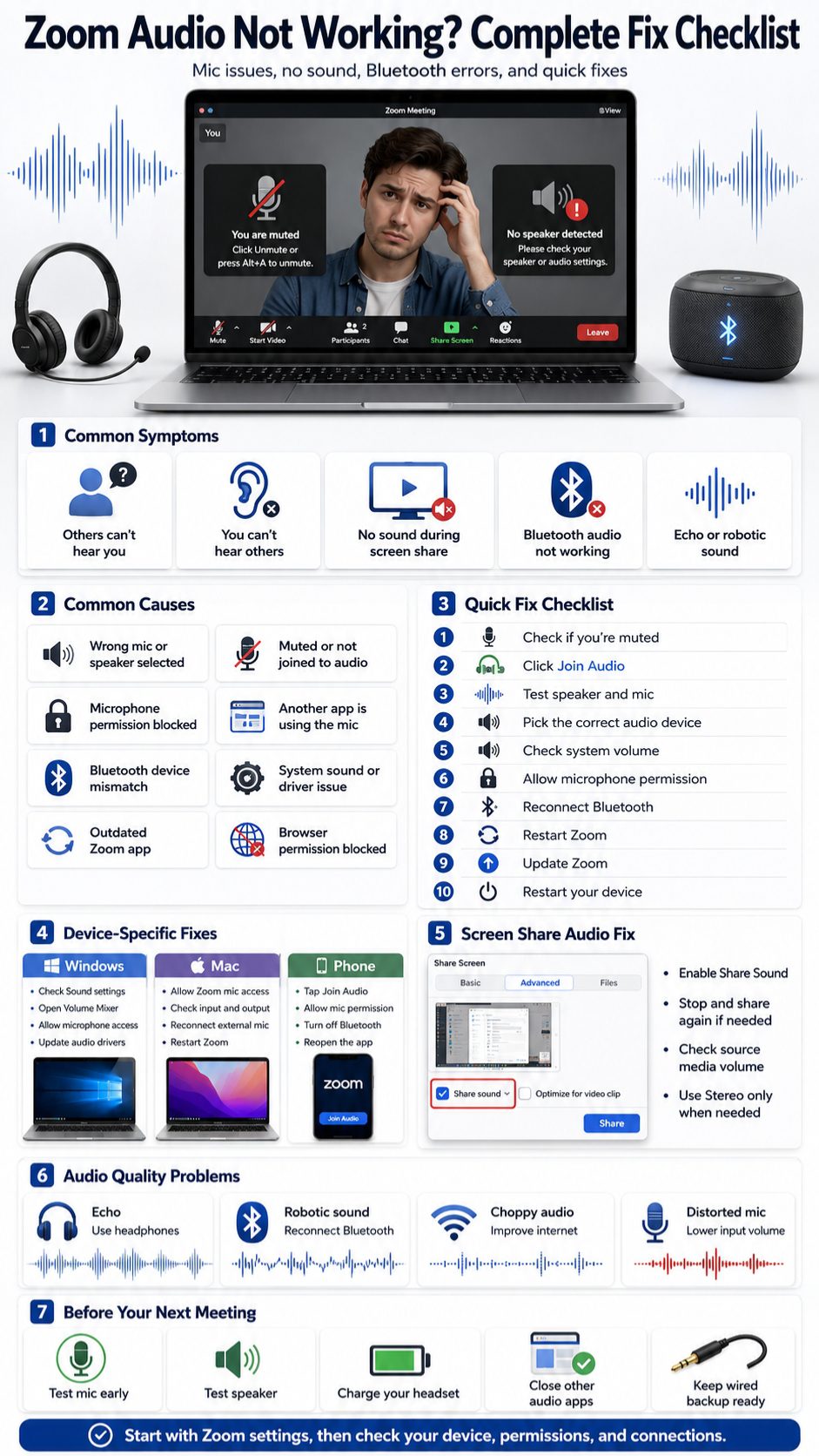
The good news is that most Zoom audio issues are not serious. They usually come from a wrong mic, muted speaker, blocked permission, Bluetooth confusion, old driver, or a missed “Share Sound” option. Zoom’s own troubleshooting guidance recommends checking audio devices, Bluetooth connection, microphone permissions, audio drivers, and Zoom’s built-in speaker and microphone test before trying bigger fixes.
This guide walks through the fixes in a clean order. Start with the quick checks. Then move to Windows, Mac, mobile, Bluetooth, browser, and screen-sharing fixes.
Zoom Audio Not Working: Start With These Quick Checks
Before changing deep settings, check the simple things first. A lot of Zoom audio problems happen because the meeting audio was never joined, the wrong device was selected, or Bluetooth quietly stole the sound. This section is for the “I have a meeting in two minutes” situation.
Zoom lets users test the speaker and microphone inside the app, and this should be one of the first checks. If the test tone plays and your voice records properly, the issue is probably inside the meeting, not your device. If the test fails, move to device settings and permissions.
|
Quick Check |
What To Do |
Why It Helps |
|
Mute button |
Check the mic icon in Zoom |
You may simply be muted |
|
Join Audio |
Click Join Audio or Call Over Internet |
Video can join without audio |
|
Speaker |
Test Speaker in Zoom settings |
Confirms if Zoom output works |
|
Microphone |
Test Microphone in Zoom settings |
Confirms if Zoom input works |
|
Bluetooth |
Disconnect and reconnect headset |
Fixes wrong audio routing |
|
Restart |
Close and reopen Zoom |
Clears temporary glitches |
Check If You Are Muted
Look at the microphone icon in the Zoom toolbar. If it has a red slash, you are muted. Click it once to unmute.
If the host muted you, Zoom may not let you unmute until the host allows it. In that case, send a chat message or raise your hand.
Click Join Audio
Sometimes people join the meeting video but never join audio. If you see “Join Audio” in the bottom-left corner, click it.
On phones, choose “Call Over Internet” or the similar option shown in the app. Mobile users often miss this step because the video window opens first, but audio still needs a separate tap.
Pick The Right Mic And Speaker
Click the small arrow beside the mic icon. Choose the correct microphone and speaker.
For example, your laptop may have these options:
- Built-in microphone
- Webcam microphone
- USB microphone
- Bluetooth headset
- Monitor speaker
- HDMI audio
- Laptop speaker
Choose the device you actually want to use.
Test Your Speaker And Microphone Inside Zoom
Zoom has a built-in audio test for a reason. It tells you whether Zoom can hear your microphone and play sound through your speaker. This is better than guessing.
If your mic works in Windows or Mac settings but fails inside Zoom, the problem is likely Zoom settings, permissions, or device selection. If it fails everywhere, the issue may be the mic, speaker, driver, or operating system.
|
Zoom Audio Test |
Good Result |
Bad Result |
Next Step |
|
Test Speaker |
You hear the ringtone |
No sound plays |
Change speaker or raise volume |
|
Test Microphone |
Your voice plays back |
Silence or distortion |
Change mic or check permission |
|
Input level |
Bar moves while speaking |
Bar does not move |
Select another mic |
|
Output volume |
Sound is clear |
Sound too low |
Raise Zoom and system volume |
How To Test Zoom Speaker
Open Zoom and go to Settings. Choose Audio. Click Test Speaker.
If you hear the test sound, the speaker is working inside Zoom. If you hear nothing, use the dropdown menu and try another speaker. Also check your system volume, headset volume, and monitor speaker volume.
How To Test Zoom Microphone
In the same Audio settings page, click Test Microphone. Speak normally. Zoom should record your voice and play it back.
If playback is silent, choose another microphone from the dropdown menu. Also check whether the input volume is too low.
What The Test Results Mean
If the speaker test works but you cannot hear people in a meeting, the problem may be the meeting, host settings, or selected output during the call. If the microphone test works but people cannot hear you, you may be muted or the host may have muted you.
If both tests fail, check your system sound settings before blaming Zoom.
Fix The Wrong Audio Device In Zoom Settings
A common reason for zoom audio not working is simple: Zoom is using the wrong audio device. This happens a lot with laptops, USB mics, Bluetooth earbuds, docking stations, webcams, and external monitors.
Zoom may choose a device automatically, but “automatic” does not always mean “correct.” A webcam mic may be selected instead of your headset. Audio may go to your monitor instead of your headphones. A Bluetooth device may connect for calls but not for normal sound.
|
Device Type |
Common Problem |
Better Choice |
|
Laptop mic |
Picks up fan and room noise |
USB headset or external mic |
|
Webcam mic |
Sounds distant |
Headset mic |
|
Monitor speaker |
No sound if monitor has no speakers |
Laptop speaker or headphones |
|
Bluetooth earbuds |
Mic and speaker mismatch |
Reconnect or use wired audio |
|
USB mic |
Not selected in Zoom |
Select manually in Audio settings |
Choose The Correct Speaker
Go to Zoom Settings > Audio. Under Speaker, choose the device you want.
If you use headphones, pick the headphone name. If you use laptop speakers, pick the built-in output. Avoid HDMI or monitor audio unless your monitor actually has working speakers.
Choose The Correct Microphone
Under Microphone, choose your real mic. Speak and watch the input level.
If the input bar does not move, Zoom is not receiving your voice. Try another microphone from the list.
Stop Device Switching During A Meeting
Do not connect or disconnect headsets in the middle of an important call unless you must. Zoom can switch devices after Bluetooth changes, USB reconnections, or monitor changes.
For important meetings, connect your headset first, open Zoom second, then test audio.
Check Computer Volume And System Sound Settings
Zoom has its own audio settings, but your computer still controls the final sound. If your system volume is muted, Zoom cannot magically fix it.
Windows users should also check the Volume Mixer because one app can be muted while other apps still play sound. Mac users should check Sound settings and confirm the selected input and output devices.
|
Platform |
Setting To Check |
Why It Matters |
|
Windows |
System > Sound |
Confirms input and output |
|
Windows |
Volume Mixer |
Zoom may be muted separately |
|
Mac |
Sound > Output |
Confirms speaker selection |
|
Mac |
Sound > Input |
Confirms microphone selection |
|
External headset |
Hardware buttons |
Headset may be muted physically |
Check Windows Volume Mixer
Right-click the speaker icon on Windows and open Volume Mixer. Look for Zoom.
Make sure Zoom is not muted. Also confirm that the output device is the speaker or headset you want.
Check Mac Sound Output And Input
Open System Settings. Go to Sound. Check Output first, then Input.
Speak into your mic and watch the input level. If the level does not move, macOS may be using the wrong microphone or blocking access.
Check Physical Buttons And Cables
Some headsets have a mute switch on the cable. Some microphones have a mute button on the body. Some external speakers need separate power.
Check these before reinstalling anything.
Allow Microphone Permission For Zoom
If Zoom does not have microphone permission, your mic will not work even if the hardware is fine. This is one of the most important fixes, especially after installing Zoom for the first time or updating your operating system.
Windows, macOS, iPhone, and Android all control microphone access. Browsers also have their own microphone permissions if you join Zoom from the web.
|
Device |
Where To Check |
What To Enable |
|
Windows |
Privacy & security > Microphone |
Microphone access and desktop app access |
|
Mac |
Privacy & Security > Microphone |
Zoom access |
|
iPhone |
Privacy & Security > Microphone |
Zoom access |
|
Android |
Apps > Zoom > Permissions |
Microphone permission |
|
Browser |
Site settings |
Microphone access for Zoom |
Allow Microphone Access On Windows
Go to Settings > Privacy & security > Microphone. Turn on Microphone access. Then allow apps to access your microphone.
For desktop apps like Zoom, the option that allows desktop apps to access the microphone should also be turned on.
Allow Microphone Access On Mac
Go to Apple menu > System Settings > Privacy & Security > Microphone. Turn on access for Zoom.
After changing this setting, quit Zoom and open it again.
Allow Microphone Access On iPhone And Android
On iPhone, go to Settings > Privacy & Security > Microphone and allow Zoom.
On Android, open Settings > Apps > Zoom > Permissions. Allow microphone access. Then reopen Zoom and test the mic again.
Close Apps That May Be Using Your Microphone
Your microphone may work, but another app may be using it. This can create weird Zoom issues. The mic may appear in Zoom, but your voice still does not pass through clearly.
This is common when you jump between Zoom, Google Meet, Teams, Discord, browser recorders, OBS, Loom, or voice changer apps. Recording tools and virtual camera apps can also change audio routing.
|
App Or Tool |
Possible Issue |
Fix |
|
Teams or Meet |
Holds mic access |
Quit the app fully |
|
Discord |
Uses headset mic |
Disconnect voice channel |
|
OBS |
Uses virtual audio |
Close OBS or change input |
|
Browser tabs |
Mic permission conflict |
Close meeting tabs |
|
Voice changer |
Alters input source |
Disable or remove it |
Quit Other Meeting Apps
Close Teams, Google Meet, Skype, Discord, and any browser tab using the microphone. Do not just minimize them. Quit them fully.
Then close Zoom and reopen it.
Turn Off Voice Changers And Audio Filters
Voice changer apps, virtual microphones, and audio routing tools can confuse Zoom. If you see names like “Virtual Audio Cable” or “VB-Audio” in Zoom, select your real mic instead.
Restart If The Mic Feels Locked
If another app locked the microphone and will not release it, restart your device. This clears stuck audio sessions.
Fix Bluetooth Headphone And AirPods Problems
Bluetooth is convenient until it decides your meeting should sound like a robot speaking through a pillow. Many Zoom audio issues come from Bluetooth switching between call mode and music mode.
Read Also: Mac Keeps Freezing: 7 Reasons and How to Fix
Bluetooth headsets can show up as more than one audio device. One mode may be for stereo listening. Another may be for hands-free calls. The microphone often works only in the hands-free mode, but that mode may sound lower quality.
|
Bluetooth Problem |
Likely Cause |
Best Fix |
|
No mic input |
Wrong Bluetooth profile |
Select headset mic manually |
|
No speaker sound |
Audio routed elsewhere |
Pick headset as speaker |
|
Robotic sound |
Weak connection or call mode |
Move closer or reconnect |
|
Audio cuts out |
Low battery |
Charge headset |
|
Zoom uses phone audio |
Multi-device pairing |
Disconnect from other device |
Reconnect Bluetooth Before The Meeting
Turn Bluetooth off and on. Reconnect your headset before opening Zoom.
Then go to Zoom Audio settings and select the headset as both microphone and speaker.
Watch Out For Multi-Device Pairing
AirPods and other earbuds may switch between laptop, phone, and tablet. If your meeting audio suddenly disappears, check whether the earbuds connected to another device.
Use Wired Audio For Serious Calls
For interviews, webinars, classes, or client meetings, wired earbuds or a USB headset are often more reliable than Bluetooth.
Update Zoom And Restart The App
Updates matter because Zoom changes over time. Audio bugs, device detection problems, and screen-sharing sound issues can be fixed in newer versions.
The Zoom desktop app includes a built-in update checker. Keeping the app updated can reduce problems caused by old software, outdated meeting controls, and compatibility issues.
|
Fix |
When To Use It |
Why It Helps |
|
Restart Zoom |
Audio suddenly stops |
Clears app-level bugs |
|
Update Zoom |
Old app version |
Fixes known issues |
|
Restart device |
Mic or speaker stuck |
Clears system audio locks |
|
Reinstall Zoom |
Nothing else works |
Replaces broken app files |
How To Update Zoom On Desktop
Open Zoom. Click your profile picture. Choose Check for Updates. Install the update if Zoom finds one.
Restart Zoom after updating.
Restart Zoom The Right Way
Leave the meeting if possible. Quit Zoom fully. On Windows, check the system tray. On Mac, use Quit, not just close window.
Then reopen Zoom and test audio again.
Reinstall Only After Basic Fixes
Do not reinstall first. Check mute, Join Audio, selected devices, permissions, Bluetooth, and updates before removing the app.
Fix Zoom Audio Not Working On Windows
Windows audio problems often come from privacy settings, wrong input/output devices, driver issues, or app volume mixer settings. Start with Windows Sound settings before touching advanced drivers.
If your microphone does not work in any app, it is probably not a Zoom-only problem. If it works everywhere except Zoom, focus on Zoom settings and permissions.
|
Windows Fix |
Where To Go |
What To Check |
|
Input device |
Settings > System > Sound |
Correct microphone |
|
Output device |
Settings > System > Sound |
Correct speaker |
|
Privacy |
Privacy & security > Microphone |
App and desktop access |
|
Volume mixer |
Sound settings |
Zoom not muted |
|
Drivers |
Device Manager |
Audio driver status |
Check Windows Input And Output
Open Settings > System > Sound. Choose the right output device and input device.
Use the built-in microphone test. If Windows cannot hear you, Zoom probably cannot either.
Check Microphone Privacy
Go to Privacy & security > Microphone. Turn on microphone access and desktop app access.
This is especially important after a Windows update or privacy reset.
Update Or Roll Back Audio Drivers
Open Device Manager. Expand Audio inputs and outputs. Update your microphone or speaker driver.
If the problem started after a driver update, try rolling back the driver. Some audio problems begin after Windows installs a new driver.
Fix Zoom Audio Not Working On Mac
Mac audio issues usually come from microphone permission, wrong input/output selection, external devices, or browser permissions. macOS is strict about app access, so Zoom needs permission before it can use your microphone.
If Zoom does not appear in the microphone permission list, open Zoom and try to use the mic again. macOS often adds apps after they request access.
|
Mac Fix |
Where To Go |
What To Check |
|
Microphone access |
Privacy & Security |
Zoom allowed |
|
Input device |
Sound > Input |
Correct mic |
|
Output device |
Sound > Output |
Correct speaker |
|
External mic |
USB or interface |
Device connected |
|
Browser Zoom |
Browser site settings |
Mic allowed |
Check Mac Microphone Permission
Open System Settings > Privacy & Security > Microphone. Turn on Zoom.
Then quit and reopen Zoom.
Check Mac Sound Input And Output
Open System Settings > Sound. Choose the correct output and input.
If you use a USB microphone or audio interface, unplug it and plug it back in. Then select it again.
Be Careful With External Audio Interfaces
Podcast mics, mixers, and audio interfaces can work well, but they add more failure points. Check the cable, gain knob, mute button, and selected input channel.
Fix Zoom Audio Not Working On iPhone Or Android
On mobile, Zoom audio problems often happen because the user did not join audio, blocked microphone permission, or connected to the wrong Bluetooth device.
Phone audio can also route to earbuds, car speakers, or another paired device without making it obvious. If you hear nothing, Bluetooth should be one of the first things you check.
|
Mobile Issue |
Likely Cause |
Fix |
|
No one hears you |
Mic permission blocked |
Allow microphone |
|
You hear nothing |
Audio not joined |
Tap Join Audio |
|
Sound goes elsewhere |
Bluetooth connected |
Turn off Bluetooth |
|
App freezes |
Temporary bug |
Close and reopen Zoom |
|
Poor audio |
Weak internet |
Switch Wi-Fi or mobile data |
Tap Join Audio
If you see Join Audio, tap it. Choose internet audio when the app asks.
On mobile, joining the meeting screen does not always mean your audio is connected.
Check App Permission
On iPhone, allow Zoom under Privacy & Security > Microphone. On Android, allow Zoom microphone access under app permissions.
After changing permission, close and reopen Zoom.
Turn Off Bluetooth Temporarily
If Zoom audio is missing on your phone, turn off Bluetooth for a moment. Your phone may be sending sound to earbuds, a watch, car audio, or a nearby speaker.
Sometimes the real issue is not your mic or speaker. It is screen-share audio. This happens when you share a video, presentation, music, or browser tab and other people cannot hear it.
Zoom requires users to select Share Sound or Share Computer Sound if they want computer audio to be shared during screen sharing. It also offers Mono and Stereo audio options for shared sound.
|
Screen Share Problem |
Cause |
Fix |
|
Video plays without sound |
Share Sound not selected |
Stop and share again |
|
Music sounds flat |
Mono audio selected |
Try Stereo |
|
Browser video muted |
Tab or player muted |
Unmute browser/player |
|
Viewers hear mic only |
Computer sound not shared |
Enable Share Sound |
|
Shared audio too loud |
Source volume high |
Lower media volume |
Click Share Screen. Select your window, screen, or tab. Check Share Sound before clicking Share.
If you forgot this step, stop sharing and start again.
Use Stereo Only When Needed
Stereo can help with music, video, and creative work. For normal presentations, mono is usually enough.
Stereo may use more bandwidth, so avoid it if your internet connection is weak.
Check The Source Audio
Make sure the video player, browser tab, or media app is not muted. Also check your computer volume.
Fix Echo, Robotic Sound, And Choppy Audio
Not every Zoom audio problem is total silence. Sometimes audio works, but it sounds terrible. Echo, robotic voice, delay, and choppy sound usually come from speaker feedback, weak internet, Bluetooth issues, or heavy CPU load.
Echo can happen when speaker sound enters the microphone. Robotic audio often points to a weak connection, Bluetooth instability, or device performance trouble.
|
Audio Symptom |
Likely Cause |
Fix |
|
Echo |
Speaker sound entering mic |
Use headphones |
|
Robotic voice |
Weak network or Bluetooth |
Reconnect or use wired audio |
|
Choppy sound |
Poor bandwidth |
Move closer to router |
|
Distortion |
Input too loud |
Lower mic gain |
|
Background noise |
Noisy room |
Use noise removal |
Use Headphones To Stop Echo
Echo often happens when your speaker sound goes back into your microphone. Headphones solve this quickly.
If two people are in the same room on the same Zoom meeting, one person should mute or leave audio.
Improve Choppy Audio
Move closer to your router. Close heavy apps. Turn off VPN if it is slowing the connection. Stop large downloads.
If needed, turn off HD video to save bandwidth.
Lower Mic Input If You Sound Distorted
If your voice sounds harsh or clipped, your mic input may be too high. Lower the input level in Zoom or your system settings.
Adjust Zoom Audio Settings For Better Sound
Zoom has audio modes for different situations. For normal meetings, the default noise removal setting is usually best. For music, singing, or professional microphones, Original Sound for Musicians may help.
Noise removal helps reduce background sound during regular calls. Original Sound for Musicians preserves more microphone detail, but it can also let in more room noise.
|
Audio Setting |
Best For |
Avoid When |
|
Noise removal |
Normal meetings |
Music performance |
|
Original Sound |
Music or studio mic |
Noisy rooms |
|
Stereo audio |
Music/video sharing |
Weak internet |
|
Auto volume |
Simple setup |
Pro audio setup |
|
Manual input |
USB mic users |
Beginners unsure of gain |
Use Noise Removal For Normal Calls
If you are in a normal office, bedroom, or home setup, keep noise removal on. It helps reduce fans, keyboard taps, and background sound.
Use Original Sound Carefully
Original Sound for Musicians is useful for instruments, singing, lessons, and studio microphones. But it can also let in room noise and echo.
Do not use it for a normal meeting unless you know why you need it.
Check Input Volume
Automatic input volume is fine for most users. If your mic keeps getting too loud or too quiet, try manual input control.
Fix Browser-Based Zoom Audio Problems
If you join Zoom from a browser, there is one more layer to check. The browser needs microphone permission too.
A browser can block mic access even when Windows, Mac, or your phone allows it. This is why Zoom may work in the desktop app but fail in Chrome, Edge, Safari, or Firefox.
|
Browser Issue |
Cause |
Fix |
|
Mic blocked |
Site permission denied |
Allow microphone |
|
No sound |
Wrong browser output |
Check system sound |
|
Two meetings open |
Duplicate tab conflict |
Close extra tabs |
|
Audio unstable |
Browser limitation |
Use desktop app |
|
Permission stuck |
Old site setting |
Reset site permission |
Allow Browser Microphone Access
Click the lock icon beside the address bar. Open site settings. Allow microphone access for Zoom.
Refresh the page and rejoin audio.
Close Duplicate Zoom Tabs
If you opened the same meeting in two tabs, close one. Duplicate tabs can confuse audio and permissions.
Try The Desktop App
For long meetings, interviews, webinars, and screen sharing, the Zoom desktop app usually gives better audio control than the browser.
Prevent Zoom Audio Problems Before Your Next Meeting
The best fix is not needing a fix during the call. A two-minute pre-meeting routine can save you from awkward silence.
This matters even more for job interviews, classes, podcasts, client calls, webinars, remote work, and online events.
|
Pre-Meeting Check |
When To Do It |
Why It Helps |
|
Test speaker |
5 minutes before |
Confirms you can hear |
|
Test microphone |
5 minutes before |
Confirms others can hear you |
|
Charge headset |
Before call |
Avoids Bluetooth dropouts |
|
Close other apps |
Before call |
Frees microphone |
|
Check internet |
Before call |
Reduces choppy audio |
|
Prepare backup |
Before call |
Saves failed meetings |
Build A Simple Audio Routine
Join early. Test your speaker. Test your microphone. Check your headset battery. Close other meeting apps.
This sounds basic, but it works.
Use One Reliable Setup
Pick one setup and stick to it. For example:
- Laptop mic with wired headphones
- USB headset
- USB microphone with wired headphones
- Phone as backup audio
Changing devices every meeting increases the chance of problems.
Keep A Backup Ready
Keep cheap wired earbuds nearby. If Bluetooth fails, plug them in and switch Zoom audio to them.
For very important meetings, also keep your phone ready in case your computer audio fails.
Final Thoughts
When zoom audio not working ruins a meeting, do not panic and do not start by reinstalling everything. Start small. Check mute, Join Audio, speaker, microphone, Bluetooth, and permissions first.
Most Zoom sound problems come from simple mismatches. Zoom may be listening to the wrong mic. Your speaker may be muted in the system mixer. Your phone may be sending sound to Bluetooth. Your screen share may be missing the Share Sound checkbox.
The best order is simple: test inside Zoom, check your device settings, allow microphone permission, reconnect audio devices, update Zoom, then restart or reinstall only if needed. Once you find a setup that works, keep it consistent. Your future self will thank you five minutes before the next meeting.
Frequently Asked Questions About Zoom Audio Not Working
Why Does Zoom Say My Microphone Is Not Detected?
Zoom may not detect your microphone if the mic is unplugged, blocked by system permissions, used by another app, or disabled in system sound settings. Check your operating system first, then return to Zoom Audio settings and select the mic again.
Why Does My Zoom Mic Work In Test But Not In The Meeting?
You may be muted in the meeting, the host may have muted participants, or Zoom may have switched devices after you joined. Leave computer audio, rejoin audio, and select the microphone again from the arrow beside the mic icon.
Why Is My Bluetooth Headset Connected But Not Working In Zoom?
Bluetooth headsets can connect in different modes. One mode may handle music, while another handles calls and microphone input. Reconnect the headset, then select the same headset as both speaker and microphone in Zoom.
Why Can People Hear My Keyboard More Than My Voice On Zoom?
Your microphone may be too far away, or Zoom may be using your laptop mic instead of your headset mic. Select the correct mic and turn on noise removal for normal meetings.
Zoom may switch focus to shared computer sound, or your system may change audio routing. Stop sharing, check your speaker and microphone again, then restart screen sharing with the correct Share Sound option.
Can A VPN Cause Zoom Audio Problems?
Yes, it can. A slow or unstable VPN may cause choppy, delayed, or robotic audio. If your company rules allow it, test Zoom once without the VPN to see if the sound improves.
Should I Use Original Sound For Every Zoom Meeting?
No. Original Sound is mainly useful for music, singing, instruments, and higher-quality audio setups. For normal calls, Zoom’s noise removal is usually better.
Why Does Zoom Audio Work On My Phone But Not My Laptop?
That usually means the laptop has a device, permission, driver, or app-level issue. Compare the microphone and speaker settings on the laptop, then test Zoom audio inside the desktop app.