
Google Assistant used to be simple. You asked for the weather. You set an alarm. You played a song. Maybe you turned off a light without leaving the bed.
That was useful. But in 2026, it’s not the full story anymore.
Google Assistant now sits in the middle of a bigger Google shift. Gemini is taking over many Assistant tasks on Android phones. Google Home is getting smarter. Voice commands feel more natural. Routines can save real time. Privacy settings also matter more than they did a few years ago.
So, these google assistant pro tips are not just a random list of voice commands. They’re about using Google Assistant, Gemini, Android, and Google Home in a smarter way.
You don’t need to be a tech nerd to get value from it. You just need to set things up properly, use clear commands, and know which tool fits the job.
|
What This Guide Covers |
Why It Matters |
|
Assistant and Gemini |
Many Android users now see Gemini instead of classic Assistant |
|
Voice commands |
Clear commands work faster and fail less |
|
Routines |
One phrase can trigger several daily actions |
|
Smart home control |
Better names and rooms make devices easier to control |
|
Google apps |
Calendar, Maps, Gmail, YouTube, and Home become more useful |
|
Privacy |
You stay in control of activity, audio, and app access |
Understand What Changed With Google Assistant in 2026
The first thing to know is simple: Google Assistant is not the same product it was five years ago.
Google has been moving many mobile Assistant features into Gemini. On supported Android phones, Gemini can become your main assistant. That means when you say “Hey Google,” your phone may open Gemini instead of the old Google Assistant.
That can feel confusing at first. One person may still see classic Assistant. Another may see Gemini. A third person may have limited features because of their phone, language, account type, or country.
So don’t assume your phone works exactly like your friend’s phone. Check your own settings first.
|
Area |
What You Should Know |
|
Android phones |
Gemini may replace classic Assistant on supported devices |
|
Older phones |
Some may keep classic Assistant longer |
|
Smart speakers |
Google Home is also moving toward Gemini-powered voice help |
|
Work accounts |
Some features may not work with business or school accounts |
|
Country and language |
Features can vary by region and language |
Assistant vs Gemini: Use the Right One
Here’s the easy way to think about it.
Use classic Assistant-style commands for quick actions.
For example:
- “Set a timer for 10 minutes.”
- “Call Mom.”
- “Turn off the bedroom lights.”
- “Play my workout playlist.”
- “Start my bedtime routine.”
Use Gemini when the task needs more thinking.
For example:
- “Help me plan my day around my calendar.”
- “Write a polite message to my client.”
- “Summarize this page.”
- “Give me three dinner ideas using rice, eggs, and vegetables.”
- “Explain this topic in simple words.”
That’s one of the most useful google assistant pro tips for 2026. Use short commands for quick actions. Use Gemini-style requests when you need context, writing, planning, or follow-up help.
Check Your Default Assistant
Your default assistant controls what happens when you say “Hey Google” or press the assistant shortcut.
On many Android phones, you can choose between Gemini and Google Assistant if your device supports it. The exact menu may look different depending on your phone, but the idea is the same.
Check:
- Open the Gemini app or Google app.
- Tap your profile photo.
- Open Settings.
- Look for assistant or digital assistant settings.
- Choose Gemini or Google Assistant if the option appears.
If “Hey Google” does nothing, don’t panic. Check Voice Match, microphone permission, language settings, and app updates first.
Google Assistant Pro Tips for a Better Setup
A lot of Assistant problems start with bad setup.
Wrong account. Old app. Broken Voice Match. Weak device names. Missing location permission. These small things make the assistant feel dumb, even when the feature itself works fine.
Start with your Google account. Try to use the same main account for your phone, Google Home, Calendar, Maps, YouTube Music, and smart devices. If your phone uses one account and your speaker uses another, you may get missing reminders, wrong calendars, or failed routines.
Then update your apps. Google often ships Assistant, Gemini, and Home features through app updates, not only Android system updates.
|
Setup Area |
What to Do |
Why It Helps |
|
Google account |
Use one main account where possible |
Keeps calendars, lists, and devices connected |
|
Google app |
Keep it updated |
Helps voice features work properly |
|
Gemini app |
Update and check settings |
Gives access to newer assistant features |
|
Google Home app |
Review rooms and devices |
Makes smart home commands more reliable |
|
Voice Match |
Retrain your voice |
Helps Assistant recognize you |
|
Location |
Allow it when needed |
Improves Maps, weather, and local answers |
Turn On Personal Results With Care
Personal results make Assistant more helpful. They let it use your calendar, reminders, contacts, and other personal details.
That’s great on your own phone. It’s not always great on a shared speaker in the living room.
Use this simple rule:
- Personal phone: personal results are usually useful.
- Bedroom speaker: fine if you’re the main user.
- Family display: be careful.
- Office device: keep personal results off unless you really need them.
This setup gives you convenience without sharing too much.
Retrain Voice Match
If Assistant keeps ignoring you, waking up at the wrong time, or answering on the wrong device, retrain Voice Match.
Do this when:
- You buy a new phone.
- Your speaker responds to someone else.
- “Hey Google” works only sometimes.
- You have several Google Home devices.
- Assistant keeps misunderstanding your voice.
It takes only a few minutes, but it can fix daily irritation.
Speak Better Commands, Get Better Results
Most people speak to Assistant too vaguely.
They say:
“Remind me later.”
Later when? About what?
A better command is:
“Remind me tomorrow at 9 AM to send the invoice.”
Now Assistant has the task, time, and details.
That small change matters.
|
Weak Command |
Better Command |
|
“Play music.” |
“Play my focus playlist on YouTube Music.” |
|
“Remind me later.” |
“Remind me at 7 PM to call Rafi.” |
|
“Turn it off.” |
“Turn off the bedroom lamp.” |
|
“Text John.” |
“Text John: I’ll be 15 minutes late.” |
|
“Wake me up.” |
“Set an alarm for 6:30 AM tomorrow.” |
Use This Simple Command Formula
A good voice command usually has four parts:
- Action
- Object
- App or device
- Time, place, or condition
Example:
“Add milk to my grocery list.”
That works because it tells Assistant what to do and where to put it.
For smart home commands, be even clearer.
Say:
“Turn off the bedroom lamp.”
Not:
“Turn it off.”
Assistant can’t always guess what “it” means.
Ask Follow-Up Questions
Gemini makes follow-up questions feel more natural.
Try this:
“Hey Google, what’s the weather tomorrow?”
Then ask: “What about Friday?”
Then ask: “Should I carry an umbrella?”
You don’t have to repeat the full question every time. That makes the assistant feel more like a conversation and less like a command box.
Read Also: How to Use Google Docs Offline Effectively
This works well for:
- Weather
- Travel ideas
- Local places
- Cooking
- Basic research
- Writing help
- Calendar planning
Build Routines That Actually Save Time
Routines are one of the best Google Assistant features. They turn one phrase into a chain of actions.
You can start a routine with your voice, a time, sunrise or sunset, an alarm dismissal, or a smart device action. It depends on your setup.
Google offers Personal Routines and Household Routines. Personal Routines are for your own day. Household Routines work better for shared devices at home.
|
Routine Type |
Best Use |
Example |
|
Morning Routine |
Start the day faster |
Weather, calendar, lights, news |
|
Focus Routine |
Get into work mode |
Timer, music, Do Not Disturb |
|
Bedtime Routine |
Wind down |
Alarm, lights off, sleep sounds |
|
Leaving Home |
Save energy |
Turn off lights, adjust thermostat |
|
Movie Night |
Relax faster |
Dim lights, turn on TV, play media |
Start With Three Routines
Don’t build a huge automation system on day one. Start small.
Morning Routine
Trigger: “Hey Google, good morning.”
Actions:
- Tell the weather.
- Read your calendar.
- Turn on bedroom lights.
- Play news or music.
- Remind you of your top task.
Focus Routine
Trigger: “Hey Google, focus time.”
Actions:
- Start a 45-minute timer.
- Play focus music.
- Turn on your desk light.
- Set Do Not Disturb if supported.
- Remind you to take a break.
Bedtime Routine
Trigger: “Hey Google, bedtime.”
Actions:
- Set your alarm.
- Turn off lights.
- Lower the thermostat if connected.
- Play sleep sounds.
- Tell you tomorrow’s first calendar event.
These routines sound basic. That’s the point. They work because they remove small decisions you repeat every day.
Keep Routine Names Short
Simple names work best.
Use names like:
- Good morning
- Focus time
- Bedtime
- Movie night
- Leaving home
- I’m home
Avoid long routine names. Assistant may mishear them. Short phrases are easier to remember and easier to say.
Control Your Smart Home Without the Friction
Google Assistant works best in a smart home when your device names make sense.
Bad names create chaos. If your lights are called “Bulb 1,” “Plug 2,” and “Device 4,” voice control becomes painful.
Rename devices by room and purpose.
Use names like:
- Bedroom lamp
- Kitchen light
- Living room TV
- Desk fan
- Front door camera
- Hallway speaker
|
Smart Home Task |
Better Command |
|
Lights |
“Turn off the bedroom lights.” |
|
Brightness |
“Set the desk lamp to 50%.” |
|
Thermostat |
“Set the thermostat to 72 degrees.” |
|
TV |
“Pause the living room TV.” |
|
Speaker |
“Play music in the kitchen.” |
|
Vacuum |
“Start the kitchen vacuum.” |
Group Devices by Room
Room grouping saves you from long commands.
If your speaker is in the bedroom and your lights are assigned to the same room, you can say:
“Turn off the lights.”
Assistant should know you mean the bedroom lights.
Open the Google Home app and check:
- Device names
- Room names
- Home assignment
- Linked account
- Wi-Fi status
- Firmware updates
This cleanup takes a little time, but it makes smart home control feel much smoother.
Be Careful With Security Devices
Don’t treat voice control as a safety system.
Use Assistant for lights, speakers, TVs, outlets, thermostats, blinds, and similar devices. Be more cautious with locks, cameras, alarms, gates, and appliances.
Some actions may be restricted for safety. For example, locking a door may work, but unlocking by voice or routine may not. That’s not a bug. It’s a safety limit.
Connect Google Apps for Real Productivity
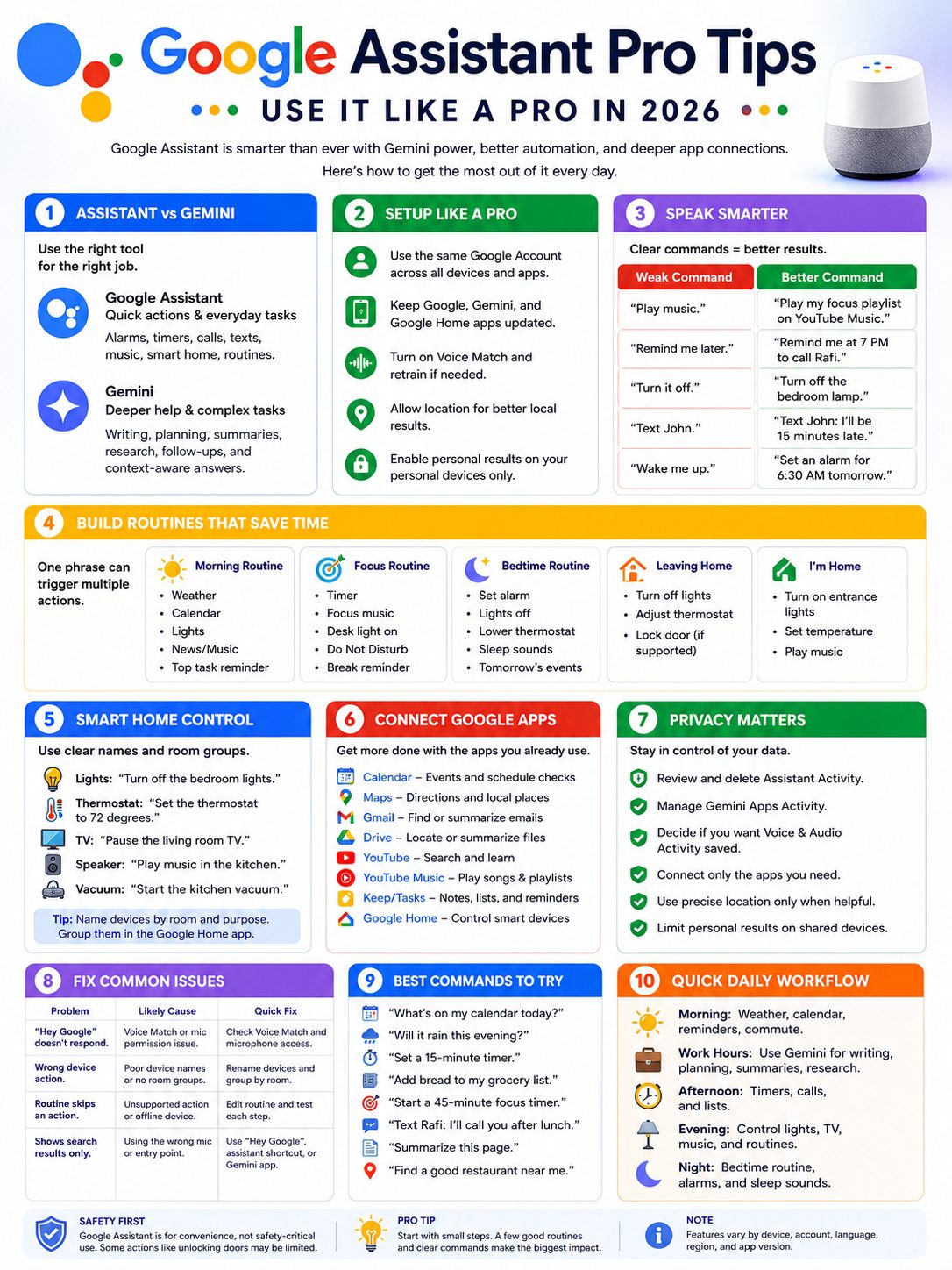
This is where Assistant and Gemini become more useful.
When you connect Google apps, your assistant can do more than answer questions. It can help with your schedule, routes, emails, files, music, videos, lists, and home devices.
Availability depends on your settings and account, but the direction is clear. Google wants Assistant and Gemini to work across your daily tools.
|
Google App or Service |
What It Helps With |
|
Google Calendar |
Events, reminders, schedule checks |
|
Google Maps |
Routes, travel time, nearby places |
|
Gmail |
Email search and summaries when supported |
|
Google Drive |
File help when supported |
|
YouTube |
Video search and learning |
|
YouTube Music |
Songs, playlists, and moods |
|
Google Home |
Smart home control |
|
Keep or Tasks |
Lists, notes, and to-dos |
Use Lists Like a Power User
Lists are boring until you start using them properly.
Try:
- “Add rice to my grocery list.”
- “Create a packing list for my trip.”
- “Add charger to my travel list.”
- “What’s on my shopping list?”
- “Add article idea: Google Assistant productivity tips.”
Don’t dump everything into one list. Create separate lists.
Useful list ideas:
- Grocery list
- Travel packing
- Home repairs
- Article ideas
- Books to read
- Work follow-ups
This makes voice notes easy to find later.
Give Gemini More Context
Gemini works better when you tell it what you actually need.
Weak request:
“Write a message.”
Better request:
“Write a polite WhatsApp message telling my client I’ll send the draft tomorrow morning.”
Even better:
“Write a short, friendly, professional WhatsApp message. Tell my client I’ll send the draft tomorrow morning and thank them for their patience.”
That extra detail turns a generic answer into something you can use.
This is one of the most practical google assistant pro tips for writers, students, business owners, and busy professionals.
Use Assistant in the Car the Smart Way
Android Auto is also moving toward Gemini. That means voice help in the car can feel more natural for supported users.
Still, driving is not the time for long conversations with your phone.
Keep commands short. Use it for simple tasks.
|
Driving Task |
Safer Command |
|
Navigation |
“Navigate to the nearest petrol station.” |
|
Route stop |
“Find a coffee shop along my route.” |
|
ETA |
“Share my ETA with Mom.” |
|
Messaging |
“Text Rafi: I’m on my way.” |
|
Music |
“Play my driving playlist.” |
Hands-Free Still Needs Discipline
Hands-free does not mean distraction-free.
Use Assistant in the car for:
- Directions
- Simple calls
- Short messages
- Music
- Quick route stops
Don’t use it for long planning, deep reading, or complicated research while driving. Park first.
Protect Your Privacy Before You Connect Everything
A helpful assistant needs access to some data. That doesn’t mean you should connect everything without thinking.
Review your Assistant activity, Gemini activity, audio settings, location permission, and connected apps. Delete old activity if you don’t need it. Turn off anything that feels too open.
|
Privacy Area |
What to Check |
|
Assistant Activity |
Review and delete old voice interactions |
|
Gemini Apps Activity |
Check saved prompts and history |
|
Voice and Audio Activity |
Decide whether Google saves audio recordings |
|
Connected Apps |
Keep only the apps you use |
|
Location Permission |
Allow it only when it helps |
|
Shared Devices |
Limit personal results on family devices |
Use Privacy Voice Commands
These commands can help:
- “Hey Google, delete my last conversation.”
- “Hey Google, delete today’s activity.”
- “Hey Google, delete this week’s activity.”
- “Hey Google, that wasn’t for you.”
The last one is useful when Assistant wakes up by mistake.
Review Connected Apps Once a Month
Connected apps can make Gemini smarter. They can also give it more access than you may want.
Use this simple habit:
- Connect Calendar if you ask about your schedule.
- Connect Maps if you use local planning.
- Connect YouTube Music if you use music commands.
- Connect Google Home if you control smart devices.
- Disconnect apps you don’t use.
You don’t need every connection turned on. You need the right ones.
Fix Common Google Assistant Problems
When Assistant stops working, the cause is usually simple.
It may be Voice Match. It may be microphone permission. It may be an old app. It may be a weak internet connection. It may be a device name problem inside Google Home.
Don’t reset everything at once. Check the basics first.
|
Problem |
Likely Cause |
Quick Fix |
|
“Hey Google” does not respond |
Voice Match or mic issue |
Check Voice Match and microphone permission |
|
Wrong light turns on |
Bad device name |
Rename and group devices by room |
|
Routine skips a step |
Unsupported action or offline device |
Test each action in Google Home |
|
Gemini can’t control Home |
Google Home not connected |
Check Gemini connected apps |
|
Weak local results |
Location access off |
Allow location while using the app |
|
It shows search results only |
Wrong microphone used |
Use “Hey Google” or the assistant shortcut |
Use the Right Entry Point
The microphone in the Google Search bar is not always the same as Assistant.
Sometimes it gives you search results instead of doing the action.
For action-based help, use:
- “Hey Google”
- Power button shortcut
- Gemini app
- Google Assistant app if available
- Google Home app
- Routine shortcut
If you say “turn off the lights” into the wrong mic, you may get a search result. The command isn’t bad. You’re just using the wrong door.
Best Google Assistant Commands to Try in 2026
You don’t need hundreds of commands. Start with the ones that make your day easier.
|
Use Case |
Command |
|
Daily plan |
“Hey Google, what’s on my calendar today?” |
|
Weather |
“Will it rain this evening?” |
|
Alarm |
“Set an alarm for 6:30 AM tomorrow.” |
|
Timer |
“Set a 15-minute timer.” |
|
Smart home |
“Turn off all lights.” |
|
Focus |
“Start a 45-minute focus timer.” |
|
Shopping |
“Add bread to my grocery list.” |
|
Music |
“Play calm focus music.” |
|
Message |
“Text Rafi: I’ll call you after lunch.” |
|
Learning |
“Explain this topic in simple words.” |
|
Page help |
“Summarize this page.” |
|
Travel |
“Find a good restaurant near my hotel.” |
A Simple Daily Workflow
Here’s a setup I’d actually use.
Morning: ask for weather, calendar, reminders, and commute time.
Work hours: use Gemini for writing, planning, summaries, and quick research.
Afternoon: use voice commands for timers, calls, and lists.
Evening: use Google Home for lights, TV, music, and routines.
Night: use bedtime routines, alarms, and sleep sounds.
That’s enough for most people. You don’t need to use every feature. You need the features that remove friction from your day.
Final Thoughts
Google Assistant in 2026 is no longer just a tool for alarms and weather.
It’s part voice helper, part smart home controller, part Gemini-powered assistant, and part daily productivity tool. The trick is not to memorize a huge list of commands. The trick is to make it fit your real life.
Use quick commands for alarms, timers, calls, lists, music, and lights. Use Gemini for writing, planning, summaries, and follow-up questions. Use Google Home for devices. Use routines for repeated tasks. Keep your privacy settings tight.
That’s the heart of these google assistant pro tips.
Set it up well. Speak clearly. Connect only what you need. Build a few routines that actually help. Do that, and Google Assistant stops feeling like a novelty. It becomes a quiet helper that saves you time every day.
FAQs About Google Assistant in 2026
|
FAQ Topic |
Short Answer |
|
Assistant vs Gemini |
Gemini is replacing many mobile Assistant experiences |
|
Routines |
They still work, but actions vary by setup |
|
Smart home |
Clear names and room groups matter |
|
Privacy |
You can manage activity, audio, and app access |
|
Android Auto |
Gemini is rolling out, but safe use matters |
Can I still use Google Assistant instead of Gemini?
On some Android devices, yes. Google still allows switching back where supported. But your options depend on your phone, country, language, account, and app version.
Why does “Hey Google” open Gemini now?
Gemini may be set as your main assistant. If it is, “Hey Google” and assistant shortcuts can open Gemini instead of classic Assistant.
Do all old Google Assistant commands still work?
No. Google has removed or changed some older Assistant features. Some voice actions for photos, media alarms, cookbook tools, email sending, and calendar changes no longer work the same way. Use updated commands, routines, or the related app instead.
Can Gemini control my smart home?
Yes, on supported Android devices when Google Home is connected. It can control many common smart home devices, including lights, switches, outlets, thermostats, TVs, speakers, blinds, vacuums, and more. Some security actions stay limited.
Why can’t Gemini connect to Google Home?
One common reason is that Gemini Apps Activity, also called Keep Activity, is off. You may also need a personal Google Account and a supported device.
Is Google Assistant always listening?
When “Hey Google” is on, your device listens for the wake phrase. You can turn off Voice Match, manage microphone permission, and delete activity. You can also control whether Google saves voice and audio recordings.
What’s the best beginner routine?
Start with a morning routine. Add weather, calendar, lights, and news. It gives daily value without complex setup.
Are Google Assistant commands the same in every country?
No. Commands and features can vary by country, language, device, account type, and app version. If something doesn’t work, check settings and availability first.