
A fire tv remote not working problem feels small until it ruins your movie night. The screen is ready. The snacks are ready. But the remote has decided to quit.
The good news? Most Fire TV remote problems are easy to fix. You may not need a new remote. You may not need a new Fire TV Stick either. In many cases, the issue comes from weak batteries, lost pairing, a frozen Fire TV Stick, poor placement, or a small software glitch.
This guide walks you through 7 quick fixes in the right order. Start with the basics. Then move to pairing, reset, app control, updates, and replacement checks. That way, you do not waste money on a new remote when the fix may take two minutes.
Fire TV Remote Not Working: Check This First
Before you start resetting anything, take a second and look at the remote. The small LED light can tell you a lot.
On many newer Fire TV remotes, a slow red blink points to low battery. A fast red blink can mean the remote has a problem. An orange light usually means the remote is not paired. A blue light often means the remote paired successfully.
That little light is your first clue.
|
Remote Light or Behavior |
What It Usually Means |
What to Try First |
|
No light at all |
Dead batteries or poor battery contact |
Replace the batteries |
|
Slow red blink |
Low battery |
Use fresh AAA alkaline batteries |
|
Fast red blink |
Remote error |
Reset the remote |
|
Orange light |
Remote not paired |
Pair the remote again |
|
Blue light |
Remote paired successfully |
Test the buttons |
|
App works, remote does not |
Remote issue |
Reset or replace the remote |
Quick Checks Before You Start Fixing
Do these simple checks first:
- Make sure the Fire TV Stick has power.
- Check that your TV is on the right HDMI input.
- Unplug the Fire TV Stick and plug it back in.
- Stand closer to the Fire TV device.
- Move objects away from the Fire TV Stick.
- Hold the Home button for about 10 seconds.
- Try the Fire TV app if the remote is fully stuck.
If the Fire TV home screen does not load at all, the remote may not be the main problem. The issue could be the power cable, HDMI port, TV input, or Fire TV Stick itself.
1. Replace the Batteries the Right Way
This sounds too obvious, but weak batteries cause a lot of Fire TV remote problems.
A Fire TV remote may stop working even if those same batteries still work in another basic remote. Fire TV remotes use wireless pairing. Many models also support voice control, TV power, and volume buttons. That takes steady power.
Use two fresh AAA alkaline batteries. Do not mix one old battery with one new battery. Do not grab a random pair from another remote and hope for the best.
Also check the battery direction. The plus and minus ends must match the marks inside the battery compartment.
|
Battery Step |
What to Do |
Why It Helps |
|
Use fresh batteries |
Insert two new AAA alkaline batteries |
Fixes low-power issues |
|
Check battery direction |
Match the plus and minus signs |
Prevents no-power problems |
|
Clean the contacts |
Wipe the metal springs with a dry cloth |
Improves battery connection |
|
Avoid mixing batteries |
Use a matched new pair |
Keeps power stable |
|
Close the cover firmly |
Secure the battery door |
Stops loose contact |
Small Battery Mistakes That Cause Big Trouble
A lot can go wrong inside that tiny battery compartment.
One battery may sit slightly loose. A spring may have dust on it. The batteries may be reversed. The contacts may have light corrosion. Any of these can make the remote act dead.
After you replace the batteries, stand near the Fire TV Stick and press Home. If nothing happens, hold Home for about 10 seconds. This can help the remote pair again.
2. Restart the Fire TV Stick
Sometimes the remote is not the problem. The Fire TV Stick is the one that froze.
A Fire TV Stick is basically a small streaming computer. It runs apps, Wi-Fi, Bluetooth, HDMI output, and background updates. Like any device, it can lag or freeze.
Unplug the Fire TV Stick from power. Wait 60 seconds. Plug it back in. Let the home screen load fully. Then test the remote again.
Do not just turn the TV off. Many TVs keep HDMI devices partly powered in standby mode. A full unplug works better.
|
Restart Option |
How to Do It |
Best Time to Try It |
|
Power restart |
Unplug Fire TV from power for 60 seconds |
Frozen screen or no remote response |
|
TV restart |
Turn the TV off and on |
HDMI input seems confused |
|
Remote shortcut |
Hold Select and Play/Pause if the remote partly works |
Quick reboot |
|
Power source check |
Use a wall outlet instead of weak TV USB power |
Random freezing or restarts |
Why Restarting Often Works
A restart clears small glitches. It refreshes the Fire TV system and reconnects wireless controls.
Try this fix if:
- The remote worked earlier but suddenly stopped.
- The screen is frozen.
- Apps open slowly.
- Button presses feel delayed.
- The Fire TV Stick feels hot.
- The issue started after an update.
If the remote works after restarting the device, your remote probably was not broken. The Fire TV Stick just needed a clean reboot.
3. Pair the Remote Again
If your fire tv remote not working issue comes with an orange blinking light, pairing may be the problem.
Pairing simply means the remote and Fire TV Stick recognize each other. If they lose that connection, the remote can have power but still do nothing.
Move close to the Fire TV Stick. Hold the Home button for about 10 seconds. Watch the TV screen for a pairing message. On supported remotes, a blue light may appear when pairing works.
|
Pairing Step |
What to Do |
What Should Happen |
|
Move close |
Stand near the Fire TV device |
Stronger connection |
|
Hold Home |
Press Home for about 10 seconds |
Starts pairing mode |
|
Watch the screen |
Look for a pairing message |
Confirms connection |
|
Reinsert batteries |
Remove and replace them if needed |
Clears contact issues |
|
Use the app |
Try the Fire TV app if the remote fails |
Helps pair another remote |
Pairing a New or Replacement Remote
Bought a new remote? Do not assume it will work right away.
Not every Fire TV remote works with every Fire TV device. Some remotes support only certain Fire TV Stick models, Fire TV smart TVs, or Fire TV Cube versions.
You can use the Fire TV app to pair a replacement remote:
- Connect your phone and Fire TV device to the same Wi-Fi network.
- Open the Fire TV app.
- Select your Fire TV device.
- Go to Settings.
- Choose Controllers & Bluetooth Devices.
- Select Amazon Fire TV Remotes.
- Choose Add New Remote.
- Hold Home on the new remote.
This helps when the original remote is lost, damaged, or completely dead.
4. Reset the Fire TV Remote
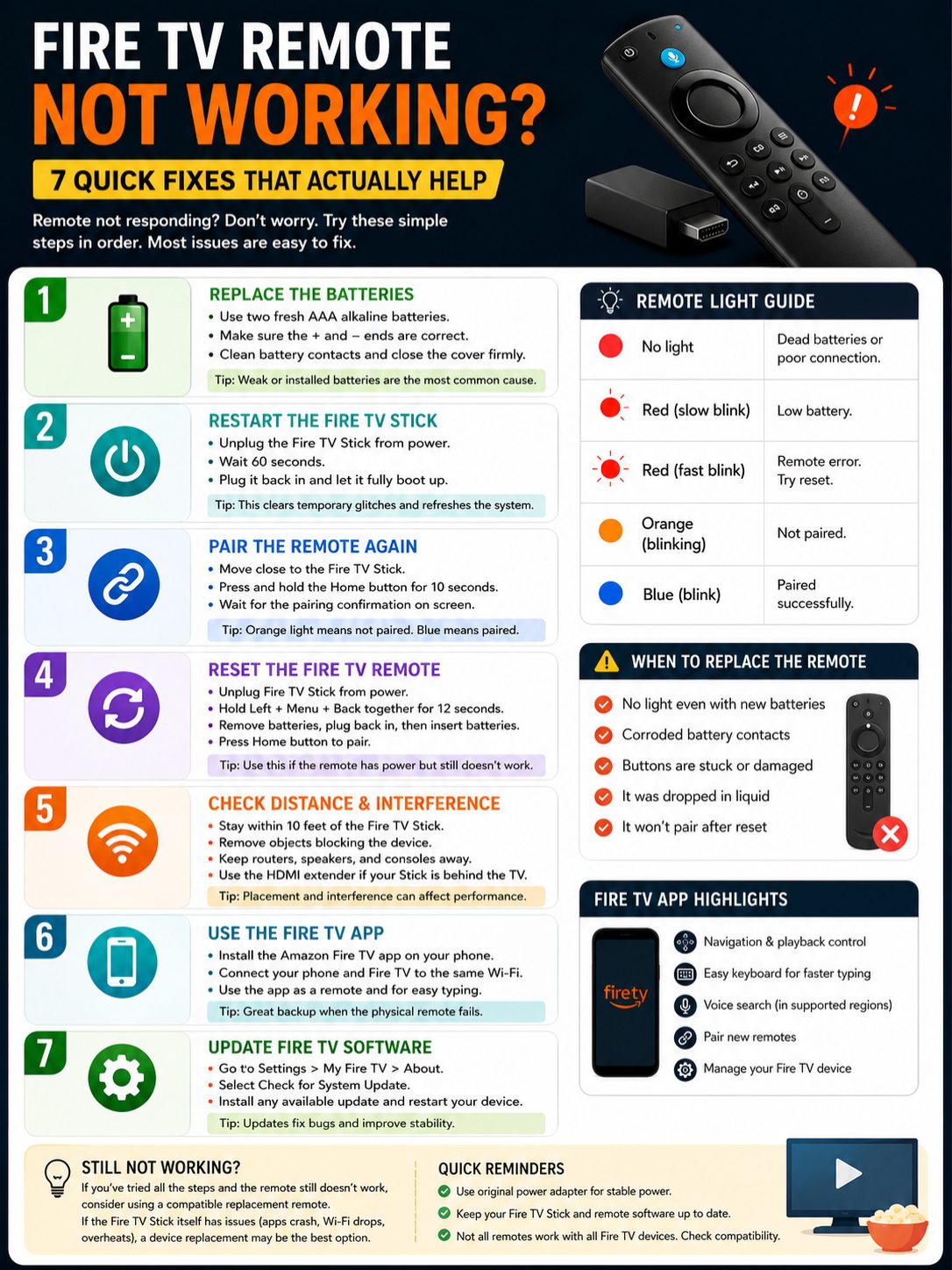
If pairing does not work, reset the remote.
A reset clears the remote’s stuck connection and lets it pair again from scratch. It sounds technical, but the steps are simple.
For many newer Fire TV remotes, use this method:
- Unplug the Fire TV device from power.
- Wait 60 seconds.
- Hold Left, Menu, and Back together for 12 seconds.
- Release the buttons.
- Wait 5 seconds.
- Remove the batteries from the remote.
- Plug the Fire TV device back in.
- Wait for the screen to load.
- Put the batteries back in.
- Press Home to pair the remote.
Some older remotes use different reset steps. If your remote does not have the same buttons, check the correct method for your model.
|
Reset Signal |
What It Usually Means |
What to Do |
|
Fast red blink |
Remote problem |
Reset the remote |
|
Orange light stays on |
Pairing failed |
Reset, then pair again |
|
Buttons lag |
Stuck connection |
Restart and reset |
|
No response after new batteries |
Possible remote damage |
Check contacts |
|
Blue blink after pressing Home |
Pairing worked |
Test navigation |
When Resetting Makes Sense
Reset the remote when it has power but will not control the Fire TV Stick.
Try it if:
- Fresh batteries did not help.
- The remote blinks orange.
- The remote blinks red quickly.
- Holding Home does not pair it.
- The Fire TV app works but the remote does not.
- The remote was paired with another Fire TV device.
Do not factory reset the Fire TV Stick yet. That wipes apps, accounts, and settings. Reset the remote first. It is much safer.
5. Check Distance, Interference, and HDMI Placement
Fire TV remotes do not need perfect line-of-sight like old infrared remotes. Still, distance and signal blockage can cause trouble.
If your Fire TV Stick sits behind a wall-mounted TV, the TV body may weaken the signal. A metal TV stand, nearby router, game console, or speaker can also interfere.
Move closer to the Fire TV Stick. Clear space around it. If you have the HDMI extender that came with the Fire TV Stick, use it. It lets the stick sit away from the back of the TV.
|
Problem Area |
What Can Happen |
Simple Fix |
|
Fire TV hidden behind TV |
Weak remote response |
Use an HDMI extender |
|
Router too close |
Wireless interference |
Move devices apart |
|
Metal stand or cabinet |
Signal blocking |
Reposition the Fire TV Stick |
|
Too much distance |
Pairing failure |
Move closer |
|
Game console nearby |
Wireless congestion |
Create space |
|
Wall-mounted TV |
Poor placement |
Extend the stick outward |
Signs You Have a Signal Problem
This may be the issue if:
- The remote works only from one angle.
- The remote works only when you stand close.
- Button presses lag.
- The problem started after moving the TV.
- The issue began after adding a router, console, speaker, or soundbar.
This fix sounds basic, but it works more often than people expect. Small streaming sticks can be picky about placement.
6. Use the Fire TV App as a Backup Remote
If the physical remote is not working, your phone can save the day.
The official Amazon Fire TV app lets you control your Fire TV device from your Android phone or iPhone. It also gives you a keyboard, which makes typing passwords and search terms much easier.
Install the app. Connect your phone to the same Wi-Fi network as the Fire TV Stick. Open the app, choose your Fire TV device, and enter the code shown on the TV screen.
|
Fire TV App Feature |
Why It Helps |
|
Touch navigation |
Replaces remote buttons |
|
Phone keyboard |
Makes passwords and searches faster |
|
Playback controls |
Lets you pause, play, rewind, and fast-forward |
|
Voice search |
Works in supported regions |
|
Device setup |
Helps manage Fire TV settings |
|
Remote pairing |
Helps pair a new remote |
What If the App Cannot Find Your Fire TV?
The Fire TV app usually needs your phone and Fire TV device on the same Wi-Fi network. If one device is on a guest network or VPN, the app may not detect the Fire TV Stick.
Try these steps:
- Restart your phone.
- Restart the Fire TV Stick.
- Turn off VPN on your phone.
- Check that both devices use the same Wi-Fi.
- Turn off mobile data for a moment.
- Move closer to the router.
- Reinstall the Fire TV app.
If your Fire TV Stick was factory reset and is not connected to Wi-Fi, the app may not help. In that case, you may need a compatible physical remote.
7. Update Fire TV Software
Software can also cause remote problems. Fire TV devices usually download updates automatically when connected to the internet, but it is still worth checking manually.
Use the physical remote if it works. If not, use the Fire TV app.
Go to:
Settings > My Fire TV or Device & Software > About > Check for System Update
Install any available update. Restart the Fire TV device after the update. Then test the remote again.
|
Update Step |
What to Do |
Why It Matters |
|
Open Settings |
Use the remote or app |
Access device controls |
|
Select About |
Find device information |
Opens update options |
|
Check for update |
Install if available |
Fixes bugs and stability issues |
|
Restart Fire TV |
Reboot after updating |
Applies changes cleanly |
|
Test remote |
Try Home, Back, and navigation buttons |
Confirms the fix |
When Updates Help
Updates can help when remote problems come from system lag, Bluetooth bugs, app issues, or Fire TV instability.
Updates will not fix a cracked remote, leaked batteries, broken buttons, or an incompatible replacement remote. But they are worth checking before you buy anything.
If your Fire TV Stick is old and slow, remote trouble may be part of a bigger performance issue. Clear app cache, remove unused apps, and check storage before replacing the device.
When Should You Replace the Fire TV Remote?
Replace the remote only after you try the simple fixes.
A new remote makes sense if the current one has no light with fresh batteries, damaged battery contacts, water damage, stuck buttons, or repeated pairing failure after reset.
Before buying, check compatibility. This matters. Fire TV remotes are not all the same.
|
Replace the Remote If |
Why It Makes Sense |
|
No LED with fresh batteries |
The remote may be dead |
|
Battery contacts are corroded |
Power cannot pass properly |
|
Buttons are stuck |
Physical damage may block input |
|
It was dropped in liquid |
Internal parts may be damaged |
|
It never pairs after reset |
Hardware may have failed |
|
The app works perfectly |
The Fire TV Stick is likely fine |
|
A replacement remote fails |
It may not be compatible |
Should You Replace the Fire TV Stick Instead?
Not right away.
If the Fire TV app works smoothly, your Fire TV Stick is probably fine. Replace the remote first.
Think about replacing the Fire TV Stick only if:
- Apps crash often.
- The device overheats.
- Wi-Fi keeps dropping.
- Both the app and remote lag badly.
- Storage is always full.
- The device is very old.
- Important apps no longer support it.
A replacement remote costs less. A new Fire TV Stick makes sense only when the whole device feels tired.
Final Thoughts
A fire tv remote not working problem is annoying, but it usually has a simple fix.
Start with fresh AAA alkaline batteries. Restart the Fire TV Stick. Hold Home to pair the remote. If that fails, reset the remote. Use the Fire TV app as a backup. Then check for software updates and compatibility.
Most people do not need a new Fire TV Stick. The problem often comes from power, pairing, placement, or a stuck remote connection.
Fix the easy things first: batteries, restart, pairing, reset, app control, software update, and compatibility. Follow that order, and you will save time, money, and a lot of button-smashing frustration.
Uncommon FAQs About Fire TV Remote Problems
Some remote issues are not covered well in basic guides. These questions help clear up the confusing parts.
|
Question |
Quick Answer |
|
Why is my Fire TV remote blinking orange? |
It usually is not paired. |
|
Why is my remote blinking red slowly? |
The batteries are likely low. |
|
Why does volume work but navigation does not? |
TV controls and Fire TV controls work differently. |
|
Can my phone replace the remote? |
Yes, use the Fire TV app. |
|
Do all Fire TV remotes work with all Fire TV Sticks? |
No, always check compatibility. |
|
Is factory reset the best fix? |
No, use it only as a last resort. |
Why Does My Fire TV Remote Blink Orange?
An orange light usually means the remote is not paired with the Fire TV device.
Hold the Home button for about 10 seconds. If that does not work, reset the remote and try pairing again.
Volume, power, and mute buttons may control your TV, soundbar, or receiver through equipment control. Navigation buttons control the Fire TV interface.
That means volume can work even when the remote has lost its Fire TV pairing.
Pair the remote again first. Then check Equipment Control settings if power or volume still acts strangely.
Can I Use My TV Remote With Fire TV Stick?
Sometimes, yes.
If your TV supports HDMI-CEC, your TV remote may control basic Fire TV navigation. The name changes by TV brand. You may see it called HDMI-CEC, Anynet+, Bravia Sync, Simplink, VIERA Link, or something similar.
Why Does My Fire TV Remote Drain Batteries Fast?
Fast battery drain can happen because of weak batteries, stuck buttons, constant pairing trouble, or remote hardware problems.
Remove the batteries. Check that no button feels stuck. Clean the battery contacts with a dry cloth. Then try a fresh matched pair of AAA alkaline batteries.
Can I Reset Fire TV Without the Remote?
Yes, but only if the Fire TV app connects.
Use the app as a remote and open Settings. If the Fire TV Stick is not connected to Wi-Fi, the app may not find it. In that case, you may need a compatible replacement remote.
Should I Factory Reset My Fire TV Stick?
Only as a last step.
A factory reset removes apps, accounts, preferences, and settings. Try batteries, restart, pairing, remote reset, app control, updates, and compatibility checks first.