
Notion has changed a lot. It’s no longer just a neat place for notes, docs, tasks, and databases. In 2026, it feels more like a full work hub with AI built into the middle of it.
That’s why notion ai 2026 deserves a fresh look.
The old advice was simple: ask Notion AI to write, summarize, or rewrite something. That still works. But it’s only a small part of what the tool can do now.
Today, Notion AI can help you plan projects, search team knowledge, summarize meetings, update databases, build task lists, and run repeated workflows. It can work with your pages, databases, meeting notes, files, and connected apps.
But there’s one catch.
Notion AI is only as useful as the workspace you give it. A messy Notion setup leads to messy answers. A vague prompt gives you vague output. And if you let AI act without review, small mistakes can spread fast.
This guide shows how to use Notion AI like a pro in 2026. No hype. No fluff. Just practical ways to save time and work smarter.
notion ai 2026: What Changed and Why It Matters
Notion AI has moved beyond basic writing help. It now includes tools like Notion Agent, Custom Agents, AI Meeting Notes, Enterprise Search, AI Connectors, and AI Autofill for databases.
That matters because most teams don’t work in one clean place. Notes live in Notion. Chats happen in Slack. Files sit in Google Drive. Tasks may be in Jira, Linear, GitHub, or another tool. Email adds another layer of mess.
Notion AI tries to pull more of that work into one useful space.
|
Feature |
What It Does |
Best Use |
|
Notion Agent |
Handles multi-step tasks inside Notion |
Planning, editing, page creation, database updates |
|
Custom Agents |
Runs repeated workflows |
Reports, triage, content checks, updates |
|
AI Meeting Notes |
Records, transcribes, and summarizes meetings |
Calls, interviews, standups, client meetings |
|
Enterprise Search |
Finds answers across Notion and connected apps |
Team knowledge search |
|
AI Connectors |
Brings context from tools like Slack, Google Drive, Jira, GitHub, Gmail, and Microsoft apps |
Cross-tool research |
|
AI Autofill |
Adds AI-generated values to database fields |
Summaries, tags, categories, status updates |
The Real Shift: Context
The best part of Notion AI is not that it can write. Plenty of tools can do that.
Its real strength is context.
When your tasks, notes, strategy docs, meeting summaries, SOPs, and content calendars already live in Notion, the AI has more to work with. You don’t need to copy and paste ten documents into another chatbot.
You can ask it to:
- Turn meeting notes into tasks.
- Build a project tracker from a rough brief.
- Find old decisions from past pages.
- Draft a report from database updates.
- Create a content calendar from keyword notes.
- Summarize customer feedback.
- Flag missing owners or deadlines.
That’s the pro move. Don’t treat it like a blank writing bot. Treat it like a workspace assistant that needs good context and clear instructions.
Clean Your Workspace Before You Ask AI to Help
Notion AI works better when your workspace has structure.
If your pages have random titles, your databases have missing fields, and your notes are scattered everywhere, the AI has to guess. Sometimes it will guess well. Sometimes it won’t.
A cleaner setup gives you cleaner results.
|
Workspace Area |
What to Fix |
Why It Helps |
|
Page titles |
Use clear names |
AI can find the right page faster |
|
Databases |
Add useful properties |
AI can sort, filter, and update data better |
|
Tags |
Keep labels consistent |
Summaries and grouping become cleaner |
|
Status fields |
Use simple stages |
Project answers become easier to trust |
|
Owners |
Assign people or teams |
Action items become useful |
|
Source pages |
Keep core docs updated |
AI works from better information |
Build a Few Core Source Pages
Before you go deep with notion ai 2026, create a few pages you’ll use again and again.
Good source pages include:
- Brand voice guide
- Editorial guidelines
- Product information
- Team roles
- Project roadmap
- Customer FAQ
- Meeting notes database
- SOP library
- Content calendar
- Research notes
Read Also: How to Speed Up Windows 11 Startup in 2026
These pages become your workspace memory.
When you ask Notion AI to help, mention the right source pages with @ references.
Example:
“Use @Brand Voice Guide and @Editorial Calendar. Create a 4-week content plan for our AI tools category. Keep the tone simple, practical, and SEO-friendly.”
That prompt works because it gives the AI three things: source, task, and style.
A weak prompt says, “Make a content plan.”
A strong prompt says what to use, what to create, and how the output should look.
Use Notion Agent for Real Work, Not Just Rewrites
Notion Agent is useful when you want the AI to do more than improve a sentence. It can work with pages, databases, files, and connected app context. It can also handle multi-step tasks.
That makes it useful for content teams, founders, editors, students, marketers, project managers, and operations teams.
|
Task |
Weak Prompt |
Better Prompt |
|
Project planning |
Make a launch plan |
Build a launch tracker with tasks, owners, deadlines, risks, and milestones |
|
Content planning |
Give me blog ideas |
Create 20 article ideas using @Published Articles and @Keyword List |
|
Database setup |
Make a tracker |
Create a database with status, owner, due date, priority, channel, and notes |
|
Research |
Summarize this |
Extract key facts, open questions, risks, and action items |
|
Team updates |
Write an update |
Summarize blocked tasks, finished work, and next steps from @Project Tracker |
Give the Agent a Clear Job
A good prompt does not need to be long. It needs to be clear.
Use this simple structure:
- Give the source.
- Explain the task.
- Set the format.
- Add rules.
- Add a review step.
Example:
“You are my editorial assistant. Use @AI Tools Content Plan and @Published Articles Database. Create 15 article ideas for July 2026. Put them in a table with title, focus keyword, search intent, target reader, and internal link ideas. Avoid topics we already published. Ask me before adding anything to the database.”
That last line is important.
For serious work, tell the Agent to ask before making changes. You get speed, but you don’t lose control.
Turn AI Meeting Notes Into Real Action
AI Meeting Notes can record meetings, transcribe the conversation, pull out key points, and list action items. That sounds simple, but it can save a lot of admin time.
Still, you need a process.
If you record a meeting and never review the note, you’ve only created another document to ignore. The real value comes after the call.
|
Step |
What to Do |
Why It Matters |
|
Before the meeting |
Add agenda and goals |
The summary gets better |
|
During the meeting |
Start transcription with consent |
You capture the full discussion |
|
After the meeting |
Review decisions and action items |
You avoid confusion |
|
Store the note |
Save it in a meeting database |
You can search it later |
|
Share the recap |
Send only the polished version |
The team gets clear next steps |
Create a Meeting Notes Database
Set up one database for meeting notes. Add these fields:
- Meeting type
- Date
- Project
- Attendees
- Summary
- Decisions
- Action items
- Owner
- Due date
- Follow-up status
After a meeting, ask Notion AI:
“Review this meeting note. Create a short summary, list confirmed decisions, extract action items with owners, and flag anything unclear.”
For client calls, add one more rule:
“Do not invent commitments. Mark unclear points as ‘needs confirmation.’”
That one line can prevent a lot of trouble.
Always Handle Consent Properly
AI Meeting Notes involves recording and transcription. Don’t treat that casually.
Before using it in a client call, interview, private team discussion, HR meeting, or legal conversation, ask for consent.
A simple line works:
“Is everyone okay if I use Notion AI Meeting Notes to record and transcribe this call?”
It’s professional. It’s respectful. And it keeps everyone clear from the start.
Use Enterprise Search to Find Answers Faster
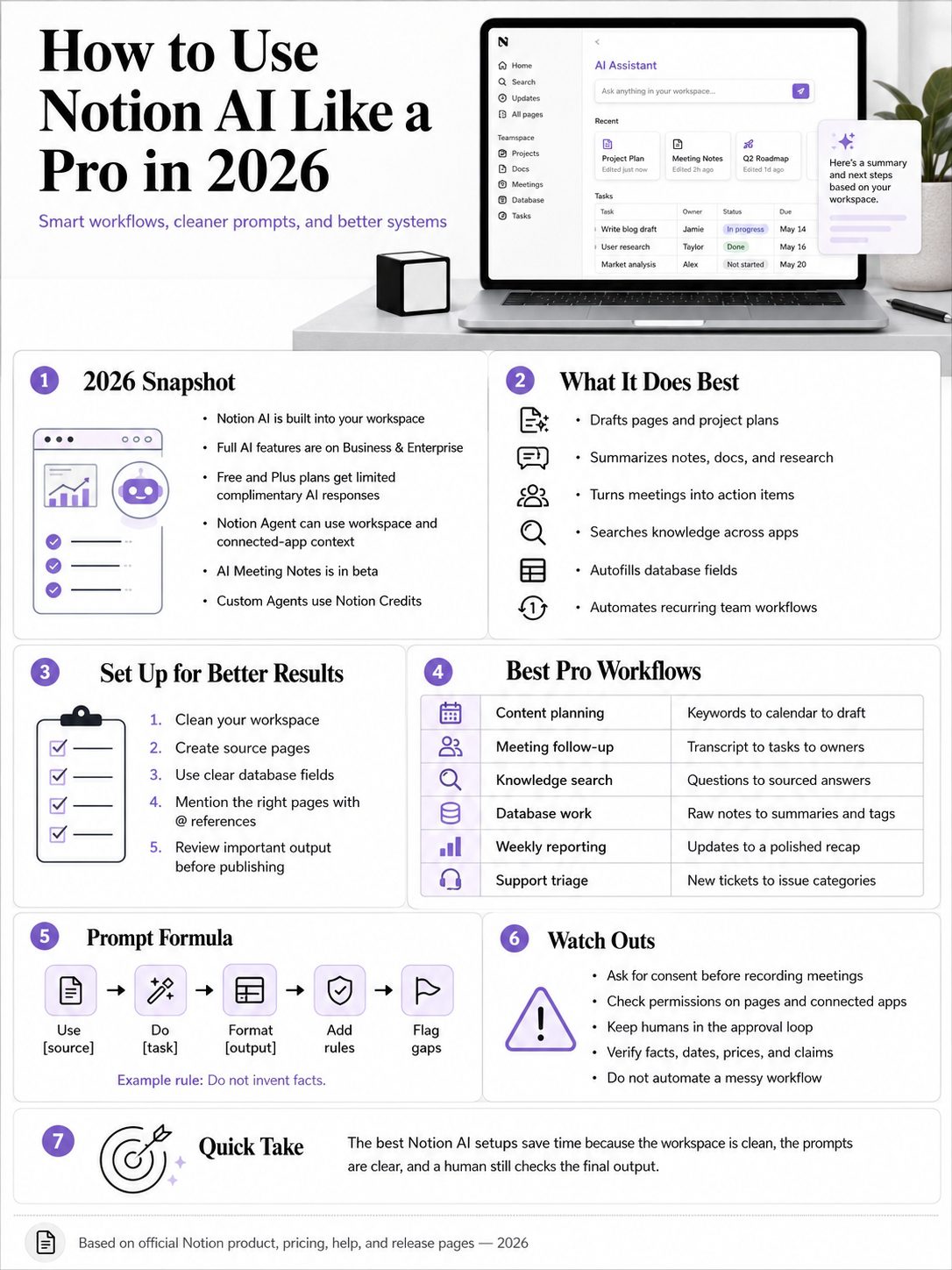
Enterprise Search helps you find answers across Notion and connected tools. With AI Connectors, Notion AI can pull context from apps such as Slack, Google Drive, Jira, GitHub, Gmail, Microsoft Teams, SharePoint, OneDrive, Linear, and calendars, depending on your setup.
This matters because modern work is messy. The answer you need may be in an old meeting note, a project page, a Slack thread, or a shared document.
|
Search Need |
Example Prompt |
Useful Output |
|
Project status |
What changed in the redesign project this week? |
Short update with blockers |
|
Decision history |
What did we decide about pricing? |
Summary of decisions and source context |
|
Client work |
Find the latest notes for Client A |
Recent notes and next steps |
|
Content planning |
What AI topics have we already covered? |
Published topics and content gaps |
|
Support |
What complaints came up most this month? |
Grouped themes and examples |
Ask Better Search Questions
Weak question:
“What’s happening with marketing?”
Better question:
“Search @Marketing Roadmap, @Weekly Updates, and connected Slack messages. Summarize campaign status, blockers, decisions, and next steps from the last 14 days.”
That second prompt works better because it sets the scope.
It tells Notion AI where to look, what time period matters, and what kind of answer you want.
For important work, ask for source pages or source context. Then open those pages and check the details before you act.
Build Custom Agents for Work That Repeats
Custom Agents are best for repeated tasks. They can run from triggers or schedules, depending on how you set them up.
Use Notion Agent for one-time work. Use Custom Agents when the same task keeps coming back.
|
Repeated Task |
Custom Agent Idea |
Trigger |
|
Weekly reports |
Summarize project progress |
Every Friday |
|
Editorial checks |
Suggest internal links for new drafts |
New article added |
|
Support triage |
Categorize tickets by issue type |
New support item |
|
Sales notes |
Summarize new lead details |
New CRM row |
|
Product feedback |
Group feedback into themes |
New feedback entry |
|
Team updates |
Create project summaries |
Weekly schedule |
Keep Each Agent Focused
Don’t build one huge agent called “Marketing Helper.” That sounds useful, but it will become hard to manage.
Build smaller agents with one clear job.
Weak agent:
“Help with content.”
Better agent:
“Every Monday morning, read @Content Calendar and @Published Articles. Create a weekly editorial report with published posts, delayed drafts, missing briefs, internal link opportunities, and next actions.”
A focused agent is easier to test. It is easier to trust. It is also easier to stop if it starts wasting credits or producing weak results.
Watch Credit Usage
Custom Agents use Notion Credits. So don’t turn everything into an automated workflow just because you can.
Before you create one, ask:
- Does this task repeat often?
- Does it save real time?
- Does it need approval?
- How often should it run?
- What does a good result look like?
- Who owns this agent?
- When should we pause or delete it?
Automation should remove friction. It should not create a new thing to manage.
Use AI Autofill to Keep Databases Useful
AI Autofill can summarize, tag, classify, and enrich database rows.
That’s useful for content, sales, research, product, and support teams. It can cut down a lot of manual sorting.
|
Database |
Useful AI Field |
Example Output |
|
Blog calendar |
Search intent |
Informational, commercial, navigational |
|
Research library |
Key takeaway |
One-sentence summary |
|
CRM |
Lead summary |
Short company or contact note |
|
Product feedback |
Theme |
Pricing, onboarding, feature request |
|
Support tickets |
Issue type |
Billing, bug, account access |
|
Meeting notes |
Follow-up needed |
Yes or no |
Use AI as a First Pass
AI Autofill is great for first drafts of information. It is not perfect.
For example, it can label a support ticket as “billing,” but a human should still check urgent cases. It can suggest search intent for an article, but an editor should still review the SERP and keyword context.
A safe workflow looks like this:
- Add raw information.
- Let AI fill a summary, tag, or category.
- Review the result.
- Approve or edit.
- Use filtered views for action.
That gives you speed without giving up quality.
Write Better Prompts Inside Notion AI
Good prompts still matter. Even with agents and connected apps, Notion AI needs clear instructions.
You don’t need to write a long prompt. You need to write a useful one.
|
Prompt Part |
Why It Helps |
Example |
|
Source |
Tells AI where to look |
Use @Content Calendar |
|
Task |
Defines the job |
Create a 30-day plan |
|
Format |
Saves editing time |
Return a table |
|
Rules |
Prevents weak output |
Do not invent facts |
|
Audience |
Improves tone |
Write for beginners |
|
Review step |
Reduces risk |
Ask before editing |
Use This Simple Prompt Formula
Use this structure:
“Use [source]. Do [task]. Format it as [output]. Follow [rules]. Highlight [gaps or risks].”
Example for content:
“Use @SEO Brief and @Brand Voice Guide. Create an outline for ‘notion ai 2026.’ Include H2s, H3s, FAQs, semantic keywords, internal link ideas, and a short meta description. Keep the tone simple and practical. Highlight any missing research.”
Example for project work:
“Use @Launch Plan and @Meeting Notes. Create a task list with owner, deadline, priority, and status. Flag tasks with no owner or unclear deadline.”
Example for research:
“Use this uploaded PDF and @Research Notes. Extract key claims, data points, risks, and unanswered questions. Put them in a table. Do not add facts that are not in the sources.”
This formula keeps the output focused. It also makes the AI easier to check.
Best Notion AI Workflows for Different Users
The smartest users don’t open Notion AI randomly. They build small systems around it.
That’s where notion ai 2026 becomes useful in daily work.
|
User Type |
Best Workflow |
Why It Works |
|
Blogger |
Keyword list to outline to draft checklist |
Speeds content planning |
|
Editor |
Draft review and gap finder |
Improves quality |
|
Founder |
Meeting notes to tasks |
Keeps execution moving |
|
Sales team |
Call notes to CRM summary |
Reduces admin work |
|
Product team |
Feedback to themes |
Finds repeated issues |
|
HR team |
Policy Q&A agent |
Reduces repeated questions |
|
Student |
Lecture notes to study guide |
Makes revision easier |
Workflow 1: SEO Content Engine
Create these databases:
- Keyword list
- Article calendar
- Published articles
- Internal links
- Competitor notes
- Draft checklist
Then ask:
“Using @Keyword List and @Published Articles, suggest 20 article ideas for the AI Tools category. Avoid duplicate topics. Include focus keyword, URL slug, search intent, target reader, and internal link opportunities.”
This works well for publishers because it keeps research, planning, editing, and internal linking in one place.
Workflow 2: Meeting-to-Execution System
After every meeting, ask Notion AI to create:
- Summary
- Decisions
- Action items
- Owners
- Due dates
- Risks
- Follow-up message
Then move approved action items into your task database.
This turns meetings into actual work. Not just another page of notes.
Workflow 3: Team Knowledge Assistant
Build a clean knowledge base with verified pages for:
- Policies
- Product details
- Brand rules
- SOPs
- FAQs
- Team processes
- Security guidelines
Then use Enterprise Search or a Q&A Custom Agent to answer team questions.
The source pages matter a lot here. If your knowledge base is old, the AI answer may be old too.
Privacy, Accuracy, and Control: What to Watch
Notion AI can save time, but you still need guardrails. This matters even more when you connect apps, record meetings, or let agents edit workspace content.
|
Risk |
What Can Go Wrong |
Safer Practice |
|
Wrong answer |
AI summarizes old or unclear information |
Ask for sources and verify |
|
Over-sharing |
Meeting notes reach the wrong people |
Check sharing settings |
|
Bad automation |
Agent runs too often or too broadly |
Use narrow triggers |
|
Credit waste |
Custom Agents run without clear value |
Track usage |
|
Sensitive data |
Private info enters AI workflows |
Review permissions |
|
Publishing errors |
AI invents stats or claims |
Require human review |
Keep Humans in the Loop
Use human approval for:
- Published content
- Legal topics
- Medical topics
- Finance topics
- HR decisions
- Client communication
- Public reports
- Sensitive internal updates
A good safety prompt is:
“Draft this, but mark uncertain claims. Do not add statistics unless they appear in the provided source pages.”
That one sentence can prevent a lot of bad output.
Common Mistakes to Avoid
Most weak Notion AI results come from three things: messy setup, vague prompts, and too much trust.
|
Mistake |
Why It Hurts |
Better Move |
|
Asking vague questions |
AI guesses too much |
Mention sources and format |
|
Using messy databases |
Context gets weak |
Clean properties first |
|
Automating too early |
Bad workflows scale fast |
Test manually first |
|
Skipping review |
Errors reach readers or teams |
Add approval steps |
|
Ignoring permissions |
Sensitive context may be exposed |
Review access settings |
|
Running too many agents |
Hard to manage cost and quality |
Use focused agents |
|
Expecting perfect research |
AI may miss nuance |
Cross-check facts |
Don’t Let AI Replace Judgment
Notion AI can draft, summarize, organize, and find patterns. That’s useful.
But it should not replace editorial judgment, legal review, financial review, medical advice, or expert decisions.
Use it to speed up the first part of the work. Let humans finish the important parts.
That’s where quality lives.
Final Thoughts
The smartest way to use notion ai 2026 is simple: stop treating it like a writing shortcut.
Use it as part of your work system.
Clean your workspace. Build strong source pages. Mention the right pages in prompts. Use Notion Agent for multi-step tasks. Use AI Meeting Notes to turn calls into action. Use Enterprise Search to find answers faster. Use Custom Agents only for repeated work that clearly saves time. Use AI Autofill to keep databases useful.
Most of all, keep a human review step.
Notion AI can help you move faster. But speed only matters when the output is accurate, useful, and safe to act on.
That’s how you use Notion AI like a pro in 2026.
Uncommon FAQs About Notion AI in 2026
|
Question |
Short Answer |
|
Can Notion AI edit my pages and databases? |
Yes, Notion Agent can create and edit pages and databases when it has permission. |
|
Can Notion AI read connected apps? |
Yes, through AI Connectors, depending on setup, permissions, and plan. |
|
Is AI Meeting Notes available to everyone? |
Notion lists AI Meeting Notes for Business and Enterprise users, plus eligible mobile subscriptions where AI is included. |
|
Do Custom Agents cost extra? |
Custom Agents use Notion Credits. Always check Notion’s current pricing page because pricing can change. |
|
Can Notion AI replace project managers? |
No. It can help with updates, tasks, and summaries, but humans still need to make decisions. |
|
Can Notion AI write SEO articles? |
It can help with briefs, outlines, tables, FAQs, and drafts. Editors should still verify facts and improve the writing. |
|
Can Notion AI summarize PDFs and CSVs? |
Notion Agent can work with uploaded files and can turn structured information into pages or databases. |
|
Should solo creators use Custom Agents? |
Only for repeated tasks. For one-time work, Notion Agent is usually enough. |
|
Can Notion AI make mistakes? |
Yes. Always review important outputs, especially facts, dates, prices, and claims. |
Is Notion AI Better Than ChatGPT?
It depends on the job.
ChatGPT is often better for open brainstorming, broad research, and creative writing. Notion AI works better when the task depends on your Notion workspace, pages, databases, meeting notes, and team context.
A smart workflow uses both.
Use ChatGPT for wide thinking. Use Notion AI for workspace execution.